
Are you tired of your WordPress site looking just like everyone else’s? Imagine the feeling of finally having a site that reflects your unique brand and style.
Adding a theme option in the Appearance section of WordPress can transform your website into a true reflection of your vision. This simple tweak gives you control over your site’s aesthetics without needing to be a coding expert. In this guide, you’ll discover how to easily add theme options, making customization a breeze.
Ready to elevate your website’s design and captivate your audience? Dive in and learn how to make your site stand out!
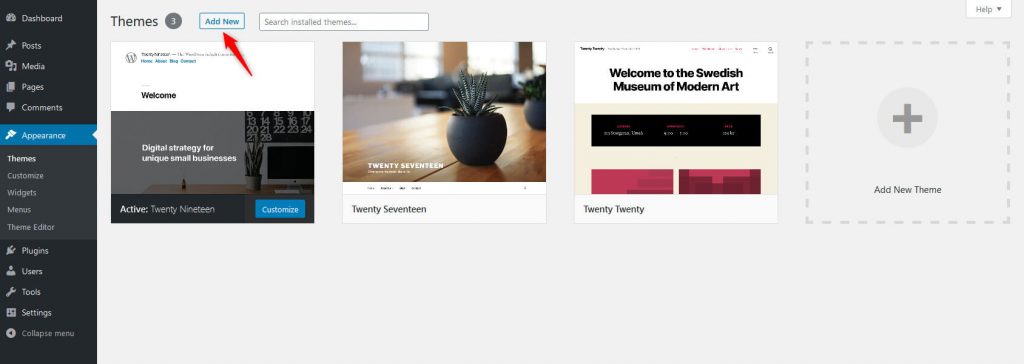
Credit: firstsiteguide.com
Benefits Of Custom Theme Options
Custom theme options help make your website unique. They allow you to change colors and fonts. You can also add your own logo easily. This makes your site look special and different.
Users can update settings without touching any code. This makes it easy for everyone. You don’t need to be a tech expert. Anyone can make changes quickly.
These options also help keep your website consistent. All pages will have the same style. This creates a better experience for visitors. They will find it easier to navigate.
Adding custom options saves time. You can update many things at once. This helps in making quick changes. It is a smart way to manage a site.
Setting Up Your WordPress Environment
Enhance your WordPress site by adding a theme option in the Appearance menu. Navigate to your WordPress dashboard, then create a function to register your theme options page. Customize settings easily and improve your site’s design.
Installing Necessary Plugins
Plugins make WordPress better. They add new features. Start by installing theme options plugins. These plugins help customize your theme. Popular choices include Options Framework and Redux Framework. Visit the plugin store. Search for these plugins. Click install and activate them. Always check plugin compatibility. Ensure plugins work with your theme version. This prevents errors. Keep plugins updated for best performance.
Preparing Your Theme For Customization
Themes are important for site appearance. Make sure your theme supports customization. Some themes have built-in options. Look for these in the theme settings. If not, create a child theme. A child theme lets you make changes safely. It won’t affect the parent theme. Backup your site before changes. Use FTP to access theme files. This helps in editing files. Open the functions.php file. Add code for theme options. Save changes and check your site. Your theme is now ready for customization.
Creating A Theme Options Page
The WordPress Customizer API lets you add theme options easily. It provides a simple way to create custom settings. You can modify theme colors, fonts, and layouts. Users can see changes live before saving. This makes design tweaks quick and fun. Start by registering a setting using customize_register hook. Then, add sections and controls to your theme. Keep options minimal to avoid confusion.
The Settings API offers advanced control for developers. It allows for complex settings management. You can create custom fields and validate input. Organize settings in groups for clarity. Use this API for detailed theme configuration. It supports multiple option types like text, checkboxes, and selects. This API ensures data security and integrity. Perfect for themes needing extensive customization.
Adding Custom Settings And Controls
Add text and color choices to your theme. Easy customization for users. Let them pick their favorite colors. Offer a simple text input. Users like options. Make your theme stand out. Colors can match the brand identity. Simple settings improve user experience. Keep it user-friendly. No need for complex settings.
Allow users to upload images and media. Simple upload buttons work best. Users can add logos and photos. Media settings should be easy to find. Help users feel in control. Clear instructions are helpful. Make media settings intuitive. Users like to see changes fast. Ensure image quality is good.
Use advanced fields for more options. Extra settings can be helpful. Let users add more data. Custom fields give flexibility. They can add unique features. Make sure it is not confusing. Use clear labels for each field. Help users make the most of it. Advanced options can be fun.
Integrating Theme Options With Your Design
Theme options let users change the look of their site. Linking these options with theme elements is easy. Use WordPress functions to connect them. Add settings in the customizer. Then, fetch values from these settings. Apply them to your theme elements. This way, changes appear instantly. Users love seeing updates right away. Keep your code clean.
Dynamic styles make a site feel alive. Use JavaScript or PHP for this. When users pick a new color, update styles. Change backgrounds, fonts, and more. Use hooks in WordPress. This lets style changes happen fast. Users see their choices without delay. Simple code makes updates smooth. Keep scripts light for speed.
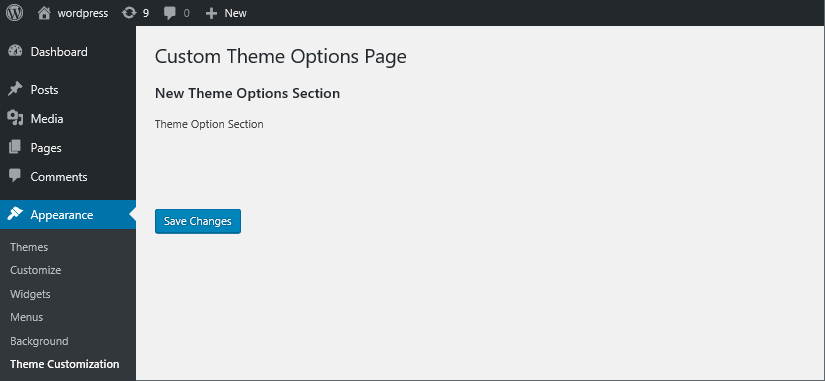
Credit: blog.templatetoaster.com
Testing And Troubleshooting
Themes may not show up as expected. Check if the theme files are correct. Many problems arise from missing files or wrong file names. Ensure that all needed files are in the right folder. Sometimes, updates can cause issues. Update the theme and WordPress to the latest versions. If the problem continues, deactivate all plugins. Then, activate them one by one to find the problem plugin. This method is called the plugin conflict test.
Themes must work on all devices. Test on phones, tablets, and computers. Use browsers like Chrome, Firefox, and Safari. Each one may show the theme differently. Check for responsive design. This means the theme changes size to fit the screen. If it does not, adjust the CSS settings. Use the inspect tool in your browser. It helps find problems with size and layout. Fixing these ensures everyone sees the theme well.
Enhancing User Experience
Adding theme options in WordPress’s Appearance enhances user experience. This allows users to customize their site easily. It ensures a personalized look without coding.
Simplifying The User Interface
Adding a theme option in WordPress can make life easier. Users find it simple to change styles. They can switch colors and fonts with ease. This keeps the website fresh and exciting. No need for coding skills. Just a few clicks can do the magic. It helps in making the website look unique. A user-friendly interface is important. It makes users happy and keeps them coming back.
Providing User Documentation
Documentation helps users understand new features. It explains how to use theme options. Users can learn to customize their site easily. Clear steps guide them through the process. Good documentation saves time. It reduces the need for support. Users feel confident when they have instructions. It helps in solving problems on their own. A well-documented theme is a helpful tool.
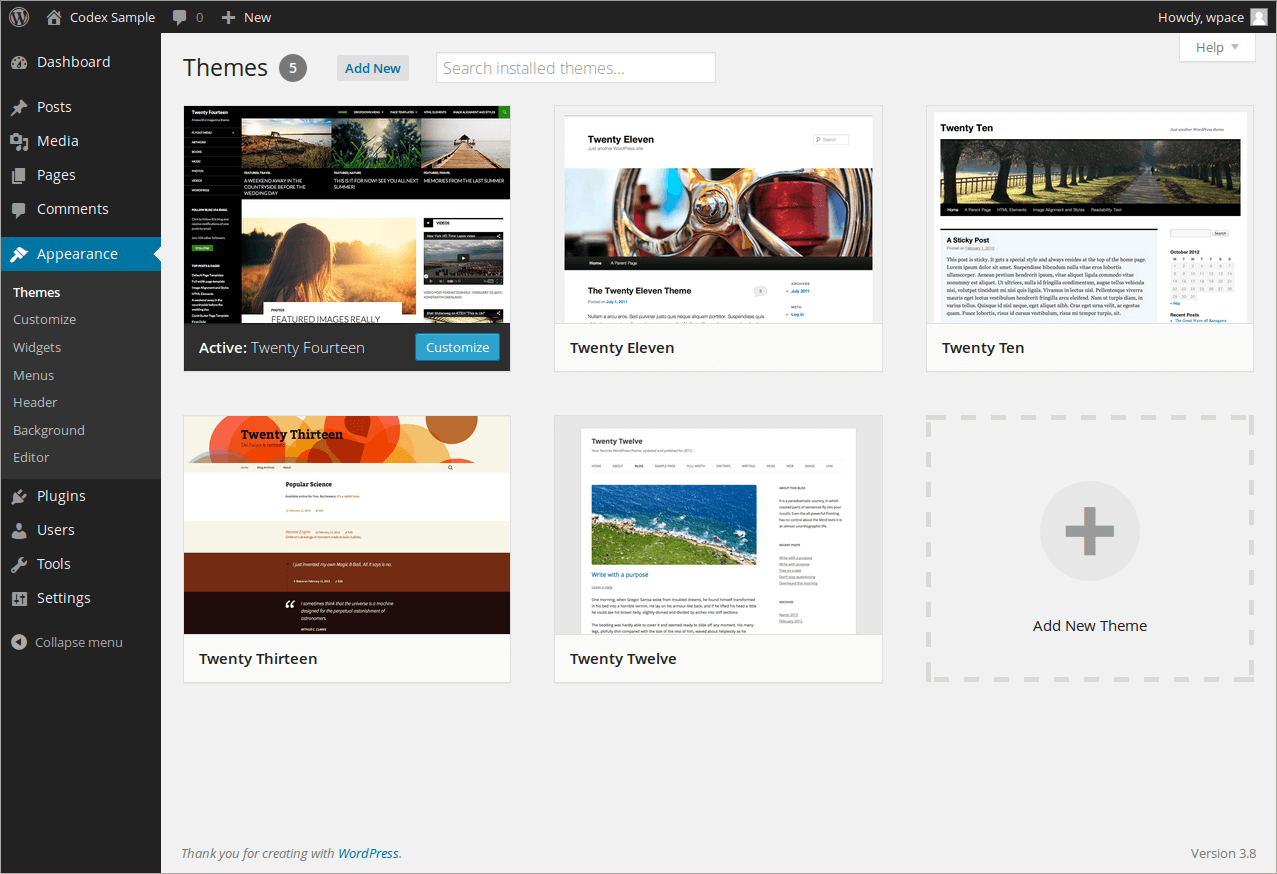
Credit: www.hostpapa.com
Frequently Asked Questions
How Do I Access Theme Options In WordPress?
To access theme options in WordPress, navigate to your dashboard. Under the “Appearance” menu, click on “Customize”. This section allows you to modify your theme settings, including colors, fonts, and layouts. Each theme offers unique options, so explore these settings to tailor your website’s appearance.
Can I Add Custom Theme Options?
Yes, you can add custom theme options in WordPress. Use a child theme or a plugin like Advanced Custom Fields. These tools enable you to create personalized settings, enhancing your theme’s functionality. This approach ensures your customizations remain intact during theme updates.
What Plugins Help With Theme Options?
Several plugins can assist with theme options in WordPress. Popular ones include Advanced Custom Fields and Customizer. These plugins offer extensive customization features, allowing you to modify various aspects of your theme easily. They provide user-friendly interfaces to enhance your site’s appearance and functionality.
Are Theme Options Important For Seo?
Yes, theme options can influence SEO in WordPress. Proper customization ensures your site is mobile-friendly, fast, and visually appealing. Optimized images and layouts improve user experience, leading to better search rankings. Always choose themes and plugins that support SEO best practices.
Conclusion
Adding theme options enhances your WordPress customization. It’s simple and effective. Users can personalize sites without coding skills. This boosts engagement and user satisfaction. Follow the steps for easy setup. Your site will reflect your unique style and needs. Remember, customization is key for a standout site.
Keep exploring WordPress features. They offer great flexibility and creative freedom. Enjoy building a site that truly represents your vision. With practice, you’ll become confident in theme adjustments. Happy customizing!


