
Struggling to find the perfect look for your WordPress site? You’re not alone.
Adding a custom theme can transform your website from bland to brilliant, but figuring out how to do it can feel like cracking a secret code. Imagine your website with the perfect design, seamlessly reflecting your brand’s personality. It’s not just about aesthetics; it’s about creating an inviting space for your audience.
You’re just a few steps away from making your site truly yours. In this guide, you’ll discover how to add your theme to WordPress effortlessly, unlocking the potential to captivate and engage your visitors. Ready to dive in? Let’s get started!
Choosing A Theme
Free themes are easy to find. Many people use them. They are good for beginners. Free themes often have less features. You may need to add plugins. This can slow down your site. Premium themes cost money. They usually have more features. They offer better support. Updates are more frequent. This helps your site run smoothly.
Compatibility is important. Not all themes work on all sites. Some themes need a newer version of WordPress. Always check the theme’s details. Make sure your WordPress is up-to-date. Outdated versions can cause problems. Plugins may not work with all themes. Test your site after adding a theme. Look for any errors. Fix them quickly.
Credit: www.hostpapa.com
Downloading Your Theme
Start by looking for trusted websites. These sites offer safe themes. Read reviews to know user experiences. Check ratings too. A high rating means good quality. Avoid sites with many negative comments. They might be unsafe. Official sites are often the best option. They offer updates. This keeps your theme secure.
Inspect the theme files before downloading. Ensure they are not too large. Large files may slow your site. Look for a readme file. It has important details. Like setup instructions. Compatibility with WordPress is crucial. If not compatible, it won’t work. Always scan the files for viruses. This protects your site from harm. Use antivirus software for scanning.
Installing Via WordPress Dashboard
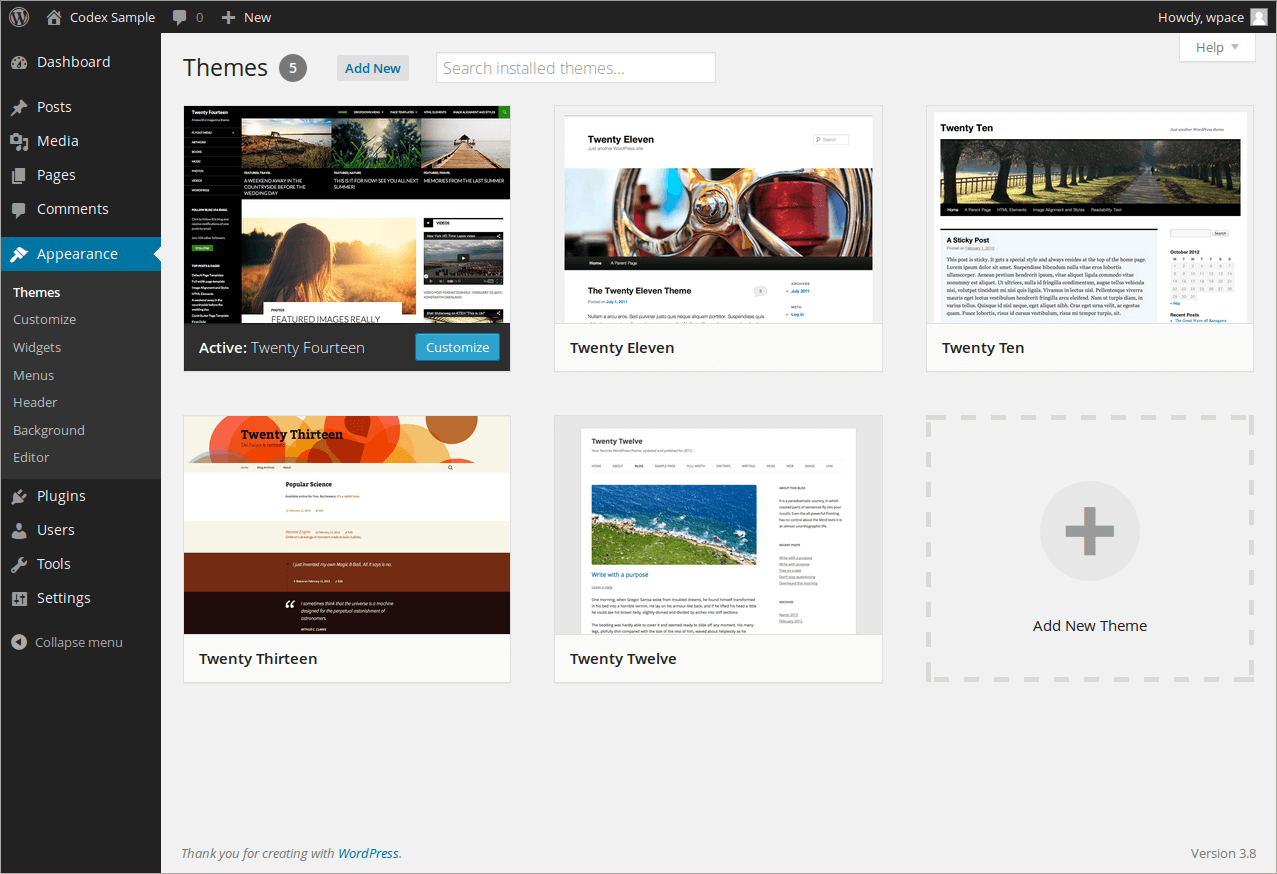
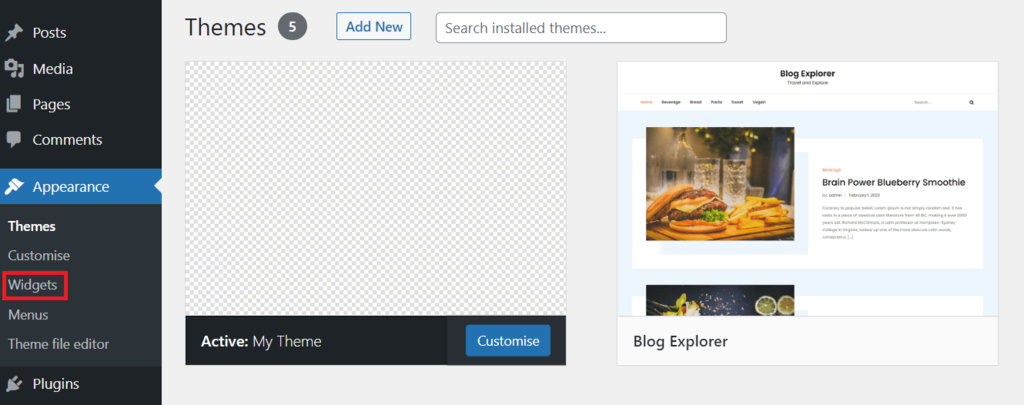
Log into your WordPress dashboard. Find the Appearance tab on the left. Click on it. Then, select Themes. This opens the Themes section. You can see all installed themes here.
Look for the Add New button at the top. Click it. Then, click Upload Theme. Select the theme file from your computer. It should be a .zip file. Click Install Now. Wait for the upload to finish.
After uploading, you see a success message. Click on Activate. Your theme is now live. Check your website to see the changes.
Installing Via Ftp
First, you need an FTP client. This helps connect to your website. Find your FTP login details. These are from your web host. Enter them in the FTP client. This connects you to your site.
Locate the theme files on your computer. In the FTP client, open the wp-content/themes folder. Drag and drop your theme files here. Wait for the files to upload. This might take a few minutes.
Go to your WordPress dashboard. Click on Appearance, then Themes. Find your new theme. Click Activate. Your new theme is now live. Enjoy your updated site!
Customizing Your Theme
Easily add your custom theme to WordPress by accessing the dashboard. Navigate to “Appearance,” then select “Themes. ” Click “Add New” and upload your theme file. With a few clicks, your website will have a fresh look, tailored to your style.
Using The WordPress Customizer
The WordPress Customizer is a powerful tool. It helps you make your site unique. You can adjust colors, fonts, and images easily. Click on “Customize” in your dashboard. A menu will appear on the left side. Select the option you want to change. Preview your changes on the right side.
Adjusting Theme Settings
Theme settings are important for your site. They help you control the look and feel. Navigate to “Theme Settings” in the dashboard. You can change the header, footer, and sidebar. Choose settings that match your style. Save changes before exiting. Your site will look just the way you want it.

Credit: wordpress.com
Troubleshooting Common Issues
Adding your theme to WordPress can sometimes be tricky. Ensure your theme is compatible with the latest version. Use the WordPress dashboard to upload your theme file easily. Check for common errors like file size limits or missing CSS files.
Theme Not Displaying Correctly
Themes sometimes don’t show right. Check for any missing files. Ensure all theme files are uploaded. This includes images and scripts. Always use the latest theme version. Older versions can cause display issues. Update the theme and try again.
Check settings in the WordPress dashboard. Make sure the theme is activated. Sometimes, themes need specific plugins. These plugins help them work well. Install these plugins if needed. They can fix display issues.
Dealing With Compatibility Problems
Compatibility problems arise with themes. Ensure WordPress is updated. New updates fix many compatibility issues. Sometimes, themes conflict with other plugins. Try disabling them one by one. This helps identify the conflicting plugin.
Check theme documentation for compatibility notes. Some themes work only with specific WordPress versions. Always use themes from trusted sources. This reduces compatibility issues. If problems persist, contact theme support for help.
Updating Your Theme
Themes can update by themselves. This is called automatic updates. WordPress checks for new theme versions. If a new version is found, it updates your theme. You don’t have to do anything. This makes sure your theme is always fresh and secure. It saves time and effort. Your site stays up-to-date without manual work. Always check if automatic updates are on. This is found in the theme settings. Keep your theme on the latest version. This helps your site run smoothly.
Sometimes you might need to update your theme manually. First, download the new theme version from the developer’s site. Save it on your computer. Then, go to your WordPress dashboard. Click “Appearance” and then “Themes”. Find your current theme and click “Update”. Choose the new theme file from your computer. WordPress will upload and replace the old theme. This keeps your site updated. Manual updates need more steps, but they are simple. Always backup your site before updating. This protects your content.
Backing Up Your Theme
Backup plugins help keep your theme safe. Plugins save copies of your theme. They store them in a safe place. Install a plugin easily. Look for popular ones. Some plugins are free. Others may cost money. Choose one that suits your needs. Follow the steps to backup your theme. Click a few buttons. Your theme is backed up!
Restoring a backup is simple. Find the backup file first. Use your plugin to restore. Click restore button. Wait as it works. It brings back your theme. Your site looks the same again. No need to worry. It’s fast and easy.
Credit: www.hostinger.com
Frequently Asked Questions
How Do I Upload A Theme To WordPress?
To upload a theme, navigate to your WordPress dashboard. Click on “Appearance” then “Themes. ” Choose “Add New” followed by “Upload Theme. ” Select your theme file and click “Install Now. ” Once installed, activate your theme. This process makes your theme visible on your site.
Can I Add A Theme Without Coding?
Yes, you can add a theme without coding. WordPress allows you to upload and activate themes directly from the dashboard. Simply follow the steps to upload the theme file, and activate it. This process is user-friendly and requires no technical expertise.
What File Format Should My Theme Be?
Your theme should be in a. zip file format. WordPress accepts themes in this compressed format for easy upload and installation. Ensure your theme is correctly zipped before uploading. This will prevent any installation issues during the upload process.
How Do I Activate My New Theme?
To activate your new theme, go to “Appearance” in your dashboard. Click “Themes,” find your uploaded theme, and select “Activate. ” This changes your site’s design to match the new theme. Activation is instant, allowing you to see changes right away.
Conclusion
Adding a theme to WordPress is straightforward. Follow the steps carefully. Start by selecting a theme that suits your needs. Ensure it’s compatible with your WordPress version. Download the theme file to your computer. Upload it via the WordPress dashboard.
Activate the theme once uploaded. Customize your settings for a unique look. Check for any updates regularly. Keep your site secure and fast. Explore different themes for variety. Your WordPress site will now stand out. Enjoy your new theme and happy blogging!


