
Are you looking to customize your Highend WordPress theme by changing the copyright notice at the bottom of your site? You’re not alone.
Many website owners want to add their personal touch or brand identity to every aspect of their site, and the footer is no exception. Imagine the satisfaction of seeing your own name or brand proudly displayed, giving your website a more professional and polished appearance.
Plus, making these changes can help reinforce your brand’s presence and credibility to your visitors. In this guide, we’ll walk you through the simple steps to modify the copyright information in your Highend WordPress theme, ensuring your site reflects your unique identity. Stay with us, and you’ll master this in no time!
Accessing The Theme Files
First, you need to find the WordPress dashboard. It is the main control area. Look for the Appearance tab. Click on it. Then, you will see Theme Editor. Click there. Be careful while editing.
Now, locate the footer.php file. It is important. This file holds the copyright information. Click on it to open. Make sure to backup your files. It’s a safety step.
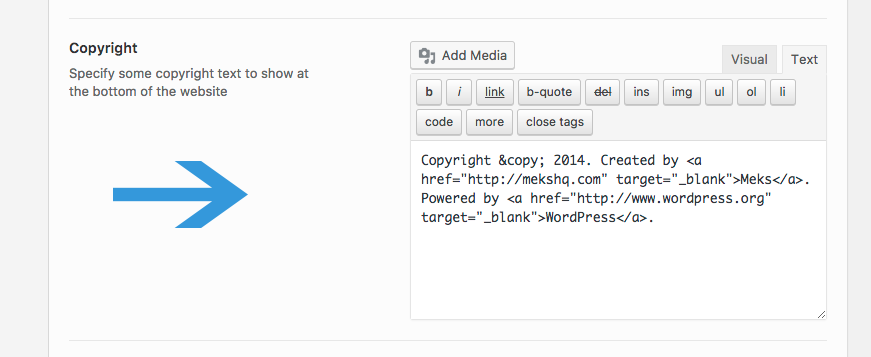
Once open, look for the copyright text. Change it to what you want. Use simple words. Save your changes. Check your website to see if it worked.
Credit: mekshq.com
Locating The Footer File
The footer file holds the copyright information. It’s usually named footer.php. This file is found in the theme folder. Navigate to your WordPress dashboard. Go to Appearance and click on Theme Editor. Look for the footer file on the right side. Click on it to open. You’ll see some HTML code. Find the section with the copyright text.
Carefully edit the text. Be sure to keep the code intact. Save your changes. Check your site to see the updated footer. This process is simple. It helps customize your website’s look. Now, your footer will show your desired copyright information. Remember, backup your files before editing. This prevents any mishaps.
Identifying The Copyright Code
Finding the copyright code is the first step. It is often in the footer.php file. Look for the tag. This tag holds the copyright information. Open your WordPress dashboard. Go to Appearance and then Theme Editor. Here, you can see all the theme files.
Search for the footer.php file. Open it to see the code. Use Ctrl+F to find the word “copyright”. The code may look like this: © 2023 YourSiteName. Change “YourSiteName” to your site’s name. Save changes before leaving the editor.
Editing The Copyright Text
To change the copyright, go to the WordPress Dashboard. Find the Appearance tab. Click on it. Then, select Customize. Look for Footer options. Click on the Footer. You will see the Copyright Text box. Type your new copyright text here. Make sure it is short and correct. Then, click Save to keep changes. Visit your site to see the new text.
If you need help, ask a friend. Or, check online tutorials. They can show you more steps. Remember, changes can take some time. So, be patient. Your website will look fresh with your new copyright.
Saving And Testing Changes
Save your changes after editing the copyright. Click the Save button. Refresh your website page. Check if the new copyright appears. Look at the bottom of the page. Make sure it shows your new text.
Ask a friend to visit your site. Let them check the copyright too. Sometimes changes need a second look. Ensure it displays correctly.
If you don’t see the change, try again. Double-check your steps. Sometimes things need tweaking. Keep trying until you succeed.

Credit: www.chicagomotorcars.com
Using A Child Theme
A child theme keeps your changes safe. Updates to the main theme won’t erase them. This means you can update without worry. Your customizations stay intact.
Creating a child theme allows you to experiment. If something goes wrong, your main theme is untouched. This is a safer way to make changes.
You can also share your child theme. Others can use it without the main theme. This makes sharing custom styles easier.
Begin by creating a new folder. Name it after your theme. Inside this folder, make a file. Call it style.css. This file holds your custom styles.
Next, create another file. Name it functions.php. This file helps the child theme work. It links your changes to the main theme.
Lastly, activate the child theme in WordPress. Go to your dashboard. Select your new theme. Now, you’re ready to make changes safely.
Employing Custom Css
Changing the copyright text with Custom CSS is simple. First, locate the footer area in your WordPress theme. Then, find the CSS class that controls the copyright text. This is often named like .copyright or .footer-text.
In your WordPress dashboard, go to Appearance and then Customize. Click on Additional CSS. Here, you can add new CSS rules. Use the correct CSS class and write your new copyright text. Save changes when you are done. Refresh your page. Your new copyright text should appear.
Remember, CSS changes are site-wide. They affect all pages. Make sure your text is correct. Keep the copyright short and clear. If unsure, ask someone for help.
Utilizing Theme Options
Explore the Theme Customizer to change copyright text. This tool lets you make simple changes. You can find it under the Appearance menu. Look for the Footer section. Here, you can edit the copyright text. Type in your new text and save. It’s easy to see changes in real-time. This makes editing fun and fast.
Exploring Theme Customizer
The customizer shows a live preview of your site. You can try different texts. See how they look before saving. Adjustments here are safe. Mistakes can be fixed quickly. There’s no need to worry about errors.
Checking Theme Documentation
Check the theme’s documentation for extra help. This guide offers detailed steps. Follow these instructions to avoid confusion. Sometimes, themes have special settings. These might not be in the customizer. The documentation will highlight these features. It ensures you don’t miss important details.
Leveraging Plugins
Plugins make tasks easy. They help change copyright details on your site. Some plugins are free. Others may cost money. Choose the best one for your needs.
One popular plugin is Simple Custom CSS and JS. It is easy to use. Another choice is Insert Headers and Footers. Both work well with WordPress. Many users love them.
Read reviews before picking a plugin. This helps find the right one. Always check if it’s compatible with your theme.
First, go to the WordPress dashboard. Find the Plugins option. Click on ‘Add New’. Type the plugin name in the search bar.
Once you find it, click ‘Install Now’. Wait a few seconds. Then, click ‘Activate’. The plugin is ready to use.
Follow instructions in the plugin settings. This helps make changes. Remember to save your work. Your site will now show the new copyright.
Ensuring Legal Compliance
Changing copyright in WordPress themes is important. It is crucial for legal compliance. Start by accessing the theme editor. You find it in the WordPress dashboard. Look for the footer.php file. This is where copyright details usually are. Edit the text carefully. Make sure you replace the old copyright with your own. Avoid breaking any copyright laws. Always check your changes. Ensure they reflect your ownership correctly. Save your edits and preview the site. Make sure everything looks fine. Review your changes regularly. Keep your site legally safe and sound.
Credit: www.bluchic.com
Frequently Asked Questions
How To Change Footer Copyright Text In Highend Theme?
To change the footer copyright text in the Highend WordPress theme, navigate to the WordPress dashboard. Go to Appearance > Customize > Footer > Copyright Text. Enter your desired text and save changes. This customization allows you to personalize the footer, reflecting your brand’s identity or legal requirements.
Can I Customize Copyright Settings In Highend Theme?
Yes, the Highend theme allows copyright customization. Access the WordPress dashboard, then Appearance > Customize > Footer. Here, you can modify copyright text, styles, and links. Customizing these settings can help enhance your site’s professional appearance and ensure compliance with legal standards or brand guidelines.
Where Do I Edit Copyright Information In Highend?
Edit copyright information from the WordPress dashboard. Go to Appearance > Customize > Footer > Copyright Text. This section enables you to alter the default text and personalize it. Customizing copyright information can help maintain brand consistency and ensure your website meets legal obligations.
Is Coding Required To Change Copyright In Highend Theme?
No coding is needed to change the copyright in the Highend theme. You can easily modify it via the WordPress Customizer. Navigate to Appearance > Customize > Footer > Copyright Text, and make your changes. This user-friendly process makes it accessible even for those with limited technical skills.
Conclusion
Changing the copyright in Highend WordPress theme is quite simple. Follow the steps to customize your site. Personalize it to fit your brand. You now know how to access the theme files. Edit them with confidence. Remember to backup files before changes.
This prevents loss of valuable data. Keep your site updated for security. Regular updates ensure smooth performance. Explore other theme features too. Make your site unique and professional. Your WordPress site now reflects your identity. With practice, you’ll master these changes easily.
Enjoy the process of enhancing your website!


