
Are you looking to give your WordPress.com site a fresh new look? Changing your theme can transform your website’s appearance and make it more engaging for your visitors.
It’s like giving your site a makeover without any complicated coding or design skills. Imagine how exciting it would be for your audience to visit your site and experience a whole new vibe! This guide will walk you through the simple steps to change your WordPress.
com theme effortlessly. You’ll discover how to pick the perfect theme that aligns with your brand and captivates your audience’s attention. Ready to revamp your site and make it stand out? Let’s dive in and unlock the potential of your WordPress. com site!
Credit: www.youtube.com
Accessing The Dashboard
First, log in to your WordPress.com account. Use your username and password. Once logged in, find the top menu. Click on “My Sites”. This will take you to the dashboard. The dashboard is your main control center. You can change settings here. Look for the sidebar on the left. Find the option labeled “Appearance”. Click on it. This is where you can change your theme. Themes change how your site looks. Choose a new theme to give your site a fresh look. Always remember to save your changes. It’s easy and fun to try new themes. Enjoy exploring different styles!
Navigating To Themes
First, log into your WordPress account. On the left side, find the menu. Click on Appearance. A new page will open. Here, you’ll see different options. Choose Themes. It’s easy to find. The themes page has many choices. Pick one you like. You can try it before you decide. Click on Preview to see how it looks. If you like it, click Activate. Now your site will have a new look. Changing themes is simple. It’s fun too!
Exploring Theme Options
Discover how to change your WordPress. com theme easily. Navigate to the “Appearance” section, explore theme options, and select your favorite design. Customizing your website’s look takes just a few clicks, enhancing your online presence effortlessly.
Free Vs. Premium Themes
Choosing between free and premium themes can be tricky. Free themes are great for beginners. They have basic features and are easy to use. Premium themes offer more features. They often look more professional. They can also be customized more. But they cost money. Think about your needs. A free theme might be enough. Or you might need a premium one for a special look.
Popular Themes
Many themes are popular on WordPress. Twenty Twenty-Three is simple and clean. It’s free and easy to use. Astra is another popular choice. It’s lightweight and fast. Many people love it. Neve is great for different websites. It’s flexible and easy to customize. Popular themes often have good reviews. Check them out before you decide.
Credit: wordpress.com
Previewing Themes
Choosing the right theme is important. It changes how your site looks. You can see a live demo of each theme. This lets you know what visitors will see. Click on the theme name. A new window will open. Here, you can explore the theme. Look at the colors, fonts, and layout. Take your time. Find what suits your site best.
After picking a theme, you can make changes. Theme customization is fun. You can adjust colors and fonts. Add your own logo if you have one. Change the homepage layout. These changes make your site unique. Themes have options to help you. Explore them. Make your site special and personal.
Installing A New Theme
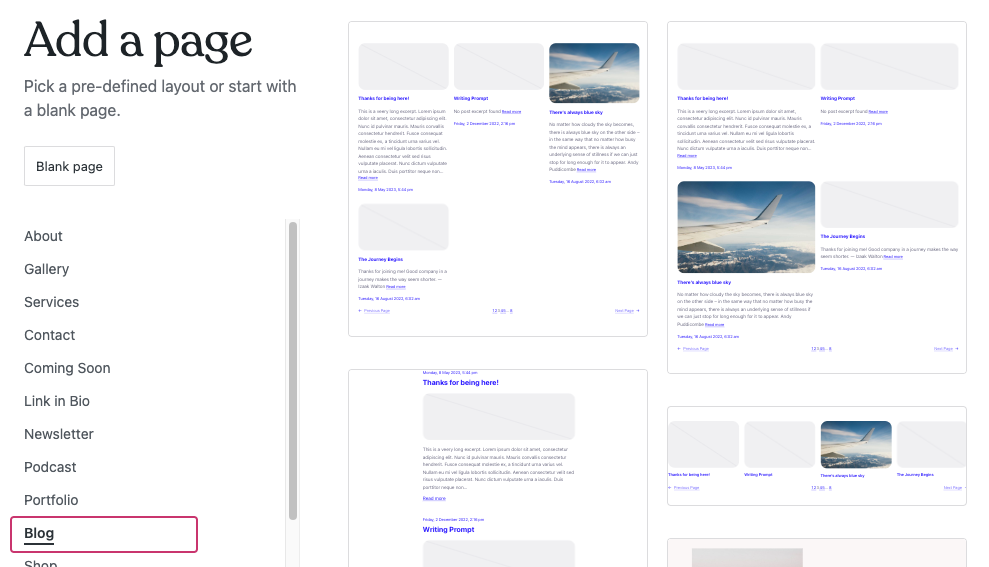
Find a theme you like. Click on the Themes button. Search for themes by name or style. Preview a theme to see how it looks. Activate the theme by clicking the Activate button. Your site will change its look.
Some themes need extra settings. Visit the theme settings page. Customize colors, fonts, and layout. Save changes when you’re done. New theme will show on your site. Enjoy your site’s new look. Change themes anytime you want.
Remember to choose a responsive theme. This makes your site look good on phones and tablets. Choose a theme with good reviews. Check if the theme is updated regularly. A good theme makes your site better.
Customizing Your Theme
Changing Colors is easy. Go to your WordPress dashboard. Click on “Customize.” Find the “Colors” option. Choose the colors you like. Preview them to see the change. Save your choices.
Adjusting Fonts is simple too. Open “Customize” in the dashboard. Navigate to “Fonts.” Pick a font style. Try different sizes. See how it looks. Save your selection.
Adding Widgets brings fun features. Find “Widgets” in the dashboard. Click to open it. Choose a widget. Drag it to your sidebar. Adjust settings if needed. Save your work. Now your theme is unique!
Saving And Publishing Changes
After choosing your theme, it’s time to save. Look for the “Save” or “Publish” button. This button is usually at the top or bottom of the screen. Clicking this will make sure your changes are live. You can also preview changes before publishing. This helps you see how your site looks. Always double-check your changes. Make sure everything appears as you want it. If needed, go back and edit any mistakes. Once satisfied, click the button again to confirm.
Some themes may have extra options. Explore these to customize your site more. Remember, you can change your theme anytime. This keeps your site fresh and updated. Keep experimenting to find what works best for you.
Tips For Choosing The Right Theme
Pick a theme that matches your content style. Blogs need clean layouts. Photo sites need visual focus. Avoid clutter. Clear, simple designs work best. Readers find information easily. Your theme should make content shine. Not hide it.
Ensure your theme is mobile-friendly. Most users browse on phones. A responsive theme adjusts to screen size. No zooming needed. Text and images fit well. Your site should look good on all devices. Tablets, phones, or desktops.
Choose a theme with SEO features. Search engines love clean code. Fast-loading themes rank better. Use built-in SEO tools if available. Your theme should help your site appear in searches. Keep URLs simple and clean. Use header tags wisely.
Troubleshooting Common Issues
Easily change your theme on WordPress. com by navigating to the Themes section in the dashboard. Select and activate your preferred design. Troubleshoot issues by clearing browser cache or checking internet connection.
Theme Compatibility
Sometimes, themes might not work well together. This is called theme compatibility. Different themes have different styles. Some themes might not show your content correctly. You might see layout problems or missing images. This can happen if your theme is not updated. Always check if your theme has the latest updates.
Loading Errors
Loading errors can be frustrating. Your website might take too long to load. This could be because of a heavy theme. Some themes have many features. These features can slow down your site. Try using a simpler theme. A simple theme can help your site load faster. Clear your browser cache too. This can fix some loading issues.

Credit: wordpress.com
Frequently Asked Questions
How Can I Change My WordPress Theme?
To change your WordPress theme, go to your dashboard. Click on ‘Appearance’ and then ‘Themes’. Choose your new theme and click ‘Activate’. Ensure your content displays correctly after activation.
Can I Preview A Theme Before Applying It?
Yes, you can preview a theme before activation. In the ‘Themes’ section, click ‘Live Preview’. This allows you to see how your site will look with the new theme.
Are There Free Themes Available On WordPress.com?
Yes, WordPress. com offers many free themes. You can find them under the ‘Themes’ section. Browse and choose the one that fits your style and needs.
Does Changing A Theme Affect My Site Content?
No, changing a theme doesn’t affect your site content. Your posts, pages, and media remain intact. However, some customizations may need adjustments after changing the theme.
Conclusion
Changing your theme on WordPress. com is easy and quick. Follow the steps to give your site a fresh look. Experiment with different themes. See what fits your style best. A new theme can improve your site’s appeal. Make sure your content remains clear and engaging.
Always preview before finalizing changes. This ensures everything looks great on your site. Keep exploring themes to find the perfect match. Happy blogging!


