
Are you tired of your current WordPress theme and eager to give your website a fresh new look? Changing your WordPress theme might seem like a daunting task, but it doesn’t have to be.
Imagine the excitement of transforming your site with just a few clicks, making it more appealing and engaging for your visitors. Your website is your digital storefront, and a captivating design can make all the difference in capturing attention and driving engagement.
In this guide, you’ll discover simple, step-by-step instructions to seamlessly switch your WordPress theme without breaking a sweat. Get ready to enhance your online presence and make your website truly stand out. Keep reading to unlock the secrets to a smooth theme transition and elevate your WordPress experience.

Credit: www.templatemonster.com
Choosing The Right Theme
Many themes are free, but some are premium. Free themes often offer basic features. Premium themes give more options and styles. They can be costly but offer better support. Choose based on your budget and needs.
Not all themes work with every plugin. Some might cause errors or slow down your site. Always check if a theme is compatible with your plugins. This saves time and avoids problems.
Responsive themes work on phones, tablets, and computers. They help your site look good on any device. Many users browse on phones, so this is important. A responsive theme keeps visitors happy and engaged.
Credit: wpengine.com
Preparing For The Theme Change
Before changing your theme, make sure to back up your site. Use a plugin or your hosting provider. This saves all your data and settings. If something goes wrong, you can restore your site easily.
A child theme is important. It keeps changes safe when updating the main theme. Create it in your WordPress dashboard. It uses the main theme’s features but stays separate.
A staging environment lets you test changes safely. Your live site stays untouched. Many hosting services offer this feature. Test your new theme here first. This prevents any unwanted surprises.
Installing A New Theme
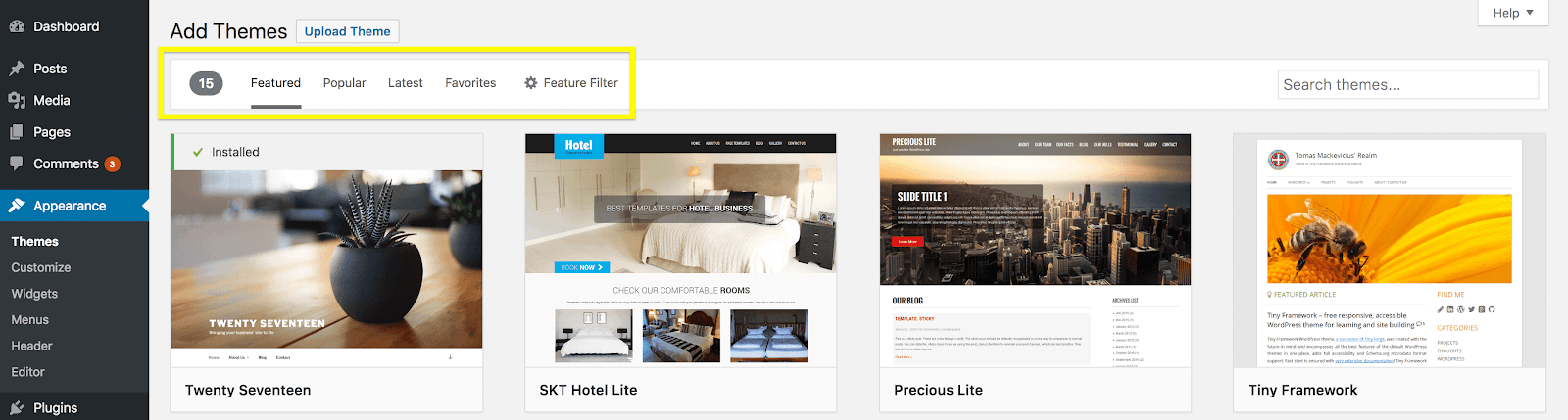
Visit the WordPress dashboard and click on Appearance. Next, select Themes. Tap on Add New at the top. Browse through the available themes. Use the search bar for specific themes. Click Install once you find a theme you like. Wait for the installation to finish. Then, click Activate to use the theme on your site.
Download the theme file to your computer. Open an FTP client. Connect to your site’s server. Navigate to wp-content/themes. Upload the downloaded theme folder here. After uploading, go back to the WordPress dashboard. Click on Appearance and then Themes. Find the uploaded theme. Click Activate to set it live.
Go to the WordPress dashboard. Click on Appearance. Then, select Themes. Find the theme you want. Click Activate. Your site will now display the new theme. Check your site to see the changes. Ensure everything looks good. Adjust settings if needed.
Customizing Your Theme
Explore the WordPress Customizer to change your theme’s look. This tool lets you see changes in real-time. You can alter the colors, fonts, and menus. It’s easy and does not need coding. Save your changes, and your site updates instantly.
You can edit theme files for more control. Go to the WordPress dashboard and find the theme editor. Be careful while editing here. A small mistake can break your site. Always back up your theme files first. This ensures you can restore them if needed.
Plugins add extra features to your theme. Browse the WordPress plugin directory for options. Install plugins to enhance design and functionality. Each plugin has settings to adjust. Read the plugin description before installing. This helps you know what it does and if it’s right for your site.
Troubleshooting Common Issues
Changing a WordPress theme can sometimes lead to issues like broken layouts or missing widgets. Solving these problems involves checking theme settings and ensuring plugins are compatible. Clear your browser cache to see updates immediately.
Dealing With Broken Layouts
Broken layouts happen when themes clash with content. Check theme settings first. Sometimes, incorrect settings cause this issue. Ensure your theme version is up-to-date. Outdated themes may not work well. Switch to default theme if problems persist. This helps identify if the theme is the root cause. Examine custom CSS for errors. Mistakes in code can break layouts. Disable custom scripts temporarily to see changes. If nothing works, consider seeking expert help.
Resolving Plugin Conflicts
Plugin conflicts often disrupt theme functions. Deactivate plugins one by one. Observe changes after each deactivation. Identify which plugin causes trouble. Update all plugins regularly. Old plugins might clash with new themes. Remove plugins that are not essential. Too many plugins may cause conflicts. Use plugin conflict detector tools. These tools help find problematic plugins quickly. Contact plugin developers if issues persist. They might offer solutions or updates.
Restoring From Backup
Backups are crucial for recovery. First, locate your backup files. Most hosting services offer backup options. Use these to restore your site. Check settings before restoring. Incorrect settings might cause issues. Restoring will revert your site to an earlier state. Ensure backup is recent and relevant. Older backups might not have updated content. Follow the restoration process step by step. If unsure, consult guides or experts. Restoring helps retrieve lost content quickly.
Optimizing Your New Theme
Fast websites make users happy. Always choose a lightweight theme. Use optimized images. These help in loading pages quickly. Plugins should be minimal. Too many slow down the site. Caching plugins can boost speed. Try one today.
Many users browse on phones. Responsive design is key. Your theme should adjust to all screen sizes. Check your site on a phone. Look for easy navigation. Buttons should be big. Text must be readable. No zooming needed.
SEO helps users find your site. Use a theme with SEO support. Meta tags are important. They tell search engines about your page. Keywords should be relevant. Use them wisely. Friendly URLs help in ranking. Keep them short and clear.

Credit: jetpack.com
Frequently Asked Questions
How To Switch Themes In WordPress?
Switching themes in WordPress is simple. Go to your dashboard, click on ‘Appearance’, then ‘Themes’. Choose your desired theme and click ‘Activate’. Ensure you preview it first to avoid any layout issues. Remember to backup your site before making changes to prevent data loss.
Can I Change WordPress Themes Without Losing Content?
Yes, you can change themes without losing content. WordPress themes affect the design, not the content. However, some widgets or customizations may need adjustments. Always backup your site before changing themes to safeguard your data and settings.
What Happens When I Change My Theme?
Changing your theme alters your site’s design and layout. Your content remains intact, but some widgets may need reconfiguration. It’s advisable to preview the new theme first to ensure it fits your expectations and functionality needs.
How Do I Preview A WordPress Theme?
To preview a theme, navigate to ‘Appearance’ in your dashboard and click ‘Themes’. Hover over the desired theme and click ‘Live Preview’. This allows you to see how the theme will look on your site before activating it.
Conclusion
Changing a WordPress theme can refresh your website’s look. Follow the steps carefully for smooth transitions. Always back up your site before making changes. Test new themes on a demo site first. This prevents unexpected issues. Explore different styles to match your brand.
A good theme enhances user experience. It can also improve site performance. Keep your design clean and simple. Focus on readability and navigation. Remember, your website reflects your brand. Make sure it’s visually appealing. Regularly update your theme for security.
Enjoy the process and watch your site transform. With practice, you’ll get better at it.


