
Are you looking to enhance your WordPress site with some custom functionality? Adding JavaScript to your WordPress child theme can be a game-changer.
Imagine having the power to customize your website’s behavior and interactivity just the way you want it. Whether you want to create dynamic forms, interactive galleries, or personalized user experiences, JavaScript is your go-to tool. But here’s the catch: diving into the WordPress ecosystem can sometimes feel overwhelming, especially when it comes to code.
Don’t worry, though. We’re here to simplify the process for you. By the end of this article, you’ll know exactly how to seamlessly integrate JavaScript into your WordPress child theme. You’ll gain confidence in enhancing your site’s functionality and providing your visitors with an unforgettable experience. Ready to unlock the full potential of your website? Let’s get started!
Credit: happyaddons.com
What Is A Child Theme
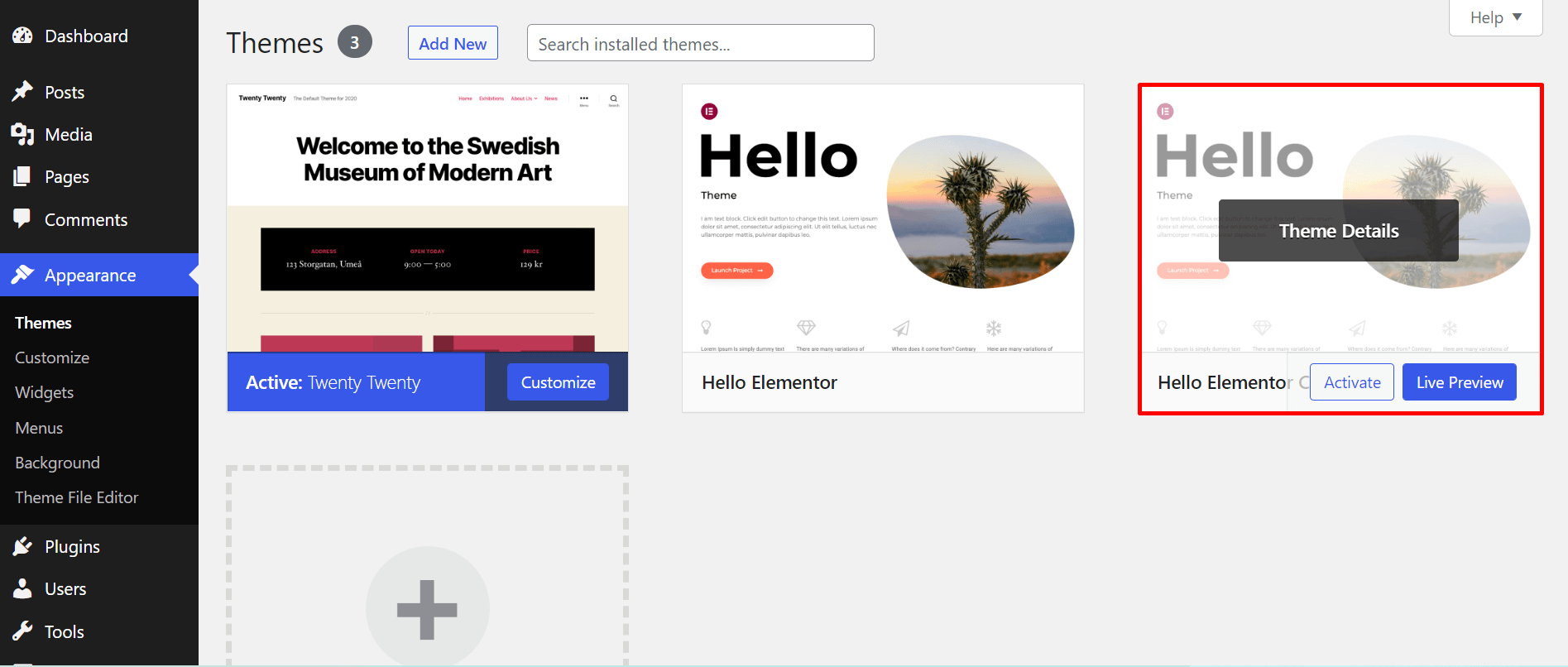
A child theme lets you change a WordPress theme without changing the parent theme. This means you can keep the main theme updated. Updates won’t break your changes. That’s a big win!
With a child theme, you can add new styles or scripts. It makes your site unique. No need to worry about losing custom tweaks. Child themes keep them safe. Plus, it’s a great way to learn coding. You can practice without fear.
The parent theme is the main theme. It contains all the core files. The child theme depends on the parent. It has its own folder. Inside, it has a style.css file. This file tells WordPress it is a child theme.
Parent themes have all the main features. Child themes have only the changes. This keeps things simple and clean. You change only what you need. The rest stays in the parent theme. It’s like having a safe playground to customize your site.
Setting Up A Child Theme
Creating a New Directory in your WordPress setup is simple. First, go to your themes folder. Then, make a new folder. Name it something unique. This is your child theme folder. Keep it safe. This folder will hold important files.
Adding the style.css File is the next step. Inside your new folder, create a file. Name it style.css. This file is essential. Write basic information inside. Include your theme’s name. Add the template’s name. This tells WordPress about your child theme.
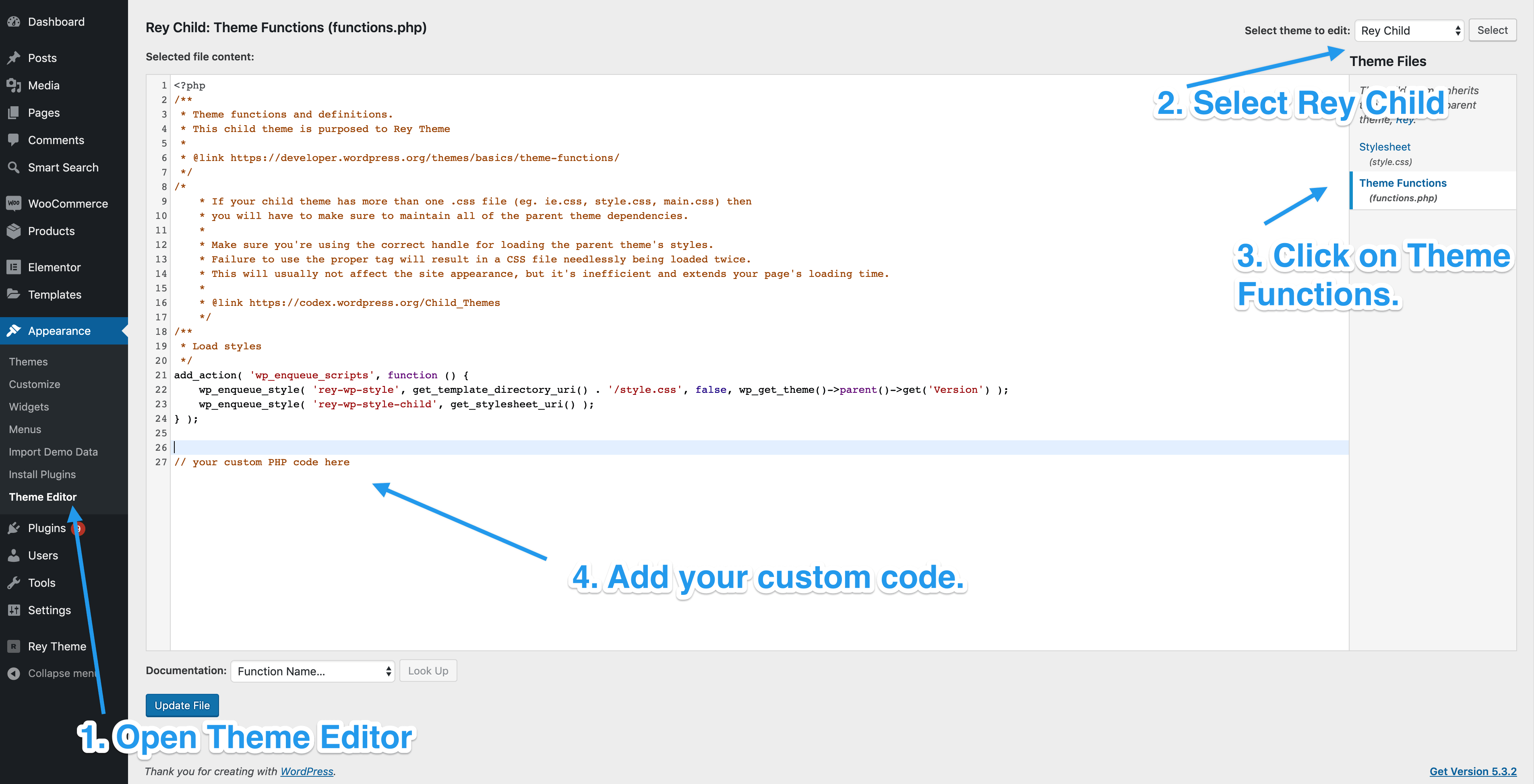
Configuring the functions.php File helps in adding extra features. Create a functions.php file in your child theme folder. This file can add Javascript. Copy some basic code inside. This lets your child theme work correctly. You can add more code later.
Javascript Basics For WordPress
JavaScript makes websites fun. It adds cool effects and actions. With JavaScript, you can make buttons that move. Forms that check if you wrote your name right. It helps your website talk to others. Like a mailman sending letters. JavaScript can also help show alerts. Like pop-ups that tell you things.
Many websites use JavaScript. It helps show slideshows. You see pictures change on the screen. It also helps with animations. Images can move and spin. JavaScript can also help with forms. When you type wrong, it tells you. Some websites use it for games. Simple games like puzzles or quizzes. JavaScript helps make things easy.

Credit: www.youtube.com
Adding Javascript To A Child Theme
Start by opening the functions.php file in your child theme. This file allows you to add custom functions. It’s a safe way to include JavaScript. Never edit the main theme files directly.
Use wp_enqueue_script() to add your JavaScript. This function helps load scripts properly. It ensures your site loads faster. First, define a function to enqueue your script. Next, use add_action() with wp_enqueue_scripts.
This method keeps your theme updates safe. Your changes won’t disappear. Always use the correct dependencies and version numbers. This helps avoid conflicts with other scripts.
Best Practices For Including Javascript
To add JavaScript to a WordPress child theme, use the `wp_enqueue_script` function in the functions. php file. This method ensures scripts load properly and do not conflict with other theme elements. Always test your scripts in a staging environment before making them live.
Avoiding Inline Scripts
Inline scripts can slow down your site. They make code harder to manage. It’s better to use external JavaScript files. This keeps your code clean and organized. You can update scripts easily without changing HTML. Always use separate files for your JavaScript code.
Managing Dependencies
Dependencies help scripts work together. Use WordPress functions to manage them. This ensures scripts load in the right order. Use wp_enqueue_script to include scripts. This function is very helpful. It handles dependencies for you. Always check which scripts depend on others.
Minimizing And Combining Scripts
Minimize scripts to make them smaller. This helps pages load faster. Combine multiple scripts into one file. This reduces server requests. Use tools like UglifyJS for minimization. Combining scripts improves efficiency. Always test your site after making changes.
Troubleshooting Common Issues
Adding JavaScript to a WordPress child theme often poses challenges for beginners. Ensure the script is properly enqueued in the functions. php file. This step prevents conflicts and ensures seamless integration with the parent theme.
Identifying Script Conflicts
Scripts can sometimes clash with each other. This happens when they try to do the same task. Check for errors in the console log of your browser. This log will show if scripts are fighting. Deactivate plugins one by one to find the problem. Once you find it, you can fix it.
Resolving Loading Order Problems
Scripts might load in the wrong order. This can cause errors. Scripts should load after the main content. Use wp_enqueue_script() in your functions.php file. This helps to load scripts in the right order. Put important scripts at the top of the list.
Debugging Techniques
Debugging helps find script errors. Use the browser’s developer tools for this. Look for red lines or warnings. These show where the problem is. Comment out lines of code to see if it helps. This will help find the bad code.
Tools And Resources
Discover essential tools to effortlessly add JavaScript to your WordPress child theme. Explore user-friendly resources for smooth integration. Enhance your website’s functionality without hassle.
Helpful WordPress Plugins
Plugins help make your website better. Some plugins are important. WPCode lets you add code easily. Header and Footer Scripts help with JavaScript. Advanced Custom Fields makes changing things easy. These plugins are useful for everyone. Kids can use them too.
Recommended Javascript Libraries
Some libraries make coding easier. jQuery is popular. It helps with animations. React.js builds websites fast. Vue.js is simple and small. These libraries are good for many projects. They make coding fun and easy.
Credit: support.reytheme.com
Frequently Asked Questions
How Can I Add Javascript To A Child Theme?
To add JavaScript, enqueue scripts in the child theme’s functions. php. Use wp_enqueue_script() function to include your JavaScript file. Ensure the correct file path and dependencies are specified for seamless integration.
Why Use A Child Theme For Javascript?
Child themes allow customizations without affecting the parent theme. They make updates easier and safer. Adding JavaScript to a child theme ensures your scripts remain intact during theme updates.
What Is Functions.php In WordPress?
Functions. php is a template file in WordPress themes. It acts as a central hub for theme functions and features. You can add custom PHP code, including scripts and styles, to enhance your WordPress site’s functionality.
Do I Need Coding Skills For This?
Basic coding skills help when adding JavaScript to a child theme. You need to understand PHP functions and file paths. Online tutorials can guide you through the process if you’re unfamiliar with coding.
Conclusion
Adding JavaScript to your WordPress child theme is simple. This process enhances your website’s functionality. Begin by creating a child theme. Then, add your JavaScript file. Make sure to enqueue it properly. Test your changes to ensure everything works. This method preserves your customizations during updates.
Customize and improve your site without hassle. Follow the steps carefully. Anyone can do it with a bit of patience. Explore JavaScript possibilities in your WordPress site. Enhance user experience and functionality with ease. Happy coding and site building!


