
Are you ready to give your WordPress site a fresh new look? Changing your theme can breathe new life into your website and captivate your visitors.
Whether you’re looking to enhance user experience, improve site functionality, or simply update your style, attaching a new WordPress theme can be a game-changer. But how do you do it without losing your mind or your content? You’re not alone if the thought of switching themes makes you uneasy.
The good news is that with the right guidance, it’s easier than you think. Imagine the satisfaction of seeing your website transformed, all while keeping your content intact and your visitors engaged. In this guide, we’ll walk you through the process step-by-step, ensuring a smooth transition that will leave you wondering why you didn’t make the change sooner. So, let’s dive in and unlock the potential of your WordPress site!

Credit: www.greengeeks.com
Choosing A Compatible Theme
First, think about what your site needs. Is it a blog or a shop? Each type has its own theme. List the features you want. This could be a menu or a gallery. Make sure you know your site’s purpose.
Explore many themes online. Look for themes that fit your style. Check reviews and ratings. They tell a lot about a theme. Some themes are free, and some cost money. Pick the one that suits your budget and taste.
Make sure the theme works with your version of WordPress. Check if the theme updates often. Themes that update often are safer. They also work better. Look for themes with good support. Support helps if you have problems.
Preparing Your Website
Always keep your website safe. Make a copy of your current site. Use a plugin or manual method to back it up. Important files and data must be stored securely. This prevents loss during theme changes. Backups help restore your site if anything goes wrong. Ensure the backup is complete and recent.
Experiment with new themes safely. Create a staging environment to test changes. This is a copy of your actual site. It allows testing without affecting the live site. Check if the theme works well. Look for any errors or bugs. Fix them before going live. Staging ensures a smooth transition.
Installing A New Theme
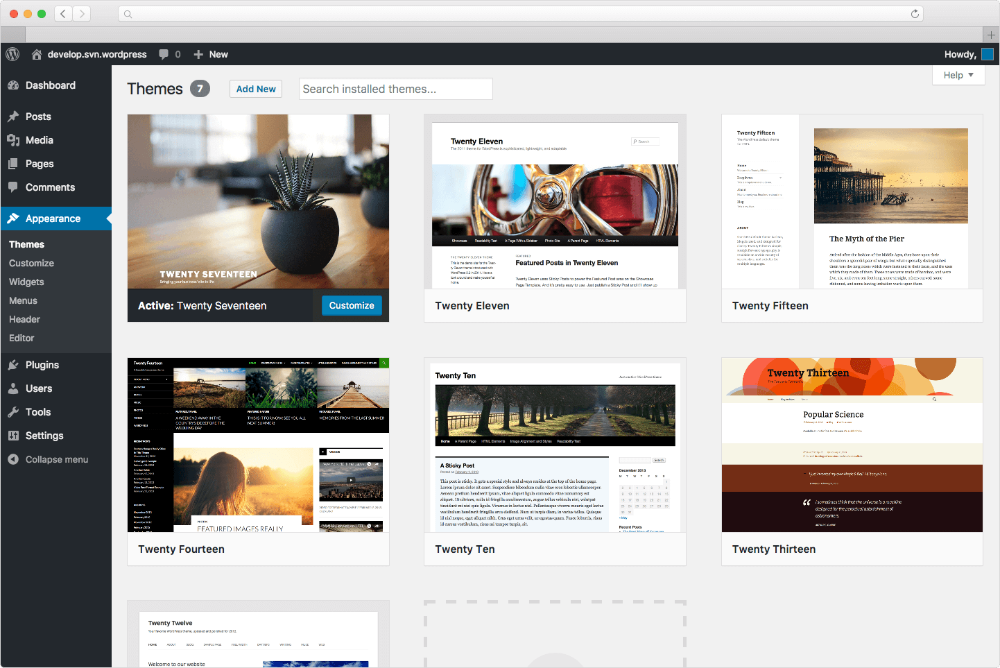
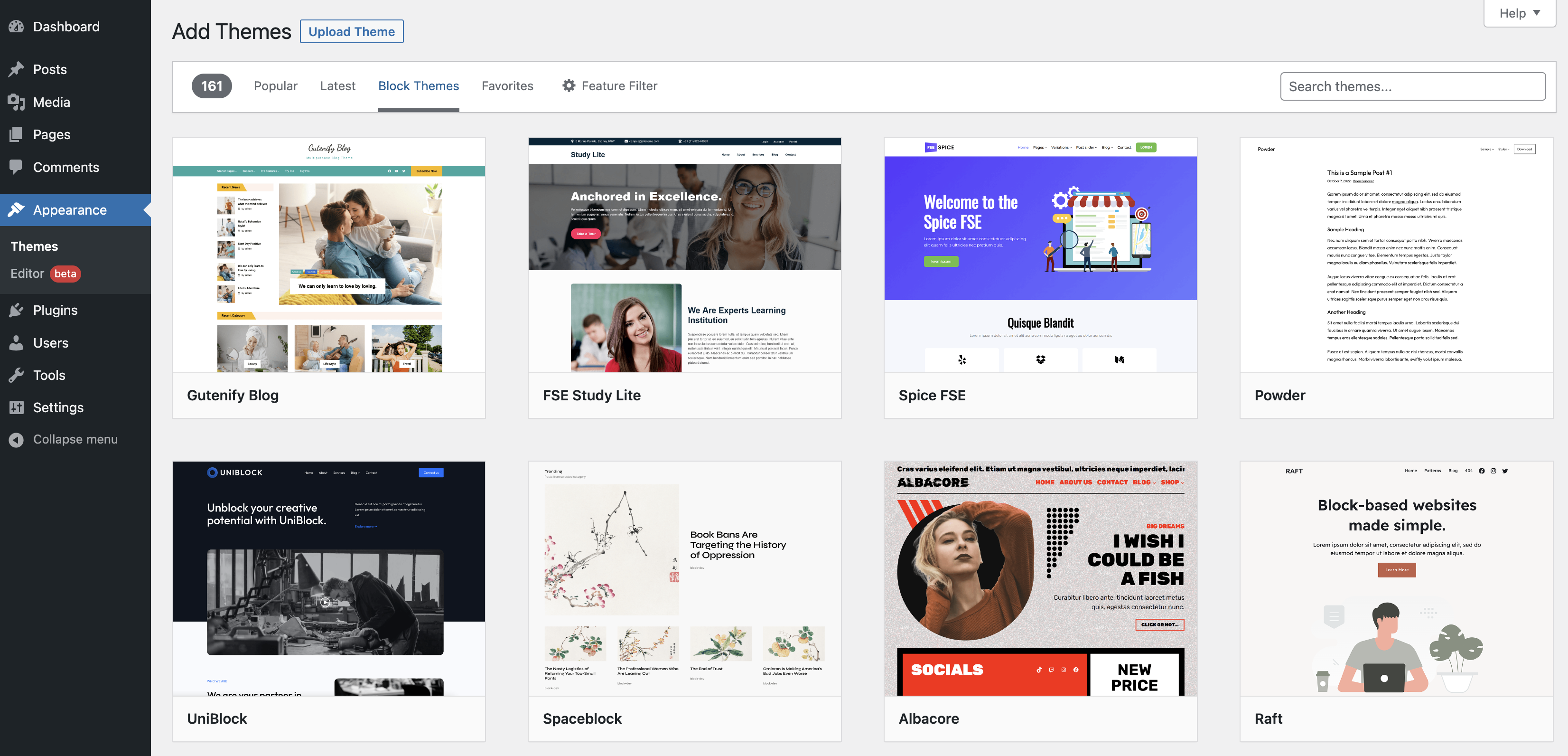
Go to the WordPress Dashboard. Click on Appearance, then Themes. Choose Add New. Browse or search for a theme you like. Click Install and wait. Once done, click Activate. Your theme is now live. Easy, right?
Download the theme file to your computer. Go to the WordPress Dashboard. Click on Appearance, then Themes. Choose Add New. Click Upload Theme at the top. Select your file and click Install Now. After installation, click Activate. Your theme is now ready. Simple steps for a new look!
Customizing The New Theme
Open your WordPress dashboard. Navigate to Appearance and then to Customize. Here, you can see different options. Change the site title and tagline if needed. Ensure the site identity matches your brand. Adjust the colors to fit your style. Set a background image if you want. Remember to hit Save to keep changes.
Choose a font style that is easy to read. Update menu items to reflect your pages. Add widgets in the sidebar for more features. Include a custom logo for branding. Change the header image to something appealing. These steps help make your site unique. Enjoy the new look!
Testing The New Theme
Every button and link should work. Navigate through pages and posts. Ensure no errors appear. Check plugins and widgets. They must function properly. Verify loading speed. A slow site irritates users. Fix any broken elements quickly. Test forms and comments sections. They should submit correctly. Ensure the shopping cart works for ecommerce sites.
Open the site on a phone. Images should adjust size well. Text must be readable. No zooming needed. Menus should open easily. Test all buttons. They must be clickable. Check layout in portrait and landscape view. Everything should fit on the screen. Use tools to test different devices. Fix any issues immediately.
Credit: docs.presscustomizr.com
Launching The New Theme
A final review is crucial. Check the theme’s appearance. Ensure everything looks perfect. Test all links. They must work. Check images. They should display correctly. Verify content. It should appear as planned. Look for any mistakes. Fix them now. It’s time to make everything right. Test your site’s speed. A slow site can drive users away. Use tools to measure speed. Optimize if necessary. Ensure your site is responsive. It should look good on all devices. Mobile, tablet, and desktop. Make sure users can easily navigate. Check menus and buttons. They must be easy to use.
After the final review, you can publish the new theme. Make an announcement on your site. Let visitors know about the update. Use social media to spread the word. Share the news on Facebook and Twitter. Encourage engagement. Ask for feedback. People love sharing their thoughts. It helps improve the site. An email newsletter can also be useful. Send updates to your subscribers. Keep them informed. Monitor your site after launch. Keep track of visitor responses. Watch for any issues. Resolve them quickly. Your site’s success depends on continuous attention and care.
Troubleshooting Common Issues
Sometimes a new theme might not display correctly. This can be due to improper settings. Check the theme’s customization options. Ensure all settings are configured. Clear the browser cache to see changes. Try disabling any active plugins. This helps identify if a plugin is causing issues.
Plugins can sometimes conflict with themes. Deactivate all plugins first. Activate them one by one. Find the plugin causing trouble. Update the plugin to its latest version. If issues persist, contact the plugin developer. They might have a solution. Always back up your site. This prevents loss of data.
Credit: wordpress.org
Frequently Asked Questions
How To Change A WordPress Theme?
To change a WordPress theme, navigate to the dashboard. Click on “Appearance” and then “Themes. ” Select “Add New” to browse themes. Once you find a suitable theme, click “Install” and “Activate” to apply it. Always preview changes before activating to ensure compatibility and design preference.
Can I Install Multiple Themes?
Yes, you can install multiple themes, but only one can be active at a time. Install themes via “Appearance” > “Themes” > “Add New. ” Switch between installed themes by clicking “Activate” under the desired theme. This allows you to experiment without losing customizations on the active theme.
Will Changing Themes Affect My Site?
Changing themes can affect your site’s layout and functionality. Content remains intact, but customization may vary. Always preview and back up your site before switching themes. Some widgets or features might not be compatible with the new theme, requiring adjustments for optimal performance.
How To Preview A New Theme?
Preview a new theme by navigating to “Appearance” > “Themes. ” Hover over the theme and click “Live Preview. ” This allows you to see changes without affecting the live site. Ensure the theme aligns with your site’s design and functionality requirements before activation.
Conclusion
Switching WordPress themes enhances your site’s look and feel. Follow the steps carefully. Choose a theme that aligns with your website’s goals. Back up your site before making changes. This prevents data loss. Always test the new theme in a staging environment.
It helps catch errors early. Keep your audience in mind when selecting features. A user-friendly design improves engagement. Stay updated with theme trends for a fresh look. Regular updates ensure security and functionality. Enjoy a visually appealing and efficient website experience.
Your site’s design now matches your vision.


