
Are you ready to take your WordPress skills to the next level? Building a WordPress theme can feel like a daunting task, but what if you could turn that challenge into a rewarding experience?
Imagine having the ability to craft a unique digital presence that stands out in the crowded online world. In this guide, you’ll discover the secrets to building a WordPress theme update that not only enhances your website’s aesthetics but also boosts its performance.
You’ll learn how to seamlessly integrate modern features that your audience will love. By the end of this article, you’ll feel empowered to create a theme that reflects your style and meets your site’s unique needs. Let’s unlock the potential of your WordPress site together!

Credit: pressable.com
Understanding WordPress Themes
WordPress themes change how your site looks. They make your site unique. A theme includes layouts, colors, and fonts. You can choose from many themes. Some are free, others cost money. Themes help show your site’s purpose. They are like clothes for your website. Changing a theme is easy. It can be done with a few clicks. This makes WordPress popular and fun.
Regular updates keep your theme secure and fast. Updates fix bugs and add new features. They make sure your site works well with new WordPress versions. Old themes can have problems. They might not look right. They might not work right. Updating is easy and important. It helps your site stay safe. It helps your site stay modern.
Setting Up Your Development Environment
Building a WordPress theme requires the right tools. Text editors like Sublime Text or Visual Studio Code are popular. They help you edit code easily. Browsers like Chrome or Firefox are also needed. They let you test your theme. Make sure you have a local server installed. This helps run WordPress on your computer. Tools such as MAMP or XAMPP can set up local servers. These tools are vital for theme building.
To start, download WordPress from the official site. Next, unzip the downloaded file. Move the folder to your local server’s directory. Open your browser and type localhost/your-folder-name. This starts the WordPress setup process. Fill in the details like database name and password. Click ‘Install WordPress’ to complete. Now, WordPress runs locally on your machine. Test your theme easily. It is simple and fast.
Creating A Child Theme
A child theme keeps your changes safe. This means you can update the main theme without losing your edits. Child themes make your site unique. You can change the design and features easily. Using a child theme is a good way to learn. You can experiment with code and see results fast. Errors won’t break your main theme. This keeps your site safe.
First, create a new folder in the themes directory. Name it as your child theme. Next, add a style.css file in this folder. Add a few lines of code to this file. This helps WordPress know about your theme. Now, add a functions.php file. Use this to add or change features. Activate your child theme in the WordPress dashboard. Your site now runs on the child theme.
Customizing Theme Files
WordPress themes have many template files. These files control how pages look. You can change them to fit your needs. Open the theme folder. Find the file you want to change. Use a text editor to make changes. Save the file after editing. Refresh your site to see changes. Always back up files before changing them. This helps if you make a mistake.
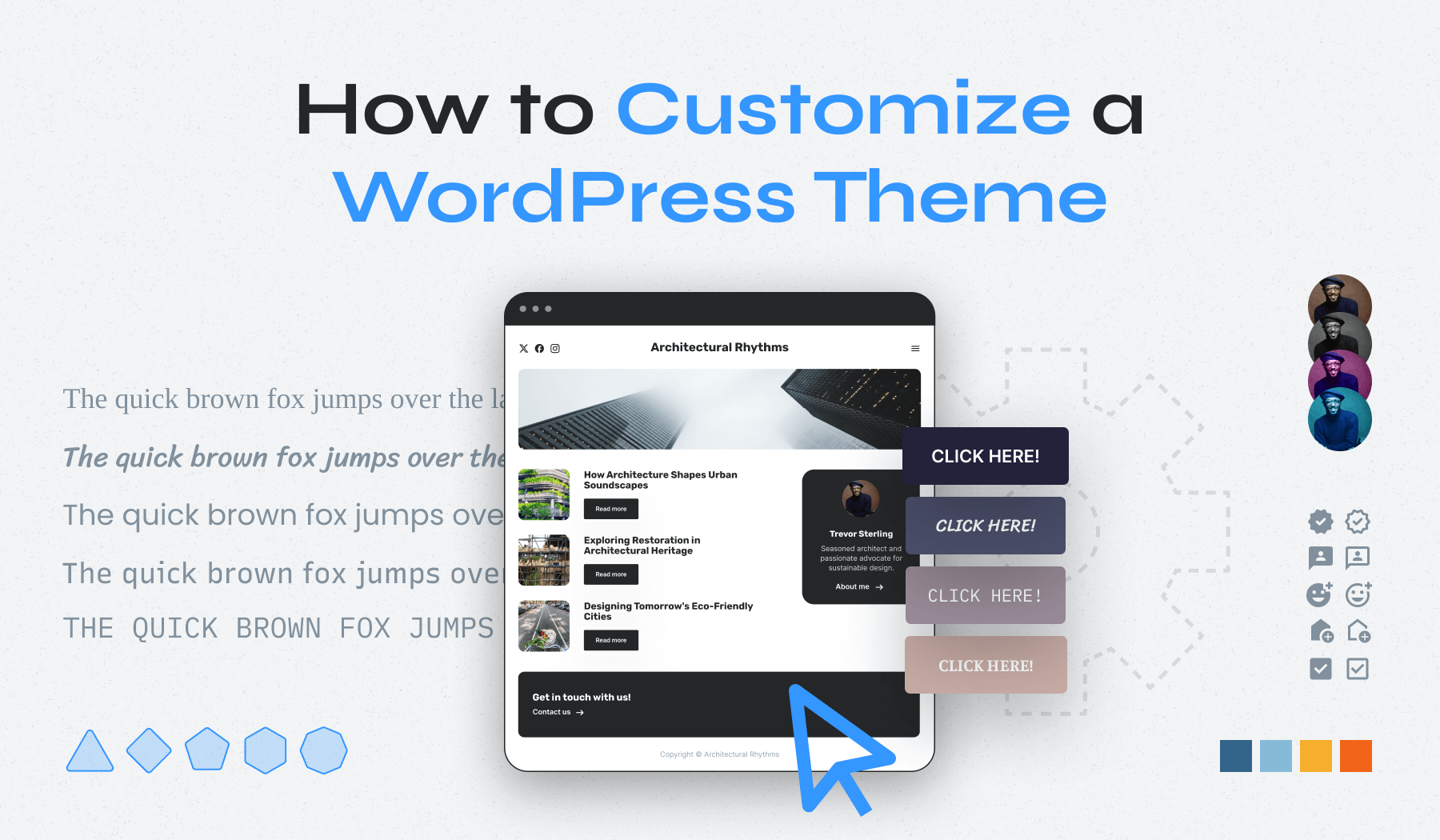
CSS is like clothes for your website. It makes your site look good. To change styles, open the style.css file. You can find it in the theme folder. Use simple CSS rules to change colors and fonts. Save your changes. Check your site to see the new look. CSS changes are easy to undo. Just remove or change the rule.
Using Theme Hooks And Filters
Hooks help connect code with WordPress. Actions and filters are two types of hooks. Actions let you add or change code. Filters help modify data before it is shown. Hooks make themes flexible and powerful. They help customize without changing the core files.
Filters change data in WordPress. They let you edit text, images, and more. Use filters to tweak how things look. Filters help improve the site’s appearance. They keep the theme fresh and exciting. Remember to use filters with care. Always test changes before using them live.
Testing Your Theme Update
Debugging helps find mistakes in your code. Use a tool like Xdebug. It makes finding errors easier. Breakpoints help stop code at certain points. Then, you can see what’s wrong. Error logs show mistakes too. Check these logs often. They give clues about what went wrong.
Console logs can also help. They show messages while the code runs. Use them to understand what your code does. Debugging may take time. But it makes your theme better.
Different browsers show websites differently. Test your theme in Chrome, Firefox, and Safari. Make sure it looks good on each one. Device simulators help test on phones and tablets. They show how your theme looks on small screens.
Responsive design is important. It makes sure your theme works on all devices. Testing on different browsers helps find problems early. It ensures your theme works for everyone.
Version Control And Backup
Building a WordPress theme update requires version control and backup strategies. Regular backups protect against data loss during updates. Version control helps track changes, ensuring seamless updates without breaking your site.
Using Git For Version Control
Git helps keep your theme changes safe. You can track every change. This way, you know what was changed and by whom. It is like a history book for your theme. If a mistake happens, you can fix it easily. Go back to a previous version anytime. This keeps your work organized. It’s smart to use Git when building themes.
Creating Backups Of Your Theme
Backups protect your theme from loss. Store a copy of your theme often. Use cloud services like Google Drive or Dropbox. This makes sure your theme is always safe. Even if your computer breaks, your theme is secure. Keeping backups is a good habit. It saves time and stress. You can restore your theme quickly if needed.
Credit: www.wpzoom.com
Deploying The Updated Theme
To start, make sure you have an FTP client. This tool helps you move files. Upload your theme files to the server. Use a folder called “themes.” Check if the files are in the right place. This step is very important. Wrong places can break the website. Backup your old theme files first. This way, you can fix problems later.
Test the theme before making it live. Visit your website and look at the pages. Check if everything looks good. Look for missing images or broken links. You can use a plugin for testing. Keep your backup ready just in case. This helps if something goes wrong.
Maintaining Your Theme
Keeping your WordPress theme up-to-date is important. Updates fix bugs and improve security. Regularly check for new versions. This ensures your website runs smoothly. Use the WordPress dashboard for easy access. You can find the update alerts there. Always back up your site before updating. This keeps your data safe.
Choose a theme that gets regular updates. This helps it stay relevant. Support for future WordPress versions is key. Look for themes with good documentation. Check if the theme creator is active. This ensures they will keep updating. Avoid themes that seem abandoned. They might not work well in the future.
Credit: www.wpzoom.com
Frequently Asked Questions
What Is A WordPress Theme Update?
A WordPress theme update is the process of enhancing and improving an existing theme. Updates may include new features, bug fixes, security patches, and design improvements. Regular updates ensure compatibility with the latest WordPress version and provide a better user experience.
How Often Should I Update My Theme?
You should update your WordPress theme whenever an update is available. Regular updates ensure optimal performance and security. Developers often release updates to fix bugs and improve compatibility with new WordPress versions. Check for updates monthly to keep your site running smoothly.
Can Updating A Theme Break My Website?
Yes, updating a theme can sometimes break your website. This occurs due to compatibility issues or customized code conflicts. Before updating, back up your site and test updates on a staging environment. This precaution helps ensure a smooth transition without disruptions.
How Do I Update My WordPress Theme Safely?
To update safely, always back up your website first. Use a staging environment to test updates before applying them live. Ensure your theme and plugins are compatible with the new version. Follow these steps to minimize risks and maintain website integrity during updates.
Conclusion
Building a WordPress theme update is simple with the right steps. Start by organizing your files and code. Test everything thoroughly before launching. Use clean, efficient code for better performance. Keep your design user-friendly and responsive. Regular updates keep your theme secure and current.
Stay informed about WordPress changes and trends. This helps you create themes that users love. Remember, practice makes perfect. The more you work on updates, the better you get. Enjoy the process and create themes that stand out. Your efforts will pay off in a smooth, functional theme.


