
Are you looking to showcase your creative work in a way that truly stands out? Adding a portfolio to your Sketch WordPress theme might be the perfect solution.
Whether you’re a designer, photographer, or artist, displaying your projects beautifully can make a huge difference in how potential clients perceive your work. Imagine turning your website into a stunning visual gallery that captivates visitors and compels them to explore more.
In this guide, you’ll discover simple steps to seamlessly integrate a portfolio into your Sketch theme, making your website not just a digital presence, but a powerful tool to attract and impress. Ready to transform your site into a masterpiece? Let’s dive in!
Choosing The Right Tools
Choose a Sketch theme that fits your style. Think about your portfolio needs. Do you need many pages or just a few? Some themes have easy-to-use drag-and-drop builders. Others might offer customizable templates. Pick what feels right for your portfolio goals.
Make a list of what you need in a portfolio. Do you need to show pictures or videos? Maybe you need a place for client testimonials. Think about adding a contact form. That way, people can reach you easily. Write down all your ideas. This helps in picking the perfect theme.

Credit: themeforest.net
Setting Up The Sketch Theme
First, download the Sketch theme. Next, go to your WordPress dashboard. Click on “Appearance” and then “Themes”. Select “Add New” at the top. Choose the downloaded theme file. Click “Install Now”. Wait for the theme to install. Click “Activate” to make it live.
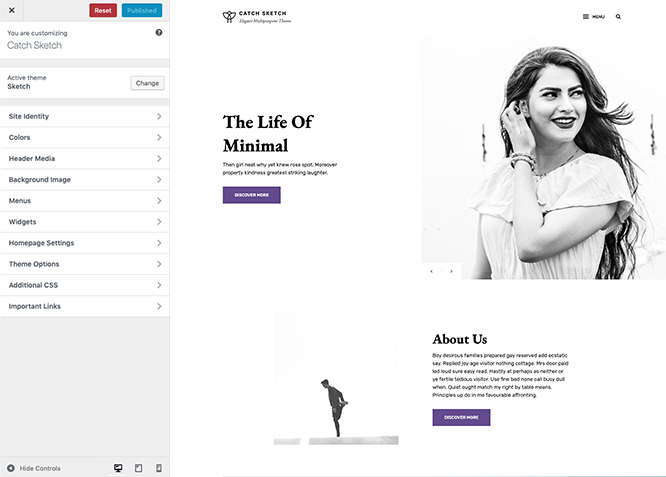
Click on “Customize” in the WordPress dashboard. Find settings for the Sketch theme. Adjust colors and fonts as you like. Set up your homepage layout. Add your logo and site title. Choose your header image. Save changes as you go. Check your site to see updates. Make sure it looks good on mobile.
Creating Portfolio Pages
Start by opening your WordPress dashboard. Look for the Portfolio section on the left. Click on it. You will see an option named Add New. Click on that option to add a new item.
Fill in the title and description of your project. Use simple words. Add images to make it look nice. Images should be clear and bright.
Go to the Appearance section. Click on Customize. Find the Portfolio settings. Choose how you want your items to show. You can pick grid or list view.
Make sure your items look neat. Try different layouts to see what fits best. Keep it simple and tidy. This helps visitors find what they want.
Integrating Media And Content
First, gather all your images and videos in one folder. This helps keep things organized. Use the media library to upload files. Click the “Add New” button. Select the files you need. Wait for them to upload. Make sure each file is the right size. Smaller files load faster.
Add titles and descriptions to your media. This helps people understand your work. Use clear and simple words. Make sure each image has a short, meaningful name. Videos should have captions if needed. This helps everyone enjoy your content.
Describe your work in simple words. Tell what makes it special. Use short sentences to keep attention. Write in a way that kids can understand. Use everyday words. Avoid hard words. Break long thoughts into short bits.
Add keywords to improve searchability. These are words people might use to find your work. Keep the tone friendly and inviting. Make readers feel welcome. This makes your portfolio stand out.
Enhancing Portfolio Design
Integrating a portfolio into the Sketch WordPress theme enhances your design showcase. Start by installing the theme and access the portfolio settings. Customize layouts, add project details, and upload images to display your work effectively.
Using Custom Css
Custom CSS makes your portfolio unique. CSS styles change colors, fonts, and layouts. You can make your portfolio look bright and fun. Or, keep it simple and clean. CSS is like magic for web design. It helps you show your best work. Make sure each piece stands out. With CSS, your portfolio feels special.
Incorporating Interactive Elements
Interactive elements make portfolios engaging. Slideshows show many works at once. Buttons let visitors click and explore. Animations add fun. They make your portfolio lively and exciting. Interactive parts make people stay longer. They enjoy seeing your projects move. Use them wisely to tell your story. Keep it simple and clear. Too many effects can confuse.
Credit: catchthemes.com
Optimizing For Performance
Fast loading is key for websites. Large images slow websites down. Use smaller images for quicker loads. Compress files to save time. Use a fast hosting service. Clean up unnecessary plugins. They can slow your site. Keep your theme updated. Updates help speed and security.
Many people use phones for browsing. Your site must work on phones too. Use a responsive design for better viewing. Check how your site looks on small screens. Use large fonts for easy reading. Keep buttons big for tapping. Test your site on different devices. Make sure everything works well.
Testing And Feedback
Easily integrate your portfolio into the Sketch WordPress theme by navigating to the theme settings. Follow simple steps to upload images and descriptions. This feature ensures your work is displayed attractively and professionally.
Conducting User Testing
Invite friends to test your portfolio. They can find mistakes. Ask them to try all features. Check how easy they use it. See if they understand the design. Record their feedback. Adjust based on their thoughts. User testing helps improve quality. It ensures a good user experience. They might find issues you missed.
Gathering Feedback
Feedback is important. Ask users what they like. Ask what they find hard. Use surveys for feedback. Questions should be simple. Make them easy to answer. Feedback helps your portfolio get better. It shows what works well. It highlights what needs change. Listen to feedback carefully. It guides improvement. It makes your work better.
Credit: themeforest.net
Launching Your Portfolio
Publishing your site is a big step. Make sure your content is ready. Check if images and texts look good. Your portfolio should show your best work. Double-check links. They should work smoothly. Use a catchy title for each piece. People love nice pictures. Add some to make it more interesting. Tell a short story about each project. It helps visitors understand your work. Your site should load fast. Slow sites make people leave. Test it on different devices. It should look good on all screens.
Share your site with friends. Ask them to give feedback. Use social media. Post your work there. Join groups with similar interests. Tell them about your portfolio. Link it in your social profiles. People will click and see your work. Write a short note about each project. Explain why it is special. Use simple words. Avoid jargon. People want to understand quickly. Regular updates keep your site fresh. Add new projects often. Stay active. Let the world see your talent.
Frequently Asked Questions
How Do I Start Adding A Portfolio?
To add a portfolio, first access your WordPress dashboard. Navigate to Appearance > Themes and select Sketch. Use the built-in portfolio feature by going to Portfolio > Add New. Customize your portfolio by adding images, descriptions, and categories. Save and publish to make it visible on your site.
Can I Customize Portfolio Layout?
Yes, you can customize the portfolio layout in Sketch theme. Navigate to Appearance > Customize. Choose Portfolio Options to adjust layout settings. You can change grid styles, number of columns, and filter options. Preview your changes and save them to enhance the visual appeal of your portfolio.
What Image Formats Are Supported?
The Sketch theme supports common image formats like JPEG, PNG, and GIF. Ensure your images are optimized for web to maintain quality and loading speed. Use high-resolution images for professional appearance. You can upload images directly via the WordPress media library when adding portfolio items.
Is Sketch Theme Mobile Responsive?
Yes, the Sketch theme is mobile responsive. It ensures your portfolio looks great on all devices, including smartphones and tablets. Responsive design adjusts layout automatically based on screen size. This provides a seamless viewing experience for visitors accessing your portfolio from different devices.
Conclusion
Adding a portfolio to your Sketch WordPress theme is simple. Follow the steps, and customize your site effectively. Highlight your work and attract potential clients. An organized portfolio boosts your online presence. It showcases your skills and creativity. Make sure your portfolio is easy to navigate.
Keep it updated regularly with new projects. This ensures visitors see your latest work. Your portfolio can be a powerful tool in your business. With a few clicks, you can create an impressive showcase. Start building your portfolio today and enhance your website’s appeal.


