
Are you ready to make your WordPress site truly yours? Imagine having complete control over your website’s design without needing to write a single line of code.
Creating custom theme options in WordPress can be your gateway to a fully personalized site that reflects your unique style and vision. This isn’t just about aesthetics; it’s about empowering you to shape your digital presence with ease and confidence.
You’ll discover the step-by-step process to create custom theme options that are not only functional but also tailored to your specific needs. Whether you’re a seasoned developer or a WordPress newbie, this guide will provide the insights you need to transform your site into a masterpiece. Get ready to dive in and unlock the potential of your WordPress theme!
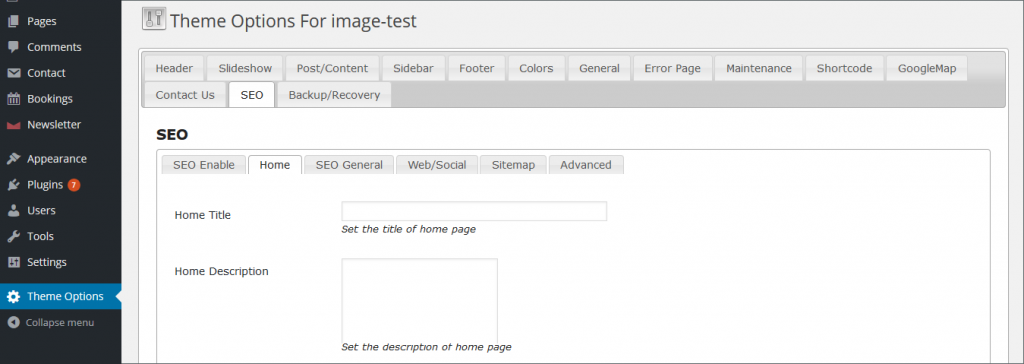
Credit: blog.templatetoaster.com
Understanding Theme Options
Theme options in WordPress help change the look of a site. It allows users to modify colors, fonts, and layouts. Each theme has its own set of options. These options are found in the WordPress dashboard. Custom theme options can make a website unique. Users enjoy the ability to adjust features. They can tailor the site to their needs. This ensures the site looks just right. With these tools, creativity is endless. Customization is simple and fun.
Benefits Of Custom Theme Options
Custom theme options make your site unique. They allow you to change colors and fonts. You can add special features. This makes your website stand out.
Easy settings help you save time. No need to code. Beginners can use them easily. They are user-friendly.
Your site looks professional. You control the design. You make it match your brand.
Custom options improve user experience. People find your site easy to use. They enjoy visiting and stay longer.
Better design leads to more visits. More visits can mean more sales. Your business grows.
Setting Up Your WordPress Environment
Picking the correct tools is important for WordPress. Start with a good text editor. Some popular ones are Atom and Visual Studio Code. These help you write clean code. They also have helpful features like syntax highlighting.
You will also need a local server environment. This lets you test your site without going online. XAMPP and MAMP are great choices. These tools make sure your WordPress site works properly.
Plugins add special features to WordPress. First, go to the WordPress dashboard. Click on “Plugins” and then “Add New“. Search for plugins that fit your needs. Some plugins help with SEO. Others improve security or add design options.
After finding a plugin, click “Install Now“. Then, click “Activate“. Repeat this for all needed plugins. Always pick plugins that are well-rated. This ensures your site runs smoothly.
Credit: www.wpzoom.com
Creating A Basic Theme Option Page
Begin by adding theme support in your WordPress theme. Use the functions.php file to do this. Add the code for theme support. This enables custom features. It is important for flexibility. Themes become more user-friendly. Users can customize easily.
A settings page allows users to manage options. Use the add_menu_page function. It helps create a page in the dashboard. This page should be simple and clear. Use labels for options. Ensure users understand them. Add fields for inputs. Save settings using WordPress functions. This makes the page functional.
Using WordPress Customizer
WordPress Customizer allows users to make changes easily. It helps developers to add custom theme options. Start by accessing the Customizer API. Use the customize_register action hook. This connects your settings with the Customizer. Add sections and controls. Make them visible on the Customizer screen.
Custom settings give users more control. Define settings using the setting method. Use the add_setting function. This stores options in the database. Create input fields using controls. Link each control to a setting. Save changes automatically. Customize the appearance of your theme. Add color options, fonts, or layout choices. Ensure settings are user-friendly.
Enhancing User Experience
Organizing Options is key to a smooth user journey. Keep options clear and simple. Arrange them by category. Group similar settings together. This helps users find what they need. Use icons for visual guidance. Make sure labels are easy to understand. Clear organization reduces confusion. Users feel in control. They enjoy using the theme more.
Utilizing Live Previews is a great feature. Users can see changes instantly. This helps them make choices faster. No need to save and refresh. Live previews save time. They give users confidence in their decisions. This feature is loved by users. It makes editing fun and easy. Instant feedback boosts user satisfaction.
Security And Best Practices
Secure sites check user input carefully. This avoids bad data. Always validate input before using it. Use functions for cleaning data. Sanitize means making data safe. Escape makes sure data does no harm. Protect your site with good input checks.
Nonces keep actions safe. They are random numbers. Nonces prevent repeat actions. Use them in forms and links. Always check the nonce before a task. If nonce fails, do not proceed. This protects against misuse. Nonces are simple yet powerful.
Testing And Debugging
Common Issues often arise with custom themes. Some themes may not load. Others might display incorrectly. This can be due to coding errors. Sometimes, plugins conflict with themes. Incorrect file paths can cause problems too. Always check your code for typos. Typos can break your theme. Missing files are another issue. Ensure all files are uploaded. Database problems can also occur. Check your database connection settings.
Tools for Debugging can help find errors. Use a browser’s developer tools. These tools show errors in real-time. They highlight coding mistakes. Debugging plugins are available. Some plugins identify conflicts. Others check for missing files. Error logs are helpful too. They show where problems occur. Logs often point to faulty code. Use these tools for faster fixes.
Resources And Further Learning
WordPress has many learning resources. These help you to create custom themes. Start with the WordPress Codex. It is the official guide. You will find detailed documentation. It covers every part of WordPress. Another great place is WordPress TV. It has many helpful videos. They show step-by-step tutorials. Many experts share their knowledge there.
Check out blogs like WPBeginner. They offer simple guides for beginners. Stack Overflow is a good place for questions. Many experts answer quickly. Online courses can also help. Websites like Udemy and Coursera have courses on WordPress. These courses can be very detailed. They often include hands-on exercises.
Books can also be helpful. Look for titles about WordPress development. They provide in-depth insights. Joining forums is another way to learn. WordPress forums have many active users. They share tips and tricks. Learning from others can be very useful. Keep practicing and experimenting. You will become better over time.

Credit: webdesignerdepot.com
Frequently Asked Questions
What Is A Custom Theme Option In WordPress?
A custom theme option in WordPress allows users to customize their site’s appearance and functionality. It provides settings like colors, fonts, and layouts, making it easier to tailor the site to specific needs without coding. Custom theme options are usually found in the WordPress dashboard under ‘Appearance’.
How Do I Add Custom Theme Options?
To add custom theme options, use the WordPress Customizer API. First, register your settings and sections in the functions. php file. Then, add controls for each setting, like text fields or color pickers. This enables users to modify theme features directly from the Customizer interface.
Why Use Custom Theme Options?
Custom theme options enhance user experience by allowing easy customization. They save time and effort by providing a straightforward interface to change site elements. Users can tweak design aspects like colors and fonts without needing coding knowledge, ensuring flexibility and personalization.
Can Beginners Create Theme Options?
Yes, beginners can create theme options with some guidance. Start by learning the basics of the WordPress Customizer API. Follow tutorials and use sample code snippets to understand how to register settings and create controls. With practice, creating theme options becomes manageable.
Conclusion
Creating custom theme options in WordPress enhances your site’s flexibility. You gain control over design elements. Users can easily adjust settings without coding. This boosts your site’s usability and accessibility. Customization lets you tailor themes to fit your brand. It improves user experience and satisfaction.
Experiment with different features. Find what works best for your audience. This process is simple and rewarding. Even beginners can achieve great results. Start today to personalize your site. Make your website unique and engaging. Enjoy the benefits of a customized WordPress theme.


