
Are you looking to customize your WordPress site without losing your changes whenever you update your theme? Applying a child theme might just be the perfect solution for you.
Imagine having the freedom to tweak and tailor your site to your heart’s content, all while ensuring your hard work remains intact with every theme update. It’s like having a safety net for your creative endeavors. In this guide, you’ll discover how simple it is to apply a child theme in WordPress.
You’ll gain the confidence to enhance your website’s functionality and aesthetics without the fear of losing your personal touches. Ready to unlock a new level of customization for your site? Let’s dive in and explore how easy it is to get started with child themes.
What Is A Child Theme?
A child theme is a special WordPress theme. It gets features from another theme. This main theme is called the parent theme. Child themes let you change your site without harm. Your changes stay safe during updates.
Creating a child theme helps in many ways. It keeps your site secure and up-to-date. Even beginners can use child themes easily. They give you freedom. Freedom to make your site look unique. You can add new styles and functions with ease.
Credit: elementor.com
Benefits Of Using A Child Theme
Child themes keep your website safe during updates. They protect your main theme. Changes made are not lost. You can customize your site easily. There is no fear of losing work. This makes it easier to fix mistakes. Experimentation becomes simple. You can try new ideas without worry.
A child theme is like a safety net. It is perfect for beginners. It offers a chance to learn and grow. You can learn how themes work. There is no risk to the main theme. This helps in keeping your site fresh. It gives you the power to create.
With child themes, backups are simple. You can save your work easily. Restoring old designs is possible. They offer a chance to explore. Customization becomes fun and stress-free. Your site is always secure.
Creating A Child Theme Folder
First, open your computer and find the WordPress theme folder. This is where you will add the child theme. Look for the folder named ‘wp-content’. Inside this folder, find another folder called ‘themes’.
Now, create a new folder in the ‘themes’ folder. Give it a name that shows it is a child theme. For example, if the main theme is ‘OceanWP’, name the new folder ‘OceanWP-child’.
This new folder will hold all the child theme files. It is a safe place to make changes. The main theme will stay the same. This helps if updates are needed. You can now start adding files to your new folder.
Adding A Stylesheet
Start by creating a new folder for your child theme. This folder should be inside the themes directory. Name the folder anything you like, but keep it simple. Inside this folder, create a new file. Name this file style.css.
Open the style.css file with a text editor. Add the following lines at the top:
        /
        Theme Name:   Your Child Theme Name
        Template:     Parent Theme Folder Name
        /
Replace “Your Child Theme Name” with the name of your theme. Also, replace “Parent Theme Folder Name” with the name of the parent theme’s folder. Save the changes.
Your child theme can now use styles from the parent theme. It’s easy to adjust these styles. Just add your custom CSS to the style.css file. This way, you can change the look of your site safely.
Enqueuing Parent Theme Styles
Child themes in WordPress need parent theme styles. This is important. Parent theme styles give structure. They give design and layout. To enqueue these styles, use a special code. This code goes in the child theme’s functions.php file. This file is crucial. It tells WordPress what to do.
Write a function in this file. Use `wp_enqueue_style()`. This function connects styles. It makes the child theme look like the parent theme. Be sure to include the parent theme’s name. It must be exact. This connects the styles properly. Without this, styles can be missing. Missing styles make the site look wrong.
This process is simple. Follow these steps for best results. Your WordPress site will look neat. It will look like the parent theme but with your changes.
Credit: happyaddons.com
Customizing The Child Theme
Changes in CSS make the theme look different. Locate the style.css file in your child theme. Open it and write new styles for your site. Use the right class or ID from the parent theme. This will change elements like colors and fonts. Be careful not to delete the parent styles. Always test your changes on different devices. This ensures everything looks right.
The functions.php file lets you add new features. Create a functions.php file in your child theme. Write your custom code inside this file. This can include new widgets or menu items. You can even modify existing functions. Make sure your code is correct to avoid errors. Always back up your site before making changes. This keeps your site safe from mistakes.
Activating The Child Theme
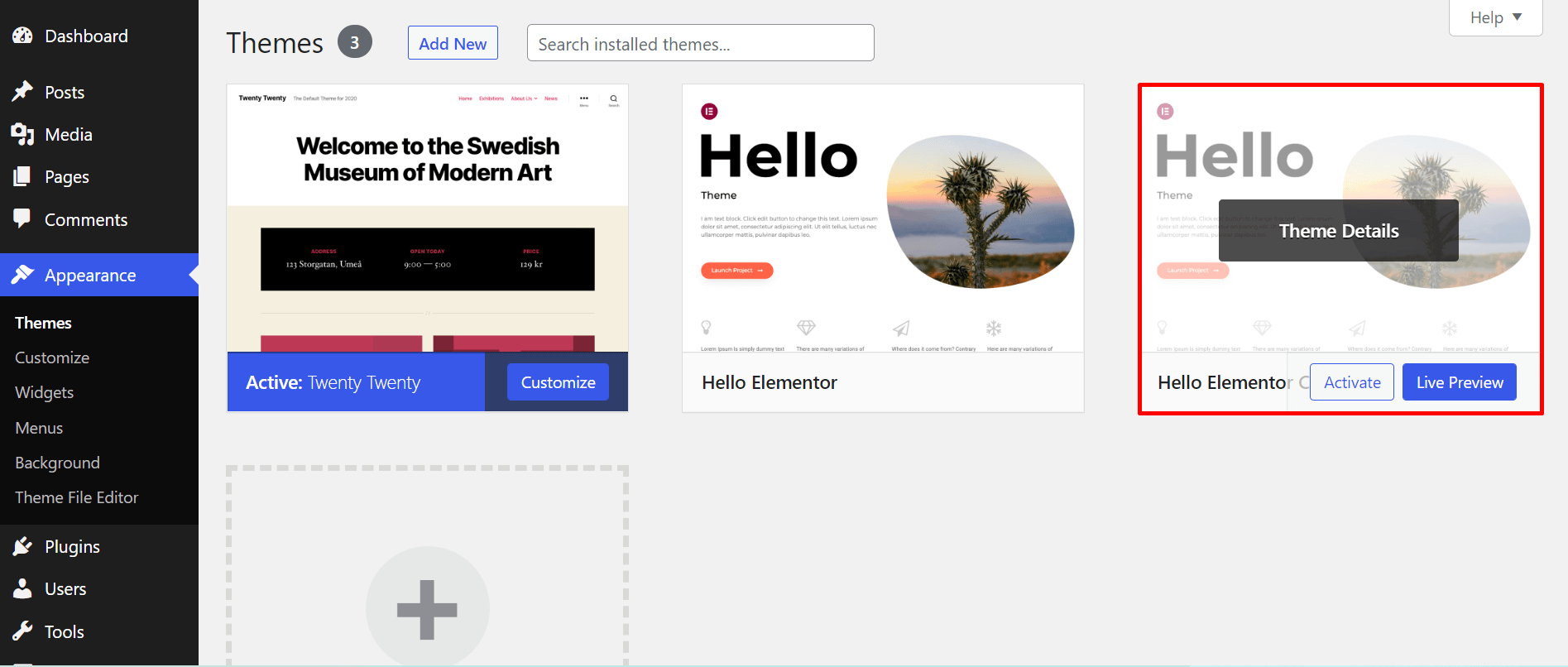
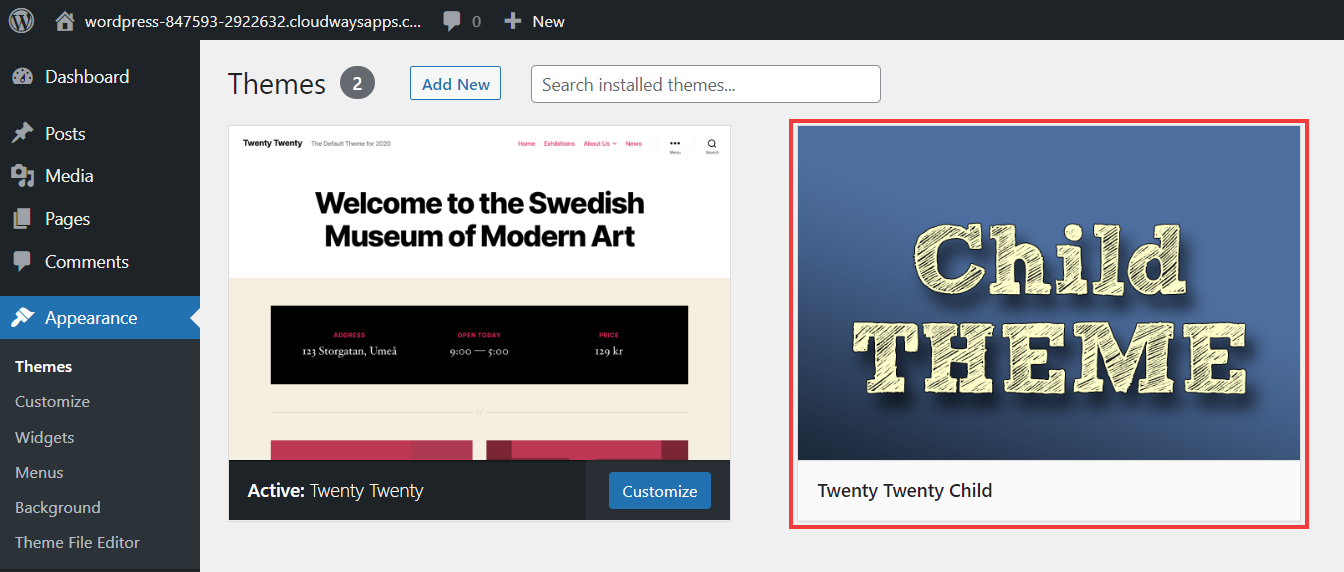
Start by logging into your WordPress dashboard. Go to the Appearance section. Click on Themes. Find the child theme you installed. Hover over the theme and click Activate.
Once activated, check your site. Ensure everything looks okay. Your child theme should inherit styles. It may need adjustments. Try refreshing your browser. Sometimes changes take a moment.
Visit your site settings. Make sure widgets and menus are in place. They might need reordering. Save changes after checking. This keeps your site looking good.
Credit: www.cloudways.com
Testing Your Child Theme
Create a child theme in WordPress to customize your site safely. Test it by activating and checking for design and functionality changes. This ensures your modifications work smoothly without affecting the main theme.
Visual Inspection
Inspect your website’s look. See if everything appears as expected. Check the header, footer, and sidebar. Ensure the colors and fonts match your design. Look at the images and text. They should be in the right place. Compare with the parent theme. Find any differences.
Functionality Check
Test the navigation menu. Ensure all links work well. Click on buttons and links. They should take you to the right pages. Try forms and widgets. They should work properly. Check for any broken elements. Use your website on different devices. It should look good on phones and tablets. Make sure the responsive design works fine. This ensures a good user experience.
Troubleshooting Common Issues
Applying a child theme in WordPress can prevent future updates from erasing your customizations. Start by creating a new folder in your themes directory, then include a style. css and functions. php file. This approach ensures a stable and customizable WordPress site.
Styles Not Loading
Styles might not load when using a child theme. This can make your site look broken. Check the child theme’s stylesheet. Ensure it is linked correctly in the header file. Sometimes, the parent theme’s style isn’t called. Add a line of code to the child theme’s functions file. This line will import the parent theme’s styles. Always save changes and refresh your site to see if the styles load.
Function Conflicts
Functions in the child theme can conflict with the parent theme. This can break site features. Use unique names for your functions. Avoid using the same function names as the parent theme. Update both themes regularly. This can help reduce conflicts. If problems persist, disable one function at a time. Find which one causes the conflict. Resolve the issue by renaming or adjusting the function.
Best Practices For Child Themes
Regular updates keep your child theme healthy. WordPress changes often. Update your child theme with each new version. This avoids conflicts. Check for changes in the parent theme too. Copy and adjust new code to your child theme. This keeps features working well. Use tools like GitHub to track changes. This helps manage updates easily.
Backup strategies protect your work. Always backup before updates. This saves your changes if something breaks. Use plugins like UpdraftPlus for easy backups. Store backups in secure places. Cloud storage works well. Keep regular backups. Weekly backups are good. They ensure you can recover lost data quickly.
Frequently Asked Questions
What Is A WordPress Child Theme?
A child theme is a sub-theme that inherits styles and functionality from a parent theme. It allows you to customize your site without altering the parent theme. This is crucial for future updates, ensuring modifications aren’t lost. Child themes are ideal for preserving changes while maintaining the original design.
Why Use A Child Theme In WordPress?
Using a child theme ensures your customizations remain intact after updates. It allows you to experiment and customize without affecting the parent theme. This approach keeps your website secure and up-to-date while retaining unique tweaks. It’s a best practice for WordPress site management.
How To Create A WordPress Child Theme?
To create a child theme, start by creating a new folder in your themes directory. Include a style. css file with essential details and import the parent theme’s styles. Add a functions. php file for custom scripts. Activate the child theme through the WordPress admin dashboard.
Can A Child Theme Affect Site Performance?
A child theme generally doesn’t affect site performance negatively. It inherits functionality from the parent theme, ensuring stability. Customizations might impact performance, but using a child theme helps manage them efficiently. It’s designed to optimize changes without compromising the site’s speed and functionality.
Conclusion
Applying a child theme in WordPress is simple and effective. It protects your original theme’s settings. This allows easy customization without risk. Follow the steps carefully for best results. Your site will stay updated and secure. A child theme is a smart choice for any WordPress user.
It helps maintain design consistency. Enhance your website’s look with confidence. Make changes without losing your hard work. Enjoy a seamless WordPress experience with child themes. Improve your site’s functionality today. Start customizing with ease and peace of mind.


