
Are you looking to make your WordPress site more dynamic and engaging? Adding an image slider could be just the boost your site needs.
Imagine captivating your visitors with a stunning showcase of your best visuals right when they land on your page. An image slider not only grabs attention but also helps convey your message in an elegant and visually appealing way. In this guide, we’ll walk you through the simple steps to integrate an image slider into your WordPress theme.
No need to worry if you’re not a tech wizard; our easy-to-follow instructions are designed with you in mind. So, are you ready to transform your website and keep your audience coming back for more? Let’s get started!
Choosing The Right Plugin
WordPress has many image slider plugins. Some popular ones are MetaSlider, Smart Slider 3, and Slider Revolution. Each plugin has unique features. MetaSlider is known for ease of use. Smart Slider 3 offers many design choices. Slider Revolution provides advanced settings. Choose based on your needs.
Think about ease of use. Some plugins are simple. Others need more skill. Look at design options. Do you want many styles? Check if the plugin supports mobile devices. Most people use phones. Also, consider plugin updates. Regular updates mean better performance. Always read user reviews. They can tell you a lot.
Credit: www.wonderplugin.com
Installing The Plugin
Accessing the Plugin Directory is simple. Open your WordPress dashboard. Click on Plugins. Choose Add New. Search for “Image Slider”. A list will appear. Look for the plugin you want. Click on Install Now. The plugin will start installing. Wait for it to finish. Once done, you need to activate it.
Plugin Installation Steps:
- Go to WordPress dashboard.
- Click on Plugins.
- Select Add New.
- Search “Image Slider”.
- Choose your plugin.
- Press Install Now.
- Activate the plugin after installation.
Configuring Plugin Settings
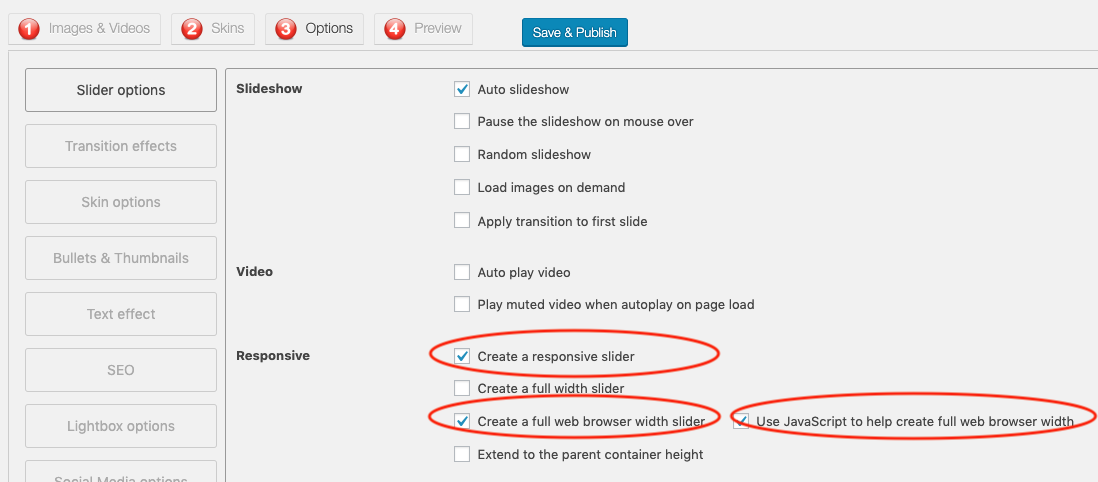
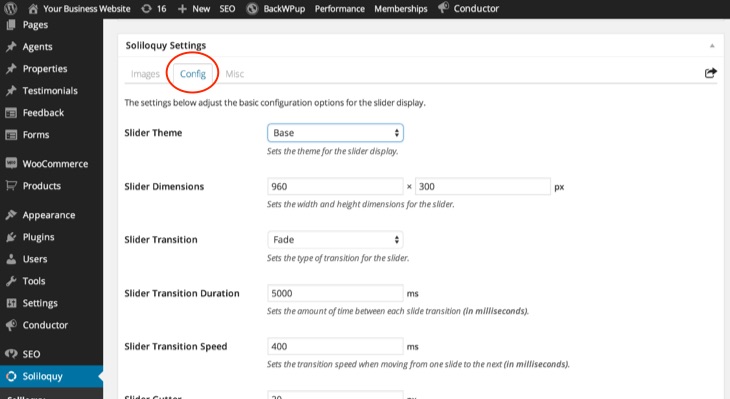
First, install a plugin for the image slider. Many plugins have different settings. Find the settings in the plugin’s dashboard. Look for a tab or button marked “Settings” or “Configure”. Check options to set the image size. Decide how many images to show. Set the slide speed and pause time. Save your changes often. This keeps your work safe. Preview the slider. Make sure it looks right.
Customizing Slider Appearance
Choose colors that match your theme. Use the plugin’s style settings. Select a background color that fits. Change the border color if needed. Adjust the font style for captions. Some plugins let you add custom CSS. Use this for more styling options. Always preview changes. Ensure the slider looks good and fits your site.
Setting Transition Effects
Choose a transition effect for your slider. Effects like fade, slide, or zoom can be used. Different plugins have unique effects. Test each effect to see what you like. Adjust the transition speed. This controls how fast images change. Some effects may not work well with all images. Pick the one that looks best on your site.
Credit: slocumthemes.com
Adding Images To The Slider
First, open the WordPress dashboard. Find the Media section and click on it. Next, choose Add New. Now, you can upload your images. Select images from your computer. Click on Upload. Wait for the images to load. They are now ready to use in the slider.
Go to the slider settings. Find the images you uploaded. Arrange them as you like. Click and drag to change their places. The first image is shown first. Make sure the order looks good. This will make the slider nice.
Inserting Slider Into Theme
Shortcodes are tiny snippets. They are like magic words. They add features to your site. Many slider plugins offer shortcodes. Copy the shortcode from the plugin. Paste it where you want the slider. Easy, right? Make sure the slider plugin is active. It won’t work if inactive.
Page builders make designing simple. They help create beautiful pages. Some builders have slider options. Drag and drop the slider block. Place it on your page. Customize it to fit your theme. Page builders often have settings to adjust sliders. They help make your site look great.

Credit: docs.presscustomizr.com
Optimizing Slider Performance
Adding an image slider to a WordPress theme enhances visual appeal and user engagement. First, install a slider plugin. Then, upload and arrange images easily. Adjust settings for smooth transitions and optimal performance.
Ensuring Fast Load Times
Fast load times make users happy. Use images with small sizes. This helps the page load quickly. Compress images to make them smaller. Use tools like TinyPNG or JPEG Optimizer. Choose the right file type. JPEGs are often best for photos. PNGs work well for graphics. Limit the number of images in the slider. Too many images slow down the site. Use lazy loading for better speed. Lazy loading loads images only when needed.
Mobile Responsiveness
Mobile users need a smooth experience. Make sure the slider looks good on phones. Use a responsive design. This means the slider changes size on different screens. Check the slider on many devices. Test it on phones and tablets. Ensure buttons are easy to tap. Small buttons are hard to press. Keep text clear and readable. Use a font size that is big enough.
Troubleshooting Common Issues
Adding an image slider to a WordPress theme can sometimes be tricky. Common issues include plugin conflicts and image upload errors. Ensure all plugins are updated and compatible for smooth integration.
Slider Not Displaying
The image slider might not show up. Check the plugin settings. Ensure the slider is activated. Review the shortcode placement. Verify it’s in the right spot. Missing code causes problems. Ensure theme compatibility. Some themes block sliders. Check if the theme supports sliders. Update the plugin regularly. Outdated plugins cause issues.
Image Quality Problems
Poor image quality ruins sliders. Use high-resolution images. Blurry images look bad. Adjust image size. Large images slow the site. Optimize images for web use. Compress images without losing quality. Tools like TinyPNG help. Check image format. Use JPEG or PNG formats. These formats work best. Proper image quality improves user experience.
Frequently Asked Questions
How To Install An Image Slider Plugin?
To install an image slider plugin, go to your WordPress dashboard. Click on “Plugins” and then “Add New. ” Search for a slider plugin and click “Install Now. ” Once installed, click “Activate” to start using the slider on your website.
Can I Customize Image Slider Settings?
Yes, you can customize image slider settings. After installing a slider plugin, navigate to its settings page. There, you can adjust options like transition effects, speed, and image order. Customizing these settings helps tailor the slider to fit your website’s design and functionality.
Which Plugins Are Best For Image Sliders?
Some popular image slider plugins include Slider Revolution, Smart Slider 3, and Soliloquy. These plugins offer various customization options, are user-friendly, and provide responsive designs. Choosing the right plugin depends on your specific needs and the features you want for your WordPress theme.
Is Image Slider Mobile-friendly?
Most modern image slider plugins are mobile-friendly. They automatically adjust to different screen sizes, ensuring a seamless experience. Responsive sliders enhance user engagement on mobile devices, making your website visually appealing and functional across all platforms.
Conclusion
Adding an image slider to your WordPress theme can enhance your site’s appeal. It offers a dynamic way to showcase content. Follow the steps outlined to integrate a slider smoothly. Ensure your images are optimized for fast loading. Test your slider on different devices for compatibility.
A well-placed slider can increase engagement. It’s a simple yet effective addition to your website. You can make your site more interactive. Visitors appreciate visual elements that tell a story. Start creating a captivating slider today. Your WordPress site will benefit from this visual upgrade.


