
Are you ready to transform your website dreams into reality? Imagine crafting a unique WordPress theme that stands out and reflects your personal style, all with the powerful tools of Dreamweaver CC 2022.
Whether you’re a budding web designer or a seasoned pro, creating your own WordPress theme can feel like a daunting task. But what if I told you it doesn’t have to be? By the end of this article, you’ll discover the step-by-step process that not only simplifies theme creation but also unleashes your creativity.
Unlock the secrets to designing a stunning, custom WordPress theme that will captivate your audience and elevate your online presence. Are you excited to dive in and take control of your website’s design? Let’s get started!
Setting Up Dreamweaver Cc 2022
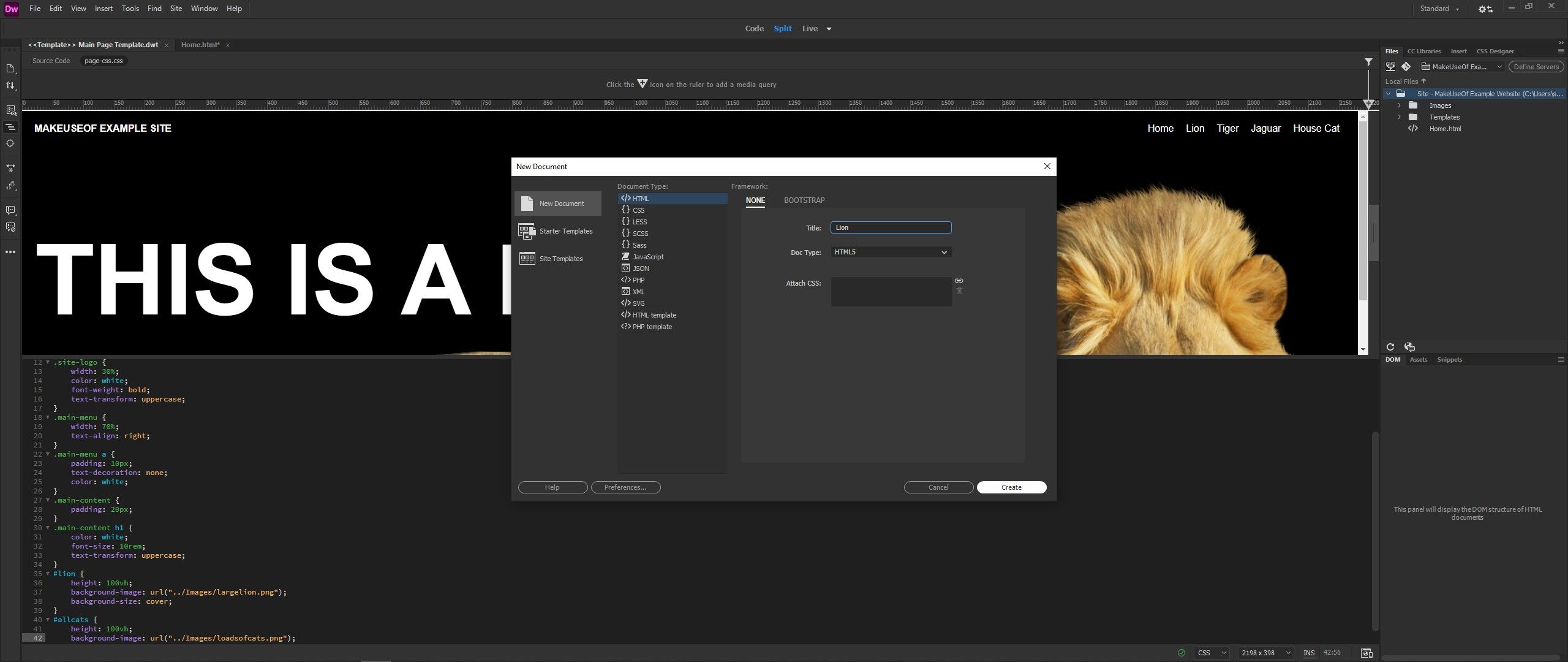
Dreamweaver CC 2022 helps in creating WordPress themes easily. First, visit the Adobe website to download Dreamweaver. Ensure your computer meets the requirements before installing. Follow the installation steps carefully. Click next and agree to terms. Choose a folder on your computer to save it. After installation, open Dreamweaver and let it finish loading.
Setting preferences makes Dreamweaver work better. Open the Edit menu and select Preferences. Choose the code format you like. Some people prefer tabs, others prefer spaces. Decide how you want colors to appear in code. Pick settings that are easy for your eyes. Set the default browser for previews. Make sure to save your changes. Now, Dreamweaver is ready for your projects.
Understanding WordPress Theme Structure
WordPress themes have important files. These files help your site look good. The style.css file sets the colors and fonts. The functions.php file adds special features. The index.php file is like the main page. Other files like header.php and footer.php show the top and bottom parts. Each file works together. This makes your site look nice.
WordPress uses a template system. This system chooses which file to use. Pages use different files. Some pages need single.php. Others need page.php. The front page uses home.php. The hierarchy helps decide the best template. If a file is missing, WordPress finds another one. This keeps your site working. Understanding this helps you make a theme.
Creating The Theme Folder
Start by creating a new folder. Name it after your theme. Use all lowercase letters. Avoid spaces. Use hyphens for separating words. For example, my-awesome-theme. This helps WordPress read it. Stick to simple names. It keeps things neat.
Every theme needs some essential files. These files make the theme work. First, create a style.css file. It holds the theme’s design. Next, create an index.php file. This is where content shows. Don’t forget the functions.php file. It adds special features. Make sure these files are in your theme folder. They are crucial for a working theme.
Credit: www.makeuseof.com
Designing With Html And Css
Start with a simple HTML structure. Use divs to create sections. Each section can hold different parts of your site. Always add a header, footer, and a main content area. This helps in organizing the layout. Ensure each section has a unique class or ID. This makes it easier to style later.
Use CSS to make the site look good. Change colors, fonts, and sizes. Add padding and margins to create space. Use a responsive design so it looks good on all devices. Add media queries for screens of different sizes. This keeps everything neat and tidy.
Integrating Php For Dynamic Content
PHP helps WordPress pages change. Without PHP, pages stay the same. Use PHP to make pages smart. PHP tells pages to show different things. PHP helps with forms and comments. It makes pages talk to users. Add PHP code in templates. Use PHP tags to start and end code.
Templates are like page blueprints. Dynamic templates change with PHP. They display new content. Users see fresh pages every time. Add PHP loops to templates. Loops repeat things many times. Use PHP conditions to make choices. Conditions decide what to show. Dynamic templates make WordPress powerful.

Credit: www.isitwp.com
Adding WordPress Functions
Dreamweaver CC 2022 simplifies adding WordPress functions while creating a custom theme. Access intuitive tools for seamless integration. Enhance your website’s functionality with ease and precision.
Incorporating WordPress Functions
WordPress themes need special functions. These functions make the theme work. Use PHP code for this. PHP helps your theme talk with WordPress. Add functions to make the theme smart. Functions help with menus, sidebars, and posts. They also help with images and links. You need to learn some basic PHP. It is not too hard. Start with simple functions. Then add more as you learn. This makes your theme better.
Setting Up Theme Functions File
Create a file called functions.php. This file holds all your theme functions. Put this file in your theme folder. It is important for WordPress. Add functions to this file. Use it to help your theme do cool things. You can add scripts and styles here. It also helps with custom features. This file is like your theme’s brain. Make sure it is neat and organized. This helps your theme run well.
Testing The Theme
Crafting a WordPress theme using Dreamweaver CC 2022 is simple and engaging. Start by setting up your workspace and organizing theme files. Then, apply your design and coding skills to build a unique theme.
Checking For Errors
Errors can cause problems in your theme. Debugging is important to find these errors. Use the built-in tools in Dreamweaver. These tools help you check your code. Look for red lines or warnings. Fix these quickly. Check your theme on a test site. This helps to see real errors in action. Always check your theme code. Clean code means fewer errors. Save your changes often.
Ensuring Browser Compatibility
Different browsers show themes differently. Test your theme in popular browsers like Chrome, Firefox, and Safari. Check how it looks and works. Make sure buttons and links work. Sometimes, browsers need special code. This code is called polyfill. Use polyfill for old browsers. Make sure your theme works everywhere. Browser compatibility is important for all users.
Deploying The Theme
Starting your journey with WordPress themes through Dreamweaver CC 2022 involves deploying the theme effectively. Utilize Dreamweaver’s features to structure your theme, ensuring seamless integration and functionality on WordPress. Following precise steps enhances customization, meeting diverse design needs with ease.
Uploading To WordPress
First, open your Dreamweaver project. Find your theme folder. Use an FTP client like FileZilla. Connect it to your WordPress server. Drag and drop your theme folder into wp-content/themes. Check if all files are uploaded correctly. Look for missing or corrupted files. This step is crucial for a smooth upload.
Activating The Theme
Log into your WordPress dashboard. Go to the “Appearance” tab. Click on “Themes”. Find your uploaded theme. Click “Activate”. Your site will now use your new theme. Always check your site after activation. Make sure everything looks right. Fix any issues you find. This ensures your site works well.
Customizing The Theme
Widgets make your site more fun. Add a widget by going to the Widgets section in WordPress. Drag the widget you like to the sidebar. Menus help users find things. Create a menu by going to the Menus section. Add items like pages or posts to your menu. Make sure to save your changes. Widgets and menus make your site easy to use.
The WordPress Customizer changes how your site looks. You can change colors, fonts, and more. Go to the Appearance section and click on Customize. You will see many options. Pick the ones you like. Save your changes when you are done. Your site will look just how you want it.
Credit: www.strikingly.com
Optimizing For Performance
Faster load times help users stay on your site. Compress images to reduce file size. Minify CSS and JavaScript files. Use lazy loading for images and videos. Choose a reliable hosting provider for better speeds. Implement caching to store data temporarily. These steps enhance user experience.
Mobile users need easy navigation. Use responsive design techniques. Media queries help adjust layouts. Test on various devices to ensure compatibility. Font sizes should be readable on small screens. Touch-friendly buttons improve user interaction. Keep content accessible for all users.
Frequently Asked Questions
How Do I Start Creating A WordPress Theme?
Begin by setting up a local development environment with Dreamweaver CC 2022. Install WordPress and create a new theme folder. Use Dreamweaver’s code editor to design your theme’s layout, styles, and functionality. Familiarize yourself with WordPress template hierarchy and PHP functions to enhance your theme.
Can Dreamweaver Cc 2022 Edit WordPress Themes?
Yes, Dreamweaver CC 2022 can effectively edit WordPress themes. It provides a user-friendly interface for HTML, CSS, and PHP coding. Utilize its live preview feature to see real-time changes. This helps streamline the development process, ensuring your theme appears as intended across different devices.
What Are The Benefits Of Using Dreamweaver?
Dreamweaver offers a visual interface and robust code editor. It supports multiple languages, including HTML, CSS, and PHP. The live preview and site management features enhance development efficiency. Additionally, it integrates with various content management systems, making it versatile for WordPress theme creation.
Is Dreamweaver Cc 2022 Suitable For Beginners?
Yes, Dreamweaver CC 2022 is suitable for beginners. It provides intuitive tools and a visual editor that simplify coding. The software offers tutorials and community support. These resources help beginners learn and troubleshoot effectively, making it easier to create WordPress themes from scratch.
Conclusion
Creating a WordPress theme with Dreamweaver CC 2022 is easy. Follow clear steps. Start by setting up your workspace. Customize your design carefully. Use simple code. Test each feature thoroughly. Make sure it looks good on all devices. Focus on user experience.
Keep your style consistent. Regularly update your theme. Stay informed with new tools and techniques. Building themes boosts creativity and skills. Enjoy the process. Improve with practice. Share your work. Inspire others with your designs. Explore more features and ideas.
Crafting themes can be rewarding and fun.


