
Are you ready to give your WordPress site a fresh new look but feel overwhelmed by the process? Changing your theme from a template might seem like a daunting task, but it doesn’t have to be.
Imagine transforming your site’s design with just a few clicks, making it more appealing and user-friendly in no time. Whether you’re looking to boost your brand’s image or simply want a change, this guide will walk you through the steps to seamlessly switch themes without losing your content or functionality.
Stay with us as we demystify the process, ensuring you can confidently update your site and keep your visitors engaged and coming back for more.

Credit: wordpress.com
Choosing A New Theme
First, think about what your site needs. Do you want a simple or colorful look? Maybe you need a theme that is good for blogs or business. Make a list of these needs. This will help you choose better. Ask yourself, does the theme need to be mobile-friendly? Do you want fast loading? These questions make your choice easier.
There are many themes to choose from. WordPress has a large library. Some are free, others cost money. Free themes can be good for starters. Paid themes often have more features. Look for user reviews. They can tell you if the theme is easy to use. Try out live demos to see how they look. Take your time to explore. Pick a theme that feels right.
Installing A WordPress Theme
The WordPress repository is a great place to find themes. Open your WordPress dashboard. Click on Appearance, then Themes. Here, you will see an option to Add New. Click it. You can now search for themes. Choose one you like. Click on the Install button. Wait a few seconds. Your theme will install. Click Activate. Now your site has a new look. It’s easy!
Sometimes you have a theme file. Maybe you bought it. Go to your WordPress dashboard. Click on Appearance. Then click Themes. Find the Add New button. Click it. Now click Upload Theme. You will see a Choose File button. Click it. Find your theme file on your computer. Select it. Then click Install Now. Wait a moment. Click Activate. Your new theme is now live!
Activating The Theme
Before you activate a new theme, you can preview it. This helps you see how your site will look. Go to the Appearance menu. Click on Themes. Find the theme you want. Click on Live Preview. This shows your site with the new theme. You can check if everything looks good. If something seems off, you can make changes. This way, you don’t surprise your visitors. Previewing is very helpful. It saves time and avoids mistakes.
Once you decide, it’s easy to switch themes. Go back to the Appearance menu. Find the theme you liked. Click on Activate. Your site will now use this new theme. The change happens quickly. Your content stays safe. Only the look changes. Make sure to check your site. Ensure everything works fine. Sometimes small adjustments are needed. Switching themes is simple and fun. Try different ones to find your favorite look.
Customizing The New Theme
Easily change your WordPress theme by accessing the dashboard. Navigate to “Appearance” and select “Themes” to explore options. Choose your desired template, click “Activate,” and enjoy your new site look instantly.
Using The Theme Customizer
The theme customizer is a powerful tool in WordPress. It lets you change how your site looks. Start by going to the dashboard. Click on “Appearance” and then “Customize.” You’ll see many options there. You can adjust the site title and tagline. Change the header image and background. It is easy to use and shows changes in real-time. Always remember to hit “Save” when you like your changes.
Adjusting Layout And Colors
You can make your site unique by changing the layout. Choose from different layouts like full-width or boxed. To change colors, click on “Colors” in the customizer. Pick a new color scheme that fits your style. Bright colors make your site pop. Soft colors make it calm. Experiment with different looks until you’re happy.
Checking Theme Compatibility
Ensure plugins work well with your theme. Some themes may not support all plugins. Try to check the compatibility before changing themes. This avoids problems later. Use the Theme Check Plugin. It helps find any issues. If a plugin does not work, try another theme. Always update plugins before testing. Updated plugins are more likely to be compatible.
Ensuring Plugin Compatibility
Update all plugins before testing. This helps in compatibility checks. Use the latest version of each plugin. Check if the theme supports your plugins. Some themes have conflicts with certain plugins. Try using a compatibility test tool. It shows which plugins might not work. This helps avoid errors later.
Testing Responsiveness
Responsive themes adjust to different screens. Test theme on a computer, tablet, and phone. Make sure it looks good on all devices. Use tools like BrowserStack or Google Mobile-Friendly Test. They help check responsiveness. A responsive theme improves user experience. It helps keep visitors on your site.
Handling Common Issues
Changing a WordPress theme from a template is simple. Navigate to the dashboard, select ‘Appearance,’ then ‘Themes. ‘ Choose your new theme and activate it. This process can refresh your site’s look without altering content.
Resolving Conflicts
Sometimes, themes don’t work well together. Conflicts may arise. Plugins can be the cause. Deactivate them one by one. Check if the theme works. Updating everything is helpful. Themes and plugins should be up-to-date. Backup your site often. This keeps data safe.
Restoring Previous Theme
Need the old theme back? Go to the dashboard. Click on Appearance. Find Themes. See the list of themes. Hover over the old theme. Click Activate. Your old theme comes back. Always keep a backup. It helps if something goes wrong.
Optimizing Performance
Fast websites make users happy. A quick load speed is vital. Slow sites lose visitors. They don’t wait. Keep site simple. Avoid heavy images. Use smaller files. This helps speed. Check site’s speed often. Use tools online. Google has one. Speed affects ranking. Faster is better.
Caching plugins save time. They store files. Users get them quickly. This makes sites faster. WP Super Cache is a good choice. Easy to set up. W3 Total Cache is another option. It has many features. Both are free. Choose one. Follow steps. Install and activate. Speed will improve. Users will be happy.
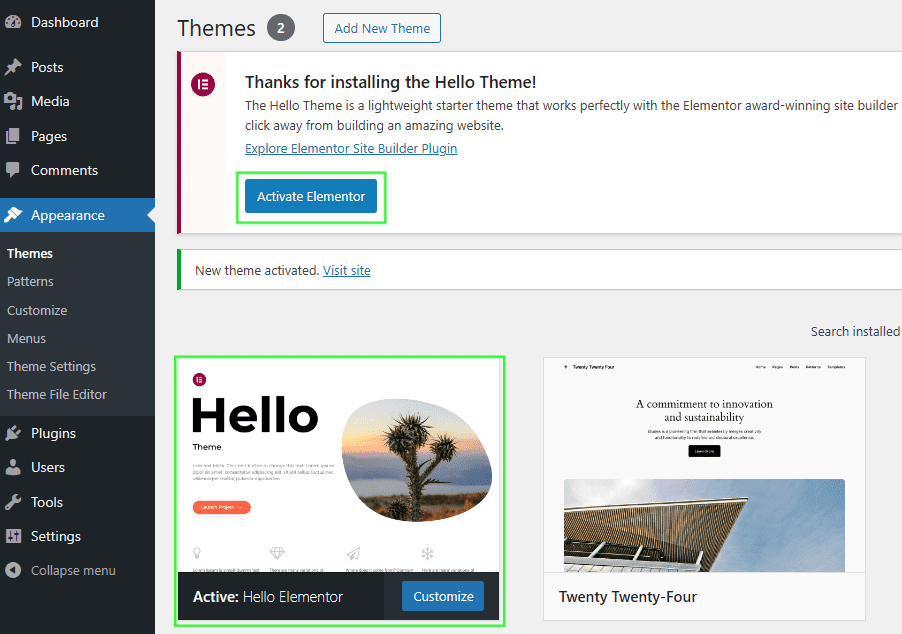
Credit: help.elements.envato.com

Credit: www.templatemonster.com
Frequently Asked Questions
How Do I Change A WordPress Theme?
To change a WordPress theme, go to your dashboard. Click on “Appearance” and then “Themes. ” Browse available themes and click “Activate” on your chosen one. Ensure the theme is compatible with your plugins and content. Preview before activating to confirm layout and functionality.
Can I Customize A WordPress Template?
Yes, you can customize a WordPress template. Use the built-in customizer under “Appearance” in the dashboard. Modify colors, fonts, and layouts. Some themes offer more customization options than others. Check theme documentation for specific features. Consider using a child theme for extensive changes.
Do I Need Coding Skills To Change Themes?
No, coding skills are not required to change themes in WordPress. The platform offers user-friendly interfaces for theme management. Many themes come with customizable options without needing code. However, advanced customization may require basic coding knowledge or hiring a developer.
Will Changing Theme Affect My Site’s Seo?
Changing your theme can affect SEO if not done carefully. Ensure the new theme is SEO-friendly and fast-loading. Check for proper use of headers and meta tags. Monitor your site’s SEO performance post-change. Backup your site before switching themes to prevent data loss.
Conclusion
Changing a theme in WordPress is simple and quick. Follow the steps carefully. Choose a theme that fits your website’s needs. Check the theme’s compatibility with your plugins. Keep your content clear and organized. Test your site after switching themes.
Make sure everything looks right. Remember, your website reflects your brand. Use themes that enhance your site’s appeal. Regular updates are essential for security. Stay informed about new themes and features. Keep your site fresh and engaging for visitors. Explore different themes to find the best match.
Enjoy your WordPress journey with confidence.


