
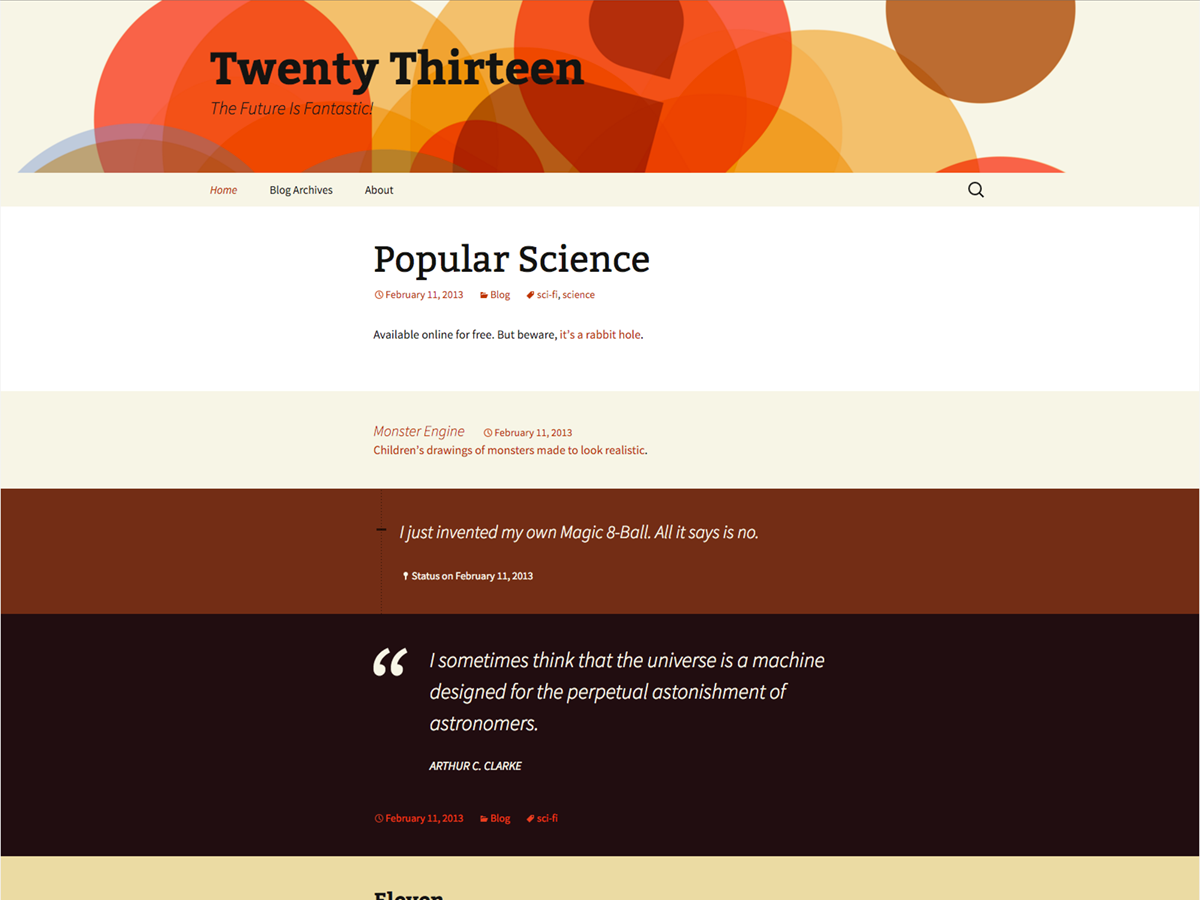
Struggling to align the menu bar in your WordPress Twenty Thirteen theme? You’re not alone.
A centered menu bar can transform your site’s look, making it not only more appealing but also easier to navigate. Imagine your visitors landing on your site and immediately finding everything neat and tidy. It’s like the difference between walking into a well-organized store and a chaotic one.
You want your site to invite users in, not drive them away due to poor design. You’ll discover simple, step-by-step instructions to perfectly center your menu bar, enhancing both your site’s aesthetics and user experience. Stick around, and you’ll turn your site into a well-ordered haven in no time!
Credit: codex.buddypress.org
Accessing Theme Editor
Start by logging into the WordPress dashboard. Look at the left sidebar. Find the “Appearance” option. Click on it. A dropdown menu will appear. Choose “Theme Editor” from the list. This will open the theme files. You need these files to make changes.
Once in the Theme Editor, pay attention. Find the “Stylesheet” or “style.css” file. This file controls the theme’s look. Click on it to open. You can now edit the styles for the menu bar. Remember to save changes. This will update the menu bar’s alignment.

Credit: jetpack.com
Identifying Menu Bar Code
HTML code makes the menu bar work. It shows how elements are placed. The menu bar is often in the header section. Look for or tags. These tags hold the menu items. Each item is in a tag. HTML helps know where to find these tags.
HTML structure is like a skeleton. It gives shape to the site. It has a header, a body, and a footer. The menu bar is part of the header. Knowing HTML makes it easier to find and change code. Look for classes and IDs. They help in styling the menu bar. Change them to center the menu.
CSS styles change how the menu looks. They control colors, fonts, and positions. Use CSS to center the menu. Find the style.css file. Look for classes or IDs used in the menu. Add text-align: center; to center the menu items. CSS makes the menu look nice and neat.
Modifying Css For Center Justification
To make your menu bar look neat, try adding custom CSS. Open your WordPress dashboard. Go to Appearance and click on Customize. Look for Additional CSS. Type this: .menu-primary { text-align: center; }. This code will center your menu items.
Refresh your page. Check if the menu bar is centered. If not, clear your browser cache. This can help see the changes. Always test on different devices. Ensure the menu looks good everywhere. This step is very important.

Credit: www.milesweb.com
Using WordPress Customizer
To center your menu bar, first open your WordPress dashboard. Find the Appearance option on the left. Click on it. Now, select Customize. This will open the WordPress Customizer. It is a tool to change your site’s look.
In the Customizer, look for Additional CSS. Click on it. A new box will appear for your code. Add this code to center the menu bar:
            .menu {
                text-align: center;
            }
After pasting the code, click Publish to save changes. Your menu bar will now be centered on the page. This makes your website look neat and tidy.
Implementing Child Theme
Creating a Child Theme is easy and safe. It lets you change the theme without messing up the original files. First, create a new folder in your WordPress themes directory. Name it something like “twentythirteen-child”. Inside, make a new file called style.css. This file holds your child’s theme styles.
In the style.css, you must write a special comment at the top. This comment tells WordPress your theme is a child. Include the name of the parent theme, which is “Twenty Thirteen”. You can copy styles from the parent theme here too.
To load styles right, use a functions.php file. This file should be in your child theme folder. Write a function that loads the parent and child styles. Use wp_enqueue_style to do this. The parent theme style goes first. Then, your child theme style comes next. This order is important.
Add your function to the WordPress action hook. Use add_action with ‘wp_enqueue_scripts’. This makes sure your styles load correctly. Now, your child theme works well. Changes appear without affecting the parent theme.
Utilizing Plugins For Menu Customization
Plugins make menu changes easy. They offer many options. Some plugins are free. Others cost money. It’s important to choose the right one. Exploring relevant plugins can save time. Some popular options include Max Mega Menu and WP Mega Menu. These are user-friendly and widely used.
Exploring Relevant Plugins
Max Mega Menu is great. It helps center the menu. WP Mega Menu is also good. Both plugins add features. They make the menu look nice. Easy to install and use. Check reviews before choosing. It’s smart to read user feedback.
Configuring Plugin Settings
After installing, adjust the settings. Go to the plugin dashboard. Find the menu options. Center justification is usually a toggle. Follow simple steps. Make sure to save changes. Preview the site to see changes. If needed, tweak more settings. Always check the final look.
Troubleshooting Common Issues
Centering the menu bar in WordPress’s Twenty Thirteen theme can be tricky. Adjust CSS by adding `text-align: center;` to the theme’s stylesheet. This change aligns the menu items neatly, enhancing your site’s appearance.
Resolving Style Conflicts
Style conflicts can mess up your menu bar. Different plugins might clash. This can make your menu look strange. To fix this, check your CSS. Make sure all style codes are correct. Check for any duplicate styles. These can cause problems. Also, inspect your plugin settings. Some plugins have their own styles. These can override your theme settings. You might need to disable some plugins. This can help identify the problem source.
Ensuring Responsive Design
A menu bar should look good on all devices. Use media queries in your CSS. These help adjust the menu on different screens. Ensure your menu items are not too many. Too many can make the menu look crowded. Test your website on various devices. Check if the menu bar looks right. Adjust font sizes and spacing for better clarity. This makes navigation easier for users.
Frequently Asked Questions
How To Center Menu Bar In Twenty Thirteen?
To center the menu bar in the Twenty Thirteen theme, edit the style. css file. Locate the `. nav-menu` class and add `text-align: center;`. This aligns the menu items centrally. Ensure you have backup before making changes to your theme files.
Can Css Help In Centering Menu Bar?
Yes, CSS is effective for centering the menu bar. Modify the `. nav-menu` class in the style. css file. Use `text-align: center;` to align the menu items centrally. This simple adjustment ensures the menu bar is centered on your page.
Is Plugin Necessary For Menu Bar Centering?
No, a plugin is not necessary for centering the menu bar. Simple CSS adjustments can achieve the desired effect. Modify the style. css file and apply `text-align: center;` to the `. nav-menu` class. This is a straightforward solution without extra plugins.
Can Menu Bar Be Centered With Theme Settings?
The Twenty Thirteen theme lacks direct settings for centering the menu bar. You need to edit the style. css file manually. Applying `text-align: center;` to the `. nav-menu` class will center the menu bar effectively without theme settings.
Conclusion
Centering the menu bar in WordPress’s Twenty Thirteen theme is simple. Follow the steps and customize your site with ease. A centered menu bar improves your website’s look. It also enhances user navigation and experience. The process involves editing theme files and using CSS.
This approach ensures you achieve a balanced layout. Remember to back up your files before editing. Practice makes perfect, so don’t worry about making mistakes. With patience, your site will look great. Enjoy the new, polished design and keep experimenting with customization options.
Your website deserves the best.


