
Are you ready to transform your WordPress website into a visual masterpiece? Adding a stylesheet to your WordPress theme is your first step towards a beautifully designed site that captures attention and keeps visitors engaged.
Maybe you’ve felt the frustration of wanting your site to stand out, but not knowing where to start. The good news is, you don’t need to be a tech wizard to make impactful changes. In this guide, you’ll learn how to add a stylesheet to your WordPress theme effortlessly.
Imagine the possibilities: enhanced user experience, improved navigation, and a unique look that reflects your brand’s personality. Keep reading, and discover how easy it is to take control of your site’s appearance and create a lasting impression.
Importance Of Stylesheets
Stylesheets are like clothes for websites. They help make your website look nice. Without stylesheets, websites would look boring and plain. Colors, fonts, and layout all come from stylesheets. They make sure every page looks the same. This helps people know they are on the same site. Stylesheets also help make websites easy to read. They can make text bigger or add spaces. This is helpful for people who have trouble seeing.
Good stylesheets make websites load fast. Fast websites make users happy. Search engines like fast websites too. They might show your site to more people. So, using stylesheets is very important.
Credit: www.ionos.com
Locating Theme Files
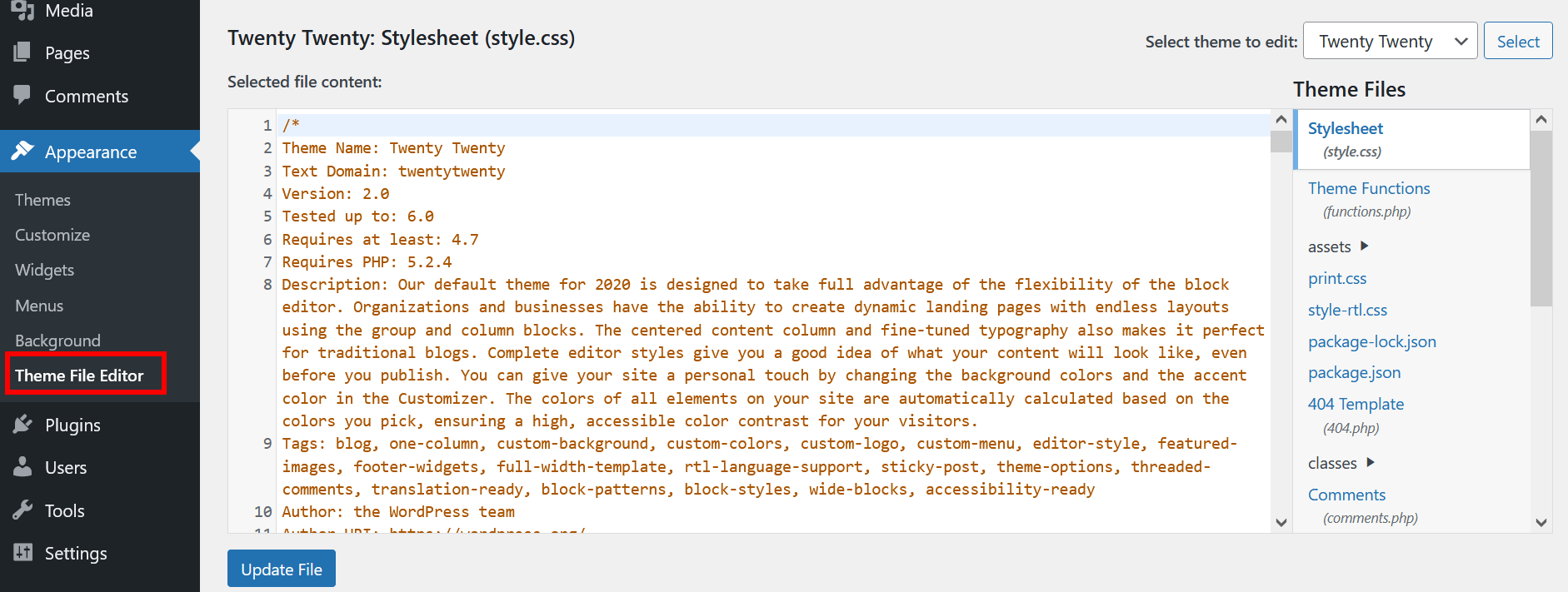
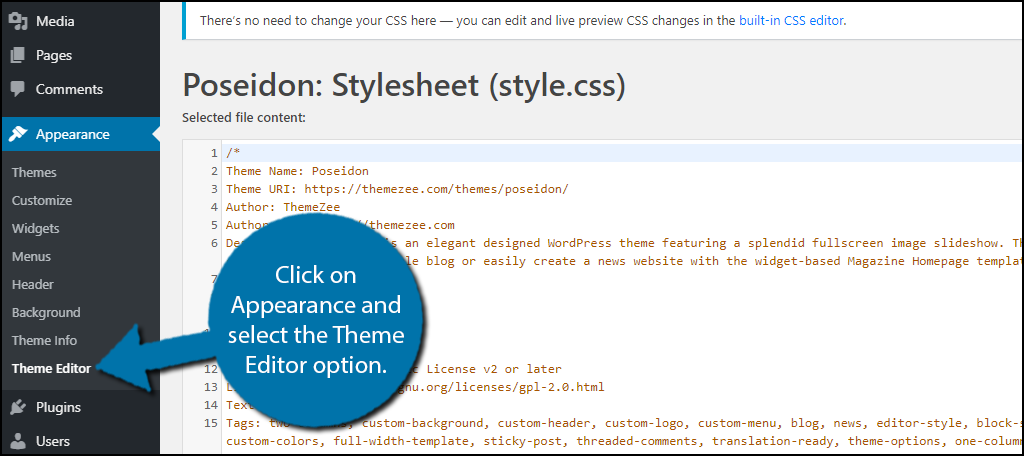
WordPress themes have files stored in a folder. These files include templates and stylesheets. To find these files, access the WordPress dashboard. Click on Appearance and then Theme Editor. This section shows all theme files. The stylesheet is named style.css.
Make sure to back up files before editing. Mistakes can break your site. Use FTP or a file manager for safe editing. These tools help access files directly. Always keep a backup to restore changes easily.
Creating A Stylesheet
Start by opening your WordPress admin panel. Go to the “Appearance” section. Click on “Editor”. This is where you can add a stylesheet. Look for the “style.css” file in the right-hand sidebar. This is the main stylesheet for your theme. You can add your styles here. Make sure to save changes.
It’s important to use proper CSS syntax. Always end statements with a semicolon. Use curly brackets for style blocks. This keeps your code clean. If you want to add another stylesheet, upload it to your theme folder. Use tag in your header file to add it. This connects your stylesheet to the theme.
Enqueuing Stylesheets
Adding a stylesheet in WordPress is easy. Use the functions.php file. This file is in your theme folder. To add a new stylesheet, write some PHP code. The code must use wp_enqueue_style. This function tells WordPress to use your stylesheet.
First, find the functions.php file. Open it in a text editor. Then, add the code like this:
function my_theme_enqueue_styles() {
    wp_enqueue_style('style-name', get_template_directory_uri() . '/style.css');
}
add_action('wp_enqueue_scripts', 'my_theme_enqueue_styles');
The wp_enqueue_style function needs two things. The first is a name for the stylesheet. The second is the path to the file. Use get_template_directory_uri() to find the path. This makes sure the stylesheet is loaded correctly.
Registering Stylesheets
WordPress themes need stylesheets for design. Registering them is important. This process helps in loading the CSS files properly. Use the wp_enqueue_style function. It adds stylesheets to your theme. Always use unique names for each stylesheet. This avoids conflicts. Register stylesheets in the functions.php file. This file is found in your theme folder.
Start with opening the functions.php file. Then, write the wp_enqueue_style code. Example: wp_enqueue_style('my-style', get_stylesheet_uri()); Here, ‘my-style’ is the name of your stylesheet. The get_stylesheet_uri() function fetches the stylesheet’s location. Remember to save changes after editing. Refresh your WordPress site to see new designs. This ensures stylesheets load as planned.
Credit: quadlayers.com
Loading Stylesheets Conditionally
Targeting specific pages helps in loading stylesheets effectively. Use conditional tags to load them on certain pages. For example, load a stylesheet only on the homepage. This makes pages load faster. It also saves resources. Use WordPress functions like is_home() or is_page(). These functions check the page type. With these, stylesheets are added only when needed. This reduces unnecessary load. It keeps the website efficient and user-friendly.
Device-specific styles are crucial for responsiveness. Different devices need different styles. Use media queries in your stylesheets. They help in adjusting styles for mobiles, tablets, and desktops. Each device type gets its own stylesheet. This ensures a better user experience. Devices will display content correctly. Users will have a smoother browsing time. Remember to test on multiple devices. This ensures everything looks great everywhere.
Overriding Parent Theme Styles
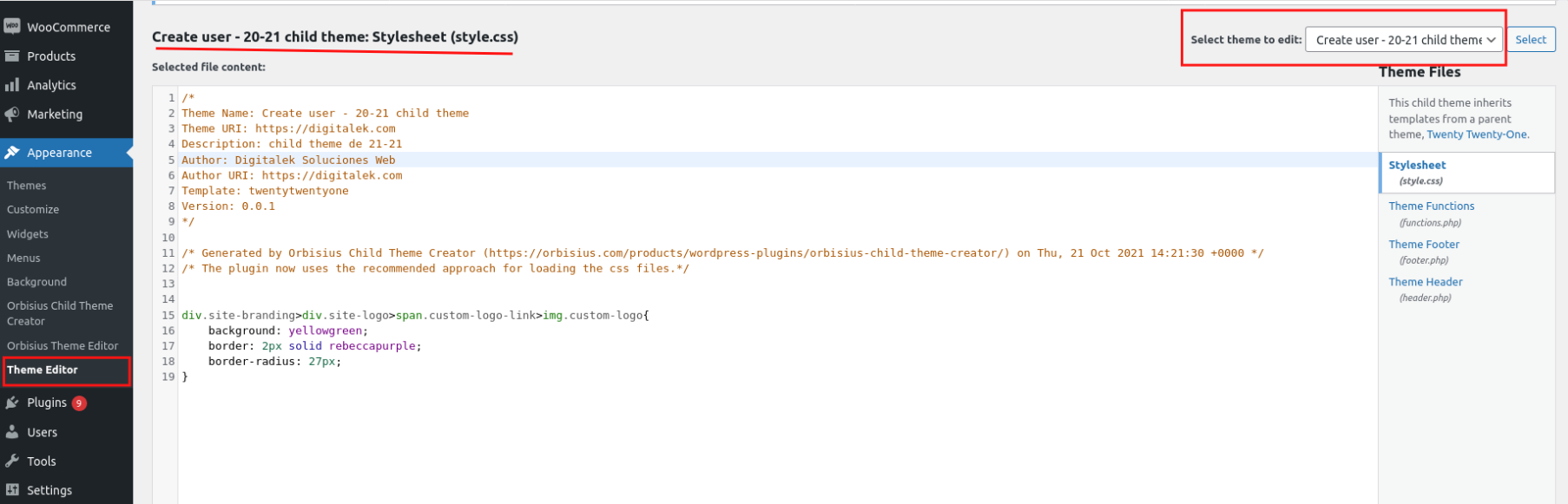
Child themes help to change the appearance of your site. They let you keep the main theme the same. Create a new folder in your theme directory. Name it something like my-theme-child. Add a style.css file inside. Use this file to add your styles. Use functions.php to enqueue your styles. This makes sure they load after the parent theme. This way, your styles will override the parent styles.
Additional CSS is a simple way to tweak styles. Go to your WordPress dashboard. Find Appearance and click on Customize. Look for the Additional CSS option. Paste your custom CSS here. This will change how your site looks. You can test small changes easily. Use this for quick style fixes. Always check the results on your site.
Credit: www.greengeeks.com
Testing And Debugging
Adding a stylesheet in a WordPress theme enhances its visual appeal. Use the WordPress admin dashboard to access the theme editor. Insert the stylesheet link in the header section for effective styling.
Checking Browser Console
Open the browser and press F12. This opens the developer tools. Click on the “Console” tab. Look for any errors or warnings. These messages help in finding issues with your stylesheet. Errors often show missing files or wrong paths. Make sure all files are linked correctly. Fix any problems shown here.
Ensuring Proper Loading Order
Stylesheets should load in the right order. Place the main stylesheet after other CSS files. This ensures it overrides default styles. Use the “Network” tab in developer tools. Check if stylesheets load in the correct sequence. Files listed top to bottom show their load order. Adjust if a file loads incorrectly. Keep your theme looking great.
Frequently Asked Questions
How Do I Add A Stylesheet In WordPress Theme?
To add a stylesheet in WordPress, use the `wp_enqueue_style()` function in your theme’s `functions. php` file. This function registers the stylesheet and ensures it loads properly. Remember to specify the correct path and dependencies for your stylesheet to avoid conflicts with other styles or scripts.
Where Is The WordPress Theme Stylesheet Located?
The primary stylesheet for a WordPress theme is typically named `style. css` and is located in the theme’s root directory. You can access it via the WordPress Dashboard under Appearance > Theme Editor. Ensure you back up your files before making any changes to prevent potential loss.
Can I Use Custom Stylesheets In WordPress?
Yes, you can use custom stylesheets in WordPress by enqueueing them in your theme’s `functions. php` file. Use `wp_enqueue_style()` to add the custom stylesheet, specifying its path. This method ensures your custom styles load properly alongside WordPress’s default styles and other theme stylesheets.
How To Troubleshoot Stylesheet Issues In WordPress?
If your stylesheet isn’t working, check the file path in `functions. php`. Ensure `wp_enqueue_style()` is correctly implemented. Clear your browser cache or use a caching plugin to refresh styles. Conflicts with other plugins or scripts might cause issues, so disable them temporarily to test functionality.
Conclusion
Adding a stylesheet to your WordPress theme is simple. It enhances your site’s look and feel. Follow the steps for a seamless integration. Check your website after changes. This ensures everything displays correctly. Customize your site with creativity. Stylesheets offer flexibility in design.
They empower your theme with unique aesthetics. Make your site stand out easily. Remember, small tweaks can make a big difference. Keep experimenting with styles. Discover what works best for your audience. Enjoy transforming your site into a visually appealing space.
Happy styling!


