
Are you looking to add a personal touch to your WordPress site by customizing the footer? Modifying the footer in Elegant Themes can elevate your site’s professionalism and brand identity.
However, this task can seem daunting if you’re not sure where to start. Imagine having a footer that not only looks stunning but also enhances user experience and keeps your visitors engaged. By mastering this simple yet effective tweak, you can transform your website into a more cohesive and visually appealing space.
Keep reading, and you’ll discover how easy it is to change the footer in Elegant Themes, empowering you to take control of your website’s appearance and functionality.
Accessing The WordPress Dashboard
Open your web browser. Type your website URL. Add /wp-admin at the end. Press enter. This takes you to the login page. Enter your username and password. Click the Log In button. Now, you are inside the WordPress Dashboard.
The dashboard is your control center. From here, you can make changes. Look for the menu on the left side. This menu has many options. You will use it often.
Find the Appearance option. Click on it. A list will appear. This list has a Customize option. Click it to proceed. You are now ready to change the footer.
Credit: www.mrkwp.com
Navigating To The Theme Customizer
First, find the Appearance menu. It’s on the left side of your WordPress dashboard. This is the place where you can change how your site looks. Everyone who uses WordPress has this menu. Click it to see more options. It’s easy to find.
After clicking Appearance, look for the Customize option. This lets you change different parts of your site. It’s like painting a picture. Here, you can change the footer. Click Customize to start. You will see many settings. Choose the one you need. Take your time. Make your site look good.
Editing The Footer Using Widgets
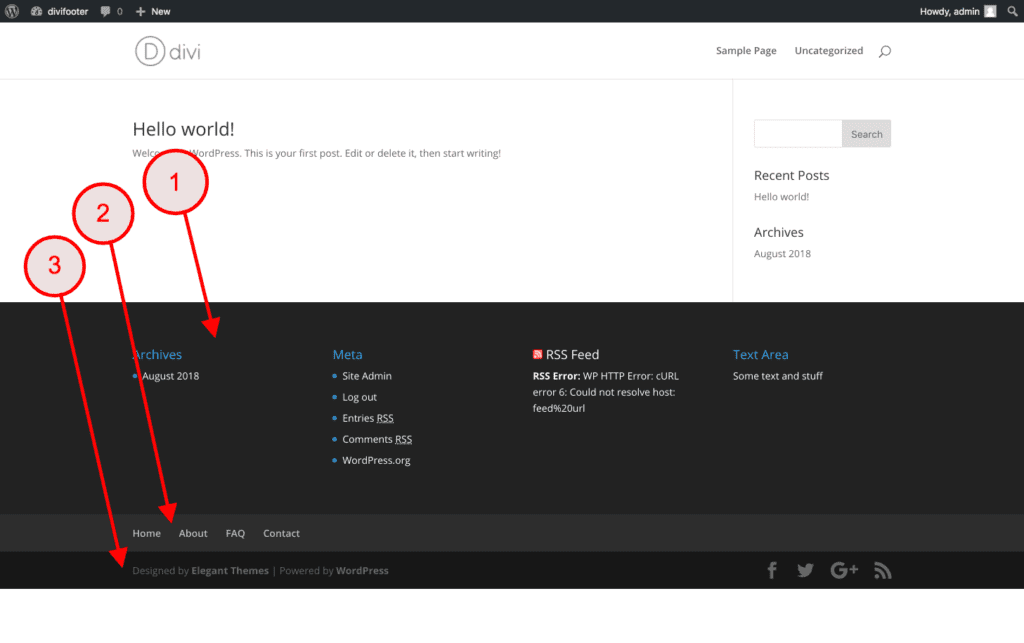
Widgets make the footer look nice. They are easy to use. To add a new widget, go to your WordPress dashboard. Click on the “Appearance” tab. Then, select “Widgets”. Drag the widget you want into the footer area. You can add text, images, or links. Make sure to save your changes. Now, your footer will show the new widget. This makes your website look fresh and fun.
Adding new widgets is simple. First, choose a widget. Then, drag it to the footer section. Drop it there. You can type in any text you want. Add links or pictures too. Remember to click save. Now, your new widget is live. It will show on your site. Make your footer special with widgets.
Sometimes you want to move widgets. This changes how they show. Go to the widget area in WordPress. Click and hold a widget. Drag it to a new spot. Let go when you find the right place. The widgets will move around. This makes your footer look different. Remember, save your changes. Now, your footer has a new look.
Customizing Footer Text And Links
Find the footer text settings in your WordPress dashboard. Go to the “Appearance” section. Click on “Customize.” Locate the “Footer” option. Here, you can see the text settings. Change the text to your liking. Save your changes. Check your website to see the new footer text. This makes the footer look fresh.
Go to your dashboard. Navigate to “Appearance” and “Menus.” Find the footer menu section. Add or remove links as needed. Use the simple drag and drop feature. Make sure to save the changes. Visit your website to check the updated links. Ensure all links work well. This keeps your site user-friendly.
Using Custom Css For Footer Styling
First, open your WordPress dashboard. Look for the Appearance tab on the left side. Click it, then select Customize. This will open the WordPress Customizer. Here, find the Additional CSS section. Click on it to open a text box. You will add your custom styles here. This is where you can change the look of your footer. Make sure to save your changes.
Inside the text box, enter your CSS code. For example, to change the footer background, use: footer { background-color: #333; }. To change text color, use: footer { color: #fff; }. Always preview your changes before saving. This ensures your site looks good. If you make a mistake, you can undo it. Use simple CSS for better results.
Credit: www.elegantthemes.com
Implementing Footer Scripts
Adding JavaScript to your footer can be simple. First, go to your WordPress Dashboard. Click on Appearance and then Editor. Look for the Theme Footer file. Open it. Now, you can paste your JavaScript code here. Make sure the code is between and tags. This helps browsers understand it’s a script.
Check if your script works with your theme. Some scripts might not. Test on a small part of your site first. If it works, then apply it to the footer. Always keep a backup of your site. This is important before making changes. It helps you restore your site if something goes wrong.
Saving And Publishing Changes
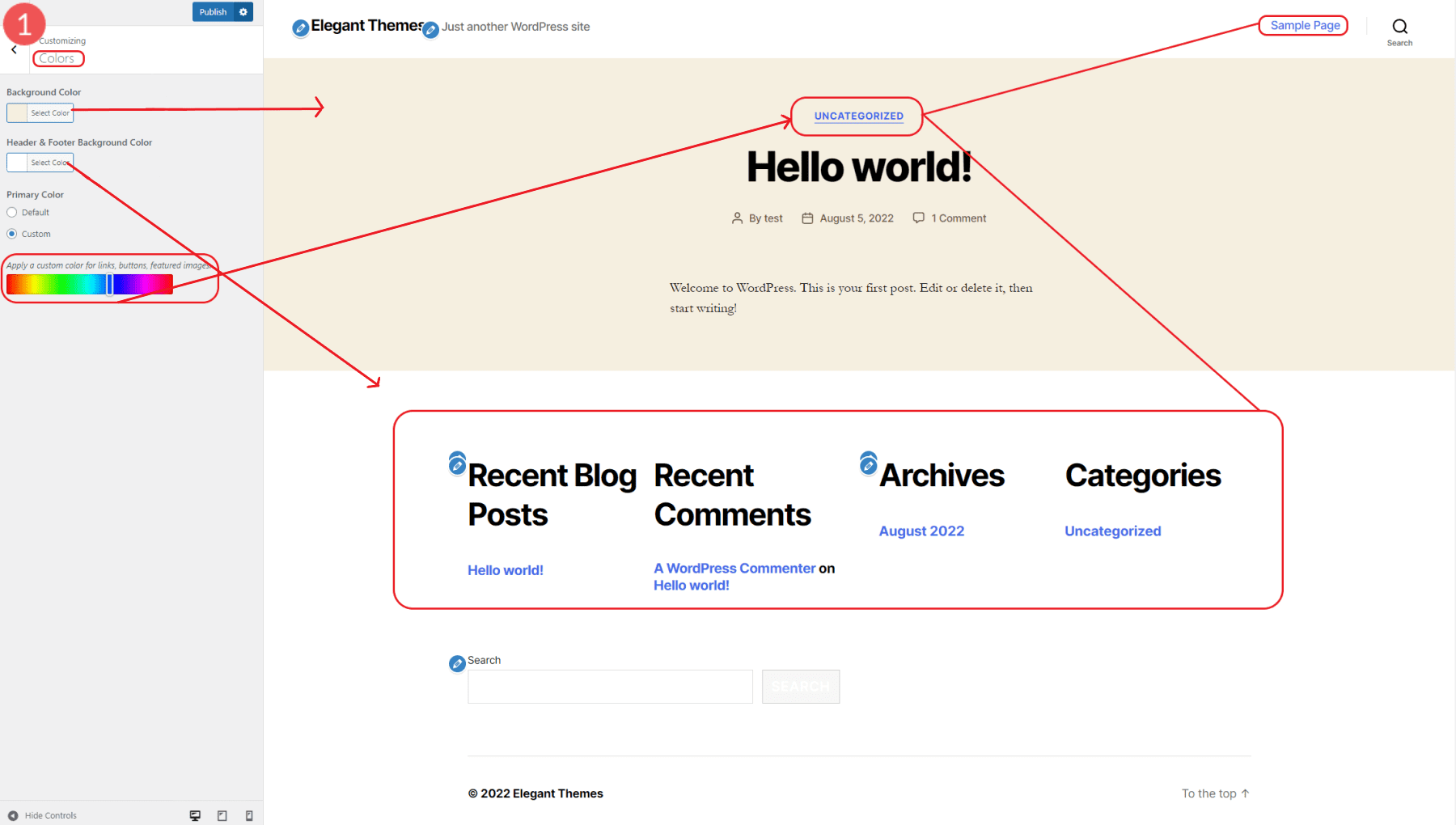
Before saving, preview the footer modifications. This helps check mistakes. Use the preview feature in WordPress. Look at every detail carefully. Make sure your footer looks good. Check all links and texts. Ensure everything is right before publishing.
Finalize updates carefully. Press the save button once satisfied. This action saves changes. Publishing makes the footer live. Everyone will see it now. Double-check everything once more. You want it perfect.
Credit: www.elegantthemes.com
Frequently Asked Questions
How Do I Edit Footer In Elegant Themes?
To edit the footer in Elegant Themes, navigate to the “Appearance” menu in WordPress. Select “Customize,” then go to “Footer Settings. ” Here, you can modify text, links, and design aspects. Ensure to save your changes for them to take effect on your website.
Can I Add Widgets To Footer In Elegant Themes?
Yes, you can add widgets to the footer. Go to “Appearance,” select “Widgets,” and drag your desired widgets into the footer area. Elegant Themes allow customization of widget placement, enhancing functionality and design. This flexibility helps tailor your website to meet specific needs.
Is It Possible To Change Footer Copyright Text?
You can change the footer copyright text by accessing “Theme Options” in the Elegant Themes dashboard. Locate the “Footer” section and edit the copyright text field. This feature allows you to personalize copyright details, reflecting your brand identity more accurately.
How Do I Make Footer Sticky In Elegant Themes?
To make the footer sticky, you need custom CSS. Add the CSS code in the “Additional CSS” section under “Customize” in WordPress. This keeps the footer visible while scrolling, improving user navigation. Ensure the CSS code is compatible with your theme version.
Conclusion
Changing the footer in Elegant Themes WordPress is simple. Follow the steps outlined in this guide for a seamless process. Adjust the settings to fit your website’s needs. Always remember to save your changes. A custom footer enhances your site’s look.
It also improves user experience. Make sure your footer is clear and informative. This helps visitors find important information easily. Experiment with different styles and layouts. Find what suits your brand best. Now, you can confidently update your WordPress footer.
Enjoy creating a more personalized website experience!


