
Are you tired of seeing the same old parent theme name every time you log into your WordPress dashboard? Changing the parent theme name is a simple tweak that can make a big difference in personalizing your site.
Whether you’re a developer looking to customize your client’s experience or a blogger eager to put your own stamp on your site, knowing how to change the parent theme name can give you that edge. In this guide, you’ll discover the step-by-step process to make this change effortlessly.
Imagine the thrill of having your dashboard reflect your unique brand! Keep reading, and you’ll learn how to take control and make your WordPress site truly yours.

Credit: adityaarsharma.com
Understanding WordPress Themes
WordPress themes help decide the look of your site. A parent theme is a complete theme. It includes all templates and styles. A child theme inherits from the parent. It is used to make changes without altering the parent. This way, updates won’t erase your changes. You need both parent and child for a child theme to work. It’s like a parent and child in real life. They work together.
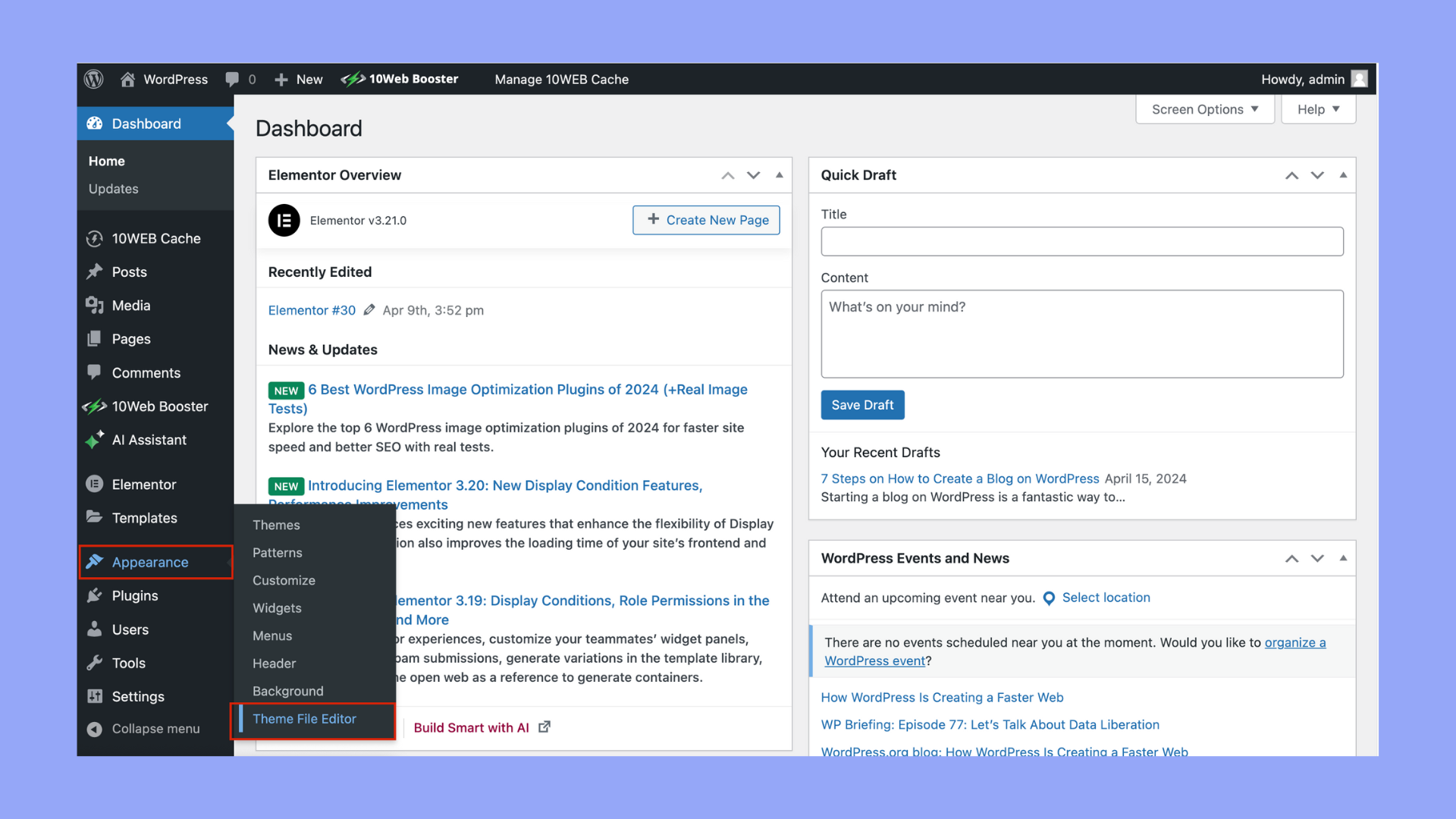
Themes have many files and folders. The main folder is the theme folder. Inside, there are files like style.css and functions.php. The style.css file handles the design. The functions.php file adds features. Each file has a role. Each folder has a job. They all work together to make your site look nice.
Credit: 10web.io
Reasons For Changing Parent Theme Name
Branding and Customization are vital for a unique website. Changing the theme name helps your brand stand out. A new name adds a personal touch. People recognize your site easily. It feels unique and special. Customization allows creative freedom. You can match your brand colors and style. A custom theme name reflects your brand identity.
Avoiding Conflicts is crucial for a smooth website experience. Similar theme names can cause issues. Plugins may not work properly. Conflicts can slow down your site. Visitors may face errors. A unique name prevents these problems. It ensures plugins work correctly. Your site runs faster and smoother. No more errors or slowdowns.
Pre-change Considerations
Always backup your website before big changes. This keeps your data safe. A backup saves your files and database. Use plugins like UpdraftPlus for easy backups. You can also use your hosting service for this. Check their backup options. Download the backup to your computer. Store it in a safe place. In case something goes wrong, you can restore it. This way, your website stays protected.
A staging environment lets you test changes safely. It is like a copy of your site. You can make changes without risk. See if everything works well. If a problem occurs, fix it here first. Many hosting services offer staging environments. Use them to try out new ideas. Make sure everything looks good and functions well. This keeps your live site safe and sound.
Changing Theme Name In Style.css
The style.css file is inside the theme folder. Use a file manager or FTP to access it. Look for the wp-content folder. Inside, find themes. Your theme folder is here. Open it. The style.css file is usually at the top. Make sure you have a backup before making changes.
Open the style.css file in a text editor. Find the top section. It has theme details. Look for Theme Name. Change it to your new name. Save the file. Refresh your WordPress dashboard. The new name should appear. Be careful. Do not change other details. Only the theme name.
Updating Theme Name In Functions.php
Locate the functions.php file in your WordPress theme folder. This file controls many functions of your theme. Use a file manager or FTP client to find it. Open the file using a simple text editor. Be careful while editing. Small changes can break your site.
Inside functions.php, search for theme support functions. These lines define what your theme supports. You might see features like custom header, background, or post formats. Update the theme name here. Ensure the new name matches your desired theme name. Check each function for references to your theme name. Correct any outdated references.
Database And Url Adjustments
Changing the parent theme name in WordPress involves adjustments in both the database and URL settings. Begin by accessing the theme files via FTP, then update the theme’s name in the style. css file. Ensure all references to the old theme name are corrected in the database to prevent errors.
Update Database Entries
Changing the theme name involves updating the database. Open your website’s database using a tool like phpMyAdmin. Search for the old theme name. Replace it with the new name. This ensures your website functions smoothly.
Back up your database before making changes. This prevents data loss. Carefully update all entries related to the theme. Mistakes can cause issues. Double-check everything to avoid errors.
Correct Urls And Links
Ensure all URLs and links are updated. This prevents broken links. Check your site’s settings for any old theme name. Update them with the new name. This keeps your site running well.
Test all links after making changes. Ensure they work correctly. Fix any issues you find. This helps maintain a good user experience.
Testing And Verifying Changes
Check Website Functionality after changing the parent theme name. Visit different pages on your site. Look for any issues in loading or layout. Ensure links work properly. Ensure images appear correctly. If you spot any errors, recheck your steps. Fixing small errors early helps.
Next, Ensure Theme Settings are Intact. Go to your WordPress dashboard. Check theme settings like menus and widgets. Make sure they look as expected. If any setting is off, adjust it. Sometimes, small tweaks are needed after name changes. Keep your theme backup handy just in case.
Troubleshooting Common Issues
Changing the parent theme name in WordPress can sometimes lead to unexpected issues. Ensure compatibility with child themes by updating the theme’s folder name and style. css file. This helps maintain functionality and appearance without disrupting your site’s design.
Resolving Style Conflicts
Changing a parent theme name can cause style conflicts. Themes rely on specific stylesheets. If the path changes, styles might not load. Check the stylesheet links in the header. Ensure they point to the correct files. Sometimes, custom CSS overrides the default styles. Review your CSS file for any unwanted changes. If styles are missing, reapply them carefully. Make sure the new theme name matches all references. Consistency is key for style integrity. Use a child theme to preserve changes. This protects against future conflicts. Always backup your files before editing. Mistakes can be hard to reverse without backups.
Fixing Broken Links
Broken links are common after a theme name change. Links might point to old theme paths. Check your site for broken links. Use a link checker tool. Update links to match the new theme name. This ensures all pages and posts connect properly. Broken links can harm user experience. Visitors may leave if links don’t work. Fixing links improves site navigation. It also helps with search engine optimization. Regularly check your site for link issues. Update any outdated or broken paths. Keep links clean and functional for a smooth site experience.
Best Practices For Theme Customization
It’s important to keep the theme up-to-date. Updates fix bugs and add new features. Always check for updates. This ensures the theme works well with WordPress. Using a child theme is smart. It keeps custom changes safe. The parent theme can update without affecting custom work.
Document all changes made. This helps if you need to update the parent theme. Use a file or a note app. Write down what you change. This way, you can make the same changes again if needed.
Credit: wpdatatables.com
Frequently Asked Questions
How To Rename A Parent Theme In WordPress?
To rename a parent theme in WordPress, access your site’s files via FTP. Locate the theme folder in `wp-content/themes`. Rename the folder to your desired name. Update the theme’s `style. css` with the new name. Ensure all references to the old theme name are updated.
Is It Safe To Change Theme Names?
Changing theme names is generally safe but proceed with caution. Ensure that all references in child themes, templates, and plugins are updated. Test your site thoroughly after renaming to prevent potential issues or broken links.
Why Change A WordPress Theme Name?
Renaming a theme helps in customization, branding, and avoiding conflicts during updates. It can also prevent unauthorized access to theme files. It’s essential for developers who want to maintain originality and uniqueness when customizing themes for clients.
Will Changing Theme Name Affect Seo?
Changing a theme name itself does not affect SEO directly. However, ensure that URLs, links, and content are intact. Always check for broken links and update any references. SEO may be impacted if the site structure or content changes unintentionally.
Conclusion
Changing your parent theme name in WordPress is simple. Follow each step carefully. Start by accessing your WordPress files. Use FTP or your hosting’s file manager. Locate the theme folder. Rename it to your desired name. Update the style. css file with the new name.
Check other files for the old name. Update them too. Test your site thoroughly. Ensure everything works smoothly. This process helps customize your WordPress site. It gives you control over your theme identity. Always keep backups before making changes. This prevents accidental data loss.
Enjoy your newly named theme!


