
Are you ready to take your WordPress website to the next level? Imagine transforming your site with unique functionalities that set you apart from the competition.
Custom plugins can be your secret weapon, offering endless possibilities to enhance your WordPress theme. But how do you add these custom plugins without a hitch? The process might seem daunting, but it’s simpler than you think. In this guide, you’ll discover a step-by-step approach to seamlessly integrate custom plugins into your WordPress theme, unlocking new capabilities and maximizing your site’s potential.
Get ready to capture your audience’s attention and boost your website’s performance like never before. Dive in and learn how to make your WordPress site truly yours.
Choosing The Right Plugin
Selecting the right plugin enhances your WordPress theme’s functionality. Consider compatibility, support, and user reviews before adding custom plugins. Ensure they align with your website’s goals and performance needs.
Assessing Your Needs
Begin by understanding what you need. Think about your website’s goals. List the features you want. Write them down. This makes it easier to find a match. Check your theme’s compatibility with plugins. Some themes may not support certain plugins. It’s important to know this in advance. Consider your budget. Some plugins are free, others cost money. Decide how much you’re willing to spend. Ask yourself if the plugin is worth the cost. Read reviews from other users. They can provide valuable insights into how the plugin works.
Researching Plugin Options
Look for plugins in the WordPress Plugin Directory. It has a wide range of options. Compare different plugins to see which fits best. Look at their ratings and user feedback. Good ratings often mean good performance. Check how often the plugin is updated. Regular updates usually mean better security and functionality. Test the plugin on a demo site if possible. It helps to see how it works without risk. Always choose plugins from trusted sources to ensure safety.

Credit: www.youtube.com
Creating A Custom Plugin
A good computer setup is key. Install a text editor like VS Code. You also need WordPress on your local server. MAMP or XAMPP are good choices. They help run WordPress on your computer. Make a new folder for your plugin files. Keep it organized. This helps avoid confusion later.
Begin with an empty file. Name it plugin-name.php. Add a header comment at the top. This tells WordPress about your plugin. Use simple code for testing. Try a basic function like ‘echo’. This shows text on your site. Check the function in the WordPress dashboard. Activate your plugin. See if it works well. Make changes if needed. Test it again.
Installing The Custom Plugin
Easily enhance your WordPress theme by installing custom plugins. Navigate to the dashboard, then select ‘Plugins’. Click ‘Add New’, upload your plugin file, and activate it for seamless integration. Enjoy new features and improved functionality effortlessly.
Uploading Via WordPress Dashboard
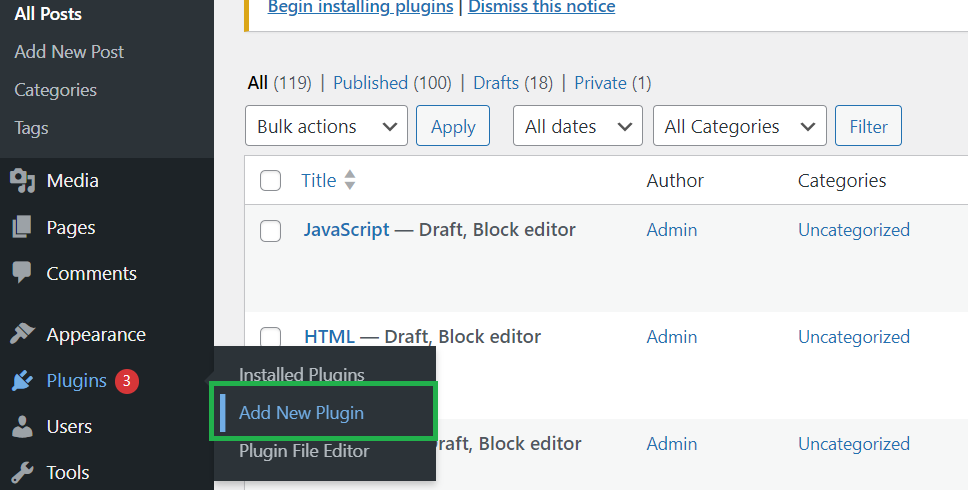
Log in to your WordPress dashboard. Find the Plugins section on the left side. Click on Add New. Look for the Upload Plugin button. Click it. Choose the plugin file from your computer. Click Install Now. Wait for the installation. Click Activate to start using the plugin.
Using Ftp For Installation
Open your FTP client. Connect to your website server. Go to the wp-content/plugins folder. Upload the plugin file there. Ensure the file is in a .zip format. Once uploaded, go to your WordPress dashboard. Find the plugin under Plugins. Click Activate to start using it. This method works without dashboard access.
Activating And Testing
Activate custom plugins in your WordPress theme by navigating to the plugins section. Test their functionality by checking compatibility and performance on your site. Ensure everything runs smoothly to enhance your website’s features.
Activating The Plugin
First, go to your WordPress dashboard. Find the Plugins section. Click on Installed Plugins. Look for your new plugin in the list. Click on the Activate button. This makes your plugin work on your site. Activation is quick and easy.
Testing Functionality
After activating, test if the plugin works. Check your site for changes. Look for new features or options. Make sure everything is working well. If something is wrong, deactivate the plugin. Then, check for conflicts with other plugins. Testing helps ensure your site runs smoothly.
Troubleshooting Common Issues
Adding custom plugins to a WordPress theme can be tricky. Check compatibility with your theme first. Upload the plugin through the WordPress dashboard. Activate it, then configure the settings. If issues arise, revisit the installation steps or consult support forums.
Debugging Errors
Errors can make plugins stop working. Always check the error messages. These messages tell what went wrong. Read them carefully. Use the WordPress debug mode. It helps find the issue. To enable debug mode, edit the wp-config.php file. Set WP_DEBUG to true. This shows detailed error messages. Fix problems step by step.
Ensuring Compatibility
Plugins must work well with themes. Check the theme requirements first. See if the plugin matches these needs. Update plugins and themes regularly. New updates fix old bugs. Read plugin reviews before adding them. Reviews tell how well a plugin works. Test plugins in a staging area. This is a safe place to check for errors. Make sure everything works together smoothly.
Credit: www.geeksforgeeks.org
Maintaining And Updating
Regular Updates are vital for plugins. They fix bugs and improve features. Updating makes plugins work better with WordPress. Check for updates often. Update plugins when new versions come out. This keeps your site safe and fast. Don’t ignore update alerts. They protect your site from hackers.
Monitoring for Conflicts is also important. Plugins can clash with each other. Conflicts cause site problems. Watch for errors after updates. If a plugin breaks your site, find the problem fast. Deactivate the plugin causing issues. Try to resolve conflicts quickly to keep your site running smoothly.
Best Practices For Custom Plugins
Custom plugins need to be secure. Hackers often target plugins. Always use secure coding practices. Sanitize and validate all inputs. Keep your plugin updated to avoid vulnerabilities. Regularly check for security flaws. Limit user permissions. Not everyone needs admin access.
Good plugins run fast. They should not slow down your site. Use efficient code to reduce load times. Avoid large files and unused scripts. Test your plugin’s speed with tools. Monitor how it affects your site’s performance. Minimize database queries. Too many can make your site lag.
Credit: wpfactory.com
Frequently Asked Questions
How Do I Add Custom Plugins To My WordPress Theme?
To add custom plugins, access the WordPress admin dashboard. Navigate to “Plugins” and click “Add New. ” Upload your plugin’s. zip file and activate it. Ensure compatibility with your theme. Regularly update both the theme and plugins to prevent security issues.
Always back up your site before making changes.
Can I Use Any Plugin With My Theme?
Not all plugins are compatible with every theme. Check plugin documentation for compatibility details. Test plugins on a staging site first. Incompatible plugins can cause functionality issues or conflicts. Always keep plugins updated. Contact theme or plugin support for compatibility questions.
What Are The Risks Of Custom Plugins?
Custom plugins can pose security risks if not properly vetted. Malicious code or vulnerabilities may exist. Always source plugins from reputable developers. Regularly update and maintain plugins to mitigate risks. Backup your site frequently. Consider consulting a professional for custom plugin development.
How To Ensure Plugin Compatibility With My Theme?
To ensure compatibility, check plugin documentation and theme requirements. Test the plugin on a staging environment first. Look for known conflicts in forums or support channels. Regular updates and backups are crucial. Consult with developers if unsure about compatibility issues.
Conclusion
Adding custom plugins to your WordPress theme is straightforward. It enhances your site’s functionality. Follow the steps carefully for a smooth integration. Always backup your site before changes. This prevents data loss. Test your plugins after installation. Ensure they work well together.
Troubleshoot any issues early. Enjoy the flexibility plugins offer. Customize your site to suit your needs. Remember, a well-maintained site attracts more visitors. Keep learning and exploring new plugins. Enhance your site’s performance over time. Your WordPress site can grow with your business.
Stay updated with the latest trends and tips. Happy customizing!


