
Have you ever stumbled upon a WordPress site and thought, “Wow, I wish my website looked like that”? You’re not alone.
Many people find a theme they love but don’t know how to replicate it for their own site. The good news is, copying a theme from a WordPress site is not as difficult as it sounds. With a few simple steps, you can have your site looking just as stunning.
Imagine the satisfaction of having a website that not only looks great but also aligns perfectly with your vision. In this guide, we’ll walk you through the process, making it easy for you to achieve that dream look for your site. Ready to transform your WordPress site into something spectacular? Let’s dive in.

Credit: wpfactory.com
Prerequisites
You need a few tools to copy a theme from a WordPress site. FTP client like FileZilla is important. It helps in downloading theme files. Text editor such as Notepad++ or Sublime Text is useful. It allows you to edit code. Browser developer tools can be handy. They help in inspecting and copying styles. Ensure you have these tools ready.
Access permissions are crucial. Admin access to the WordPress site is needed. Without it, you cannot download the theme. Make sure you have the right permissions. If not, contact the site owner. They can provide access. FTP credentials are also necessary. These include username and password. They let you connect to the server. Always ensure you have permission before proceeding.
Identifying The Theme
Many tools help find the WordPress theme. Enter the website URL in the tool. Wait for the tool to check the site. It tells the theme name. Some tools give more details. Learn about plugins too. This helps understand the site’s design. Use these tools to get quick answers.
Open the source code of the website. Right-click and select “View Page Source”. Find the line with style.css. It often shows the theme name. Look for theme folder names. This helps identify the theme. Use the Inspect Element option for more details. Scroll through the code. Find theme names and plugin details. This method is useful for tech-savvy users.
Accessing WordPress Files
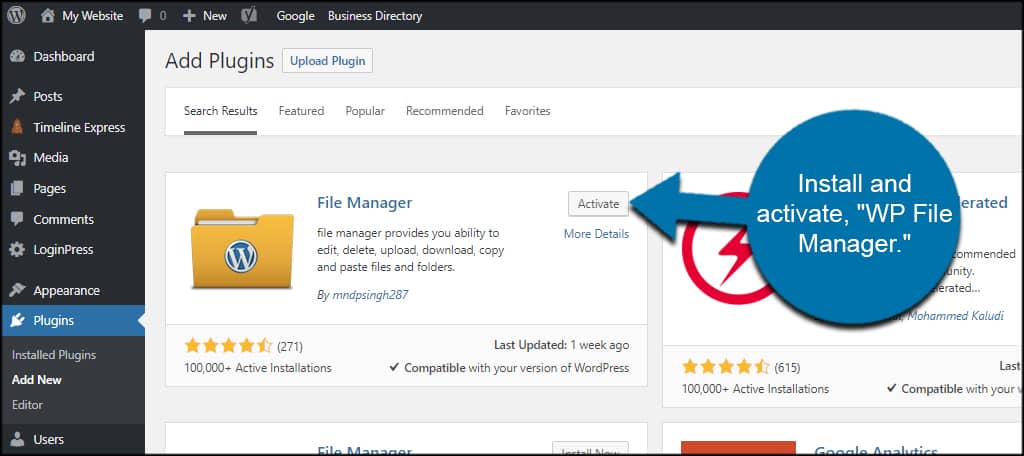
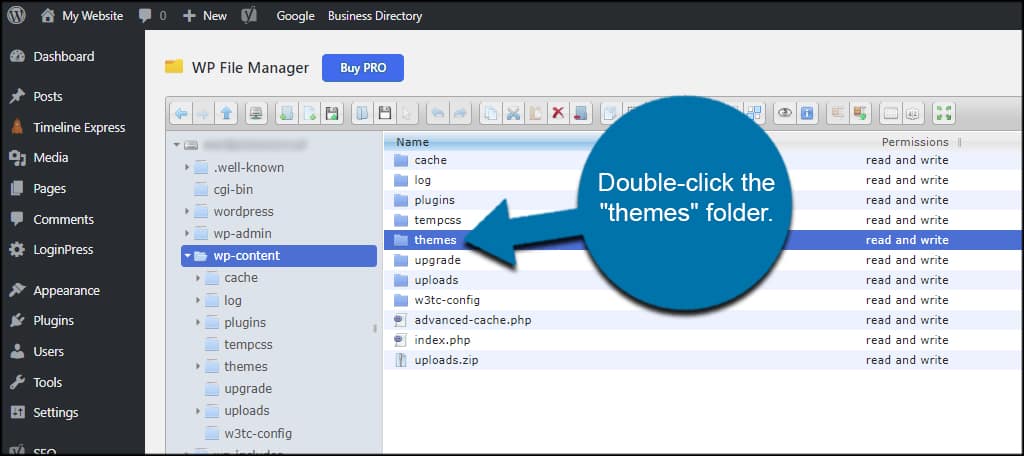
To start, log in to your cPanel account. Find the File Manager icon and click it. Next, open the public_html folder. This folder holds all your site files. Look for the wp-content folder. Inside, you will see the themes folder. Right-click on the theme folder you want. Choose “Download” from the menu. Save the file on your computer.
Open your FTP client software. Enter your site credentials to connect. Once connected, navigate to the public_html directory. Open the wp-content folder here. Look for the themes folder again. Select the theme folder you need. Right-click and choose “Download”. Save the downloaded theme on your computer.
Downloading The Theme
Begin by logging into your WordPress dashboard. Find the “Appearance” option on the left menu. Click on it. A list will appear. Choose “Themes” from the list. You will see your active theme name. This is your current theme. Now, connect to your website using an FTP client. FileZilla is a good choice. Enter your site details. Then, click “Connect”. Once connected, navigate to the wp-content/themes directory. This is where all your themes are stored.
In the themes folder, find your active theme folder. Right-click on the folder. Select “Download”. This will start copying all theme files to your computer. Ensure you have enough space. It may take some time. Once downloaded, you have a copy of your theme. You can now use this theme elsewhere or keep it as a backup.
Installing The Theme On A New Site
First, save the theme files on your computer. Look for the ZIP file. It contains the theme setup. Go to your new site’s dashboard. Click on “Appearance.” Choose “Themes” from the menu. Next, click “Add New.” Select “Upload Theme.” Find the ZIP file and upload it. Wait for the upload to finish. This process is quick and simple.
After uploading, go back to the “Themes” section. See the new theme listed there. Click “Activate.” Your theme is now live. Check the site to see changes. Sometimes settings need adjustment. Visit the theme settings page. Customize as needed. Make your site look great.
Credit: www.greengeeks.com
Customizing The Copied Theme
Copying a theme from a WordPress site allows you to personalize your website’s design. Adjust colors, fonts, and layout to fit your brand. Make sure to respect copyright and licensing rules when using copied themes.
Adjusting Theme Settings
Start by exploring the theme settings panel. Each theme has unique settings. Look for options like colors, fonts, and layouts. Adjust these to fit your needs. Small changes can make a big difference. Try different settings to see what looks best. Always save your changes. Preview them on different devices. Ensure everything looks good on phones and tablets too.
Ensuring Compatibility
Check if the theme is compatible with plugins. Some themes might not work well with certain plugins. Test them to avoid issues. Update the theme and plugins regularly. This helps keep your site secure. Also, ensure the theme is SEO friendly. Use tools to check for any errors. Fix them to improve your site’s performance. Always back up your site before making changes.
Legal Considerations
Understanding the legal aspects is crucial when copying a theme from a WordPress site. Respect copyright laws and ensure proper licensing before using any theme. Always verify permissions to avoid legal issues and protect your website’s integrity.
Understanding Copyright
Many WordPress themes have copyright protections. This means you can’t just copy them. Copyright laws help protect the original creators. Using a theme without permission can cause legal trouble. Always check if a theme is free to use. Some themes might have special rules. These rules are called licenses. They tell you how you can use the theme.
Respecting Licenses
Many themes come with a license agreement. This is like a rulebook. It tells you what you can do with the theme. Some licenses allow you to change the theme. Others might not. Always read the license carefully. Make sure you follow all the rules. Respecting licenses keeps you safe from legal issues. It also shows respect for the creators.
Troubleshooting Common Issues
Copying a theme from a WordPress site involves accessing theme files through the hosting provider’s file manager. Download the theme folder, then upload it to your new WordPress site via the WordPress dashboard or file manager. Ensure compatibility with your current WordPress version to avoid issues.
Handling Missing Files
Sometimes, files might go missing during the theme copying process. This can happen if files are not properly transferred. Always double-check all files. Ensure every file is in the right folder. Missing files can cause errors or a broken site look. Use a reliable file transfer tool. This helps to minimize the risk of missing files. Regular backups are a smart choice too. They provide a safety net if something goes wrong. Check theme documentation for specific file locations. This ensures everything is in its correct place.
Fixing Compatibility Problems
Themes may not work with all plugins. This can lead to site issues. Test the theme with your current plugins. Check for any errors or problems. Update plugins and themes to their latest versions. This can solve many compatibility issues. Look for alternative plugins if problems persist. Some plugins might not be essential. Disabling them can sometimes fix the issue. Always ensure your WordPress is up-to-date. This helps maintain compatibility with themes and plugins.
Credit: www.greengeeks.com
Frequently Asked Questions
How Do I Identify A WordPress Theme?
To identify a WordPress theme, use online tools like WPThemeDetector or What WordPress Theme Is That. These tools help you easily find the theme’s name and creator. Alternatively, inspect the site’s source code to locate the theme’s style. css file.
This file often contains the theme name and author information.
Is It Legal To Copy A WordPress Theme?
Copying a WordPress theme without permission may violate copyright laws. Always check the theme’s licensing terms. Many themes are licensed under GPL, allowing you to use, modify, and share them legally. However, it’s ethical to respect the original creator’s work and potentially seek permission if you’re unsure.
Can I Copy A Theme To A New Site?
Yes, you can copy a theme to a new site. First, download the theme files from the original site. Then, upload them to your new WordPress site’s theme directory. Finally, activate the theme in the WordPress dashboard. Ensure compatibility with your site’s plugins and settings.
What Tools Help Copy WordPress Themes?
Several tools can help copy WordPress themes efficiently. Tools like Duplicator and All-in-One WP Migration enable easy theme transfers. These plugins backup and move your entire site, including the theme. Alternatively, use FTP clients like FileZilla to manually transfer theme files between servers.
Conclusion
Copying a WordPress theme can be simple. Start by exploring theme files. Next, use a plugin to duplicate the design. Be cautious with copyright issues. Always check the theme’s license. You want to stay legal. Customizing the copied theme is key.
Adjust colors and fonts for uniqueness. Test your site thoroughly. Look for errors or glitches. Your site should function smoothly. This process improves your web design skills. Practice makes perfect. With patience, your site will shine. Enjoy the creative journey.
Keep learning and experimenting. Your WordPress skills will grow.


