
Are you eager to enhance your WordPress site with new features and functionalities? Adding plugins to your WordPress theme can transform your website, making it more dynamic and user-friendly.
But if you’re feeling overwhelmed by the process, you’re not alone. Many WordPress users find themselves puzzled when it comes to integrating plugins smoothly into their themes. This guide is here to simplify that process for you. We’ll walk you through each step, ensuring you can confidently and effortlessly add plugins to your WordPress theme.
Ready to unlock the full potential of your website? Let’s dive in and explore how to do it, so you can create the site you’ve always envisioned.
Credit: www.greengeeks.com
Choosing The Right Plugin
Picking the right plugin is important. First, make a list of what you need. Search for plugins that match your list. Check the ratings and reviews. This helps you know if people like it. Visit the plugin’s website. Learn more about what it does. Always look for plugins with good support.
Read the description carefully. See if it has the features you want. A good plugin will have a clear description. Look for plugins that get updated often. This means the developer cares about it.
Compatibility is key when adding a plugin. Check if it works with your WordPress version. Some plugins may not work with older versions. Look at the plugin’s details. It usually shows which versions it supports.
Test the plugin on a test site first. This helps you avoid problems on your real site. See if other users reported problems. If many users face issues, pick another plugin. Always have a backup before adding any new plugin.

Credit: themedev.net
Installing A Plugin
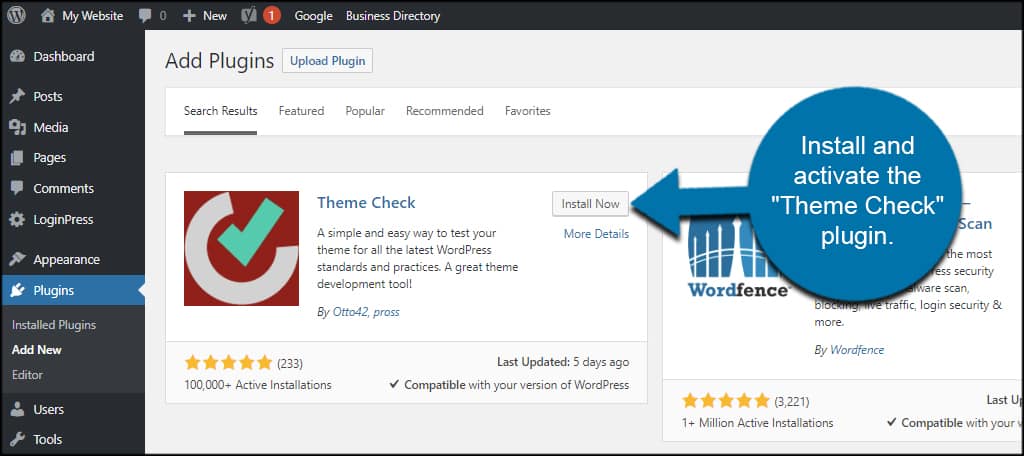
Find the plugin you need in the directory. Use the search bar. Type the name or type of plugin. Click on the install now button. Wait for the plugin to install. Click activate to use the plugin. Easy steps. Quick process. No coding needed.
Download the plugin file to your computer. Go to WordPress dashboard. Click on plugins. Choose add new. Click upload plugin. Select the file from your computer. Click install now. Once installed, click activate. Manual upload is useful. Sometimes necessary.
Activating The Plugin
First, open your WordPress dashboard. Then find the Plugins menu on the left side. Click on it to go to the Plugin page. You will see a list of your plugins here. This is where you can manage them.
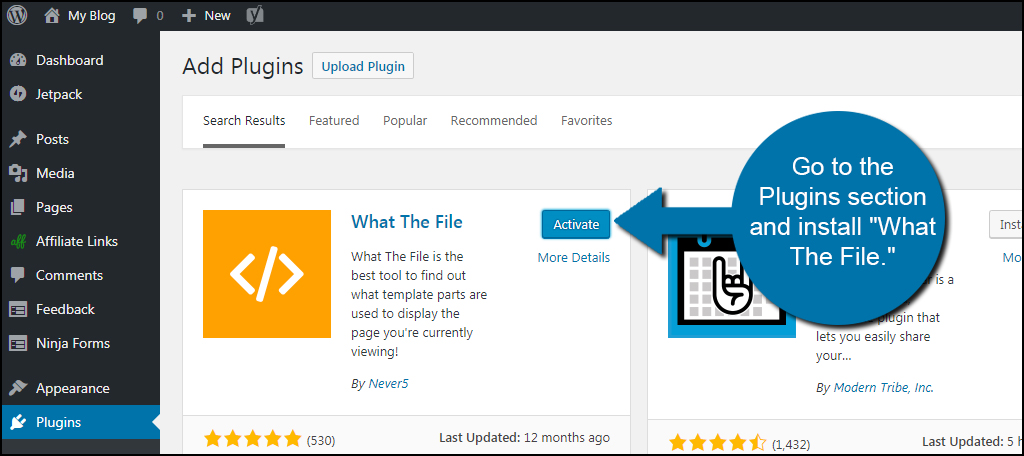
Locate the plugin you want to enable. Click the Activate button next to it. The button will turn blue when activated. Now, your plugin is ready to use. You can check its settings if needed. This helps to adjust how it works.
Configuring Plugin Settings
Adding plugins to a WordPress theme involves accessing the WordPress dashboard. Navigate to the “Plugins” section, select “Add New,” and search for your desired plugin. Click “Install” and then “Activate. ” Ensure you configure plugin settings as required for optimal functionality and integration with your theme.
Accessing Plugin Settings
Go to your WordPress dashboard. Click on Plugins in the menu. Find the plugin you want. Click on Settings below the plugin name. This opens the plugin’s settings page. You can adjust things here.
Adjusting Configuration Options
Read each option carefully. Choose what suits your needs best. Some plugins have many options. Others have only a few. Changes are saved when you click Save. Always test changes after saving. This ensures everything works well.
Testing The Plugin
Verifying Functionality is important. Check if the plugin works well. Try using its features. Ensure everything runs smoothly. Look for any errors. Test it on different pages. This helps to find problems early. Make sure it doesn’t slow your site. It should load quickly. Check compatibility with other plugins. This avoids conflicts. Ensure it’s updated. Updates fix bugs. They also improve performance.
Troubleshooting Issues is necessary if problems occur. First, check the plugin settings. Sometimes settings cause issues. Try disabling other plugins. One might be causing a conflict. Clear the website cache. Sometimes cache creates problems. Look at error messages. They help identify issues. Search online for solutions. Many people share fixes. Contact the plugin support. They can help solve problems. Always back up your site. This saves your work if issues happen.
Updating Plugins
Easily enhance your WordPress theme by adding plugins. Navigate to the dashboard, select ‘Plugins’, then ‘Add New’. Install and activate your desired plugin to extend functionality. Ensure plugins are updated regularly for optimal performance and security.
Checking For Updates
Plugins need regular updates. These updates fix bugs and add new features. To check for updates, go to your WordPress dashboard. Look for the Plugins section. You will see a list of installed plugins. If an update is available, you will see a message. Click on the Update Now button. This will start the update process. Updating plugins keeps your site safe and fast.
Safely Updating Plugins
Updating is important but can be risky. Always back up your site before updating. A backup saves your data and settings. Use a plugin like UpdraftPlus for easy backups. Test updates on a staging site first. A staging site is a copy of your real site. It lets you test updates safely. If updates work well, update your live site. This method keeps your site safe from errors.
Removing Unwanted Plugins
Enhance your WordPress theme by carefully adding plugins to improve functionality. Check for unwanted plugins that may slow your site. Remove those that are unnecessary to ensure optimal performance and user experience.
Deactivating Plugins
First, login to your WordPress dashboard. Find “Plugins” on the left menu. Click it. You’ll see a list of active plugins. Each plugin has a deactivate button. Click it to deactivate a plugin. Deactivated plugins are still installed but no longer active. This helps if you want to test site performance without certain plugins.
Uninstalling Plugins
Uninstalling removes a plugin completely. To uninstall, go back to the “Plugins” menu. Find the plugin you want to delete. Click the “Delete” option under the plugin name. Confirm the deletion when prompted. This permanently removes all plugin data. Ensure you truly don’t need the plugin before uninstalling.
Credit: www.greengeeks.com
Frequently Asked Questions
How To Install A WordPress Plugin?
To install a WordPress plugin, navigate to your dashboard. Click on ‘Plugins’, then ‘Add New’. Search for the plugin you want, click ‘Install Now’, and activate it. You can upload a plugin manually by selecting ‘Upload Plugin’ and choosing a file from your computer.
Can Plugins Affect Site Speed?
Yes, plugins can affect site speed. Some plugins consume more resources, slowing your site. Optimize by choosing well-coded, lightweight plugins. Regularly update and deactivate unused plugins. Use performance monitoring tools to identify speed issues and ensure optimal site performance.
Are Plugins Safe For WordPress Themes?
Plugins are generally safe if downloaded from reputable sources. Always check reviews and ratings before installation. Keep them updated to avoid vulnerabilities. Regular backups are recommended to secure your website. Select plugins compatible with your WordPress theme for seamless integration.
How To Update WordPress Plugins?
Updating plugins is simple. Go to your WordPress dashboard, click ‘Plugins’, then ‘Installed Plugins’. Check for available updates and click ‘Update Now’. Regular updates ensure security and functionality. Enable automatic updates for convenience, but monitor for compatibility issues.
Conclusion
Adding plugins to your WordPress theme is straightforward. Start by choosing plugins that meet your needs. Ensure compatibility with your theme. Download the plugin from a trusted source. Install it through the WordPress dashboard. Activate the plugin to use its features.
Regularly update plugins for security and performance. Check for conflicts with existing plugins. Test the plugin to see if it works smoothly. If issues arise, seek help from the plugin developer. With these steps, you enhance your site’s functionality. Enjoy your improved WordPress experience.


