
Have you ever visited your WordPress website and felt like it no longer reflects your brand or vision? Your website’s theme plays a crucial role in shaping the first impressions of your visitors.
It’s like the outfit your site wears, and sometimes, a change is necessary to keep things fresh and engaging. If you’re worried about the complexities or potential pitfalls of changing your WordPress theme, fear not. This article is here to guide you through the process smoothly and efficiently.
Discover how you can revamp your site’s appearance without losing any of your precious content or functionality. Keep reading to unlock the secrets to a seamless theme transition and give your website the makeover it deserves!
Pre-change Preparations
Always save a copy of your website. This keeps your data safe. Use a backup plugin. It saves your files and database. You can download the backup to your computer. This step is very important.
Some plugins may not work with new themes. Check each plugin for compatibility. Visit the plugin page. Read the plugin details. Look for any warnings or notes. This prevents future issues.
A staging environment is a safe place to test. It is like a copy of your site. Changes here do not affect the live site. Set up a staging site to try the new theme. Test everything. Make sure all works well.

Credit: m.youtube.com
Choosing A New Theme
Understanding your needs is vital. Make a list of what you want. Do you need a simple design? Or maybe you need advanced features? Think about your audience. What do they like? This helps you make good choices.
Check WordPress theme library. There are many choices. Look for themes with good reviews. Check the ratings. Some themes are free. Some cost money. Make sure the theme fits your budget. Keep it within your price range.
Your new theme must work with your plugins. Check compatibility before you choose. Some themes have issues with certain plugins. A well-matched theme works smoothly. This makes your site run better.
Installing The New Theme
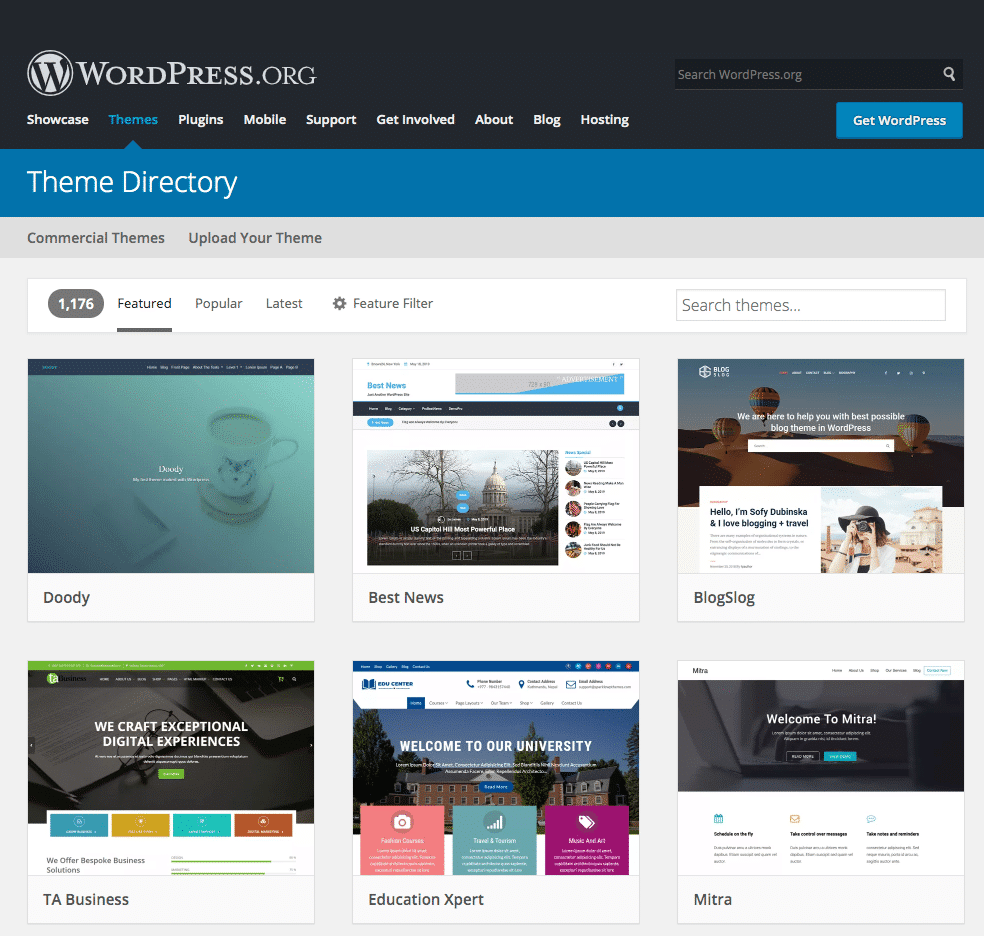
Access the Theme Directory through your WordPress dashboard. Click on “Appearance”, then “Themes”. Here, you can see all available themes. To find new themes, click “Add New” at the top. Browse through options or use the search bar.
To Upload the New Theme, click on the “Upload Theme” button. Select the theme file from your computer. Press “Install Now” to upload it. Wait for the upload to finish.
Finally, Activate the Theme by clicking the “Activate” button. This makes the new theme live on your site. Check your website to see the changes. Make sure everything looks good.
Credit: kinsta.com
Customizing The New Theme
Open the WordPress dashboard. Find the Appearance section. Click on Customize. This will open the theme settings. Change colors or fonts as you like. Save your changes.
Go to Appearance and then Widgets. See the available widget areas. Drag and drop widgets you want. Remove ones you don’t need. Make sure everything looks nice. Widgets help add features to your site.
Navigate to Appearance and then Menus. Choose the menu you want to edit. Assign it to the right location. Add or remove menu items. Keep it simple and clear for visitors. Save your changes.
Testing The New Theme
Ensure every button works. Links must open correctly. Check forms for errors. Images should load quickly. Make sure all pages open. Look for broken links. Test on different browsers. Verify all plugins work.
View the site on phones. Check on tablets. Pages should adjust size. Text must stay readable. Images should fit screens. Test on large monitors. Menus must stay easy to use. Make sure all content displays well.
Ensure headers are in place. Paragraphs should not overlap. Check for proper spacing. Images must align correctly. Look at lists and tables. Fonts should be consistent. Check for missing content. Validate the overall look.

Credit: jetpack.com
Post-change Considerations
Switching your WordPress theme affects website design and functionality. Backup your site to prevent data loss. Review plugin compatibility to ensure seamless operation.
Monitor Website Performance
Check your website’s speed and loading times. Slow websites lose visitors. Use tools like Google PageSpeed. They help you see how fast your site is. Fix any issues they find. Keep your site running smoothly.
Seek User Feedback
Ask users what they think about the new theme. They can spot problems you missed. Feedback helps you make your site better. Use surveys or comments to gather opinions. Listen to your users. They know what they like.
Plan For Future Updates
Themes need updates. Make a plan for future changes. Check for theme updates regularly. Keep your site safe and fresh. Updates fix bugs and add new features. Don’t ignore them. Stay ahead with a good plan.
Frequently Asked Questions
How Do I Change My WordPress Theme?
To change your WordPress theme, navigate to the dashboard. Go to “Appearance,” then “Themes. ” Choose a new theme and click “Activate. ” Make sure to preview the theme before activation to ensure it suits your website’s design and functionality needs.
Always backup your site before making major changes.
Will Changing My Theme Affect Seo?
Changing your theme can affect SEO if it alters your site’s structure or content visibility. Ensure your new theme is SEO-friendly. Check for fast loading times, mobile responsiveness, and proper heading tags. Review meta tags and URLs to maintain SEO performance.
Regularly monitor your site’s analytics for any changes.
Can I Customize My New Theme?
Yes, you can customize your new WordPress theme. Use the “Customize” option under “Appearance” in the dashboard. Adjust colors, fonts, and layouts to fit your brand. Some themes offer advanced customization options. Consider using child themes for extensive changes, which preserve customizations during updates.
What Is A Child Theme In WordPress?
A child theme in WordPress is a sub-theme that inherits features from a parent theme. It allows you to modify designs without altering the main theme. This ensures your changes remain intact after updates. Creating a child theme involves basic coding skills, but it provides flexibility and safety in customization.
Conclusion
Changing your WordPress theme is simple and rewarding. Follow the steps shared to ensure a smooth transition. Always back up your website before making changes. Test your new theme to avoid glitches. Keep an eye on your site’s loading speed.
A slow site can affect user experience. Customize your theme to match your brand. Make sure it reflects your style and message. Regular updates are key. They keep your theme secure and optimized. Enjoy the new look of your website.
It’s now ready to engage visitors and showcase your content effectively.


