
Unlocking the full potential of your WordPress website can seem like a daunting task, especially when it comes to customizing a theme. But imagine the impact of having a site that truly reflects your unique brand and style.
It’s not just about aesthetics; it’s about creating a memorable user experience that keeps visitors coming back. If you’ve ever felt overwhelmed by the thought of diving into the world of WordPress customization, you’re not alone. But here’s the good news: with a few straightforward steps, you can change and copy your custom WordPress theme with ease.
In this guide, you’ll discover the secrets to effortlessly transforming your site’s appearance, boosting engagement, and ultimately driving more traffic. Ready to take control of your WordPress journey? Let’s get started!
Backup Your WordPress Site
Backing up your WordPress site is very important. It keeps your data safe. First, install a backup plugin. Many plugins are free. Choose one with good reviews. Next, set up the plugin. Follow the steps given by the plugin. Make sure to save the backup file. This file is very important. Store it in a safe place. Use cloud storage or an external drive. Check your backup regularly. Make sure it works.
Some hosting providers offer automatic backups. Check if your host provides this service. Automatic backups are very helpful. They save time and effort. But always keep a manual backup too. It’s better to be safe. Backups protect your work. They help you restore your site quickly. Never skip this step. It keeps your site secure.
Access Theme Files
Find your theme files in the theme directory. First, open your website’s File Manager or FTP client. You need to access the server where your site is hosted. After logging in, find the folder named wp-content. Inside, locate the folder named themes. This folder contains all installed themes. Look for your custom theme folder here. This is where you will find the files you need to change.
Each theme has its own folder. Inside, there are many files. These files control how your site looks. You can edit these files to make changes. Be careful when editing. Mistakes can break your site. Always make a backup before you start. This will help you restore your site if something goes wrong.
Duplicate Theme Files
First, access your WordPress dashboard. Go to the Appearance section. Then, choose the Theme Editor. Find the theme you want to copy. Copy the theme files to your computer. Store them in a safe folder. This is your backup.
Open the copied theme folder. Look for the style.css file. Open it in a text editor. Find the Theme Name line. Change the name to something new. Make sure it is unique. Save the file.
Now, upload the copied theme back. Go to your WordPress themes section. Click Add New, then Upload Theme. Choose the copied folder. Activate it and see the changes.
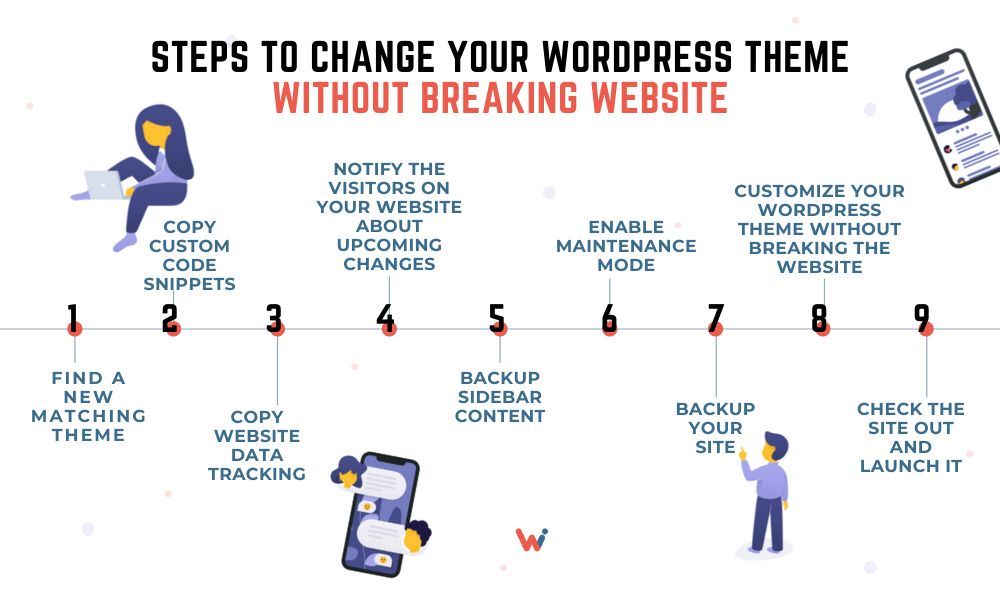
Credit: wishdesk.com
Modify Theme Information
Open the style.css file in your theme folder. It holds key theme details. These details include Theme Name, Theme URI, and Author. Adjust the Theme Name to what you like. Change the Author to your name or company. Make sure your changes are clear and easy to read. Save the file after editing. Check your site to see the new theme name. This file is vital for WordPress to read your theme. Always back up before making changes. Errors can happen if not careful. Keep your changes simple and accurate.
Customize Theme Design
Start by selecting the layout that suits your needs. Try different styles for a fresh look. Use the theme editor to make changes. Adjust colors, fonts, and spacing. You can also change header and footer styles. Preview your changes as you go. Ensure your design looks good on mobile and desktop. Save your progress regularly to avoid losing work.
Enhance your theme with custom features. Consider adding a contact form or gallery. Use plugins to add functionality. Widgets can help display information. Try adding social media links for better engagement. You can also integrate Google Analytics. Make sure to test features after adding. Check that everything works smoothly. Keep your website user-friendly at all times.

Credit: wpfactory.com
Test Your New Theme
Changing your custom WordPress theme copy involves simple steps. Navigate to the theme editor and locate the desired text files. Edit these files directly, ensuring your new theme reflects your unique style and content needs.
Activate Theme In WordPress
Go to your WordPress dashboard. Click on “Appearance” and then “Themes”. Find your new theme and click “Activate”. Your theme will now be live. Visit your website to see the changes. Everything should look new and fresh.
Check For Functionality And Errors
Visit different pages on your site. Make sure all links work. Check that images load correctly. See if the layout looks right. If something looks odd, revisit your theme settings. Use a tool to find broken links. Fix any errors you find.
Document Your Changes
Always write down what changes you make. Use a simple notebook or a digital app. This helps remember what you did. If something breaks, you can check your notes. It’s like a map for your theme.
Remember to note the date. This helps with future updates. Your log will save time later. You can easily see which changes worked and which did not.
A good log is like a tool. It helps keep your site safe and neat.

Credit: www.reddit.com
Frequently Asked Questions
How Do I Edit A WordPress Theme Copy?
To edit a WordPress theme copy, navigate to the Appearance section in your dashboard. Select Theme Editor, choose your theme, and edit the files. Ensure you back up your theme before making changes. Use child themes to safely customize without affecting updates.
Can I Customize WordPress Theme Without Coding?
Yes, you can customize a WordPress theme without coding by using the Customizer tool. Access it via Appearance > Customize. You can change colors, fonts, and layouts easily. For advanced changes, plugins like Elementor offer drag-and-drop customization options without coding knowledge.
What Is A Child Theme In WordPress?
A child theme in WordPress is a sub-theme that inherits functionality and styling from the parent theme. It allows you to modify your theme without affecting the original files. Using child themes ensures that your customizations are preserved during theme updates.
How Do I Backup My WordPress Theme?
To backup your WordPress theme, use a plugin like UpdraftPlus. It allows you to save your theme files and database. Alternatively, manually download theme files via FTP or cPanel. Regular backups protect your customizations from accidental loss or server issues.
Conclusion
Changing your custom WordPress theme can be simple. Start by identifying areas for improvement. Make a plan to adjust your theme. Test each change carefully. Ensure your website remains user-friendly. Keep your design clean and attractive. Focus on readability and easy navigation.
Remember, small tweaks can make a big difference. Regular updates help maintain functionality. Your website reflects your brand. A well-adjusted theme attracts more visitors. With patience and practice, you can create a website you love. It’s all about making your site better, step by step.


