
Have you ever felt limited by the default fonts available in your WordPress theme? Imagine the possibilities if you could customize your site to reflect your unique style and brand identity.
Fonts play a crucial role in how your content is perceived, and the right choice can elevate your website from ordinary to extraordinary. If you’re looking to personalize your WordPress site by adding custom fonts, you’re in the right place.
In this guide, you’ll discover simple, effective steps to enhance your site’s visual appeal and ensure it stands out in the crowded digital landscape. Stay with us as we reveal how you can effortlessly integrate new fonts into your WordPress theme, making your website not just a place for information, but a memorable experience for every visitor.
Credit: www.hostinger.com
Choosing The Right Font
Fonts must work well on different devices. Some fonts look good on desktops but not on phones. Always test fonts on various screens. This ensures your site looks nice everywhere. Web-safe fonts are a safe choice. They work on all browsers.
Fonts should be easy to read. Simple fonts like Arial or Verdana are good. Avoid complex fonts for body text. The right size is important too. Fonts that are too small or too big can be hard to read. A good size makes reading comfortable.
Choose fonts that match your brand style. A playful brand may use fun fonts. A serious brand might choose classic fonts. Fonts help show your brand’s personality. Consistency is key. Use the same fonts across your website.
Credit: www.greengeeks.com
Using Google Fonts
Google Fonts offers many free fonts for websites. Visit the Google Fonts website to explore options. Search for your favorite fonts. You can find fonts for headings, paragraphs, and more. Click on any font to view details. Choose styles like bold or italic. Select the font styles you need for your site.
Once you pick a font, it’s time to get the embed code. Click the “Select this style” button. A box will appear. This box shows the embed code. Copy this code. You will need it for WordPress. Remember, this code tells your website to use the font.
Open your WordPress dashboard. Go to Appearance and then Theme Editor. Find the header.php file. Paste the embed code there. Save your changes. Now, go to your CSS file. Use the font-family property. Add the Google Font name. Save again. Your website now shows the new font. Easy to change anytime.
Adding Fonts Via Custom Css
First, download the font file you want to use. It can be a .ttf or .otf file. Open your WordPress dashboard. Go to the Media section. Click “Add New”. Upload your font file here. Once uploaded, copy the file URL. This URL is important for the next steps.
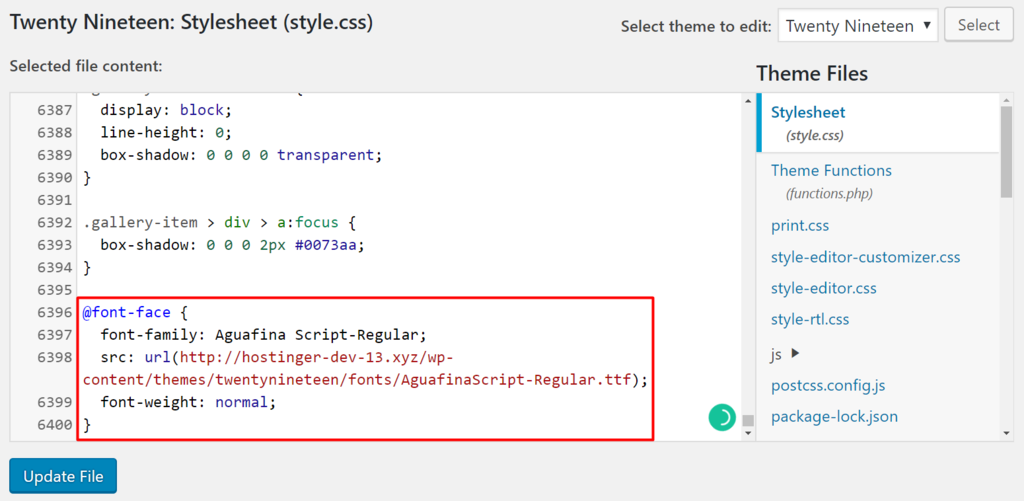
Go to the WordPress theme editor. Find the style.css file. Here, you will add custom CSS. Use the @font-face rule. This rule lets you define your font. Paste the file URL you copied. Add it to the src attribute. Name your font with the font-family attribute. Now, your font is ready to use.
Choose where to use your new font. It can be on headings or paragraphs. Use the font-family property in CSS. Type the name you gave your font. Apply this to the elements you want. Save changes and check your site. Your new font should appear.
Using WordPress Plugins
Many plugins help add fonts in WordPress. Easy Google Fonts and Use Any Font are well-known. These plugins let you add new fonts. They are easy to use.
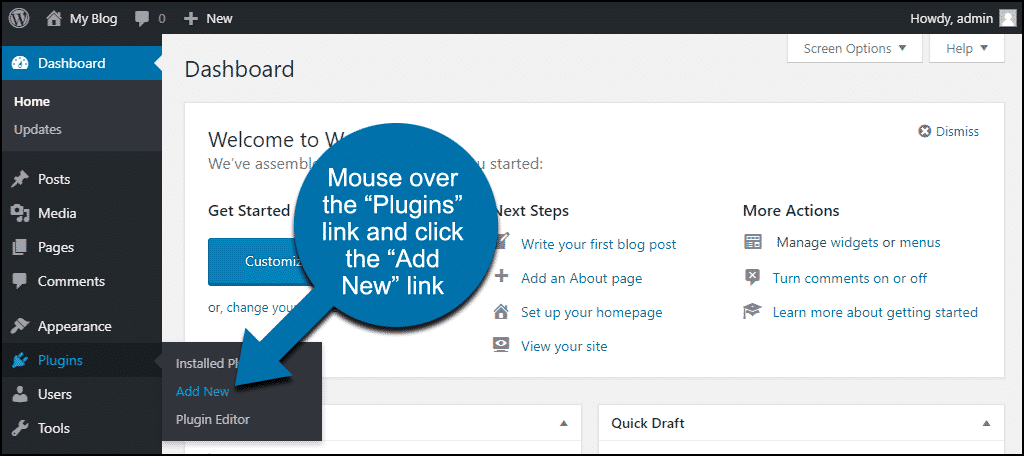
Start by going to the plugin section. Click on “Add New”. Type the plugin name in the search box. Find the plugin and click on “Install Now”. After installing, click “Activate”.
After activation, go to the plugin settings. Here, you can choose your fonts. Some plugins let you upload custom fonts. Adjust the settings to match your theme. Save changes when done.
Testing And Troubleshooting
Easily enhance your WordPress theme by adding custom fonts. Access the theme’s CSS file and insert the font’s URL. Ensure the font is applied by specifying it in the CSS rules for the desired elements.
Cross-browser Compatibility
Fonts may look different on each browser. Always check your site on popular browsers. Use tools to see how your site looks on each one. This ensures a consistent experience for all users.
Mobile Responsiveness
Many people browse using phones. Make sure your font looks good on small screens. Test the font size and spacing. Adjust if needed so text is clear and easy to read.
Common Font Issues
- Fonts not loading? Check your file paths.
- Text appears strange? Ensure the font format is correct.
- Font fallback: Use common fonts as backups.
Ensure fonts are easy to read. Solve issues quickly for a better user experience.
Best Practices
Maintaining site performance is crucial. Large font files can slow your site. Use only the fonts you need. Compress font files to enhance speed. Choose web-friendly formats like WOFF or WOFF2.
Ensure consistent typography across your site. This helps users read easily. Choose fonts that match your site’s style. Avoid using too many different fonts. Stick to two or three fonts at most.
Regular font updates keep your site fresh. Check for new versions of your fonts. Update them when new versions are available. This ensures compatibility with all devices. Regular updates also fix bugs and improve performance.

Credit: www.youtube.com
Frequently Asked Questions
How Do I Add Custom Fonts To WordPress?
To add custom fonts, you can use a plugin like Easy Google Fonts. Alternatively, manually add fonts via the theme’s stylesheet. Upload font files to your server, and use `@font-face` in your CSS. Ensure you have the necessary permissions for any custom fonts you use.
Can I Use Google Fonts In WordPress?
Yes, you can easily use Google Fonts in WordPress. Use plugins like Google Fonts Typography or add them manually. For manual addition, embed the font link in your theme’s header and reference it in your CSS. This ensures your site maintains a consistent and professional look.
What Is The Best Plugin For Adding Fonts?
Easy Google Fonts is a popular choice for adding fonts. It offers a user-friendly interface and integrates seamlessly with WordPress. It allows you to preview and customize fonts without coding knowledge. This plugin ensures compatibility with most themes and enhances your site’s typography.
Are There Risks In Using Custom Fonts?
Using custom fonts can impact website performance. Large font files may slow down loading times. Ensure fonts are optimized and hosted on a reliable server. Also, check licensing agreements to avoid legal issues. Proper implementation and optimization can mitigate these risks effectively.
Conclusion
Enhancing your WordPress theme with custom fonts is simple. Start by choosing a font that fits your style. Use reliable plugins for easy installation. Make sure to keep your website’s loading speed in mind. Faster sites improve user experience. Regularly update plugins and themes for security.
Custom fonts bring uniqueness to your site. They reflect your brand’s personality. Experiment with different styles. Find what works best for your audience. The right font can elevate your site’s appeal. Keep your design consistent and professional. Enjoy the creative process.
Your website deserves a touch of personal flair.


