
Are you looking to enhance your WordPress site with social media links? You’re in the right place.
Integrating your social media information into your WordPress theme not only boosts your online presence but also creates a seamless connection with your audience. Imagine turning casual visitors into loyal followers and engaging them across multiple platforms. Sounds exciting, right?
This guide will walk you through the simple steps to effortlessly add social media info to your WordPress theme. By the end of this article, you’ll have the tools to amplify your reach and make your website a dynamic hub of interaction. Ready to transform your site? Let’s dive in!
Choosing The Right Plugin
Many plugins help with social media. Some popular ones are Jetpack, Social Snap, and Monarch. They are easy to use. Jetpack is good for beginners. It has many features. Social Snap offers great control. Monarch is known for its speed. Each plugin has unique features. Look for what you need. Think about your website style. Some plugins have more options. Others are simple.
Consider plugin updates. Updated plugins are safer. Check user reviews. They help you decide. Try a few plugins. See which one fits best. Make sure the plugin supports your social media. This will help you share content easily.
Installing A Social Media Plugin
Open your WordPress dashboard. Find the Plugins menu on the left side. Click on Add New to open the plugin directory. This is where you can search for plugins. Use the search bar to find the social media plugin you need. Popular options include Social Media Share Buttons and Simple Social Icons.
Click the Install Now button next to the plugin you want. Wait for the installation to complete. After installing, click Activate to start using the plugin. Visit the Settings section to configure the plugin. Add your social media links in the plugin settings. Save changes to finish.
Configuring Plugin Settings
Connecting Social Media Accounts is a simple process. First, install a plugin like Social Media Widget. Then, go to the settings page. Here, find the option to connect your social media accounts. Click on the social media icons. Enter your account details. Save your changes. Now, your social accounts are linked.
Customization Options let you change how social buttons look. Choose button size, shape, and color. Make them match your theme. Pick how they appear on the page. You can show them on top or bottom. Explore different styles. Save changes when you are happy. Your site now looks better and connects with social media.
Adding Social Media Icons To The Header
Discover how to add social media icons to your WordPress theme header effortlessly. Integrate social media details using theme settings or plugins. Enhance website visibility and connect with your audience through easy-to-find icons.
Editing The Theme Header
First, find the header file in your WordPress theme. It is usually called header.php. Open it to make changes. Look for the spot where the icons should go. This is often near the logo. Add the HTML code for your social media icons. Use tags for links. This helps people click on the icons. You can get icon codes from many websites. Choose icons that match your theme style.
Positioning Icons
Use CSS to place icons properly. Add CSS rules in the theme’s style.css file. Set the display property to inline-block. This makes icons line up nicely. Adjust the margin to space them out. Test the page to see how it looks. Change the CSS as needed. This makes sure everything is neat and tidy.
Incorporating Social Media Widgets
Easily add social media widgets to your WordPress theme to enhance connectivity. Navigate to the customization section, select ‘Widgets’, and then add desired social media information. This simple process helps engage visitors and boosts your website’s visibility by integrating your social profiles seamlessly.
Widget Placement Options
Choosing the right spot for your social media widget is crucial. Most themes let you add widgets to sidebars. Some themes allow widget placement in the footer. Check your theme settings for options. Place widgets where they are easy to see. A good spot is near the top of the page. This makes it easy for visitors to find them. Some themes have a header widget area. Consider using this spot too.
Adjusting Widget Settings
After placing the widget, adjust its settings. You can choose which social media accounts to show. Many widgets allow custom designs. This helps match the widget with your website style. Some widgets let you show or hide followers. Decide what looks best for your site. Always save changes after adjusting settings. Check how the widget looks on different devices. It should look good on both mobile and desktop.
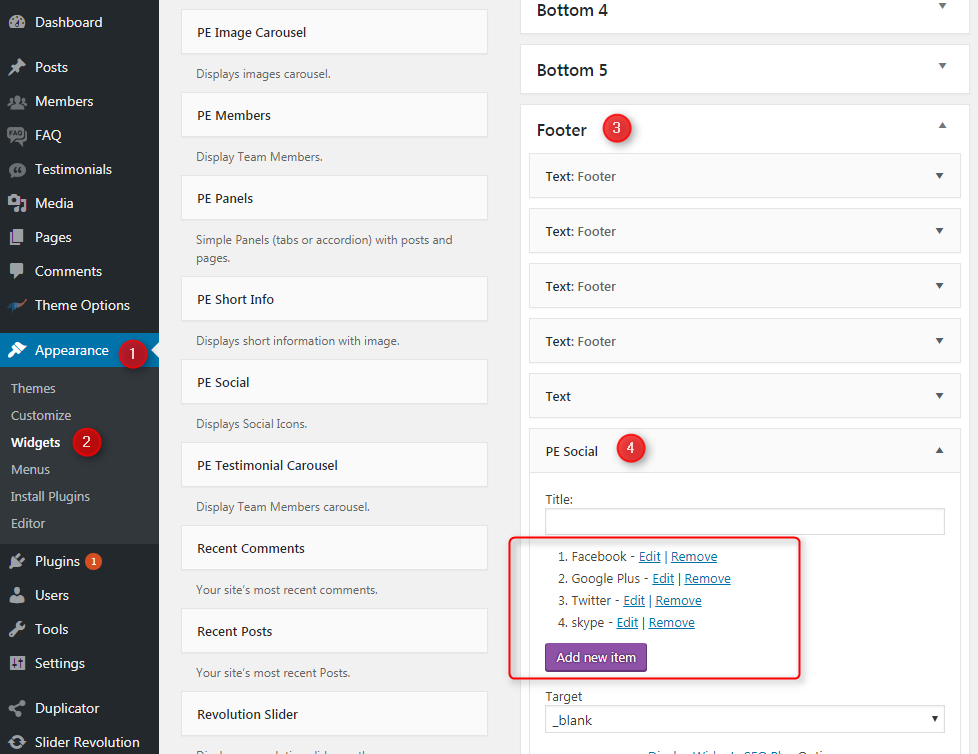
Credit: www.pixelemu.com
Integrating Social Media Share Buttons
Social media buttons come in various styles. Some are colorful and grab attention. Others are simple and blend in. Choose a style that fits your website look. This makes your site look neat and organized. Consider button size too. Big buttons are easy to click. Small buttons save space.
Place buttons where users can see them easily. Top of the page is a good spot. Sidebar is also a popular choice. Avoid placing too many buttons. This can make your site look messy. Keep it simple and clean. Users will share your content more often.
Ensuring Mobile Compatibility
Websites must be easy to use on all devices. This includes phones and tablets. A responsive design helps with this. It makes your site look good everywhere. Focus on flexible layouts. Use grids that fit any screen size. Images should be scalable. They must not break the layout.
Check your site on many devices. Use a phone, tablet, and computer. See how it looks on each one. This helps spot problems early. Try different browsers too. Some features might not work everywhere. Regular testing is key. It keeps your site user-friendly. Never skip this step.

Credit: cyberchimps.com
Optimizing For Performance
Enhance your WordPress site by seamlessly integrating social media info into your theme. Boost engagement by adding social media links in the header or footer. Use widgets or plugins to display icons, making your website more interactive. This simple step can improve user experience and connectivity.
Minimizing Load Impact
Social media can slow your website. This happens because of extra scripts. Minimizing load impact is essential. Use only the necessary social media buttons. Avoid loading too many scripts. Choose lightweight plugins. This helps your site run smoothly.
Using Caching Solutions
Caching makes websites faster. It stores copies of your pages. These copies load quickly. Use caching plugins for WordPress. They reduce server load. This means fewer requests to the server. Your site loads faster. Visitors will have a better experience. Page speed is important for users. It also helps in search engine ranking. Make sure to clear cache regularly. This keeps your site updated.
Monitoring Social Media Engagement
Analytics tools help track social media activity. They show how people interact with posts. You can see likes, shares, and comments. This data helps understand what works best. It can guide future content.
Each tool has different features. Some tools give detailed reports. Others offer simple overviews. Choosing the right tool is important. It should match your needs and goals.
Interpreting engagement metrics is key. Metrics show which posts are popular. They help identify trends. You can see which time of day is best for posting. This helps improve social media strategy.
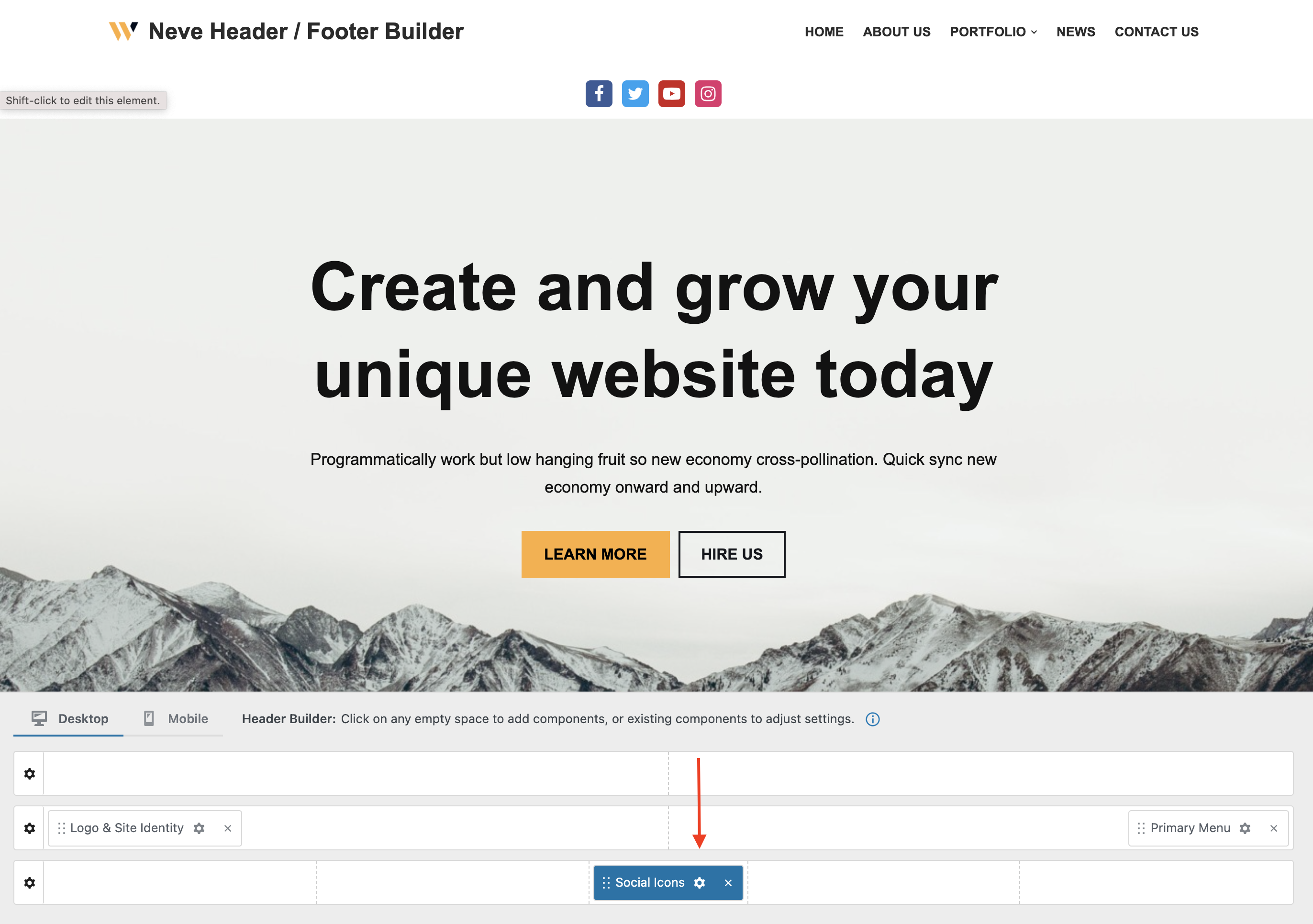
Credit: docs.themeisle.com
Frequently Asked Questions
How Do I Add Social Media Icons In WordPress?
To add social media icons, use a plugin like Simple Social Icons. Install it from the WordPress dashboard. Activate the plugin and configure the settings to display the icons. You can also use custom widgets to place them in your theme’s header or footer.
Can I Integrate Social Media Feeds In WordPress Themes?
Yes, integrating social media feeds is possible with plugins like Smash Balloon. Install and activate the plugin. Connect your social media accounts through the plugin settings. Customize the appearance of the feeds and embed them using shortcodes in your theme.
How To Customize Social Media Buttons In WordPress?
Customize social media buttons using CSS or dedicated plugins. Plugins like AddToAny allow customization of button styles, sizes, and colors. Access the plugin settings for options. For advanced customization, add custom CSS to your theme’s stylesheet for greater control.
Are There Free Plugins For Social Media Integration?
Yes, many free plugins are available for social media integration. Popular options include Simple Social Icons, AddToAny, and Social Media Share Buttons & Social Sharing Icons. These plugins offer basic functionality and customization features for free. Explore their settings to maximize integration with your theme.
Conclusion
Adding social media info in your WordPress theme is simple. It enhances your site’s connectivity. Users find your profiles easily. This boosts engagement. Follow steps carefully. Customize your theme’s settings. Use plugins if needed. They simplify the process. Test your changes.
Ensure everything displays correctly. Keep your information updated. This maintains credibility. Social media integration strengthens your online presence. It’s crucial for growing your audience. Reach more people with ease. Enjoy the benefits of a connected digital platform. Your WordPress site is now ready.
Engage and share content effortlessly.


