
Keeping your WordPress themes and plugins up to date is crucial for the security, performance, and functionality of your website. But let’s be honest: manually checking and updating them can be a tedious chore you’d rather avoid.
What if you could save time and ensure your site runs smoothly without lifting a finger? Imagine the peace of mind you’d have knowing your WordPress site is always running the latest versions, protected from vulnerabilities and enhanced with new features.
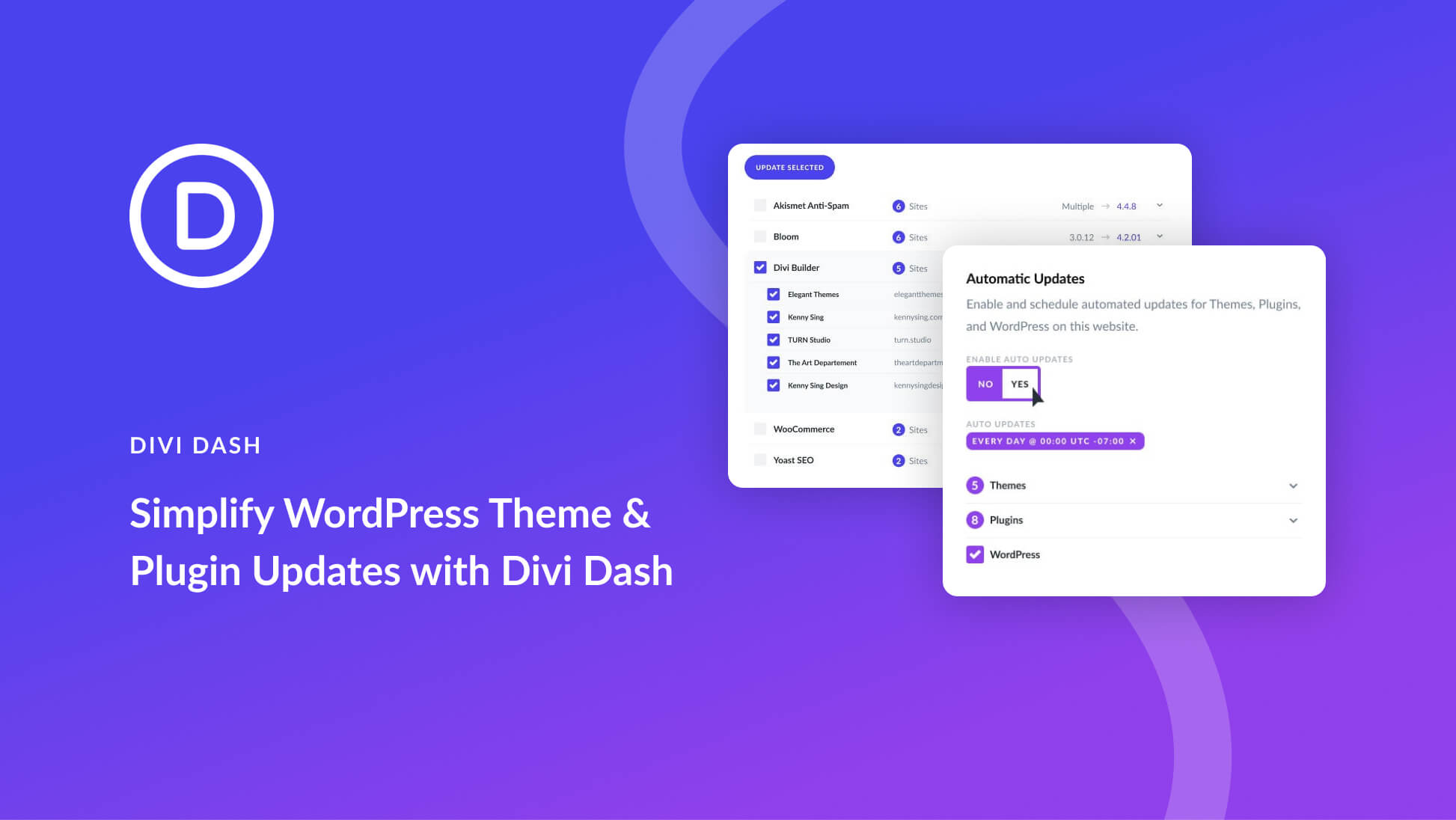
Sounds ideal, right? This is where automatic updates come into play. By the end of this article, you’ll know exactly how to set up automatic updates for your WordPress themes and plugins, giving you more time to focus on what really matters: growing your website and engaging with your audience. Let’s dive in and take the hassle out of WordPress maintenance!
Credit: www.elegantthemes.com
Benefits Of Automatic Updates
Keeping themes and plugins updated is key to better security. New updates fix bugs and security holes. Hackers often attack old software. Automatic updates help keep your site safe and secure.
Manual updates take lots of time. Automatic updates do the work for you. This means you can focus on other tasks. You save hours each month. Letting your site update itself is smart.
Updates can make your site run faster. They often come with performance upgrades. Themes and plugins work better with new updates. Your site can load quicker and be more reliable. Automatic updates help keep your site efficient.
Credit: make.wordpress.org
Preparing For Automatic Updates
Backing up your website is a smart move. This protects your site. You won’t lose important data. Use a plugin for backups. Save copies to your computer or cloud. Keep them safe. Backups help when things go wrong.
Checking compatibility is important. Updates might not work well. They can break your site. Check if the theme or plugin will fit. Read reviews. See if others have problems. This helps keep your site safe.
Setting up notification alerts keeps you informed. Get emails about updates. Know when changes happen. Use plugins for alerts. They tell you what’s new. You can act fast. This keeps your site running smoothly.
Enabling Automatic Updates In WordPress
Enable automatic updates in WordPress to keep themes and plugins secure and up-to-date. This feature ensures seamless enhancements and fixes. Save time and reduce risks of vulnerabilities with this easy setting adjustment.
Using WordPress Dashboard
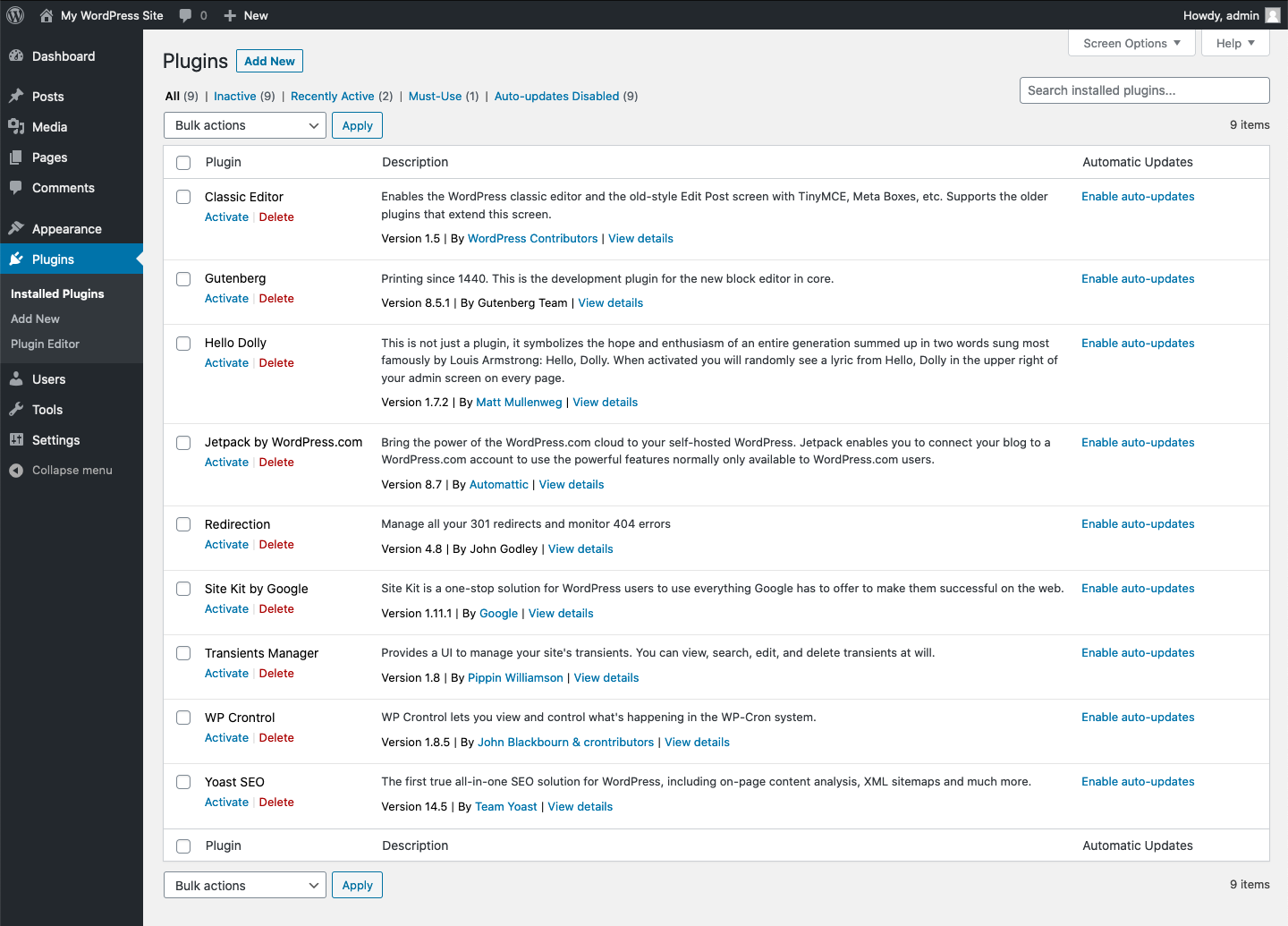
The WordPress dashboard makes updates easy. Go to the dashboard. Find the Themes or Plugins section. Choose the item you want to update. Click on Enable Automatic Updates. This keeps your site safe. Updates happen without effort. It’s simple and quick.
Configuring Wp-config.php File
The wp-config.php file is important. Open this file. Add a line to enable updates. Write: define('AUTOMATIC_UPDATER_DISABLED', false); in the file. Save the changes. This will activate automatic updates. Your site stays fresh and secure. It’s easy to do.
Utilizing Plugins For Updates
Plugins can help with updates. Search for update plugins in the store. Popular choices are Jetpack and Easy Updates Manager. Install the plugin. Follow the setup steps. Activate auto-updates in the plugin settings. This method is simple. Plugins manage updates for you.
Managing Updates For Themes
Automatically updating WordPress themes and plugins ensures seamless functionality and security. Keep your website fresh and secure by enabling automatic updates directly in your WordPress dashboard. Regular updates help prevent compatibility issues and protect against vulnerabilities without manual intervention.
Selecting Themes For Auto-update
Choose themes that are updated regularly. Check the theme’s history. This helps you see its update pattern. Use themes from trusted sources. They often have good support. Enable auto-update in your WordPress dashboard. Go to the themes section. Click on “Enable Auto-Updates” for your selected theme. This ensures your theme stays current. It also reduces security risks. Always have a backup before enabling auto-updates. This helps in case something goes wrong.
Monitoring Theme Changes
Keep an eye on your site’s appearance. Check it after each update. Ensure everything works as expected. Sometimes updates can break things. Use a tool to monitor changes. These tools alert you if something changes. Also, read update logs. They show what changed in the update. This helps you understand any new features or fixes. Stay informed to keep your site safe and smooth.
Handling Plugin Updates Automatically
Easily manage WordPress themes and plugins with automatic updates. Keep your website secure and up-to-date effortlessly. Simplify maintenance tasks and focus on content creation instead.
Choosing Plugins For Automatic Updates
Choose plugins wisely for automatic updates. Some plugins may not update well. Check plugin reviews to see if they update smoothly. Read user experiences about automatic updates. Some plugins might break your site. Avoid plugins with many negative reviews.
Checking Plugin Compatibility
Plugins must be compatible with your WordPress version. Compatibility issues can cause errors. Check plugin details for compatibility information. Ensure plugins are tested with your WordPress version. This prevents problems after updates. Update plugins with caution. Backup your site before updating. This saves your site if problems occur.

Credit: www.interserver.net
Troubleshooting Common Issues
Easily manage your WordPress site by enabling automatic updates for themes and plugins. This feature saves time and ensures security. Navigate to your WordPress dashboard, select updates, and toggle auto-update options. Keep your website running smoothly without manual intervention.
Fixing Update Failures
Updates fail sometimes. First, check your internet connection. It must be stable. Next, ensure your WordPress is up-to-date. An outdated version can cause issues. Sometimes, your server might have a problem. Contact your hosting provider if needed. Another solution is checking your file permissions. They should allow updates. Lastly, try to deactivate all plugins. Reactivate them one by one. This helps find the problem.
Resolving Compatibility Problems
Problems arise when plugins don’t work together. Check if the plugin is compatible with your theme. Look for known issues on forums. Sometimes, a simple update fixes everything. If not, try using another plugin. One that works well. Reading the changelog helps too. It shows what changed. Lastly, contact the plugin developer. They can help fix the issue.
Best Practices For Automatic Updates
Staging sites are safe places for testing. They keep the main site safe from errors. Developers use these sites to try new updates. This helps find bugs before the real site updates. Always test changes here first. Never skip this step. It saves time and trouble later.
Update logs show what changed in updates. Check these logs often. They help find problems early. You see what updates do to your site. Keeping up with logs is a smart habit. It keeps your site running well. Staying informed is key to smooth updates.
Frequently Asked Questions
How Can I Enable Automatic Updates For Themes?
To enable automatic updates for WordPress themes, go to your dashboard. Navigate to “Appearance” and click on “Themes. ” Find the theme you want to update automatically, and click on “Enable Auto-Updates. ” This ensures your theme stays updated without manual intervention.
Are Automatic Updates Safe For Plugins?
Automatic updates for plugins are generally safe, but it depends on the plugin’s reputation. Trusted plugins usually have reliable updates. Ensure you have a backup of your site before enabling automatic updates. This helps prevent any issues if an update causes problems.
How Often Should I Update WordPress Plugins?
It’s best to update WordPress plugins as soon as updates are available. This ensures your site remains secure and functions optimally. Regular updates fix bugs and improve performance. Automatic updates can help you stay current without manual checks.
Can I Disable Automatic Updates For Specific Plugins?
Yes, you can disable automatic updates for specific plugins. Go to your WordPress dashboard and navigate to “Plugins. ” Find the plugin you want to manage, and click on “Disable Auto-Updates. ” This gives you control over which plugins update automatically.
Conclusion
Updating WordPress themes and plugins automatically saves time. It keeps your site secure and efficient. Regular updates prevent vulnerabilities. This ensures your site runs smoothly. Automatic updates offer peace of mind. They reduce manual work and errors. Set up automatic updates easily through your WordPress dashboard.
Always check compatibility before updating. Use reliable plugins for assistance. Stay informed about new features and improvements. Keep your website fresh and up-to-date. Your audience will appreciate the seamless experience. Embrace automation and focus on creating content. Let WordPress handle updates for you.
Enjoy a hassle-free website management journey!


