
Are you ready to give your WordPress site a fresh new look? Changing theme options in WordPress is easier than you might think.
Imagine having the power to transform your website’s appearance in just a few clicks. With the right guidance, you can achieve a stunning and professional design that reflects your unique style and brand. Whether you want to tweak colors, adjust layouts, or add new features, mastering theme options can elevate your site’s aesthetic and functionality.
This guide will walk you through the process, ensuring you feel confident and in control. So, let’s dive in and unlock the potential of your WordPress theme!
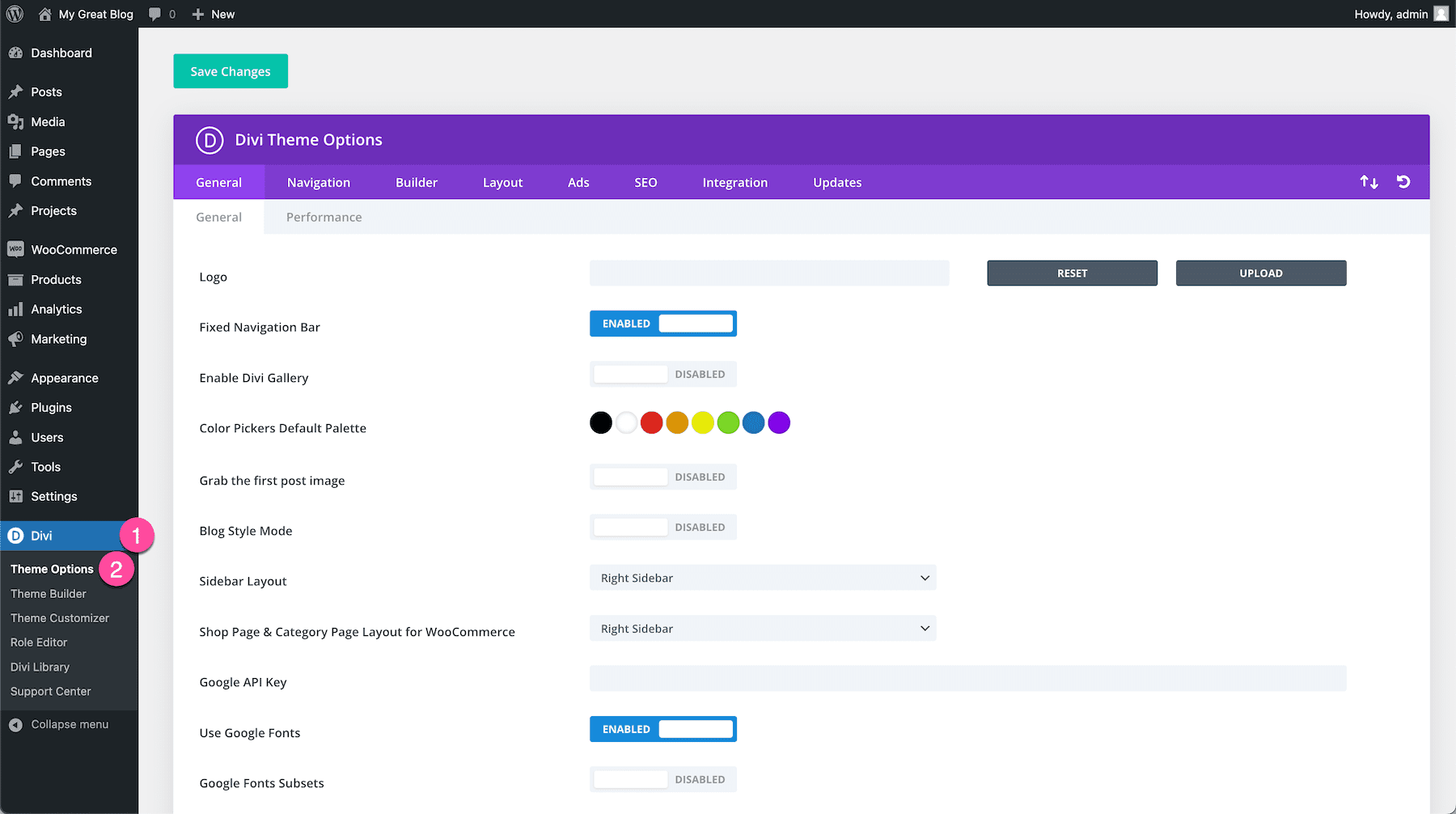
Credit: www.elegantthemes.com
Accessing The WordPress Dashboard
Start by logging into your WordPress account. Use your username and password. Once logged in, you will see the WordPress Dashboard. This is your control center. It shows all the tools you need. Find the menu on the left side. Look for the Appearance option. It helps in changing themes. Click on Appearance to see more options. You can now choose Themes from the list.
Changing your theme is easy. Select a new theme that you like. Make sure it fits your website’s needs. Preview it before activating. If you like it, click Activate. Your website will now have a new look. Always check your website after changes. Ensure everything looks good. If something seems off, you can switch back. Always keep your website fresh and updated.
Navigating To Appearance Settings
Accessing the Appearance settings in WordPress is easy. First, log in to your WordPress dashboard. Look at the menu on the left. Find the Appearance tab. Click on it. This opens a list of options. Choose the Themes option. It shows your current theme and others.
From here, you can customize your theme. Click on Customize under your theme name. This lets you change colors, fonts, and more. The preview shows changes before you save. It’s important to save your work. Press the Save & Publish button to keep changes.
Selecting A New Theme
WordPress offers many themes to choose from. Visit the Themes section in your dashboard. You will find various options here. Exploring Available Themes can be fun and easy. Use the search bar to find specific themes. You can also filter themes by features. Look for themes with the right layout and colors. This helps you find the perfect look for your site.
Previewing Themes Before Activation
Before activating, you can preview a theme. Click on the Preview button. This shows how your site will look. Check if the design fits your needs. Make sure all elements appear correctly. This step saves time and avoids mistakes. If you like it, click Activate. Now, your new theme is live on your site. Remember to test on different devices. This ensures your site looks great everywhere.
Customizing Theme Options
Change your website’s layout with ease. Go to the Theme Options. Find the Layout Settings. Choose a layout you like. Make your site look different. Try different options. Save changes when done.
Colors are important. They make your site look nice. Click on Color Options. Pick colors you love. Match them with your brand. Bright colors or soft tones. It’s your choice. Save your new color scheme.
Fonts tell a story. Go to Typography Settings. Select the font style you like. Choose a font size. Make text easy to read. Different fonts for headings and paragraphs. Look at your changes. Save them if happy.
Utilizing The Theme Customizer
Theme Customizer lets you see changes as you make them. It shows a live preview of your website. This helps you decide on colors, fonts, and layouts. You can adjust settings easily. It makes designing simple and fun. You can try different looks and see them instantly.
Understanding The Live Preview
Live Preview shows changes instantly. You don’t need to save first. See what works best for your website. Experiment with different styles. Check how text and images look together. Make sure everything fits well. It’s like trying on clothes before buying them. You know what you like before you commit.
Saving And Publishing Changes
After trying options, save your changes. Click the Publish button. This makes your changes live for everyone to see. Be sure to check everything looks good first. Once published, visitors will see the updates. It’s simple to make your site look great. Remember, you can always make more changes later.

Credit: mekshq.com
Installing Theme Custom Plugins
Changing your WordPress theme is exciting. It gives your site a fresh look. To make your theme even better, use plugins. Plugins are like tools. They add extra features to your site. But not all plugins work with every theme.
Finding Compatible Plugins
First, check if the plugin works with your theme. Look for details in the plugin description. Some plugins have a list of compatible themes. It’s important to choose the right ones. This keeps your site running smoothly.
Enhancing Theme Functionality
Plugins can enhance how your theme functions. They can add new features or improve existing ones. For example, you might add a contact form. Or a photo gallery. Make sure to pick plugins that match your needs. A good plugin makes your site better.
Managing Widget Areas
Widgets are small blocks on your site. They can display various things. To add a widget, go to your WordPress dashboard. Click on Appearance and then Widgets. Drag a widget to your desired area. To remove, drag it back. It’s that simple. Remember to save changes.
Each widget has settings. These settings let you change what it shows. Click the widget title to open settings. You can add a title or choose items to display. Make sure to hit the Save button after changes. This makes your site look just right. Experiment with different settings. See what fits your style.

Credit: mekshq.com
Editing Theme Code Safely
Editing theme code safely in WordPress lets you change theme options without breaking your site. Always backup your theme files before making changes. Use a child theme to protect original settings and ensure smooth updates.
Using Child Themes
Create a child theme to keep changes safe. It protects the main theme. The child theme copies main theme files. Edit these files without worry. Updates won’t erase your work. This method is smart and safe. It’s like a layer of protection. You can change styles, layouts, and features. It’s easy and effective.
Backing Up Before Changes
Always back up before editing. It saves your work if things go wrong. Use plugins for easy backups. Store copies in a safe place. Restoring is simple when backed up. Backups are like a safety net. They prevent loss and stress. Regular backups are key to safety. Never skip this step. It’s important and wise.
Troubleshooting Common Issues
Changing theme options in WordPress can fix design issues. Access the dashboard, navigate to “Appearance,” and select “Customize. ” Explore settings for layout and colors to enhance your site’s look.
Resolving Theme Conflicts
Themes can cause conflicts with plugins or other themes. This may lead to problems like missing features. Check for any updates available for the theme. Sometimes, updating can solve the issue. If the conflict remains, try deactivating other plugins. Activate them one by one to find the conflicting one. Consider using a child theme to avoid direct changes. This helps preserve custom edits.
Restoring Default Settings
Restoring default settings can fix many theme issues. Go to the theme options page in WordPress. Look for a button or link that says “Reset” or “Restore Defaults.” Click it to revert back to original settings. Be aware, this removes all custom changes. Always backup your settings before restoring. This ensures you don’t lose important edits. Default settings give a clean slate for adjustments.
Keeping Themes Updated
Always keep your WordPress themes updated. This ensures your site runs smoothly. Open your WordPress dashboard. Find the “Updates” section. It shows if your theme needs updates. Click “Update Now” if needed. This keeps your site secure and fast.
Before updating, check theme compatibility. Some updates might not work well. They might cause errors on your site. Read the update notes. Ensure your plugins and WordPress version match. This keeps everything working together. A smooth site is a happy site.
Frequently Asked Questions
How Do I Access Theme Options In WordPress?
To access theme options, go to your WordPress dashboard. Click on “Appearance” in the sidebar, then select “Customize. ” Here, you can find various theme settings to modify. These options allow you to change colors, fonts, and layouts to suit your preferences.
Can I Change Theme Settings Without Coding?
Yes, WordPress themes typically offer customization through the dashboard. Use the “Customize” section under “Appearance” for adjustments. Many themes provide user-friendly interfaces for modifying design elements like colors, fonts, and layout. This makes it easy to personalize your site without needing coding skills.
How Often Should I Update My WordPress Theme?
It’s recommended to update your theme whenever new versions are available. Updates often include improvements, bug fixes, and security patches. Regular updates ensure your site stays secure and functions optimally. Check for updates in your WordPress dashboard under “Updates. “
What If Theme Options Are Missing?
If theme options are missing, ensure your theme is fully installed and activated. Some themes require additional plugins for complete functionality. Check the theme documentation for setup instructions or contact the theme developer for support. Proper installation often resolves missing options issues.
Conclusion
Changing theme options in WordPress is straightforward. You can easily customize your site. Try different colors and fonts. Adjust layouts for better user experience. Preview changes before saving them. This process enhances your website’s appearance. With these simple steps, your site stands out.
Make sure to explore various theme settings. Always keep your audience in mind. You gain control over how your site looks. Regular updates ensure your site remains fresh. Personalizing your theme reflects your brand’s identity. Enjoy creating a unique online presence.


