
Are you ready to give your WordPress site a fresh new look? Changing your custom theme could be the perfect solution.
Imagine the impact of a stunning design that captures your brand’s essence and keeps visitors engaged. Whether you’re looking to boost your site’s appeal, enhance user experience, or simply explore new design possibilities, understanding how to change your custom theme is key.
This guide will walk you through the process with clarity and ease, ensuring you feel confident every step of the way. Dive in and discover how you can effortlessly transform your website into a visually captivating masterpiece.
Choosing A New Theme
Think about what your website needs. Do you want a clean look? Or do you need many features? List out your important features. Do you need a blog or a store? This helps narrow down choices. A clear list saves time later.
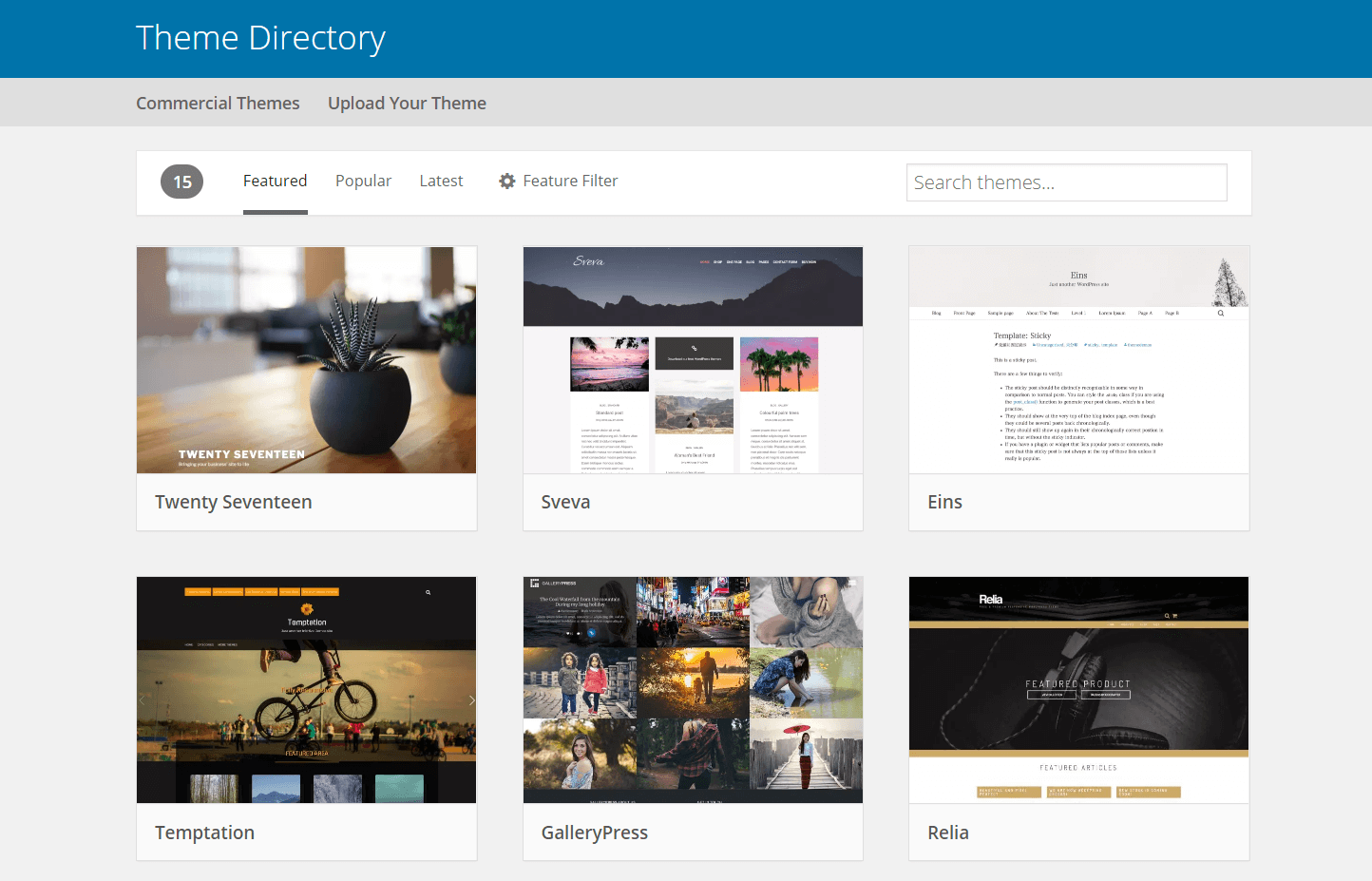
Search for themes online. WordPress has many free themes. You can also buy themes. Make sure the theme matches your needs. Check user reviews. Good reviews mean a good theme. Look at the demo. See how the theme looks and feels.
Responsive design is very important. Many people use phones. Your site must look good on all devices. Test the theme on different screens. It should work well on a phone and a computer. A responsive theme keeps visitors happy.
Credit: kinsta.com
Installing The Theme
First, log into your WordPress site. Use your username and password. You will see the dashboard. This is your control center. Dashboard is where you make changes. Find the “Appearance” tab. Click it to find themes.
Have a theme file ready on your computer. It should be a .zip file. Go to the Appearance tab. Click “Add New”. Then select “Upload Theme”. Choose the file from your computer. Click “Install Now”. Wait a few moments. Your theme will upload.
Go to Appearance. Choose “Add New”. You will see many themes. These are from the WordPress repository. Use the search bar to find themes. Choose a theme you like. Click “Install”. Wait for the installation to finish. Then click “Activate”. Your theme is now live.
Activating The Theme
It’s fun to see how a new theme looks. First, go to your WordPress dashboard. Click on Appearance, then Themes. Find the theme you want. Click on Live Preview. Now, you can see how your site will look. This helps you decide if the theme is right. If you like it, you can activate it.
Want everyone to see your new theme? Go back to the Themes page. Find your theme again. This time, click Activate. Your site now has a fresh look. Visitors will see it too. It’s that easy! You can change it again anytime. Just follow these steps.
Customizing The Theme
Changing your WordPress custom theme involves selecting a new design template and adjusting settings. Navigate to the Appearance menu, choose Themes, and explore options. After activating a theme, personalize it using the Customizer tool to match your style preferences.
Using The WordPress Customizer
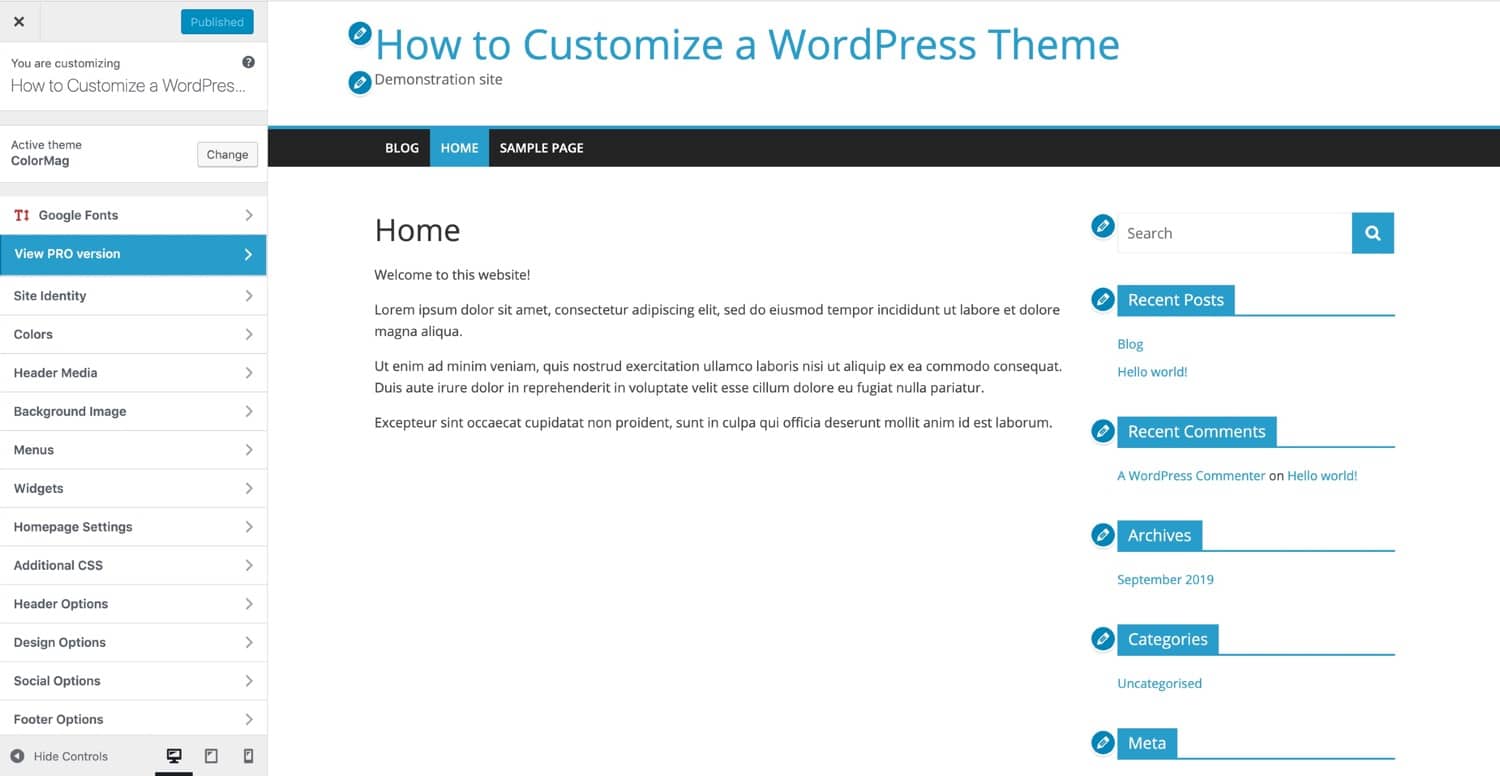
The WordPress Customizer is a great tool. It helps you change your theme. First, go to your WordPress dashboard. Click on Appearance and then Customize. A new window opens. Here, you can see changes live. This makes it easy to try new things. You can change colors, fonts, and more. All with a few clicks.
Adjusting Layout And Design
Layout and design are important. They make your site look good. In the Customizer, find Layout Options. Use these to change the look of your site. Try different styles. See what you like best. You can move things around too. Make your site unique and fun.
Adding Widgets And Menus
Widgets and menus add extra features. They help visitors find stuff. Go to the Widgets section in the Customizer. Drag and drop different options. Add a search bar, recent posts, or categories. For menus, click on Menus. Create new ones or edit old ones. Add links to important pages. Make navigation easy for everyone.
Testing Theme Compatibility
Plugins can cause problems with themes. Check if plugins work well. Disable all plugins. Then, turn them on one by one. Look for any errors or conflicts. Test if the theme functions without issues.
The theme should look good everywhere. Test it on phones, tablets, and computers. Check if it adjusts well. Ensure images and text are clear. Make sure buttons work properly. This step is important.
The theme must work on different browsers. Test on Chrome, Firefox, and Safari. Look for any display issues. Check if features work as expected. Make adjustments if needed. This ensures everyone can see your site correctly.
Credit: wpengine.com
Backing Up Your Site
Backup plugins are easy to use. They save your site’s data. Popular plugins include UpdraftPlus and BackWPup. These plugins can schedule backups. You choose when they run. They store backups in cloud storage. Options like Dropbox or Google Drive work well. This keeps your data safe.
Manual backups need more work. You download your WordPress files. Use an FTP client like FileZilla. Next, export your database through phpMyAdmin. Keep these files safe. Store them on your computer or in the cloud. Manual backups give you control. You decide what to back up. But they take time. Ensure you do this before changing themes. Avoid losing your website data.
Troubleshooting Theme Issues
Easily change your custom theme in WordPress by navigating to the Appearance menu. Select Themes, then click Activate on your desired theme. Troubleshooting may involve checking for plugin conflicts or ensuring your theme is updated.
Identifying Common Problems
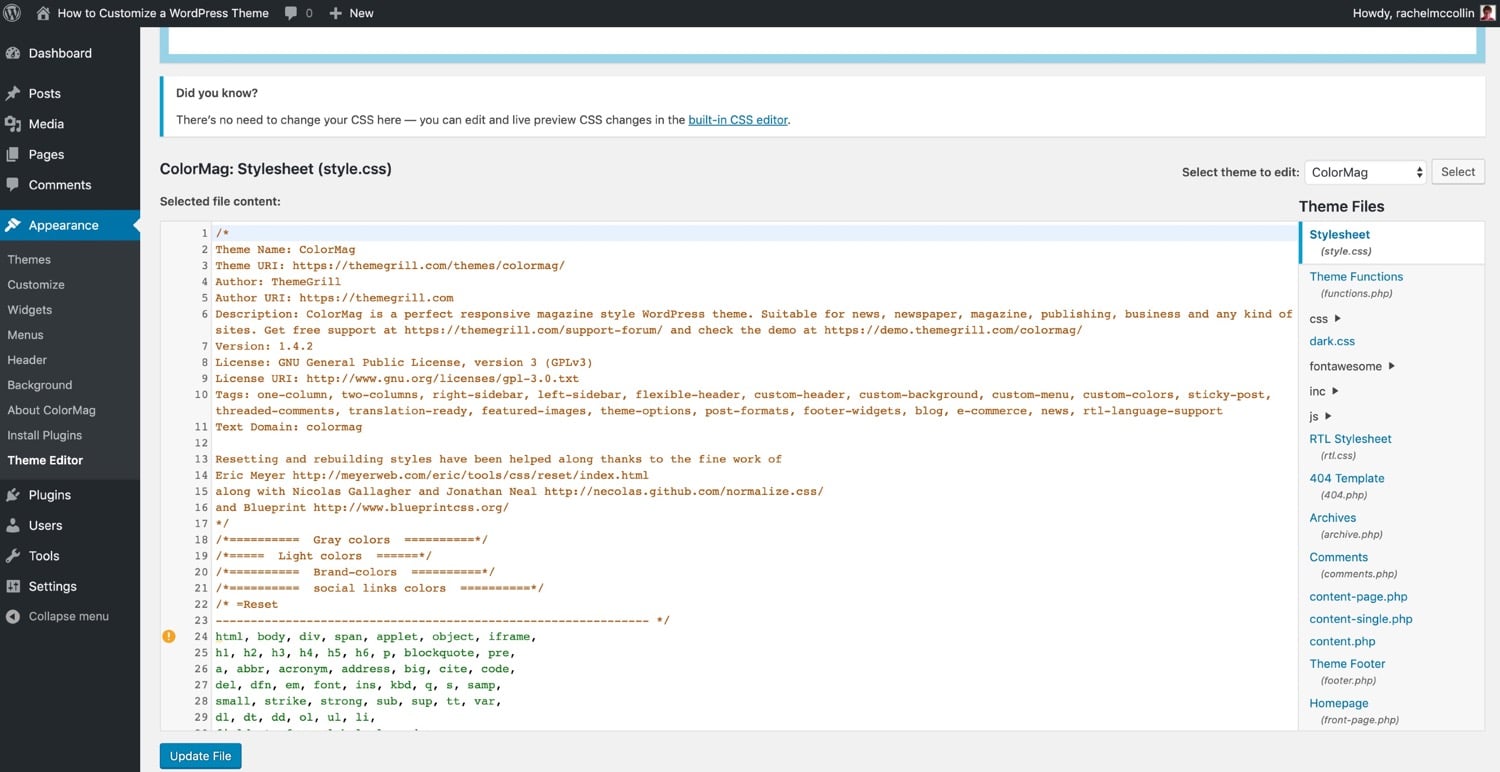
Custom themes might have errors or bugs. Sometimes, the theme might not show correctly. This can happen due to plugin conflicts or incorrect settings. Themes can also slow down your site. Check if other features are working well. Look at the error logs for clues. If something seems wrong, update the theme. Updates can fix many problems.
Seeking Support And Resources
Help is available from many places. First, check the theme developer website. They often have support forums. These forums can have answers to your questions. You can also find help in WordPress community forums. There are many guides and tutorials online. These can help you fix your theme issues. You can also ask friends who know WordPress. They might have faced similar problems.
Credit: kinsta.com
Frequently Asked Questions
How Do I Install A Custom Theme In WordPress?
To install a custom theme, navigate to your WordPress dashboard. Go to “Appearance,” then click “Themes. ” Select “Add New,” and upload your theme’s zip file. Activate the theme once uploaded to apply it to your site.
Can I Customize WordPress Themes Without Coding?
Yes, WordPress themes can be customized without coding using the built-in Customizer. Access it via “Appearance” > “Customize” in your dashboard. You can change colors, fonts, and layouts using the intuitive interface.
Is Changing A WordPress Theme Safe?
Changing a theme is generally safe but back up your site first. Ensure compatibility with plugins to avoid issues. Test changes on a staging site to prevent disruptions on your live site.
What Happens To My Content If I Switch Themes?
Your content remains intact when switching themes. However, layout and appearance may change. Widgets and settings might need adjustment. Always review your site after a theme change to ensure everything displays correctly.
Conclusion
Changing your custom theme in WordPress is straightforward. Start by choosing the right theme. Install it through the dashboard. Activate it with a click. Customize using the theme settings. Add your unique touch. Preview changes before going live. Ensure the theme is responsive.
Check for any errors. Keep it simple and clean. With these steps, your WordPress site will look fresh. Stay creative and keep experimenting. Themes offer endless possibilities. Make your site stand out. Enjoy the new design and improved functionality. Your WordPress journey just got more exciting.
Keep exploring and learning.


