
Are you looking to transform your existing Smarty template into a dynamic WordPress theme? This task might seem overwhelming at first, but you’re not alone.
Many developers and website owners like yourself are seeking ways to leverage the flexibility and user-friendliness of WordPress while preserving the unique designs they’ve built using Smarty templates. Imagine the seamless integration and enhanced functionality your website could achieve with WordPress’s vast array of plugins and features.
By diving into this guide, you’ll discover straightforward steps and expert tips to make this conversion process smooth and efficient. Let’s unlock the potential of your website together, ensuring it not only stands out but also meets your evolving needs. Read on to learn how you can breathe new life into your site by converting your Smarty template into a WordPress theme.
Understanding Smarty Templates
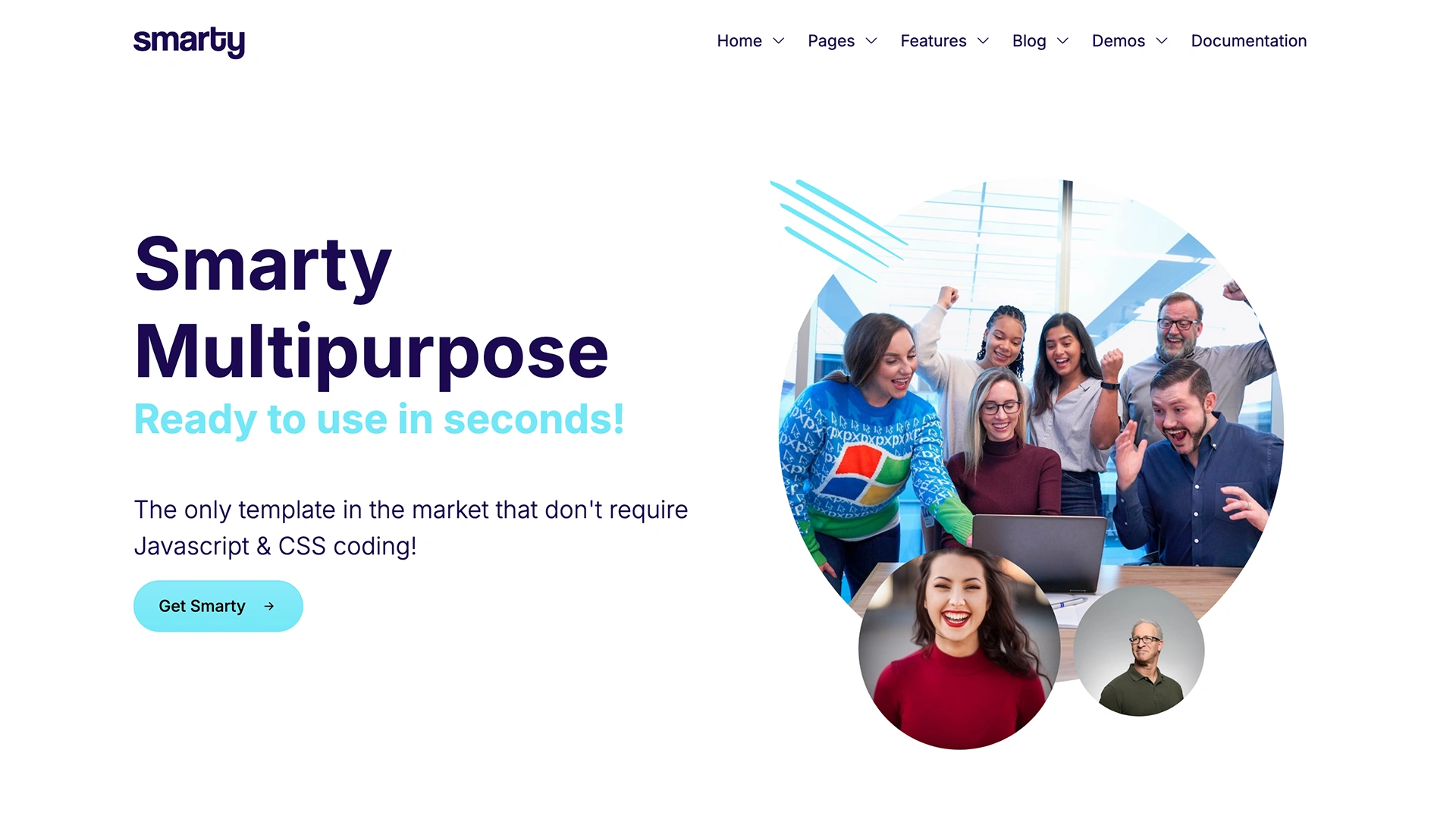
Smarty templates are like blueprints. They help create web pages. Developers use them for dynamic content. They have a clean syntax. This makes them easy to read. Smarty has built-in caching. It makes websites faster. Templates separate business logic from design. This allows designers and developers to work separately. Smarty can be extended with plugins. Users can add more features easily.
Smarty templates are used in e-commerce sites. They help display products. They are also used in content management systems. Smarty makes it easy to update content. Many blog platforms use Smarty. It helps manage posts and comments. Smarty is great for custom web applications. It allows for personalized features. Businesses choose Smarty for customer portals. This helps in managing user accounts.
Credit: wrapbootstrap.com
Basics Of WordPress Themes
WordPress themes have core components that help them work. These include the style.css file, the index.php file, and the functions.php file. The style.css file contains the theme’s styles. It tells how the site looks. The index.php file is the main template file. It is like the blueprint of the theme. The functions.php file adds extra features. It helps with customization. Each of these files has its own job. Together, they make a theme complete.
WordPress themes have a structure that organizes files. The template files are part of this structure. They handle different parts of a website. For example, there are header and footer template files. There are also page and post template files. This structure helps keep things neat. It makes editing easier. Understanding this structure is important. It helps in building and converting themes.
Preparing For Conversion
First, look at your Smarty template. Is it simple or complex? Count the number of pages. Check for dynamic elements like forms or sliders. Complex templates need more work. Easy ones convert faster. Make a list of features. This helps plan the conversion.
Collect all the tools you need. WordPress and a text editor are must-haves. Get a local server like XAMPP. It helps test your work. A browser is needed for previewing. Make sure you have FTP access too. This is for uploading files later. Having these tools ready saves time.
Analyzing Smarty Template Files
Identifying template files is the first step. Smarty templates have a .tpl extension. Look for these files in your Smarty folder. They hold the structure of your web pages. Each file serves a specific purpose. Some manage headers, others footers. You might find files for sidebars too. Pay attention to file names. They often hint at their roles. A file named header.tpl likely controls the header. Knowing these roles helps in conversion.
Next, mapping template logic is essential. Smarty uses tags like {foreach} and {if}. These tags control what appears on the page. List all the tags used in your files. Understand what each tag does. This mapping is crucial for converting to WordPress. WordPress uses PHP instead of Smarty tags. Recognizing Smarty logic aids in creating similar PHP logic. This ensures your theme works the same way.
Creating A WordPress Theme Folder
Start by creating a new folder for your WordPress theme. Name it clearly to know its purpose. Inside this folder, set up a basic structure. Create folders named css, js, and images. These folders will hold your styles, scripts, and images. Having a good structure helps keep files organized. It’s crucial for smooth theme development. A well-structured folder is easy to navigate. This helps when adding new features later.
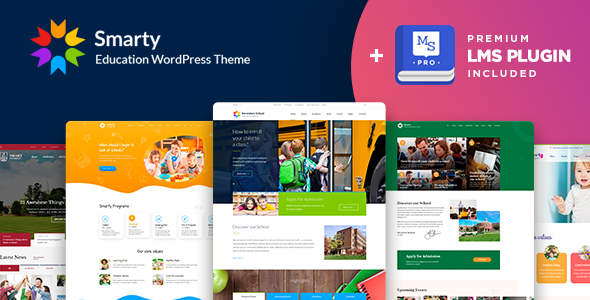
Every WordPress theme needs specific files. Start with style.css. This file tells WordPress about your theme. Create an index.php file. It is the main template file. Add a functions.php file. This file includes important theme functions. These files are essential for your theme to work. Ensure each file is in the main theme folder. They help WordPress understand and use your theme.
Credit: themeforest.net
Converting Html And Css
Transforming a Smarty template into a WordPress theme involves understanding both platforms. First, dissect your Smarty files, focusing on HTML and CSS components. Then, integrate these elements into WordPress’s structure, ensuring compatibility and functionality. This process requires attention to detail for seamless conversion and optimal performance.
Transferring Styles
Start by copying CSS files from your Smarty template. Place them in the WordPress theme folder. Make sure paths are correct. This helps WordPress find your styles. Check your website to see if styles load. Adjust paths if necessary. Use browser tools to inspect and debug.
Integrating Html Into Php
Take HTML code from Smarty templates. Insert them into WordPress PHP files. Place HTML in files like header.php and footer.php. This makes your WordPress site look like the Smarty template. Use PHP functions to display content. This helps WordPress show posts and pages. Remember, PHP is different from HTML. Learn basic PHP to understand how it works. This helps you integrate HTML smoothly.
Integrating Php Functions
Understanding the WordPress Loop is vital. It helps in displaying posts. The loop goes through each post. It fetches and displays content. Use have_posts() to check if posts exist. Then, the_post() fetches each post. Inside the loop, use template tags. They show title, content, and more.
Create custom template tags for unique needs. They help you display special content. Use function in PHP to make them. Add these functions in functions.php file. Call these tags in your theme files. It makes the theme more dynamic. Easy to handle and flexible.
Testing The Theme
Transforming a Smarty template into a WordPress theme involves understanding both platforms. Start by analyzing Smarty’s structure and converting template files. Next, integrate WordPress functions to match the design. Testing ensures everything works seamlessly. Make sure all features are compatible and responsive.
Debugging Common Issues
Finding errors is key. Themes can have bugs. Start by checking each page. Look for broken links or missing images. Inspect the layout. It should be neat and tidy. If a button does not work, fix it quickly. Check the console for error messages. These messages guide you to the problem.
Use tools like browser developer tools. They help find issues fast. Remember to test on different browsers. Each browser can show errors differently. Fix all issues before moving on.
Ensuring Compatibility
Make sure your theme works on all devices. Test on phones, tablets, and computers. Check screen sizes. The theme should look good on each size. Use responsive design techniques. This helps the theme fit any screen. Also, test with different plugins. Some plugins may not work well together.
Update the theme regularly. This keeps it compatible with new WordPress versions. Always backup your theme before making changes. This saves your work if something goes wrong.
Optimizing For Performance
Fast websites make users happy. Slow sites frustrate them. Big images slow sites down. Compress images to make them smaller. Fewer plugins mean faster sites. Choose plugins wisely. JavaScript can slow down sites. Minimize JavaScript usage. Keep your site’s code clean. Clean code runs faster.
Caching stores data for faster access. It helps websites load quicker. Browser caching saves static files. Files like images and CSS. Server caching stores dynamic data. This speeds up loading time. Use caching plugins for WordPress. They make caching easy. Popular caching plugins work well. Choose a reliable one. Cache settings should be optimized. Fast cache means happy users.
Deploying The WordPress Theme
First, compress the theme folder into a ZIP file. Go to the WordPress dashboard. Click on Appearance, then Themes. Choose the Add New option. Select Upload Theme and choose your ZIP file. Click Install Now. Wait for the upload to finish.
After installing, click Activate. Now, your theme is live. Go to the Customize option. Change colors, fonts, and layouts to suit your needs. Adjust settings to make your site unique. Save changes often. This helps keep your work safe.

Credit: themeforest.net
Frequently Asked Questions
What Is A Smarty Template?
A Smarty Template is a PHP-based templating engine used to separate HTML from PHP logic. It enhances code readability and maintainability. Smarty allows developers to create dynamic web applications more easily by separating presentation from logic, making it popular for various web projects, including CMS and e-commerce platforms.
Why Convert Smarty Template To WordPress Theme?
Converting Smarty Template to WordPress Theme enables easier content management and improved functionality. WordPress offers extensive plugins and themes for customization. It also provides a user-friendly interface for site administration. This conversion can significantly enhance website scalability and performance, catering to modern web standards and user expectations.
What Are The Key Steps In Conversion?
The key steps include analyzing Smarty code structure, mapping HTML/CSS to WordPress, and creating WordPress template files. You must also integrate PHP logic and functions, ensuring compatibility with WordPress architecture. Testing for functionality and design consistency is crucial to ensure the theme works seamlessly.
How Long Does The Conversion Process Take?
The conversion time varies depending on template complexity and developer expertise. Typically, it may take several days to weeks. Proper planning and thorough testing are essential for successful conversion. Ensuring all features and functionalities are correctly implemented will avoid post-deployment issues.
Conclusion
Transitioning from Smarty templates to WordPress themes is straightforward. Start with understanding the structure. Use tools to ease conversion. Focus on theme compatibility. Check for responsive design. Test thoroughly before launch. Remember to optimize for SEO. A well-converted theme boosts user experience.
This process enhances your website’s functionality. Keep learning to improve your skills. Practice leads to better results. Stay updated with WordPress advancements. Aim for a seamless transition. Your site will benefit from improved performance. Enjoy the flexibility WordPress offers. It’s worth the effort for future growth.


