
Have you ever wanted to give your WordPress site a fresh new look? If you’re using the Twenty Seventeen theme, changing the header is a fantastic place to start.
The header is the first thing your visitors notice, so it should reflect the unique personality of your site. But don’t worry if you’re not a tech wizard—this guide will walk you through the process step by step. By the end, you’ll be able to customize your header like a pro, making your website truly stand out.
Ready to learn how to transform your site’s look and feel? Let’s dive in and unlock the potential of your WordPress theme!

Credit: wpmudev.com
Accessing The WordPress Dashboard
First, open your web browser. Type the URL of your website. Add “/wp-admin” at the end. Press enter to go to the login page. Enter your username and password. Click the “Log In” button. This takes you to the WordPress Dashboard. The Dashboard is the main area. You can make changes here. Look for the sidebar on the left. You will see many options there. Each option does something different. Find the “Appearance” option. Click on it to see more choices. This is where you can change themes and more.
Credit: openlab.citytech.cuny.edu
Navigating To The Theme Customizer
Find the Appearance menu in your WordPress dashboard. Click on Customize under this menu. This opens the Theme Customizer section.
Look for Header options in the sidebar. You can change the header here. Upload a new image or edit existing text.
Save changes after editing. Ensure your changes appear correctly. Preview your website to see the updated header.
Selecting The Header Option
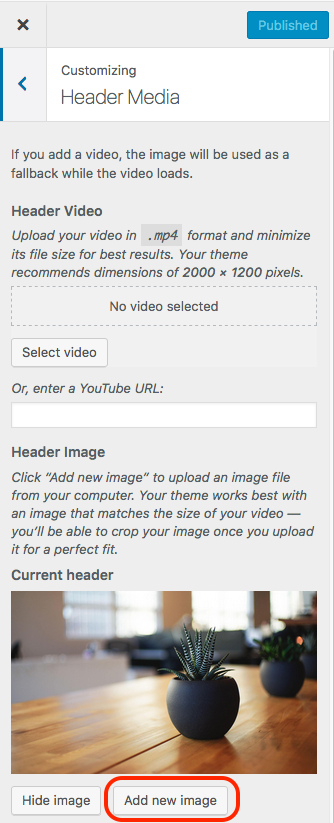
First, open your WordPress dashboard. Look for the Appearance option on the left side. Click it. Now, find the Customize option. Click on it to enter the theme settings. You will see many options here. Find and select the Header Media tab. This is where you change the header.
In the Header Media tab, you can add a new image or video. Click on Add new image or Add new video to upload your file. Make sure your image or video is the right size. The theme might suggest a size. Follow this for the best look. After adding your media, click Save or Publish to apply changes.
Uploading A New Header Image
For a perfect fit, use an image size of 2000 by 1200 pixels. This size works well for most screens. It keeps your header looking neat and clear. Smaller images may look blurry. Larger images might not load quickly. It’s important to stick with these dimensions for best results.
Choose the right image format. JPEG is great for photos. PNG works well for images with text. Keep the image quality high but not too large. A file size under 1MB is ideal. This keeps your site fast. Slow sites can frustrate users. Use good quality images for a sharp header.
Customizing The Header Text
Start by going to your WordPress dashboard. Find the Appearance section. Click on Customize. Look for Typography or Header Options. Here, you can change the font style. Choose a style you like. You can also change the font size. Make the text bigger or smaller. This helps in making your header look different. Remember to save your changes.
In the same Customize area, look for Colors. Here, you can change the text color. Pick a color that matches your theme. Make sure it’s easy to read. Bright colors can be fun. But too bright can be hard to see. Try a few options. Keep changing until it looks good. Save your changes to see the effect.
Adjusting Header Layout
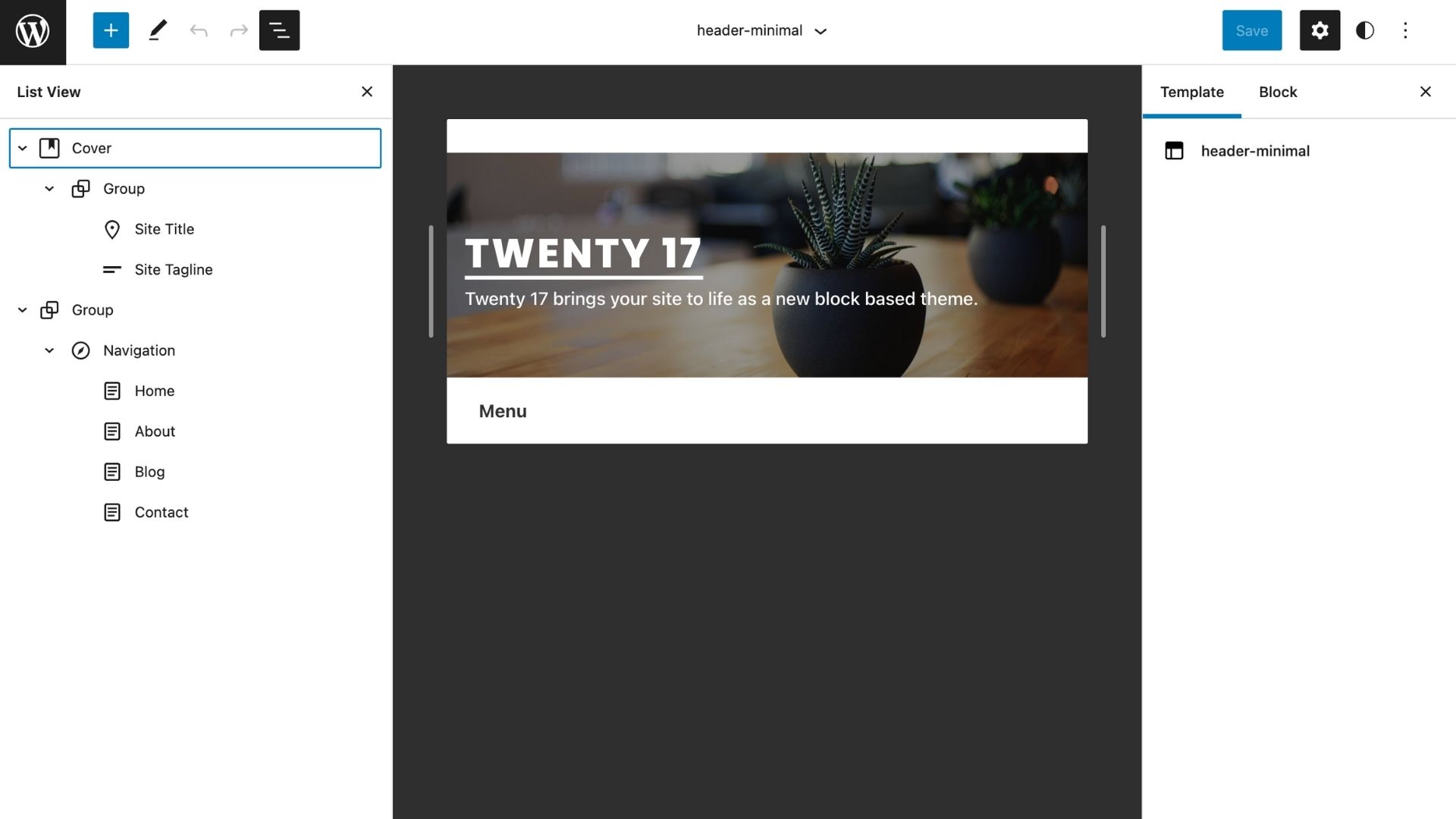
Positioning the header elements is important for a good look. You can change where things sit in the header. Move the logo, title, or menu with ease. This makes the site look neat. Use the WordPress dashboard to do this. Go to Appearance, then Customize. Find the Header section. Play around to see what looks best. Small changes can make a big difference.
Responsive design considerations are important too. Your site should look good on all devices. Check how the header looks on a phone. Also check on a tablet. If it looks bad, adjust it. Use the live preview in WordPress. This helps you see changes right away. Make sure everything fits well. A good header helps users stay on your site.
Saving And Previewing Changes
Before saving changes, it is smart to preview them first. Use the customizer’s preview button to see how your header looks. Make sure everything fits well and looks good on your site.
If everything looks fine, click the save button. This will keep your changes. Now, your new header will show on your website. It’s important to check your site again to make sure it looks right.
Sometimes, you might need to refresh your page. This helps show the latest changes. Always ensure your site looks the way you want. A good header makes a big difference.
Troubleshooting Common Issues
Sometimes images won’t upload. This can be frustrating. Check the file size first. Large files may not upload. Reduce the image size if needed. Try again. Check your internet connection too. A slow connection can cause issues. Clear your browser cache. This often helps. Update WordPress. Old versions may have bugs.
Text may overlap on your header. Adjust the header settings. Look for font size options. Make the text smaller if needed. Check the theme settings. Sometimes, options are hidden. Use custom CSS for more control. Ensure your theme is updated. Updates fix these issues. Contact support if the problem persists. They can help.
Utilizing Additional Plugins
Plugins can help with enhanced customization of your WordPress site. Some plugins offer more header options. They make it easy to change fonts, colors, and layouts. You can add images or even videos. Plugins make customization simple and fun.
Be sure to pick plugins with good reviews. This will ensure they are safe and effective. Some popular options include Elementor and Customify. These are easy to use and widely liked.
Plugins For Enhanced Customization
Some plugins provide more than just header changes. They offer extra features like live previews. This helps to see changes instantly. Responsive design is another advantage. It ensures your header looks good on all devices.
Compatibility And Performance Tips
Always check plugin compatibility with your theme. Outdated plugins might not work well. This can slow down your site. Regular updates are important for smooth performance. Too many plugins can make your site sluggish. Use only what you need.
Credit: derekhanson.blog
Frequently Asked Questions
How To Customize Twenty Seventeen Header?
To customize the header, navigate to the WordPress Dashboard. Select Appearance, then Customize. Choose Header Media to upload an image or video. Adjust the settings to fit your design needs. Save changes once you’re satisfied. This process allows you to personalize the look and feel of your site.
Can I Add A Logo To The Header?
Yes, adding a logo is easy. Go to Appearance, then Customize. Click on Site Identity and upload your logo. Make sure to adjust the size for optimal display. This enhances your branding and makes your site stand out. Your logo will appear prominently in the header.
How Do I Change Header Text Color?
Changing header text color is simple. In the Customizer, select Colors and choose Header Text Color. Adjust to your preference. This allows you to match your site’s color scheme. Make sure the text is readable against your background. Save changes to update your site’s appearance.
Is Header Image Size Adjustable?
Yes, header image size can be adjusted. In the Customizer, select Header Media and upload your image. Crop or resize it as needed. This ensures the image fits well within the design. Proper sizing enhances visual appeal and maintains site professionalism.
Save changes to apply adjustments.
Conclusion
Changing the header in the Twenty Seventeen theme is simple. Follow the steps, and your website will look fresh. Customizing headers enhances your site’s appearance. It grabs visitors’ attention instantly. This small tweak can make a big difference. Explore different designs and see what fits best.
Remember, a good header is important. It sets the tone for your site. Keep experimenting for better results. Your website deserves a unique look. Personalize it to suit your style. Enjoy the process of making it your own. Your effort will pay off with a more engaging site.


