
Are you looking to customize your WordPress site without the fear of losing changes with every update? Adding CSS to a child theme is your solution.
It’s a powerful way to personalize your site while keeping the parent theme intact. Imagine having the freedom to tweak your site’s appearance exactly the way you want, without the need for complex coding knowledge. In this guide, you’ll discover easy-to-follow steps that will empower you to seamlessly integrate CSS into your WordPress child theme.
Get ready to transform your site’s look and feel, and enhance your visitor’s experience, all while maintaining the security of your customizations. Dive in and unlock the potential of your WordPress site today!
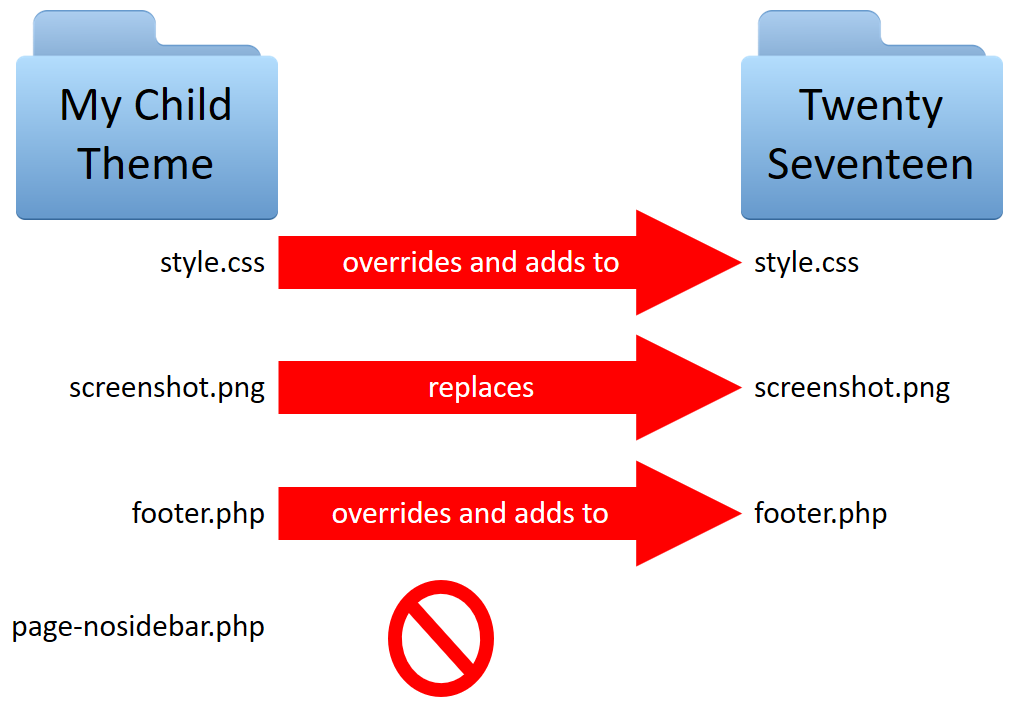
Credit: learn.wordpress.org
Child Theme Basics
Adding CSS to a WordPress child theme enhances design without altering the parent theme. First, create a child theme directory and style. css file. Next, enqueue the parent and child styles in the functions. php file. Finally, customize your styles in the child theme’s style.
css file to see changes.
What Is A Child Theme?
A child theme is a special kind of theme in WordPress. It works with another theme called a parent theme. This lets you make changes without changing the main theme files. So, your changes stay safe when updates happen. A child theme has its own folder. It usually contains a style.css file and a functions.php file. These files help you add your own styles and features. Using a child theme keeps your site looking unique. It also keeps it up-to-date.
Benefits Of Using A Child Theme
Child themes keep your customizations safe. Updates to the parent theme will not erase your changes. This means your site stays consistent over time. They also help you learn WordPress better. You can explore how the parent theme works. Child themes make it easier to fix mistakes. If something breaks, you can check only your changes. Overall, they provide a safe way to make your site unique.
Setting Up A Child Theme
Easily add custom CSS to your child theme in WordPress. First, locate the child theme folder in your site’s file manager. Then, open the style. css file and insert your CSS code. Save changes to see your site’s new styling.
Creating A Child Theme Directory
Create a new folder in your theme directory. Name it after your child theme. This folder will hold your child theme files. Use FTP or your hosting file manager. Ensure the name is unique. Avoid spaces and special characters. This will be the foundation of your child theme.
Adding The Style.css File
Inside your child theme folder, make a new file. Name it style.css. This file holds your custom CSS. Start with a comment header. The header should include theme details. Add the parent theme’s name. Include the child theme’s name. This helps WordPress identify your theme.
Linking Css To The Child Theme
Use the functions.php file to add CSS styles. This method is safe and easy. Create a new function in the file. Give it a name. This function will load your style. Inside the function, use wp_enqueue_style(). This tells WordPress to use your CSS. First, provide a name for the style. Next, give the path to your CSS file. Finally, add a priority number. This helps to load the CSS in order.
Open your child theme folder. Find the functions.php file. If it doesn’t exist, create one. Write your function in this file. Start with add_action(). This tells WordPress when to run your function. Use 'wp_enqueue_scripts' as the first parameter. Add your function name as the second parameter. Save the file and refresh your site. Your CSS should now be applied correctly.

Credit: developer.wordpress.org
Customizing Css
The style.css file is in your child theme folder. This file allows you to add custom styles. Open it using a text editor. Add your CSS rules directly. Save changes when done. Refresh your site to see the updates. Always make a backup first. Mistakes can break your layout.
Child themes can override parent styles. Use the same CSS selectors. Add them to your child theme’s style.css file. Your rules will take priority. Ensure your child theme is active. Check your site for changes. Styles should update as expected. If not, clear your browser cache. Sometimes old styles get stuck.
Advanced Css Techniques
Developer tools help find CSS errors quickly. They show live previews. Open them with F12 key or right-click on any page element. Select “Inspect” from the menu. Inspect lets you view and change CSS on-the-fly. Highlight elements by moving your mouse over them. See CSS styles applied to each element. Edit styles directly and see immediate results. This feature makes troubleshooting easier. Developers can test various styles before making permanent changes.
Responsive design adjusts content to fit screens of all sizes. Use CSS media queries to apply styles conditionally. Set breakpoints like 600px or 960px. Change layout based on screen width. Use percentages instead of fixed units. This ensures flexibility. Images should be set to max-width: 100%. This prevents overflow. Test design on different devices. Tablets, phones, laptops. Each has unique screen dimensions. Responsive design enhances user experience. It improves website accessibility.
Troubleshooting Css Issues
Adding CSS to a child theme in WordPress helps customize your website’s appearance easily. Access the child theme’s stylesheet through your WordPress dashboard. Then, simply add your custom CSS rules to enhance design and functionality without affecting the main theme.
Common Css Problems
Many face issues with CSS not applying changes. Sometimes, a wrong selector is the cause. A missing semicolon can also break CSS. Ensure you use the correct path for images. Overridden styles happen when another CSS rule is stronger. Check the order of your stylesheets. Browser caching may show old styles. Clear your cache to see changes.
Effective Debugging Strategies
Use browser tools like Inspect Element to find problems. Look for red lines in your code. They show errors. Comment out parts of your CSS to test. This helps find the issue. Try using different browsers to check for issues. Some browsers may show CSS differently. Use online validators to check your CSS. This finds mistakes fast.

Credit: wpastra.com
Frequently Asked Questions
How Do I Add Css To A Child Theme?
To add CSS to a child theme, create a style. css file. Place it in the child theme’s directory. Ensure it’s properly enqueued in the functions. php file. Use WordPress’s wp_enqueue_style function for this. This method keeps your custom CSS organized and separate from the parent theme.
Why Use A Child Theme For Css Changes?
Using a child theme for CSS changes prevents losing customizations during updates. It allows you to modify styles safely. Parent theme updates won’t affect your changes. This approach is recommended for maintaining website customizations efficiently and securely. It is a best practice for WordPress theme development.
Can I Use A Plugin For Css?
Yes, plugins like Simple Custom CSS can add CSS without a child theme. They offer user-friendly interfaces. You can apply custom styles directly through WordPress admin. This is convenient but less organized than using a child theme. Consider plugin compatibility with your theme before use.
Is Custom Css In Child Theme Seo Friendly?
Yes, custom CSS in a child theme can be SEO-friendly. It enhances design without affecting content structure. Proper styling can improve user experience, leading to better engagement. Ensure CSS doesn’t slow down the site. Efficient coding practices contribute to good SEO performance.
Conclusion
Adding CSS to a child theme enhances your site’s design. It’s simple, yet effective. Start by identifying the right files to edit. Use a code editor for precision. Test changes in a staging environment. This prevents errors on your live site.
Remember, child themes keep your customizations safe. They survive updates. Your site remains unique and functional. With practice, you’ll gain confidence. CSS tweaks become easy. So, dive in and personalize your WordPress site. Enjoy a tailor-made design that reflects your brand.
It’s worth the effort for a standout website.


