
Are you looking to customize your WordPress site but don’t know where to start? Adding new features or personal touches to your WordPress theme can seem daunting, especially if you’re not a tech wizard.
But what if I told you it’s easier than you think? Imagine transforming your website into a unique reflection of your brand or passion with just a few tweaks here and there. In this guide, we’ll walk you through the simple steps to add exciting new elements to your WordPress theme, making your site not only more functional but also more engaging for your visitors.
Get ready to unlock the potential of your website and captivate your audience like never before. Keep reading, and let’s make your WordPress site truly yours!
Choosing The Right Theme
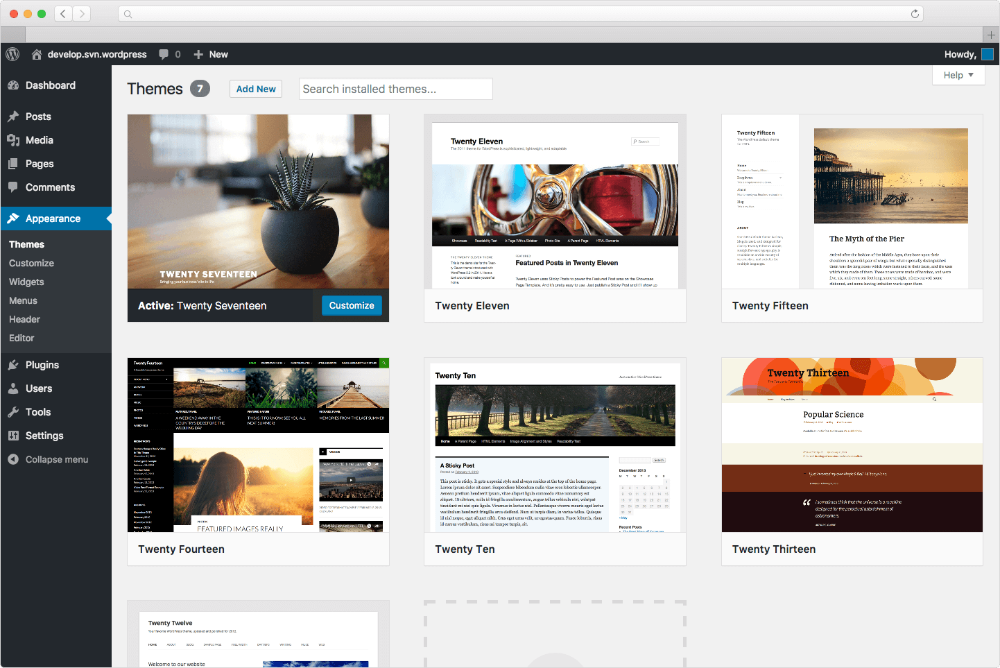
Themes come with many features and options. It’s important to check if a theme has what you need. Look for responsive design. This makes your site look good on phones and computers. Also, check for customization options. Can you change colors and fonts easily?
Plugins add more functions to your site. Not all themes work with every plugin. Make sure the theme supports popular plugins. Check if it works with SEO plugins like Yoast. Also, see if it supports eCommerce plugins if you plan to sell. This ensures a smooth user experience.
Credit: www.wpbeginner.com
Setting Up A Child Theme
Child themes help keep your original theme safe. They allow you to customize without losing changes. Updates don’t affect child themes. This means you can keep your site fresh. It saves time and effort. You get more flexibility and control. Easy to use. Perfect for beginners. A smart choice for any WordPress user.
First, make a new folder in your theme directory. Name it wisely. Create a style.css file. Add theme details and import code. Create a functions.php file. This helps with features and scripts. Add your custom code here. Use a text editor to edit files. Save your changes and activate the child theme. Your site will stay safe and updated.
Adding Custom Css
The WordPress Customizer is very useful. It helps you add Custom CSS easily. First, go to your dashboard. Find the “Appearance” tab and click on “Customize”. You will see a new window. Look for the “Additional CSS” section. Click it to open a text box. Here, you can write your own CSS code. This changes how your site looks.
Editing the style.css file is another way. This file is in your theme folder. Use an FTP client or a file manager. Locate the “wp-content” folder. Inside, find your theme folder. Open it and look for the style.css file. Edit this file carefully. Changes here affect the whole site. Always back up before making edits. This way, you don’t lose important data.
Customizing Theme Templates
Finding the right template file is key. WordPress themes have many files. Each handles a different part of the site. Header.php is for the top part. Footer.php is for the bottom. Other files cover pages, posts, and more. Use the WordPress Admin Panel to see which template is active. Look under Appearance > Theme Editor. Here, you can view all the files. Always double-check the file before editing. This helps in making the right changes.
Editing safely is important. Always back up your site first. This way, you keep your data safe. Use a child theme for changes. A child theme keeps your edits separate. This means updates won’t erase your work. Use a text editor like Notepad++ or Sublime Text. These help in spotting errors. After editing, check your site. Ensure everything works well.
Incorporating Widgets
Widgets make sites look better. They add special features. Many themes have built-in widgets. These include recent posts, search bars, and social media links. Widgets help users find stuff fast. They make navigation simple. Check your theme’s widget list. Find options you like. Choose widgets that fit your site. Add them to your theme easily.
Sidebars hold important info. Widgets can go in sidebars. Open your dashboard. Click on Appearance. Select Widgets. You will see available spots. Drag your widget to a sidebar spot. Drop it there. Arrange widgets in the order you want. Save changes. Widgets will show up on your site. Sidebars make your site look neat. They help users find things quickly.
Credit: docs.presscustomizr.com
Enhancing With Plugins
Plugins can make your WordPress site better. They add new features easily. Choose plugins that are essential for your needs. Not all plugins are good. Some might slow your site down. Look for plugins with good reviews. Check the number of active installs. Make sure they are updated regularly. Popular plugins are usually reliable. Select plugins that improve your site’s speed. Security plugins protect your site from hackers.
Selecting Essential Plugins
Think about what your site needs. Is it a blog or a store? Choose plugins that fit your site’s purpose. For blogs, consider plugins for SEO and sharing. Stores need e-commerce plugins. Speed and security are important for all sites. Find plugins that help with these tasks. Do not install too many plugins. They can make your site slow. Always read the reviews before installing.
Integrating Plugins With Theme
After choosing plugins, it’s time to integrate them. Check if the plugin works with your theme. Some themes might not support certain plugins. Look for compatibility information on the plugin page. Install the plugin and activate it. Follow setup instructions carefully. Customize the plugin settings if needed. Ensure it works well with your theme’s design. Test your site after installing plugins. Make sure everything looks good.
Modifying Theme Functions
The functions.php file is a key part of your theme. It holds all the important code for your site. This file can change how your theme works. It is like a toolbox for your website. You can add or remove functions here.
Changes in functions.php affect the whole site. So, always keep a backup. This way, you can fix errors if they happen.
You can add custom functions to make your site better. Start by opening the functions.php file in a code editor. Add your new code at the end of the file. Remember to save changes. Check your website to see if it works fine.
If your site breaks, review your code. Look for mistakes and fix them. Use simple code to keep it clean. It’s easy to learn with practice.
Integrating Custom Fonts
Web fonts make your site look nice. Google Fonts is a good choice. It offers many free fonts. You can search and find the one you like. Download the font to your computer. Next, upload it to your WordPress theme. Make sure to use fonts that are easy to read. This helps your visitors enjoy your site more.
The @font-face rule lets you add fonts to your site. First, go to your style.css file. Add the code for your font. You need to tell the browser where to find the font. Use the URL path for the font file. Now, you can use the font in your CSS. Apply it to headings, paragraphs, or any text. This makes your site unique and fun to read.
Implementing Custom Menus
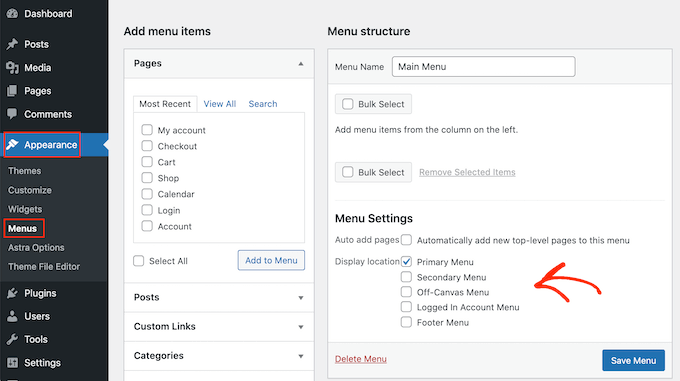
Start by going to the Appearance section in the WordPress dashboard. Find and click on Menus. You will see an option to create a new menu. Click on Create a New Menu. Give your menu a simple name. It helps you remember its use. Add items to your menu. These can be pages or links. Organize them by dragging up or down. Save your menu when done.
After creating a menu, assign it a location. Look for Manage Locations at the top of the Menus page. Each theme has different locations. Pick a spot that fits your menu. Select your menu from the dropdown list. Click on the Save Changes button. Your menu now appears on your site. Check to make sure it looks good.
Testing And Debugging
Enhance your WordPress theme by testing and debugging carefully. Identify errors and fix them to ensure smooth functionality. Improve theme performance by adding custom features and plugins.
Checking For Responsiveness
Responsiveness means your site works on all devices. Use a mobile phone to check. Ensure images fit the screen. Text should be readable. Buttons must be easy to tap. If something looks off, adjust your CSS. Tools like Chrome DevTools can help. They simulate different screens. Fix any issues you find. Test on tablets and desktops too. Make your site user-friendly for everyone.
Debugging Common Issues
Errors can break your site. Missing files often cause problems. Double-check paths to images and scripts. Broken links confuse users. Ensure all links work. CSS errors affect design. Check your code for typos. JavaScript errors stop functions. Console logs show these errors. Fix them quickly. Plugins sometimes conflict. Deactivate one at a time to find the culprit. Always backup before making changes.
Credit: www.elegantthemes.com
Frequently Asked Questions
How Do I Add Custom Css To A WordPress Theme?
To add custom CSS to a WordPress theme, use the WordPress Customizer. Navigate to “Appearance” > “Customize” and select “Additional CSS. ” Here, you can input your custom CSS code and see real-time changes. This method is easy and ensures your customizations are theme update-proof.
Can I Add Plugins To A WordPress Theme?
Yes, you can add plugins to a WordPress theme. Go to your WordPress dashboard, click on “Plugins,” and then “Add New. ” Search for the desired plugin and click “Install Now. ” After installation, activate the plugin to start using its features within your theme.
What Is A Child Theme In WordPress?
A child theme in WordPress is a sub-theme that inherits the functionality of a parent theme. It allows for modifications without altering the parent theme’s files. This ensures your customizations remain intact even after theme updates. Creating a child theme is a recommended practice for making extensive theme changes.
How Do I Add Widgets To My WordPress Theme?
To add widgets, go to “Appearance” > “Widgets” in your WordPress dashboard. From there, you can drag and drop available widgets to your theme’s widget-ready areas. These areas include sidebars or footers. Widgets enhance functionality and allow for easy customization of your site’s layout.
Conclusion
Adding elements to your WordPress theme is simple. Start with a clear plan. Explore theme settings and options. Use plugins to extend functionality. Customize with widgets for unique touches. Update regularly to ensure security and performance. Keep your design intuitive and user-friendly.
Test changes before going live. This keeps your site running smoothly. Use support forums for help when needed. Master these basics to manage your site effectively. With practice, you’ll grow confident in making changes. Enjoy creating a WordPress site that truly reflects your vision.
Happy customizing!


