
Are you looking to enhance your WordPress site and make it more engaging for your visitors? Adding widgets to your theme can be the perfect solution.
Widgets are powerful tools that can transform your website’s functionality and appearance, allowing you to customize it to better meet your needs and those of your audience. Whether you want to display recent posts, integrate social media feeds, or add contact forms, widgets offer endless possibilities.
You’ll discover simple and effective ways to add more widgets to your WordPress theme, making your site more dynamic and user-friendly. Stay with us, and by the end, you’ll be equipped with the knowledge to take your website to the next level.
Choosing The Right Widgets
Adding more widgets to your WordPress theme can enhance functionality and design. Explore various widget options in your theme’s customization settings. Utilize plugins to expand widget capabilities, creating a more engaging website for your audience.
Understanding Widget Types
Widgets help make your website look nice. They add fun things like clocks, weather, or news. There are many types of widgets to choose from. Some widgets are for showing pictures. Others are for sharing social media posts. Each type has a special job. It’s important to pick the right one. Widgets make websites more interesting for visitors.
Evaluating Widget Needs
Think about what your website needs. Do you want to show recent posts? Maybe you need a calendar for events. Choose widgets that fit your website’s purpose. This will help your visitors find information easily. Too many widgets can slow your site. Pick only the ones you need. This keeps your website fast and clean. A good mix of widgets can improve user experience.

Credit: kinsta.com
Accessing The WordPress Dashboard
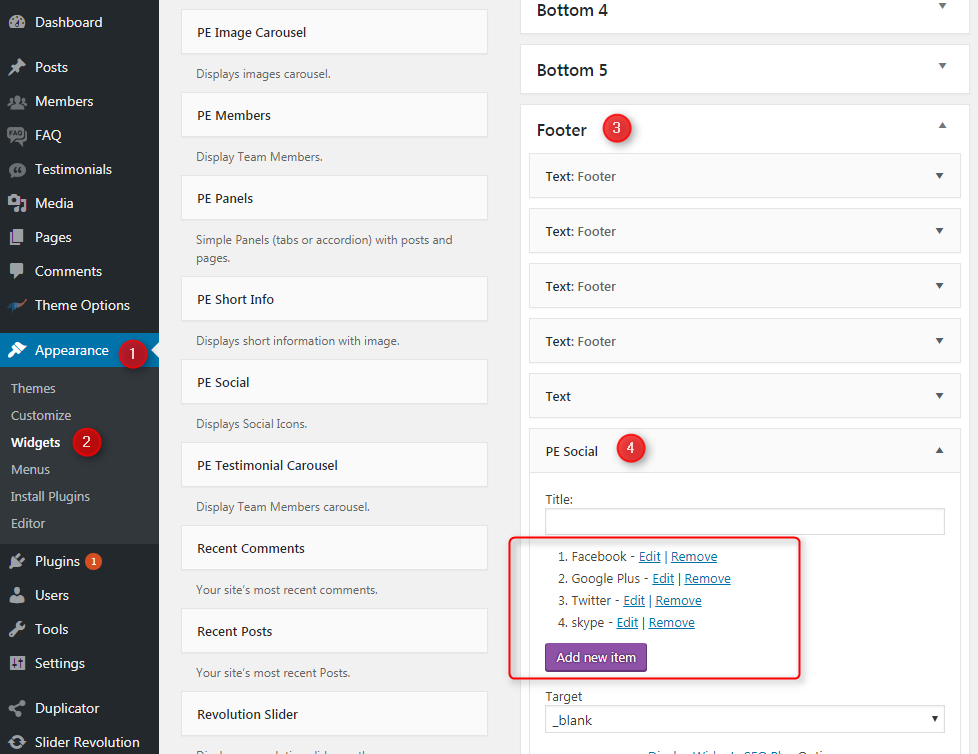
Begin at your WordPress dashboard. It’s the first screen you see. Find the Appearance section on the left side. Click it. You can see many options there. Choose the one that says “Widgets”. It’s important.
On the Widgets page, you can add new ones. Many themes have different widget areas. Check the sidebar. You might find header and footer areas too. Drag and drop widgets into the areas you like. It’s easy. You can add many types of widgets. Text, images, and more.
Installing New Widgets
Enhance your WordPress theme by adding widgets effortlessly. Navigate to the dashboard, select ‘Appearance,’ then ‘Widgets. ‘ Drag and drop desired widgets into available areas, customizing your site with extra functionality.
Using The WordPress Plugin Directory
Find new widgets in the WordPress Plugin Directory. Go to your WordPress dashboard. Click on “Plugins” and then “Add New”. Search for the widget you want. Click “Install Now” once you find it. After that, click “Activate”. The widget is now ready. You can add it to your site.
Manually Uploading Widgets
Download the widget as a ZIP file. Go to your WordPress dashboard. Click on “Plugins” and then “Add New”. Click on “Upload Plugin”. Choose the ZIP file you downloaded. Click “Install Now”. After installing, click “Activate”. The widget is now active. Add it to your theme as needed.
Credit: www.pixelemu.com
Adding Widgets To Theme
First, find the widget areas in your theme. These are spots where you can add widgets. Common areas include the sidebar and footer. Look for these areas in the theme’s customizer. Sometimes, the header also has widget space. It varies with each theme. Check the theme’s documentation for more details. This can help you find all widget spots.
Go to the WordPress dashboard. Click on Appearance. Then click Widgets. Here, you will see the available widgets. Drag and drop a widget to the sidebar. You can add as many as you like. Arrange them in the order you want. Don’t forget to save your changes. This ensures your widgets show up on the site. Now, visit your site to see the changes.
Customizing Widget Settings
Widgets help users find things easily. They can show images, text, or links. First, go to the dashboard. Click on Appearance. Then, click on Widgets. Choose the widget you want to change. You can add new text or images. You can also change the links. This helps make the site look good. It helps users find things fast.
Styles change how widgets look. First, open the widget settings. Choose the style you like. You can change colors and fonts. You can also change the size of the widget. This makes it look nice. Users like a site that looks good. A good style helps the site be easy to use.
Utilizing Third-party Widgets
Popular plugins make it easy to add widgets. Jetpack is a favorite for many. It offers multiple widgets in one place. SiteOrigin Widgets Bundle is another choice. It gives extra options for your site. Elementor helps build custom widgets too. All these plugins are free to start. Some need upgrades for more features. They work with most themes. Easy to install and use.
External widgets bring extra functions to your site. To do this, find a widget code you like. Copy the code to your site. Use the custom HTML widget in WordPress. Paste the code there. Save your changes. Your new widget is now on the site. It’s a simple way to add fun tools. You can add maps, videos, or social feeds. Make your site more interactive.
Troubleshooting Widget Issues
Adding more widgets to your WordPress theme can enhance functionality. Navigate to the WordPress dashboard and select ‘Appearance’, then ‘Widgets’. Drag and drop your desired widgets into the sidebar or footer areas to customize your site. Troubleshooting tips can help resolve common widget issues.
Common Widget Problems
Widgets sometimes don’t show up. This is a common issue. Make sure the widget is active. Check the settings in the widget area. Look for any missing files. Missing files can cause problems. Also, check for plugin conflicts. Some plugins don’t work well with others. Disable one plugin at a time. This can help find the problem.
Fixing Display Errors
Widgets might not look right on your site. This happens when themes change. Check the theme’s settings. Adjust the widget size or position. Sometimes, CSS codes cause errors. You can fix this by editing the CSS. Make small changes and refresh the page. Also, update your theme and plugins. Updates can fix display errors.

Credit: wordpress.org
Enhancing User Experience
Most users browse on mobile devices. Widgets must be mobile-friendly. They should fit small screens. A good design helps users. It keeps them happy. Check widget size. Test on different phones. Make sure it works. Users should find it easy.
Fast loading is key. Slow widgets frustrate users. Optimize for speed. Reduce widget size. Use fewer images. Keep code clean. Fast sites keep users. They come back often. Always check speed. Make it faster. Use tools to measure load time. Aim for quick results.
Frequently Asked Questions
How Can I Add Widgets To My WordPress Theme?
To add widgets, go to your WordPress dashboard. Navigate to “Appearance” and then “Widgets. ” From there, you can drag and drop available widgets into designated areas of your theme. Customize settings as needed for each widget. Save your changes to display them on your site.
Can I Add Custom Widgets In WordPress?
Yes, you can add custom widgets in WordPress. Use a plugin like “Widget Builder” or “WPBakery. ” Alternatively, you can create a custom widget using PHP code. Add your code to your theme’s functions. php file. Ensure the widget’s functionality aligns with your site’s design and purpose.
Why Aren’t My Widgets Displaying Correctly?
Widgets may not display correctly due to theme compatibility issues. Ensure your theme supports widgets. Check widget area settings and verify that widgets are placed correctly. Clear your browser cache and refresh the page. Update your theme and plugins to resolve potential conflicts.
Are There Plugins For More Widget Options?
Yes, many plugins offer additional widget options. Popular choices include “SiteOrigin Widgets Bundle” and “Widget Options. ” These plugins provide diverse customization features. Explore plugin directories for reviews and compatibility. Install and activate your chosen plugin to enhance your widget functionality.
Conclusion
Widgets can transform your WordPress theme beautifully. They offer more functionality and customization. Adding widgets is straightforward. Select and install the desired widget. Place it strategically for maximum impact. Experiment with different options. Widgets enhance user experience. They create an interactive website.
Boost your site’s engagement with diverse widgets. Your WordPress theme becomes more dynamic. Visitors find your site easier to navigate. Enjoy the flexibility widgets provide. Make your website stand out. Keep exploring new widgets. Stay updated with trends. A vibrant website awaits.


