
Are you tired of the same old look on your WordPress site? Want to refresh just one page to better capture your audience’s attention?
Changing the theme for a single page can seem like a daunting task, but it doesn’t have to be. Imagine the possibilities when you have the power to tailor each page uniquely. This article will guide you step-by-step, making it easy for you to revamp that specific page without altering your entire site’s design.
You’ll discover how a few tweaks can drastically improve user engagement and give your content the spotlight it deserves. Ready to dive in and transform your page into something truly special? Let’s get started!
Choosing The Right Theme
Picking a theme for your page is crucial. It affects how your site looks. Speed is important. A slow theme can make users leave. Ensure the theme is responsive. This means it works on phones and tablets. Check if the theme is customizable. You might want to change colors or fonts. Look for a theme with good reviews. Happy users often mean a good theme. Also, see if it has support. If you have problems, help should be available.
Many themes are popular for a reason. Astra is fast and easy to use. OceanWP is good for many types of sites. GeneratePress focuses on speed and performance. Each theme has unique features. Explore them to see what fits your needs. Don’t rush; a good theme makes a big difference.

Credit: themeforest.net
Preparing For The Change
Always back up your site before making changes. Use a plugin for easy backup. This saves all your data safely. You won’t lose your work if something goes wrong. Keep your backup in a safe place. A cloud service is a good choice. This makes it easy to restore your site.
Start by making a child theme. This helps you keep changes safe. You won’t lose changes when the theme updates. Use a plugin or do it manually. This is important for keeping your site stable. A child theme is like a copy that can be changed. It uses the main theme as a base. This keeps your site safe and makes updates easy.
Installing The New Theme
First, go to your WordPress dashboard. Click on Appearance in the sidebar. Select Themes from the menu. You will see a list of installed themes. Choose Add New at the top. Browse through the available themes. Pick a theme you like. Click Install to add it. Your theme will start installing.
Go to the Themes section in your dashboard. Click Add New and then Upload Theme. Select a theme file from your computer. It should be in ZIP format. Click Install Now. Wait for the upload to complete. After uploading, click Activate. Now your new theme is live.
Customizing The Theme
The WordPress Customizer helps to change a theme easily. It is a tool found in the dashboard. Click on Appearance and then Customize. A new screen will appear. This is where you can see the changes live. Choose the settings you want to change. It can be colors or fonts. Save your changes when you are happy. Always preview before you hit publish. This makes sure everything looks good.
Theme files can be changed to add special features. Go to the dashboard and click on Appearance. Then, select Theme Editor. You will see many files on the right. Choose the file you want to change. Edit the code with care. Always make a backup before you start. This way, you can fix mistakes easily. Save your changes and check your page.
Testing The New Theme
Switching a WordPress theme for a single page is simple. First, access the WordPress dashboard. Then, navigate to the Appearance section and select Themes. Choose your desired theme, click to activate, and preview the changes. Make sure to check the page layout and content alignment.
Checking For Compatibility
First, see if the theme works well with your plugins. Some plugins may not work with certain themes. You might need to change or update plugins. Look for any errors in your dashboard. This helps find issues early. Next, check your site speed. A slow theme can hurt your site. Use tools to test speed. Make sure your site loads fast.
Ensuring Responsive Design
Test the theme on different devices. See how it looks on phones, tablets, and computers. A good theme should fit all screens. Make sure buttons and links are easy to click. Check for any layout issues. Fix these before going live. Check images and text. They should look clear and not too small. A responsive design keeps visitors happy. It helps with SEO too.
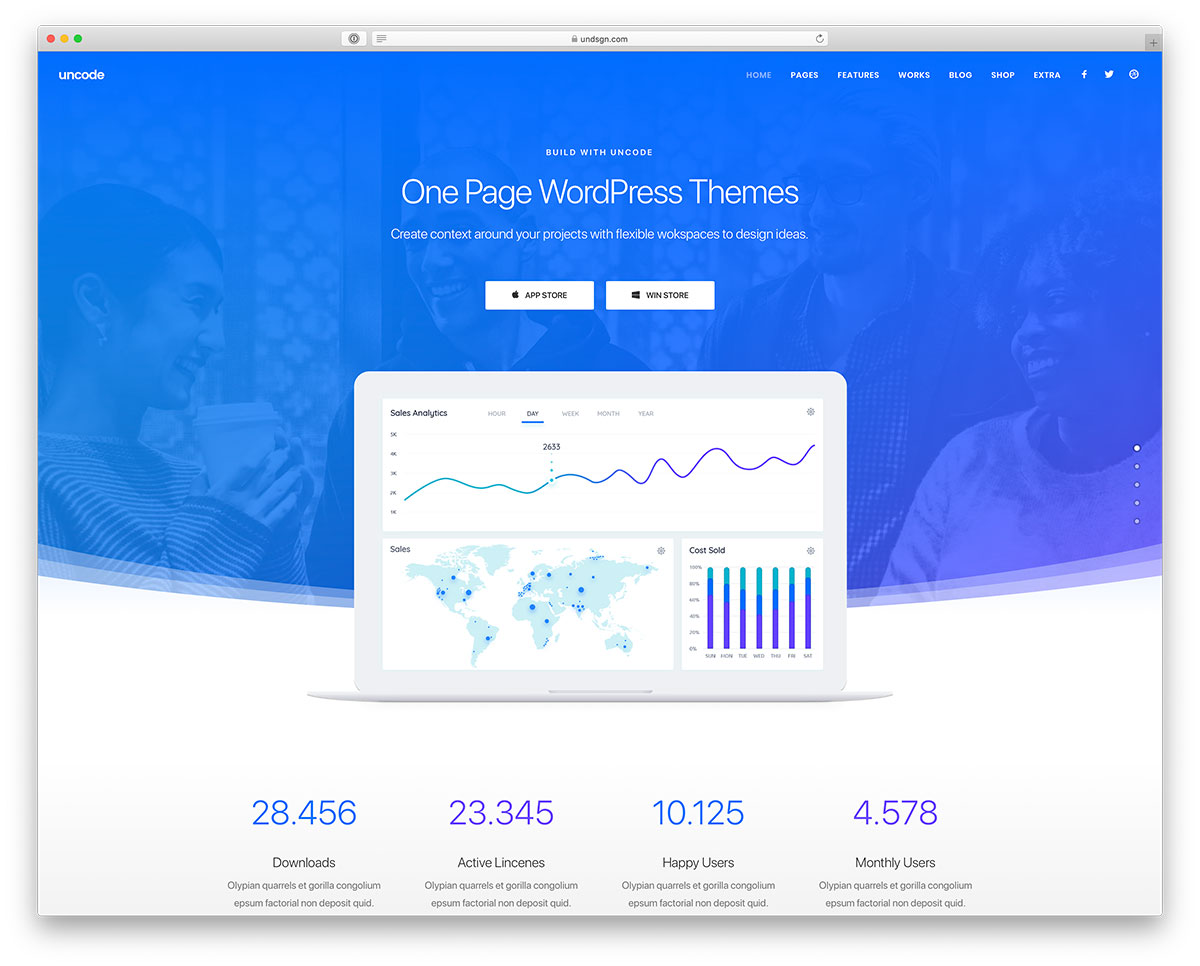
Credit: colorlib.com
Troubleshooting Common Issues
Changing a WordPress theme for a single page can sometimes cause display issues. Fix problems by checking theme settings and ensuring compatibility with plugins. Always back up your site before making changes.
Fixing Layout Problems
Layout issues can be tricky. First, check the theme settings. Sometimes, a simple adjustment fixes the problem. Look at the customizer. Change settings like margins and padding. If the layout is still wrong, check the page builder. Make sure each block fits well. Try different templates. One might work better. Lastly, clear your browser cache. This can solve many display problems. Always make a backup before changing settings.
Resolving Plugin Conflicts
Plugins can cause trouble. Start by deactivating all plugins. Activate them one by one. This helps find the problem plugin. Look for updates. An updated plugin might fix the conflict. If the issue persists, try using a different plugin for the task. Always check plugin compatibility with your theme. Read the plugin documentation. It often has tips for solving conflicts. Contact plugin support for help. They know their product best.
Finalizing The Theme Change
Reviewing SEO Settings is crucial after changing a theme. Ensure all the meta tags and keywords remain intact. Check if your SEO plugins are still working correctly. Sometimes, they need reconfiguration with a new theme. Verify that your site’s URL structure hasn’t changed. This keeps your links healthy. Also, check your XML sitemaps to ensure they are updated. This helps search engines find your pages.
Optimizing Page Speed is important too. A new theme can slow your site. Test your page load time using online tools. Minimize image sizes to improve speed. Compress your files if possible. Check if the theme uses efficient code. Poor code can slow things down. You might need to remove unnecessary plugins. This will help your page load faster. A fast site keeps visitors happy.

Credit: themeforest.net
Frequently Asked Questions
How To Switch Themes On A Single WordPress Page?
To change the theme for one page, use a page-specific template. Create a new template file in your theme’s folder. Assign it to the desired page through the “Page Attributes” section. Ensure your template includes custom styling and layout elements.
This approach allows individual page customization while maintaining the site’s overall theme.
Can I Customize WordPress Theme For One Page?
Yes, you can customize a theme for a single page using a custom page template. This involves creating a unique template file and assigning it to the page through WordPress’s page attributes. You can then modify the layout and styling specifically for that page, ensuring it stands out while preserving the site’s overall aesthetic.
What Plugins Help Change Theme For One Page?
Plugins like “Elementor” and “Beaver Builder” can assist in customizing themes for individual pages. They offer drag-and-drop features and advanced styling options, allowing you to create unique layouts without coding. These plugins are user-friendly and ideal for designing single-page themes within your WordPress site.
Is It Easy To Change WordPress Theme For One Page?
Changing a theme for one page is relatively straightforward with the right tools. WordPress allows custom page templates, enabling unique styles for specific pages. With plugins or basic HTML/CSS knowledge, you can easily alter layouts. This method provides flexibility in design while maintaining consistency across the rest of your site.
Conclusion
Changing a WordPress theme for one page is simple. Follow steps carefully and explore options. Start by choosing a theme that suits your needs. Install it through your WordPress dashboard. Customize your selected theme to fit the page perfectly. Preview changes before making them live.
Always test on different devices to ensure responsiveness. Regularly update your theme for security and new features. Experiment with different styles and layouts. This keeps your page fresh and engaging. Enjoy the process of giving your page a new look.
Happy theming!


