
Have you ever felt overwhelmed by the clutter of unused themes in your WordPress site, wondering how they might be affecting your website’s performance? You’re not alone.
Many site owners struggle with maintaining an organized and efficient WordPress installation. The good news is, you have the power to clean up and streamline your database, ensuring your site runs smoothly and swiftly. Imagine a faster, more responsive website that delights your visitors and improves your SEO rankings.
This transformation starts with understanding how to clean themes from your WordPress PhpMyAdmin database. In this guide, you’ll discover simple, actionable steps to declutter your database, eliminating unnecessary themes that may be slowing down your site. By the end of this article, you’ll not only enhance your website’s performance but also enjoy the peace of mind that comes with a well-maintained digital space. Let’s dive in and empower you to take control of your WordPress environment!
Backup Your Database
Always make a backup before you start. Mistakes can happen. A backup saves your data. Use a reliable tool. Export your database to a safe place. It can be your computer or cloud storage. Make sure the backup file is complete. Check the size and content. If it’s small, something might be missing. This step is crucial. It gives peace of mind.
Restoring a backup is simple. Use your Phpmyadmin panel. Upload the backup file. Press the import button. Your data will be back. This process is fast. It protects your work. Always have a backup. It’s a safety net.
Accessing Phpmyadmin
Open your hosting account control panel. Find the PhpMyAdmin tool. Click on it to enter. You will see a list of databases. Choose the one with your WordPress site. Log in with your database username and password. Be careful not to change anything by accident. This tool is very powerful. Messing up can break your site.
Once inside, look for the wp_options table. This table holds many settings. Find rows related to old themes. Delete them to clean up. But double-check before deleting. Wrong deletions can cause problems. Always back up your database first. This saves your site if errors happen. You can restore it if needed.
Identifying Theme Data
Find your theme’s tables in the database. Check the prefix used for the theme. Look for tables with names like wp_theme or wp_theme_options. These tables store theme data. Always make a backup before making changes. This keeps your data safe.
Open the wp_options table. Search for theme entries by using the theme name. Look for rows with option_name like theme_mods_yourtheme. These rows hold theme settings. Delete them if you do not need them. Be careful and double-check before deleting.
Credit: help.one.com
Removing Theme Tables
Use phpMyAdmin to remove theme tables safely. First, open phpMyAdmin. Find your WordPress database. Search for tables named with the theme’s name. Be careful while selecting tables.
Check twice before deleting. Wrong deletion can harm your site. Once sure, select the tables. Click on the Drop option to delete. This action is irreversible. So, always backup your database first.
SQL queries can delete tables too. Open phpMyAdmin’s SQL tab. Type the command: DROP TABLE table_name; Change “table_name” with your theme’s table name.
Press the Go button to run the query. Double-check your query before running. Mistakes can delete the wrong tables. Always have a backup ready. Safe actions keep your site healthy.
Cleaning Options Table
Open phpMyAdmin in your hosting panel. Choose the correct database. Go to the options table. Look for rows with the theme name. These are theme settings. They may clutter your database.
Check each option before deleting. Make sure it belongs to the theme. Use the delete option in phpMyAdmin. Clean up the database. Keep a backup just in case. Mistakes can happen. A backup saves the day.
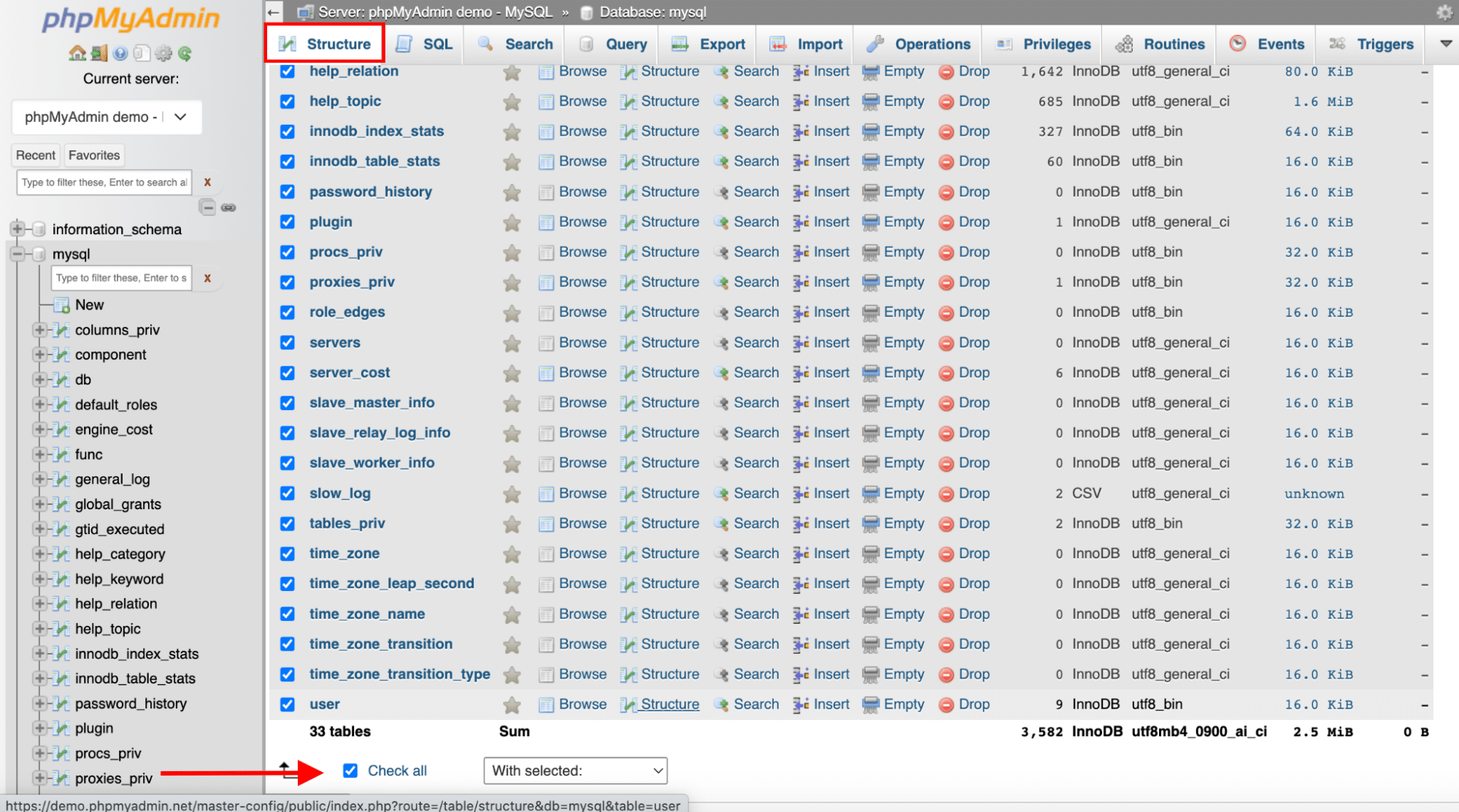
Credit: wp-rocket.me
Verifying Database Cleanup
Removing unnecessary themes from your WordPress database can improve performance. Use PhpMyAdmin to safely delete unused theme data. Keep your database clean and efficient.
Checking For Orphaned Data
Orphaned data can slow down your site. It takes up space without purpose. Check tables for leftover data from old themes. Look at the wp_options table. Old theme settings might be hiding there. The wp_postmeta table also holds extra data. Delete any unused entries. Keep your database clean to run smoothly.
Ensuring Site Functionality
After cleanup, test your site. Visit different pages and check for errors. Make sure images and links work. Test forms to see if they submit correctly. Use your site like a visitor would. Check plugins to see if they function well. This ensures everything works after changes. A smooth site is a happy site.
Optimizing Database
Streamline your WordPress site by cleaning the Phpmyadmin database. Remove unused themes safely to enhance performance. A tidy database ensures faster loading times and better user experience.
Using Phpmyadmin Tools
PhpMyAdmin helps clean your WordPress database. It has tools for optimization. Use these tools to make your site fast. Start by logging into PhpMyAdmin. Select your WordPress database. Look for the Optimize Table option. Click it to clean and speed up your site. This tool makes your database work better.
Running Optimization Queries
Optimization queries help fix database issues. They make your site run smoothly. Go to the SQL tab in PhpMyAdmin. Type in simple queries like “OPTIMIZE TABLE” followed by the table name. Run the query to clean your database. This keeps your site healthy. Do this regularly for best results.

Credit: buddyxtheme.com
Restoring From Backup
Sometimes things go wrong. That’s why backups are important. Backups help you get your site back. First, find your latest backup file. It should be saved on your computer or cloud. Then, go to your hosting account. Find the phpMyAdmin tool. This tool helps manage your database. Click on it to open. Once open, look for the Import tab. It’s usually at the top. Click on it. Now, you can upload your backup file. Make sure the file is the right format. Usually, it’s a .sql file. After uploading, click the Go button. This will restore your database. Check your site after this. It should be back to normal. If not, try restoring again.
Frequently Asked Questions
How Do I Access Phpmyadmin In WordPress?
To access PhpMyAdmin in WordPress, log into your web hosting account. Navigate to the database section and click on PhpMyAdmin. This tool allows you to manage your WordPress database directly, offering powerful options for maintenance and optimization.
Why Clean Themes From The Database?
Cleaning themes from the database helps improve performance. Unused themes may leave behind unnecessary data. Removing this data frees up space and enhances website speed, ensuring a smoother user experience.
What Precautions Should I Take Before Cleaning?
Before cleaning, always back up your database. This prevents data loss if something goes wrong. Use reliable backup plugins or your hosting service’s backup options to ensure all information is safely stored.
Can I Clean Themes Without Plugins?
Yes, you can clean themes without plugins by using PhpMyAdmin. Access your database, locate tables related to themes, and delete unnecessary entries manually. This method requires caution and understanding of database structure.
Conclusion
Cleaning your WordPress database improves site performance. It’s vital. Begin by accessing phpMyAdmin. Identify and remove unused themes. This reduces clutter. Always back up your data first. It prevents loss. Regular maintenance keeps your site healthy. Follow steps carefully. Stay organized and focused.
Clear clutter. Protect your data. A clean database means a faster website. Your visitors will appreciate it. Enjoy smoother operations. Keep it simple and efficient. Regular checks help. Your site will thank you.


