
Have you ever felt overwhelmed by the chaos of your blog posts and pages in WordPress? You’re not alone.
A well-organized website can make a world of difference not only for your visitors but also for your own peace of mind. The secret lies in effectively using categories within your WordPress theme. Categories help streamline your content, making it easier for your readers to find what they’re looking for.
Imagine transforming your site from a cluttered mess into a user-friendly haven that keeps visitors coming back for more. In this guide, you’ll discover step-by-step how to add categories in your WordPress theme, helping you turn your website into a polished and efficient platform. Ready to take control and enhance your site’s usability? Let’s dive in!
Accessing The WordPress Dashboard
To add categories, first log in to your WordPress account. Use your username and password. Once logged in, find the dashboard. It’s the main control center. Look at the left sidebar. Click on “Posts.” A menu will drop down. Find and click “Categories.” This opens the categories page. You can manage all categories here. Adding a category is easy. Enter the category name. Write a short description if you want. Click “Add New Category.” Your new category appears on the list.
Remember, categories help organize your content. They make your site easy to navigate. Users can find information quickly. Always choose a clear category name. It helps users understand the content.
Navigating To Categories Section
First, go to your WordPress dashboard. Look on the left side. Find the Posts section. Click on it. A menu will appear. Click on Categories. Now you are in the right place. You can add new categories here. Make sure to choose a name for your category. You can also add a description. This helps users understand the category. Remember to save your changes. Your new category will now appear in the list.
Creating A New Category
Pick a clear name for your category. It helps users find content. The name should describe the posts it will hold. Avoid using long names. Short names are easier to understand. Make sure it is unique. Duplicate names can confuse users.
A slug is a part of a URL. Use simple words for your slug. It should match the category name. Spaces are replaced by dashes. For example, “my-category”. This makes the URL neat and tidy. Easy to read and share too.
Parent categories help in organizing. Choose a parent if needed. It creates a hierarchy. Helps users browse topics easily. Keep related categories together. This makes the site look structured. Users will thank you for it.

Credit: wordpress.com
Assigning Categories To Posts
Editing Existing Posts: Find your WordPress dashboard. Click on “Posts” and choose “All Posts”. You will see a list of your posts. Click on the post you want to edit. On the right side, find the “Categories” box. Check the boxes next to the categories you want. Remember to click “Update” to save. This helps organize your posts better.
Assigning During Post Creation: Start by creating a new post. Find the “Categories” box on the right. Choose the right category for your new post. If no category fits, you can add a new one. Type the name in the “Add New Category” box. Then click “Add New Category”. Now, your post is ready with the right category. This makes it easy for readers to find related posts.
Managing Categories
Editing categories is simple in WordPress. First, go to the dashboard. Find the “Categories” option under “Posts”. Click it. You will see all your categories. Pick one you want to change. Click “Edit” under its name. A new page opens. Here, you can change the name or slug. You can also add a description. Save changes by clicking “Update”.
Deleting categories is also easy. Start by going to the “Categories” section. This is under “Posts” in the dashboard. Look at your list of categories. Find the one you want to remove. Hover over its name. You will see a “Delete” option. Click it. The category will be removed. Remember, posts in this category need a new category. Assign them a new one right away.
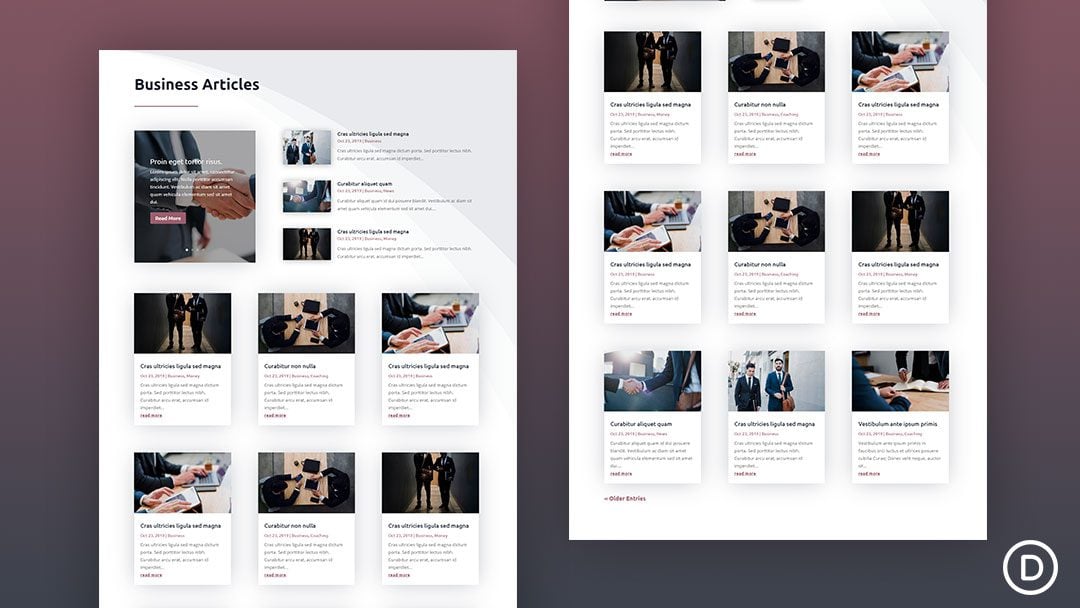
Credit: www.elegantthemes.com
Displaying Categories In Your Theme
Widgets make it easy to show categories. Go to the dashboard. Click on “Appearance” then “Widgets”. Drag the Categories widget to a sidebar or footer. Save your changes. Now your visitors can see your categories. It helps them find posts easily.
Menus let you display categories neatly. Access the dashboard. Click “Appearance” and then “Menus”. Choose a menu or make a new one. Add categories to the menu. Click “Save Menu”. This organizes your site better. Visitors will find what they need faster.
Utilizing Category Plugins
Popular Plugin Options make adding categories easy. “WP Category Widget” is a favorite. “Category Order and Taxonomy Terms Order” helps sort categories. “WPBakery Page Builder” offers category blocks. These plugins are user-friendly and effective.
Installation and Activation is simple. First, go to the WordPress dashboard. Find “Plugins” and click “Add New.” Search for your chosen plugin. Click “Install Now” and then “Activate.” Now, the plugin is ready. You can start organizing your categories.

Credit: www.youtube.com
Troubleshooting Common Issues
Struggling with adding categories in a WordPress theme can be common. Ensure your dashboard settings are correct. Navigate to the “Categories” section under “Posts” to easily add and manage categories.
Category Not Displaying
Sometimes, categories might not show up on your site. First, check if the category is properly assigned to posts. Visit the post editor and make sure the category box is checked. Sometimes, themes do not support displaying categories. Check your theme settings or switch to another theme to test.
Slug Conflicts
A slug is the URL part for categories. If two categories have the same slug, it causes problems. Make sure each category has a unique slug. To change a slug, go to the category settings and edit the slug field. Use unique words that describe the category well.
Frequently Asked Questions
How Do I Add Categories In WordPress?
To add categories in WordPress, navigate to the dashboard. Click on ‘Posts’ and select ‘Categories’. Fill in the name, slug, and parent category if needed. Click ‘Add New Category’. This process helps organize your content effectively, improving site navigation and user experience.
Can I Customize Category Pages In WordPress?
Yes, you can customize category pages in WordPress. Use a custom template in your theme to change layout and design. Alternatively, employ plugins to add custom styles or elements. This enhances user engagement and makes your site visually appealing and informative.
Why Are Categories Important In WordPress?
Categories are crucial for organizing content in WordPress. They help users and search engines understand your site’s structure. Proper categorization improves navigation, enhances user experience, and boosts SEO by making content easily discoverable. This results in increased traffic and better engagement.
Can I Create Subcategories In WordPress?
Yes, you can create subcategories in WordPress. When adding a new category, choose a parent category. This creates a hierarchical structure for better content organization. Subcategories improve navigation and help users find specific content easily, enhancing the overall user experience.
Conclusion
Adding categories in your WordPress theme enhances content organization. It helps users find related articles easily. This process is straightforward, even for beginners. Just follow the steps outlined above. Customize categories to fit your site’s needs. Experiment with different arrangements and names.
Keep it simple for your audience. Organized content boosts user engagement and retention. Always update your categories as your site evolves. Remember, effective categorization improves navigation. This leads to a better user experience. Happy organizing!


