
Are you tired of your current blog design and looking for a fresh start? Changing your WordPress theme can breathe new life into your website, making it more visually appealing and user-friendly.
But if you’re worried about the complexities involved, don’t be. This guide will walk you through the process step-by-step, ensuring a smooth transition to a design that better reflects your brand and captivates your audience. By the end, you’ll have the confidence to switch themes without a hitch, unlocking a new look that keeps your readers engaged and coming back for more.
Ready to transform your blog’s appearance? Let’s dive in!
Choosing The Right Theme
Understand what your blog is about. Is it a food blog? A tech blog? Different themes suit different needs. A food blog might need visual appeal. A tech blog might need a clean look. Choose a theme that fits your purpose.
WordPress has many themes. Some are free, others are paid. Look for themes that match your style. Try different ones. See how they look on your site. Many themes come with customization features. Make sure you can change colors or fonts if needed.
Reviews help you know if a theme is good. Ratings show what others think. High ratings mean people like the theme. Read what users say. Some themes might have bugs or issues. Avoid themes with many negative reviews.
Credit: www.templatemonster.com
Installing A New Theme
Access the WordPress Dashboard to start changing your theme. Log in with your username and password. The dashboard is your main control center.
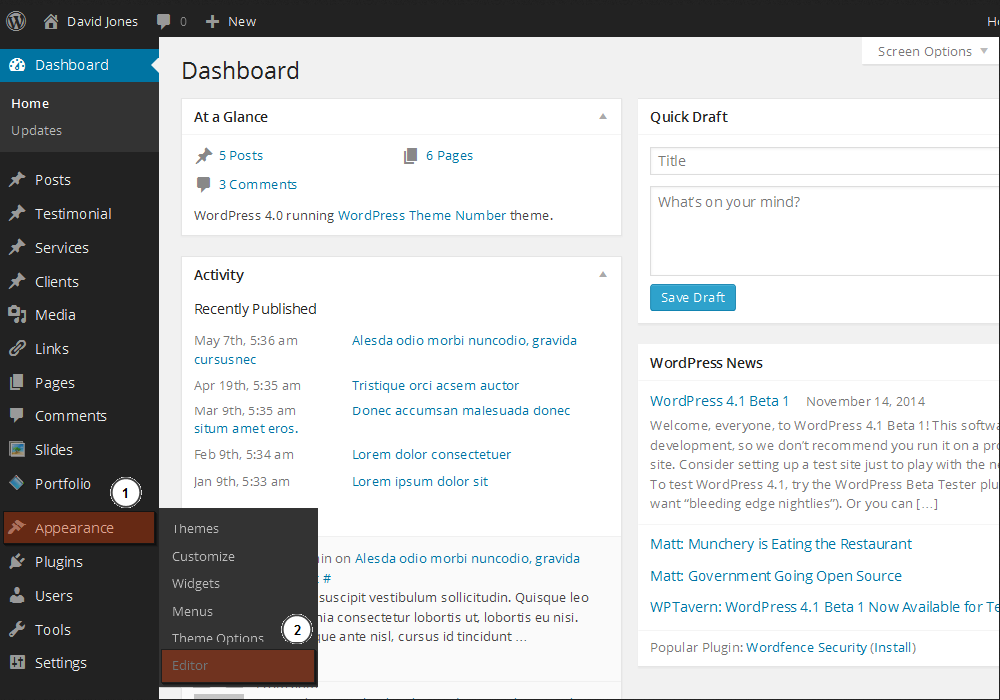
Find the Theme Section on the left menu. Click on ‘Appearance’. Then choose ‘Themes’. This is where you manage your theme options.
You can Upload or Search for Themes. To upload, click ‘Add New’. Choose a theme file from your computer. To search, use the search bar. Find a theme you like.
Activate the New Theme once you have chosen. Click ‘Activate’ on the theme thumbnail. Your site will change to the new look.
Customizing Your Theme
The WordPress Customizer is easy to use. It helps you change your blog’s look. Click on Appearance and then Customize. You will see many options. You can change colors, fonts, and more.
Colors and fonts make your blog unique. Choose colors that match your style. Pick fonts that are easy to read. Make sure your text stands out.
Layouts decide where things are placed. Move widgets to different parts of your page. Widgets can be things like calendars or search bars. You can add or remove them easily.
Want more control? Use Custom CSS. It lets you change specific parts. Be careful with CSS. Small mistakes can change your whole page. Always preview before saving.

Credit: sheknowsseo.co
Testing The New Theme
Check for Mobile Responsiveness: Open your blog on a phone. Make sure everything looks good. Texts should be easy to read. Images should fit the screen. Buttons should be easy to tap. A mobile-friendly site is important. It helps users navigate easily.
Verify Browser Compatibility: Use different browsers to view your blog. Check Chrome, Firefox, Safari, and Edge. Each browser should display your theme correctly. Problems might occur with some features. Fix any issues to ensure a smooth experience.
Test Site Speed and Performance: A fast site is crucial. Use tools like Google PageSpeed Insights. It checks how fast your site loads. Speed affects user experience. Slow sites lose visitors. Optimize images and remove unnecessary plugins. This helps improve speed.
Troubleshooting Common Issues
Sometimes, parts of your blog might disappear. This can happen after you change your theme. Check your widgets. Some might need re-adding. Visit your Theme settings. Make sure everything is set right. Explore theme documentation for help.
Plugins can cause trouble with new themes. Deactivate all plugins first. Then, activate one by one. This way, you find which one has issues. Update plugins to fix bugs. Check plugin compatibility with your theme.
Old links may break after theme change. Use a link checker tool to find these. Edit broken links quickly. Redirect old links to new pages. Update your permalinks for fixing errors.

Credit: cyberchimps.com
Maintaining Your Theme
Changing your WordPress blog theme is simple. Access your WordPress dashboard and select “Appearance. ” Choose “Themes” to explore options. Click “Activate” to apply your selected theme. This process allows you to maintain a fresh look effortlessly.
Regular Updates And Backups
Keep your WordPress theme updated. Updates fix bugs and improve security. Backup your site before updating. This way, you won’t lose important data. Use a plugin for easy backups.
Monitor For Bugs And Glitches
Check your site for bugs often. Bugs can affect user experience. Fix them quickly to keep your site running smoothly. Use tools to spot any issues. This keeps your site in top shape.
Stay Updated With WordPress Changes
WordPress changes often. Themes may need updates to match these changes. Staying updated ensures compatibility. New updates can bring new features. Always read the update details carefully.
Frequently Asked Questions
How Do I Change My WordPress Blog Theme?
To change your WordPress theme, navigate to your dashboard. Click on “Appearance” then “Themes. ” Choose a new theme from the directory or upload one. Click “Activate” to apply the theme. Make sure to preview changes before finalizing to ensure compatibility with your content and widgets.
Can I Switch Themes Without Losing Content?
Yes, switching themes won’t delete your content. Pages, posts, and media will remain intact. However, certain theme-specific settings or widgets might need reconfiguration. Always back up your site before switching themes to ensure no data loss. Review theme features for compatibility with your existing content structure.
What Should I Consider Before Changing Themes?
Before changing themes, consider design compatibility, responsiveness, and SEO impact. Check the theme’s customization options and ensure it’s regularly updated. Read user reviews and test the theme’s demo. Backup your site to protect your data. Consider using a staging site to test the new theme without affecting your live site.
Is It Possible To Preview A New Theme?
Yes, WordPress allows you to preview themes before activation. In the “Themes” section, click “Live Preview” on any theme. This lets you see how your site would look with the new theme. Make adjustments as needed and ensure compatibility with your existing content before activating.
Conclusion
Changing your WordPress blog theme is simple and rewarding. Follow the steps to update your blog’s look. New themes can refresh your site and engage visitors. Explore different designs to find what fits your style best. Remember to back up your site before making changes.
This protects your hard work and content. Experiment with colors and layouts. Your blog reflects your creativity and personality. Keep learning and adapting. Your audience will appreciate the fresh experience. Always ensure your theme is responsive. This improves user experience across devices.
Happy blogging!


