
Have you ever felt the itch to tweak your WordPress theme, but you’re not sure how to add HTML code to make your vision come alive? You’re not alone.
Many WordPress users want to customize their sites but hesitate due to the fear of breaking something. Imagine transforming your website with just a few lines of code, creating a unique look and feel that sets you apart from the competition.
By understanding how to safely add HTML code to your WordPress theme, you unlock endless possibilities for customization. In this guide, you’ll discover simple, step-by-step instructions that empower you to enhance your site without any technical headaches. Dive in and let your creativity shine through!
Choosing The Right Theme
Themes in WordPress are like clothes for your website. Each theme has its own structure. This structure includes files like header.php and footer.php. Understanding these files is key. They control how your site looks and behaves. Themes can be simple or complex. Choose a theme that fits your needs. Some themes have many features. Others are basic. Both have their benefits.
Not all themes work with all plugins. Some themes may not support certain features. Before adding HTML, check theme compatibility. Make sure the theme supports what you need. This prevents future problems. Also, make sure the theme is updated. An updated theme is better for security. It also works better with new WordPress versions.
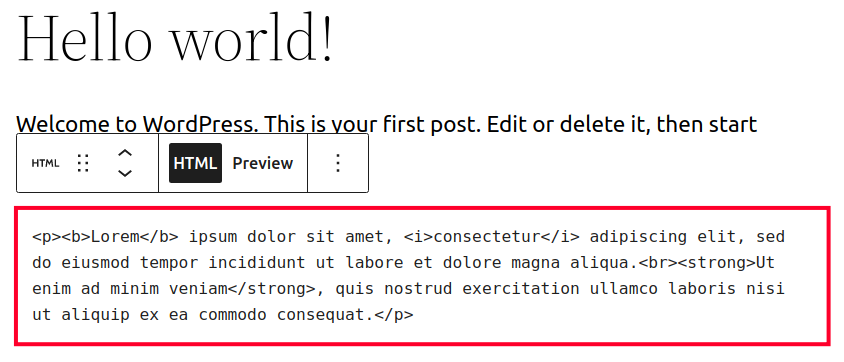
Credit: www.inmotionhosting.com
Setting Up A Child Theme
Child themes help keep your main theme safe. They protect it from unwanted changes. You can update your main theme without losing your custom work. It’s good for theme updates. You can try new code safely. If something goes wrong, your main theme stays fine.
First, make a new folder in your themes folder. Name it anything you like. Next, create a style.css file. Add this code:
            / Theme Name: Your Child Theme Name /


            / Template: parent-theme-folder /
Now, make a functions.php file. Use it to add custom scripts. Link it to the parent theme. You can add extra code here. This keeps your changes safe and tidy.
Accessing Theme Files
Log in to your WordPress dashboard. Find the Appearance menu on the left. Click it. Choose Theme Editor. A new page will open. On the right, see theme files listed. Select the file to edit. Common files include header.php and footer.php. Click on the file. The code appears in the editor. Add your HTML code. Be careful. Wrong code can break your site. Save changes once done. View your site to see changes.
Use a File Manager to access theme files. This is another way. Go to your hosting account. Find the File Manager tool. Open it. Navigate to wp-content/themes. Choose your theme folder. Open it. Look for files like header.php or footer.php. Click on a file to edit. Add your HTML code. Save changes. Be sure to back up your files before editing. Mistakes can happen.

Credit: www.youtube.com
Identifying Correct File For Html
WordPress themes have many template files. Each file controls a part of the site. For example, the header.php file affects the top of pages. The footer.php file deals with the bottom part. Choose the right file for your HTML code.
First, go to the WordPress dashboard. Then, select Appearance. Click on Theme Editor. On the right side, you will see a list of files. Find the file you need from this list. Make sure you select the correct theme.
Adding Custom Html Code
Adding HTML code to a WordPress theme can be easy. You might want to edit the header or footer of your site. First, log in to your WordPress dashboard. Go to the Appearance section. Click on Theme Editor. Here, you will see a list of files. Choose the file you want to change. For the header, look for header.php. For the footer, find footer.php. Click on the file name. Now, you can see the code. Find the place where you want to add your HTML. Type your code carefully. Save changes when done. Always backup your files before editing. Mistakes can break your site.
Sometimes, you need to change template files. This means editing a theme file like index.php or single.php. Go to the Theme Editor again. Click on the file you want to change. Look at the code inside. Find the right spot for your HTML. Type your code. Double-check your work before saving. Mistakes can make your website look wrong. If unsure, ask for help. You can also use child themes. They keep your changes safe when you update themes. Always be careful. Wrong edits can cause problems.
Credit: www.inmotionhosting.com
Testing Changes
Adding HTML code to a WordPress theme helps customize and enhance design. Access the theme editor via the WordPress dashboard. Locate the necessary file and insert your HTML code carefully. Ensure to save changes and test the website for proper functionality.
Previewing In Browser
Use preview mode in WordPress. This helps see changes before saving. Make sure to refresh the page often. This updates the view with new changes. Check design and layout. Is everything in the right place? Look for any broken elements. These might be buttons or links. If something looks wrong, fix it quickly.
Debugging Common Issues
HTML code can sometimes break. Look for missing tags or extra spaces. These can cause problems. Check for error messages in WordPress. They help find what’s wrong. Use inspect tool in your browser. This tool shows hidden errors. Fix them to make the site work well. Remember, small mistakes can cause big trouble.
Ensuring Theme Updates Compatibility
Hooks are like special points in the theme. They allow changes without disturbing the main code. Use hooks to add your HTML code. It keeps your theme safe during updates. Filters help modify data before it shows up. Both hooks and filters keep custom code neat.
Always keep your code in a child theme. This protects your changes. Updates won’t erase them. Create a child theme by copying the parent theme. Then add your code there. It is a safe way to keep changes. Test your code often. Make sure it works well.
Frequently Asked Questions
How Do I Insert Html In WordPress?
To insert HTML in WordPress, navigate to the theme editor in your dashboard. Select the file where you want to add HTML. Simply paste your HTML code in the appropriate section. Save changes to see the effect. Always backup your theme before making edits to avoid any issues.
Can I Use Html In WordPress Posts?
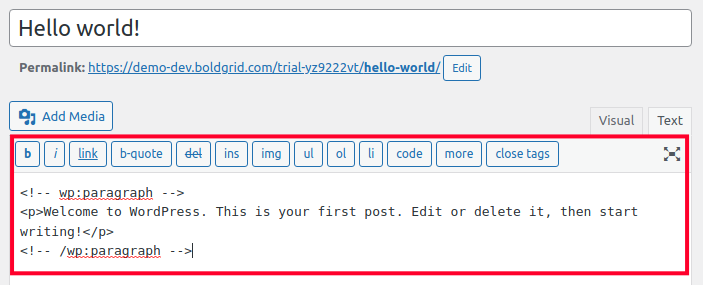
Yes, you can use HTML in WordPress posts. In the post editor, switch to the ‘Text’ tab to add your HTML code. This allows you to customize the appearance and functionality of your content. Make sure to preview your post to ensure the HTML is correctly implemented.
Is It Safe To Edit Theme Html?
Editing theme HTML is safe if done correctly. Always create a child theme to avoid losing changes during updates. Backup your site before editing. Use a staging environment to test changes. This ensures your site remains secure and functional while allowing customization.
Why Add Html To WordPress Theme?
Adding HTML to a WordPress theme allows for greater customization. You can tailor the design to fit your brand’s needs. It enhances functionality and aesthetics beyond default settings. This personalization can improve user experience and engagement on your site.
Conclusion
Adding HTML to a WordPress theme isn’t difficult. Follow steps carefully to avoid errors. First, back up your site. Then, use a child theme for changes. This keeps your original theme safe. Next, access the theme editor in WordPress. Insert HTML code where needed.
Always test changes on a live preview. This ensures everything works smoothly. Keep your HTML code simple and clean. It helps with website performance. Finally, save changes and refresh your site. Your custom HTML should now be active. Enjoy your personalized WordPress theme!


