
Are you ready to give your WordPress site a fresh look by updating those outdated social media icons? Changing social icons on your WordPress theme might seem like a daunting task, especially if you’re not a tech wizard.
But don’t worry! In this guide, we’re going to walk you through the process step-by-step, making it easier than ever to keep your site looking modern and professional. Whether you’re looking to match your brand’s aesthetic or simply want to ensure your social links are current, mastering this skill will empower you to make your site more engaging.
Dive in and discover how simple tweaks can significantly enhance your site’s appeal and user experience. Ready to get started? Let’s make your site shine!
Credit: elfsight.com
Choosing The Right Theme
Choosing a theme with good customization is important. Some themes let you change colors and fonts. Others may not. Look for themes that let you change the social icons. This makes your site look unique. Always check the theme’s settings before you buy it.
Make sure the theme works with social media plugins. Plugins add extra features to your site. Not all themes support every plugin. Check the theme’s plugin compatibility. This will help you avoid problems later. Read reviews to know if others faced issues. A compatible theme makes your work easy.
Accessing The Theme Editor
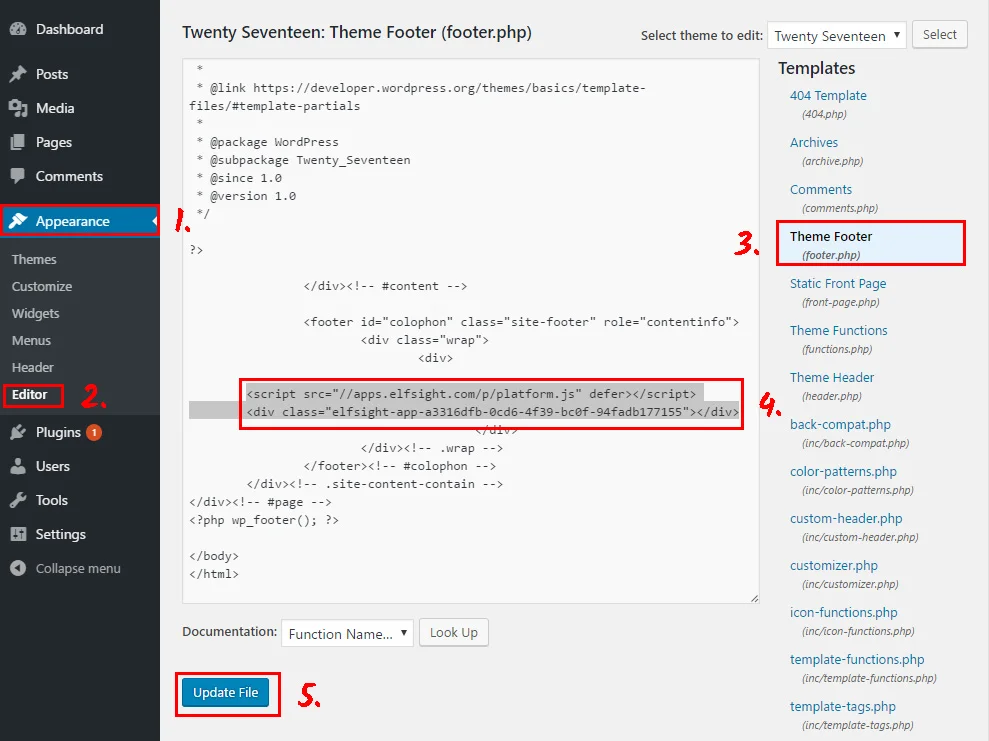
Navigating the WordPress Dashboard is simple. First, log in to your WordPress account. Look for the dashboard on the left side. Find the Appearance tab. Click it. This opens up more options. Choose Theme Editor. This is where changes happen. Be careful here. Changes affect your site.
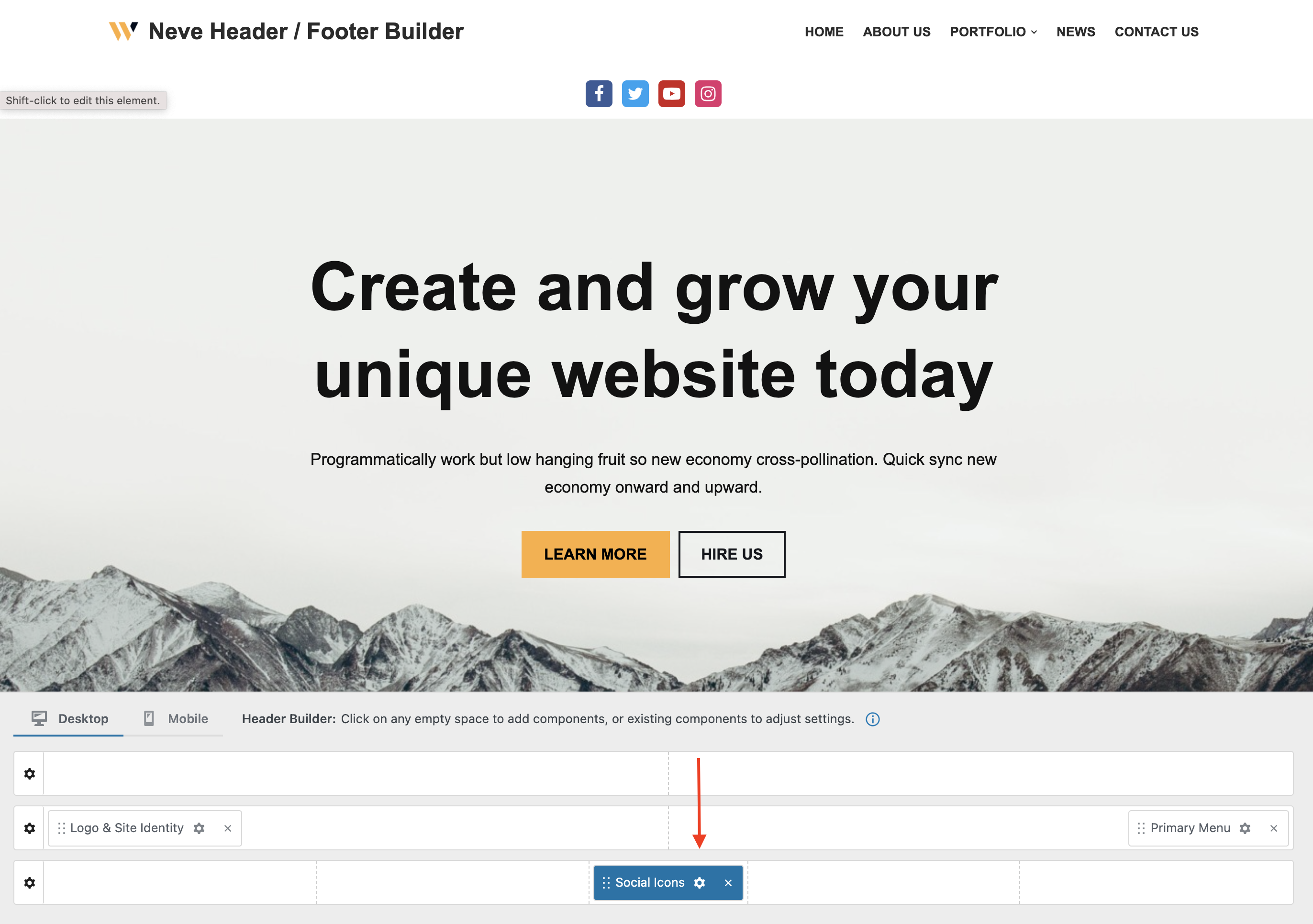
Locating the Theme Customizer is easy too. Start at the dashboard. Click on Appearance again. Find Customize next. Click it. This opens the Theme Customizer. Here, you see options for your theme. Look for social icons. They might be under Widgets or Menus. Find them and make changes. Save your work. Check your site for updates.
Customizing Social Icons
Choose the icon style that matches your theme. It can be round, square, or any other shape. The right style makes your website look nice. Next, decide the icon size. Smaller icons are good for neat looks. Bigger icons grab attention easily. Try different sizes to find the best fit. Sometimes, themes offer preset sizes. Use them for quick setup.
Pick colors that match your website. Bright colors stand out more. Soft colors blend in well. Change the icon shapes if needed. Round shapes feel friendly. Square shapes look modern. Themes often have shape options. Check the settings for these options. Experiment with both colors and shapes. This helps find the best look for your site.
Adding Custom Social Icons
Custom icons make your site unique. First, design your icon or find one online. Save it on your computer. Go to WordPress dashboard. Click on ‘Media’ and then ‘Add New’. Upload your custom icon. Make sure it fits your theme. Use a good size and quality image. This makes your site look professional.
Icon fonts are easy to use. Libraries like Font Awesome offer many icons. First, go to the library website. Find an icon you like. Copy the code provided. Go to WordPress dashboard. Click on ‘Appearance’ and then ‘Editor’. Paste the code in your theme’s header. This adds the icon to your site. Always check how it looks. Make sure it matches your design.
Using Plugins For Enhanced Functionality
Enhancing your WordPress theme by changing social icons is simple with the right plugins. These tools allow easy customization, offering a straightforward way to update your site’s look. Explore various plugins to find the best fit for your design needs.
Top Plugins For Social Media Integration
Choosing the right plugin is important. Some plugins make social media easy. Social Media Share Buttons is popular. It adds icons to your site. Simple Social Icons is another choice. It lets you change icon colors. Monarch offers many features. It includes sharing and following buttons. These plugins help you connect. They make sharing simple for users.
Configuring Plugin Settings
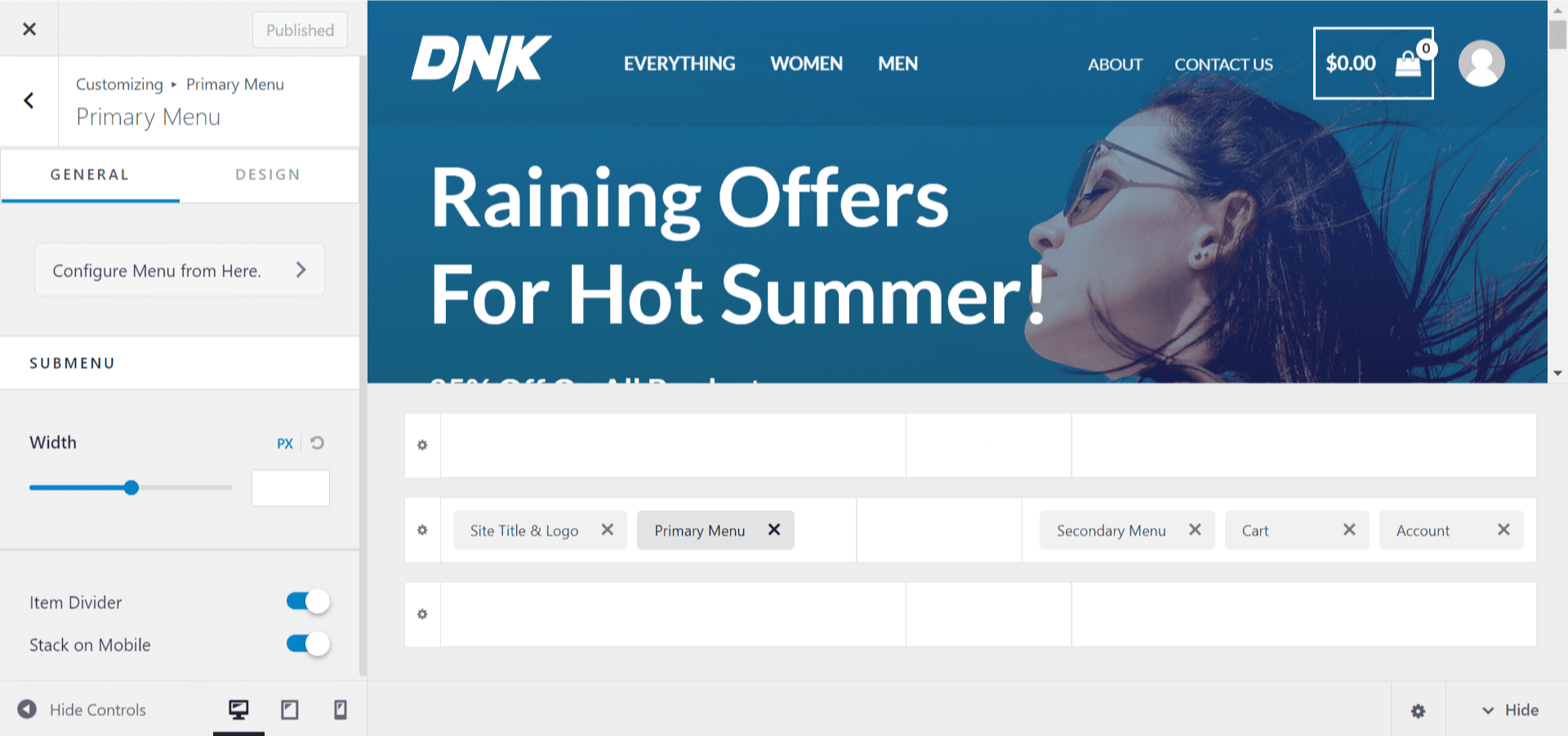
Once a plugin is installed, settings need to be set up. The first step is opening the plugin menu. Most plugins have a settings tab. Look for it on the dashboard. Choose which social networks to show. Pick the icon style you like. Adjust the size and color. Save the settings once finished. This makes the icons appear on your site.
Credit: wpastra.com
Ensuring Mobile Responsiveness
Many people use phones and tablets. It’s important to make sure social icons look good on all devices. Check your icons on both small and large screens. This helps you see if they are too big or too small. Use online tools for testing. These tools can show your site on different devices. This way, you can be sure the icons work everywhere.
Sometimes, icons don’t fit well on small screens. To fix this, change the layout. Keep the icons in a line. Or, stack them if needed. Make sure there is enough space between each icon. This helps users tap the right one. Use CSS to adjust the size and position. Always check after making changes. This ensures everything looks perfect.
Troubleshooting Common Issues
Changing social icons in a WordPress theme can be tricky. Start by accessing the theme customizer from your dashboard. Navigate to social media settings, then select and update the icons as needed.
Resolving Theme Compatibility Problems
Sometimes, themes might not fit perfectly with social icons. This can cause display issues. Always check your theme’s documentation. Some themes need extra plugins for icons. Try updating your theme to the latest version. An outdated theme might have bugs. If problems persist, consider contacting the theme support team. They can provide specific solutions. Changing the theme might be necessary if nothing works.
Fixing Icon Display Errors
Icon display errors can confuse users. Icons might not show correctly or at all. First, ensure your icons are uploaded properly. Check the file format; it should be compatible. SVG and PNG formats are often best. Incorrect HTML or CSS can also be a cause. Verify that all code snippets are correct. Sometimes, cache issues cause errors. Clear your browser cache and refresh the page. This often solves the problem quickly.
Credit: docs.themeisle.com
Best Practices For Social Media Integration
Choose icons that match your brand style. This keeps your site consistent. Use colors that fit your brand’s palette. Consistent colors make your site look professional. Use the same icon shapes across all platforms. Round or square, keep it the same. Ensure the icons’ size fits well with your website. Not too big, not too small.
Make sure icons are easy to see. Use high contrast colors. This helps people with low vision. Add alt text to icons. Screen readers need this for description. Keep enough space between icons. This helps people with motor difficulties. Icons should be easy to click or tap. Test your site with an accessibility tool. Ensure it meets standards.
Frequently Asked Questions
How To Locate Social Icons In WordPress?
To locate social icons in WordPress, navigate to your theme’s customization settings. Look for a section labeled “Social Media” or “Header”. Here, you can often find options to edit or update your social icons. This location can vary depending on the specific theme you’re using.
Can I Customize Social Icons Without Coding?
Yes, you can customize social icons without coding by using WordPress plugins. Plugins like Simple Social Icons or Social Media Widget offer user-friendly interfaces. They allow you to easily change icon styles, sizes, and colors without any coding knowledge. Just install the plugin, and follow the provided instructions.
Which Plugins Help Change Social Icons?
Popular plugins like “Simple Social Icons” and “Social Media Widget” can help change social icons. These plugins are user-friendly and offer customization options for icon style, size, and color. Install them via the WordPress plugin directory and follow their setup instructions for easy customization.
Can I Add New Social Icons?
Yes, you can add new social icons by using theme customization settings or plugins. Locate your theme’s social settings or use plugins like “AddToAny Share Buttons”. These tools allow you to incorporate additional social media icons easily. Follow their instructions to add and customize new icons.
Conclusion
Changing social icons in a WordPress theme is simple and rewarding. It enhances your site’s appearance and usability. Start by selecting the right icons for your brand. Then, follow the steps to integrate them seamlessly. Regular updates ensure everything stays fresh and functional.
Remember to check how they look on different devices. A consistent design builds trust and engagement with visitors. With these tips, you can easily customize your social icons. Enjoy a more personalized and attractive website. Happy customizing!


