
Are you ready to give your WordPress site a fresh new look? Changing your theme can be an exciting way to revamp your website’s appearance and improve user experience.
But what if the usual one-click method isn’t an option? Don’t worry—learning how to change a WordPress theme manually is easier than you might think, and you’re about to discover exactly how to do it. Imagine your website as a virtual storefront; the theme is the display that draws visitors in.
A new theme can enhance functionality, increase engagement, and give your brand a new edge. If you’re concerned about compatibility issues or simply want more control over the process, this guide is perfect for you. It’s designed with you in mind, breaking down each step into simple, manageable tasks. By the end of this article, you’ll have the confidence to switch themes like a pro, ensuring your site looks exactly how you envision it. So, are you ready to unlock the secrets to manually changing your WordPress theme? Dive in to transform your website with ease and precision.
Preparing For The Theme Change
Backing up your website is very important. It keeps your data safe. Use a plugin or do it manually. Save all files and database. This way, you can restore them later. Think of it as a safety net.
Look at your current theme settings. Take notes or screenshots. This helps you remember the design. You won’t lose your favorite settings. Be sure to note any custom CSS.
| Feature | Importance |
|---|---|
| Responsive Design | High |
| SEO Optimization | High |
| Fast Loading Speed | Medium |
| Easy Customization | Medium |
| Plugin Compatibility | High |
Credit: www.hostinger.com
Selecting A New Theme
Start by thinking about your website’s purpose. Choose a theme that matches your style. Make sure the theme is responsive. This means it works on phones and computers. Look for themes with good reviews. Check if the theme has updates. Updated themes are safer.
Visit the WordPress Theme Directory. It offers free themes. Explore trusted marketplaces like ThemeForest. These places sell themes. Look for themes from reputable developers. Check their support options. Reliable themes have good support.
Start by clicking the download button. Save the file on your computer. Make sure it is a .zip file. Keep the file safe. You will need it later. Don’t open the file. Just save it in a place you remember.
Accessing WordPress Files
Discovering how to change a WordPress theme manually involves accessing site files via FTP. Navigate to the WordPress directory, locate the ‘themes’ folder, and upload your new theme files. Ensure you activate the theme through your WordPress dashboard to complete the process.
Using An Ftp Client
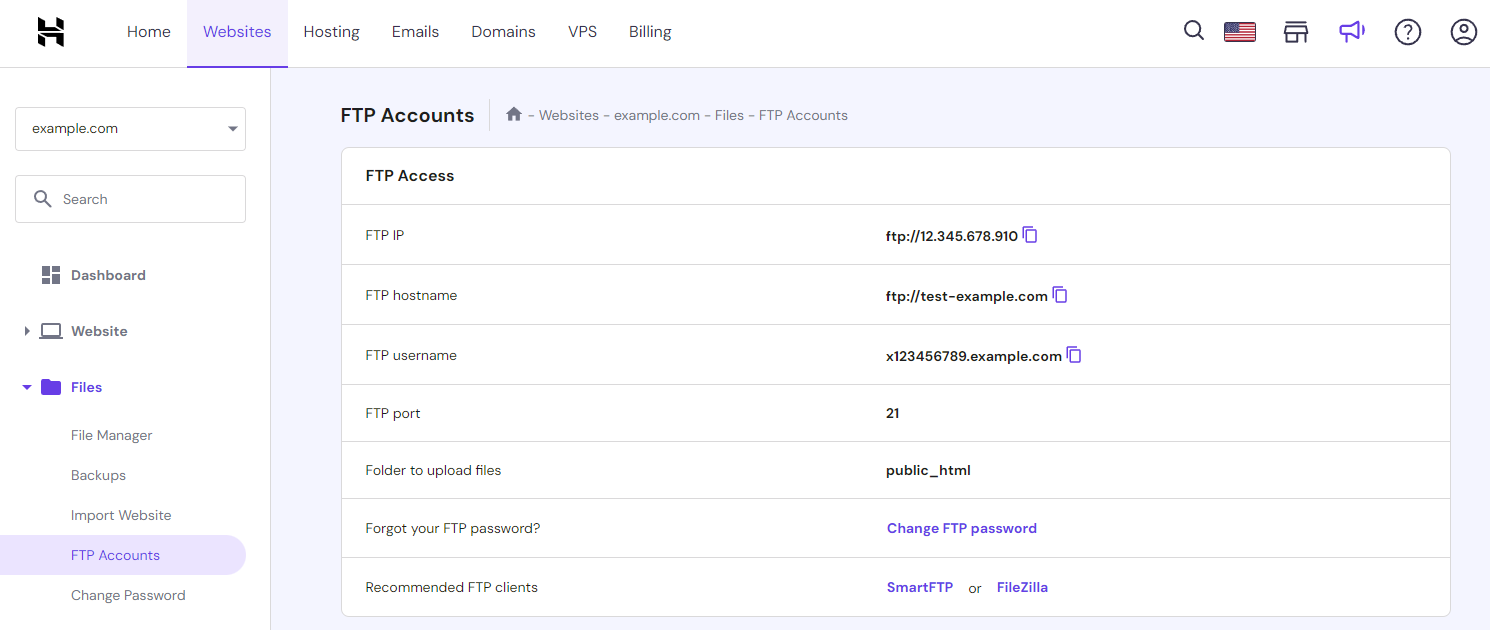
First, download an FTP client like FileZilla. Install it on your computer. Open the FTP client and enter your website’s FTP details. Click connect to access your WordPress files. Navigate to the public_html folder. This is where your website files are stored.
Navigating The File Manager
Log in to your website’s hosting account. Find the File Manager option in the control panel. Open it to see your WordPress files. Look for the public_html directory. This is the main folder for your website.
Finding The Themes Directory
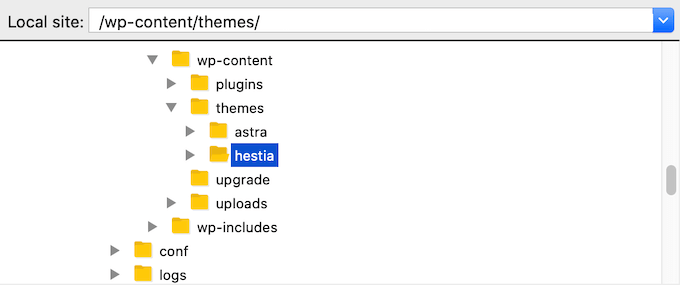
Inside the public_html folder, find the wp-content folder. Open it to see more folders. Find the themes directory inside. This is where all your themes are stored. You can now change your WordPress theme manually.
Credit: 10web.io
Uploading The New Theme
First, unzip the downloaded theme files on your computer. This helps you access the theme folder. Look for a file with the .zip extension. Extract it to a new folder. Ensure the extraction is complete before moving to the next step.
Next, use an FTP client to upload the theme. Connect to your website using your FTP credentials. Find the wp-content/themes directory. Drag and drop the unzipped theme folder here. This step might take a few minutes.
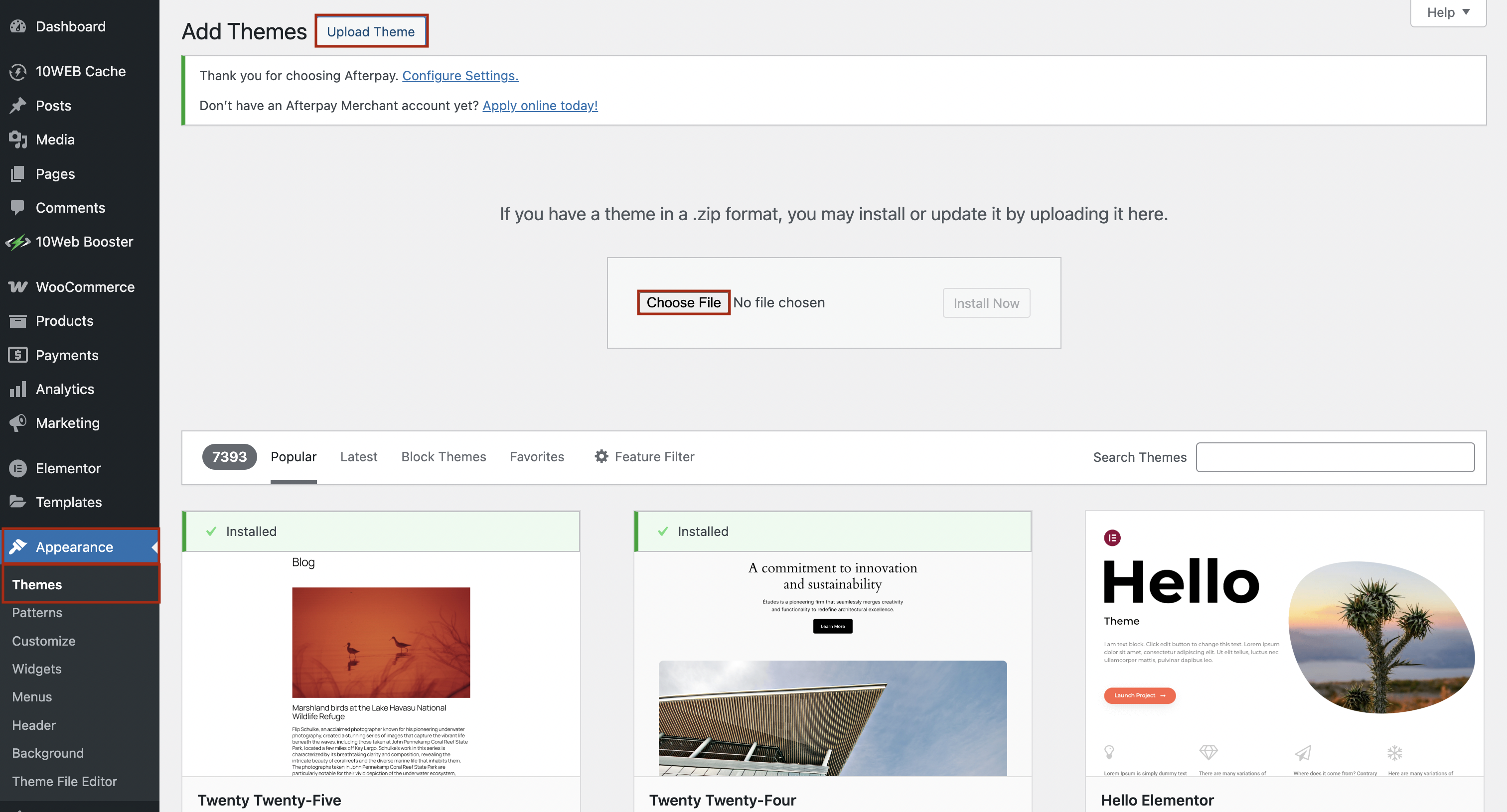
Finally, verify the upload. Go to your WordPress dashboard. Click on Appearance then Themes. Check if the new theme appears in the list. Activate it if everything looks fine. Now, your site should have the new theme.
Activating The New Theme
First, log in to your WordPress Dashboard. Use your username and password. Locate the sidebar menu. Click on Appearance. Then select Themes. This opens the themes page.
On the themes page, find the new theme you want. Hover over the theme image. Click on Activate. This changes your site’s look. Refresh your website to see the changes.
Before activating, check the theme compatibility. Look for any required plugins. Make sure your theme supports your WordPress version. Read user reviews. This helps avoid issues later.
Credit: www.wpbeginner.com
Customizing The New Theme
Start by accessing the theme settings in your WordPress dashboard. Look for options like colors, fonts, and layout. These options let you change how your site looks. Choose colors that match your brand. Pick fonts that are easy to read. Remember, simple designs are often the best.
Go to the Widgets section in your dashboard. Here, you can add or remove widgets. Widgets can be things like a search bar or recent posts. Also, check the Menus section. Make sure all your links work. Arrange them in a way that makes sense.
Open your website on different devices. Try a phone, tablet, and computer. This checks if your site is responsive. A responsive site looks good on all devices. If something looks wrong, adjust your settings. Keep testing until everything looks right.
Troubleshooting Common Issues
Resolving Theme Conflicts can be tricky. Some themes fight with each other. Conflicts may break features. Check theme documentation. See if any features are missing. Switching themes may help. Test your site after each change. Fix any errors you find.
Dealing with Missing Features is important. Check your theme options. Look for missing buttons or menus. Some features hide in settings. Explore all menu tabs. Contact theme support if you need help. They can guide you to find missing parts.
Sometimes, you need to restore from backup. Backups save your site. They help when things go wrong. Always keep a copy of your old theme. Backup tools are easy to use. They save your site with a few clicks. Restoring can fix problems fast.
Frequently Asked Questions
How Do I Change A WordPress Theme Manually?
To change a WordPress theme manually, access your website’s admin dashboard. Navigate to “Appearance” and select “Themes. ” Choose “Add New” to upload a theme file. Activate the theme by clicking “Activate” after installation. Ensure compatibility with your site’s plugins and settings before finalizing.
Can I Change Themes Without Losing Content?
Yes, changing themes doesn’t affect your content. Your posts, pages, and media remain intact. However, theme-specific settings might need adjustments. Backup your site before making changes. Review widgets, menus, and customizations for compatibility with the new theme. This ensures smooth transition without data loss.
What Precautions Should I Take Before Changing Themes?
Before changing themes, backup your website completely. Check theme compatibility with current plugins and settings. Test the new theme on a staging site, if possible. Review widgets, menus, and custom settings. Ensure your new theme is responsive and SEO optimized for better performance.
How Do I Find The Right WordPress Theme?
Finding the right theme involves assessing your site’s purpose and audience. Choose a responsive and SEO-friendly theme. Check reviews and ratings for reliability. Ensure compatibility with your plugins and settings. Consider customization options to match your brand’s style and requirements.
Conclusion
Changing a WordPress theme manually is straightforward. Follow the steps carefully for success. Understand your current theme settings first. Backup your site to prevent data loss. Access your WordPress dashboard, then navigate to the themes section. Choose a theme that suits your style.
Install and activate it. Check your site’s appearance after activation. Make adjustments if necessary. Ensure compatibility with plugins. Regularly update your theme for security. Experiment with designs to enhance your site’s look. Stay patient, and enjoy the creative process. With practice, you’ll confidently manage your WordPress themes.
Happy blogging!


