
Struggling with your WordPress site’s design but worried about breaking it? You’re not alone.
Many website owners want to tweak their site’s appearance without risking the stability of their main theme. That’s where child themes come into play. By learning how to change CSS in a WordPress child theme, you gain the power to customize your site safely and efficiently.
Imagine the satisfaction of transforming your website to perfectly reflect your brand’s personality, all while ensuring your main theme remains intact. Ready to dive in and unleash your creative potential? Let’s get started on this rewarding journey that promises to enhance both your skills and your site’s aesthetics.
What Is A WordPress Child Theme?
A WordPress Child Theme is a theme that copies another theme. It helps keep changes even after updates. This is important for customizing websites. A child theme uses all features of its parent theme. It can have its own files too. These files let you change styles and layouts. This way, you keep the main theme safe. Using a child theme is simple and smart. It lets you try new designs. Your main theme stays unchanged. This is great for beginners and pros. Many people use child themes for their sites.

Credit: jetpack.com
Benefits Of Using A Child Theme
Child themes keep your changes safe. Updates won’t break your site. A parent theme update won’t erase custom work. Easy management of changes. You can test different styles. Modify without harming the main theme. Better control of CSS. You can experiment freely. Revert changes if needed. Learn and grow with CSS skills. Mistakes are less risky. Child themes are beginner-friendly. You can learn theme structure. Great for practice.
Setting Up A Child Theme
Creating a child theme in WordPress lets you safely change CSS without altering the parent theme. Simply copy the style. css file into your child theme folder and make your desired CSS changes. This method keeps your customizations intact during theme updates.
Creating The Child Theme Folder
First, you need to create a new folder. This folder will be for the child theme. Go to your WordPress installation. Find the wp-content/themes directory. In this directory, create a new folder. Name it something like “your-theme-child”. This name should reflect the parent theme.
Adding The Style.css File
After creating the folder, add a new file. The file name should be style.css. This file is important for your child theme. Open the file. Add the following code at the top:
            /
            Theme Name: Your Theme Child
            Template: your-theme
            /
Replace “Your Theme Child” with your child theme name. Replace “your-theme” with your parent theme folder name. Save the file. Now, your child theme is ready.
Accessing The WordPress Theme Editor
First, go to your WordPress dashboard. Find the Appearance tab on the left. Click on it, then select Theme Editor. A new page will open. Here, you can see the theme files. Be careful, these files affect your website.
On the right, there is a list of files. Look for the style.css file. This file controls your theme’s styles. Click on it to open. Now, you can see the CSS code. Make small changes to avoid big mistakes. After editing, click the Update File button. This saves your changes.
Locating Css In The Child Theme
The child theme in WordPress has its own CSS file. This file is usually named style.css. You can find it in the child theme’s folder. This folder is inside the wp-content/themes directory. Use an FTP client or the WordPress theme editor to access it. Look for the Appearance menu in your WordPress dashboard. Click on Theme Editor. You’ll see a list of files on the right side. Find the style.css file there. Click on it to open and view the CSS code. This file controls the look and feel of your child theme. Make changes to this file to adjust the design. Always save your changes before leaving the page. Refresh your website to see the updates. Changes might take a few seconds to appear. Keep your edits simple for easy troubleshooting.

Credit: wpastra.com
Modifying Css Safely
To safely modify CSS in WordPress, use a child theme. This approach keeps original files intact. Simply create a child theme folder, add a style. css file, and customize your styles.
Using Custom Css Section
The Custom CSS Section in WordPress is easy to use. Open your WordPress dashboard. Go to Appearance, then Customize. Look for Additional CSS. This is where you add your custom styles. Type your CSS code here. It’s a safe place for changes. Your main theme stays untouched. This method ensures your site looks good. Changes here are easy to manage.
Editing Style.css Directly
The style.css file is in your child theme folder. You need a File Manager or FTP access. Find the file in wp-content/themes/your-child-theme. Open it and add your CSS rules. Be careful with edits. Always save a backup first. Direct changes affect how your site looks. Mistakes can break your site. Use this method only if you are sure.
Implementing Css Changes
Changing CSS in a WordPress child theme can be simple. Start by accessing the style.css file. This file is in the child theme folder. Use a text editor to open it. Add or modify CSS rules to change the design. Save changes and refresh your website to see them.
Testing Changes In Different Browsers
After making changes, check your website in different browsers. Browsers like Chrome, Firefox, and Safari can display CSS differently. Ensuring your site looks good in all browsers is important. This testing helps in identifying any display issues.
Using Developer Tools For Debugging
Developer tools are valuable for debugging CSS. Open these tools by right-clicking on your page. Choose “Inspect” to see the code. Use the “Console” tab for error messages. The “Elements” tab shows the HTML and CSS. This helps in finding and fixing issues quickly.
Best Practices For Css Changes
Always keep a backup of your CSS files. This helps if things go wrong. Save the original file somewhere safe. You can use a cloud service or a USB stick. This makes it easy to restore your site. Backups are your safety net.
Document every change you make. Write down what you did and why. Use a simple text file or a spreadsheet. This helps you remember your edits. It also helps others who work on the site. Clear notes save time and confusion later.
Troubleshooting Common Issues
Easily update your WordPress child theme’s CSS by accessing the Appearance menu and selecting the Theme Editor. Edit the style. css file to customize your site’s appearance and fix common issues. Always save changes and refresh your site to see the new design.
Css Not Taking Effect
Sometimes, changes in the CSS don’t show up. This can be frustrating. First, clear your browser cache. Browsers save old styles. Refresh the page after clearing the cache. Check if your child theme is active. If not, your changes might not work. Ensure you are editing the right CSS file.
Child Theme Style Overwritten
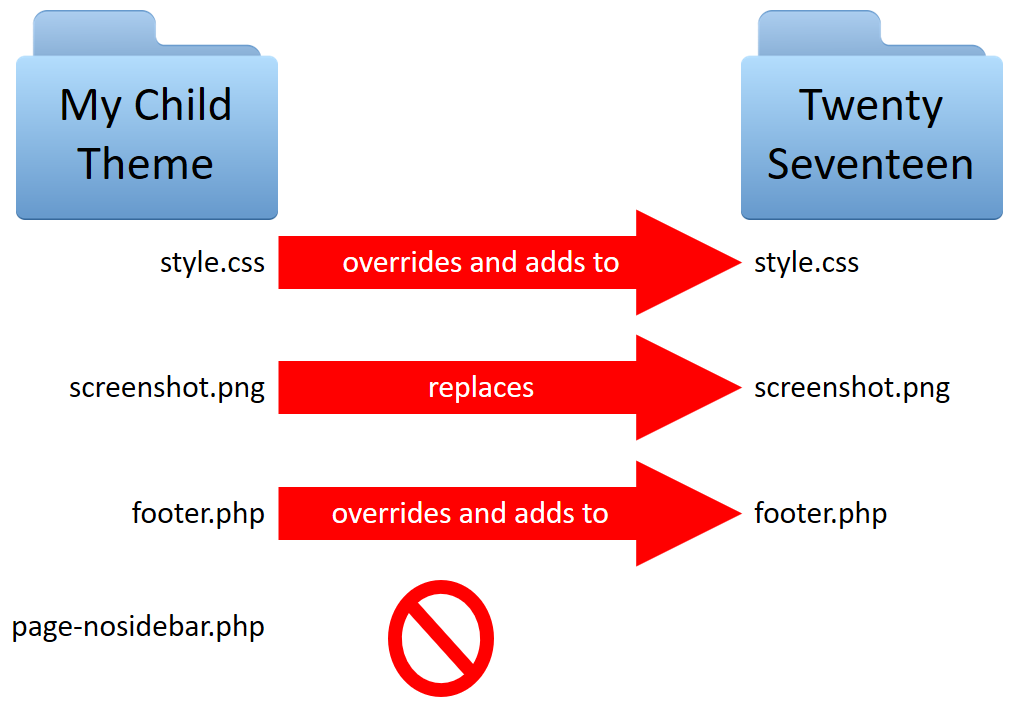
Parent themes can overwrite child theme styles. This happens due to order of loading. Make sure your child theme styles load last. Use the !important rule to keep your styles. This rule makes your styles stronger. Check the functions.php file. Ensure no mistakes in code. Mistakes can stop styles from loading. Confirm your CSS selectors are correct. Wrong selectors won’t change anything.
Credit: learn.wordpress.org
Frequently Asked Questions
What Is A WordPress Child Theme?
A child theme is a WordPress theme that inherits functionality from another theme, called the parent theme. It allows you to modify styles without altering the parent theme. This ensures customizations are preserved during updates. Child themes are ideal for making CSS changes and maintaining website design consistency.
Why Change Css In A Child Theme?
Changing CSS in a child theme is crucial for customization and branding. It allows you to tweak design elements without affecting the parent theme. This ensures your site looks unique and matches your brand identity. Using a child theme ensures updates don’t overwrite your custom CSS changes.
How Do I Access The Child Theme Css?
Access the child theme CSS by navigating to Appearance > Theme Editor in WordPress. Select the style. css file from the right sidebar. Here, you can add or modify CSS rules to adjust the design. Always preview changes before saving to ensure the desired look.
Can I Use Plugins For Css Changes?
Yes, plugins like Simple Custom CSS can help modify CSS without editing theme files directly. These plugins offer user-friendly interfaces for adding custom CSS. They ensure your styles are safely stored and unaffected by theme updates. Plugins are great for beginners wanting quick design tweaks.
Conclusion
Changing CSS in a WordPress child theme is simple. You can enhance your site’s look without affecting the main theme. Customize styles to match your brand. Use the child theme’s stylesheet for safe edits. Always back up your files before starting.
Practice makes perfect; experiment with different styles. Your website reflects your creativity. With these steps, you can confidently update your site’s design. Keep learning and exploring new CSS tricks. Enjoy your web development journey. Happy styling!


