
Have you ever found yourself staring at your WordPress site, wishing you could easily change the title to better reflect your brand or message? You’re not alone.
Many website owners face this challenge, but the solution is simpler than you might think. Imagine the impact of a perfectly tailored title that not only grabs attention but also enhances your site’s search visibility. You’ll discover straightforward steps to change the title in your WordPress theme.
Whether you’re a beginner or an experienced user, this guide will empower you to make your website more appealing and effective. Ready to transform your site’s identity? Let’s dive in!
Accessing WordPress Dashboard
Start by opening your web browser. Type your website’s URL. Add “/wp-admin” at the end. Press “Enter” on your keyboard. A login screen will appear. Enter your username and password. Click on the “Log In” button. You will now see the WordPress Dashboard. The dashboard is where you control your site. It has many options and tools. You can change your site settings here.
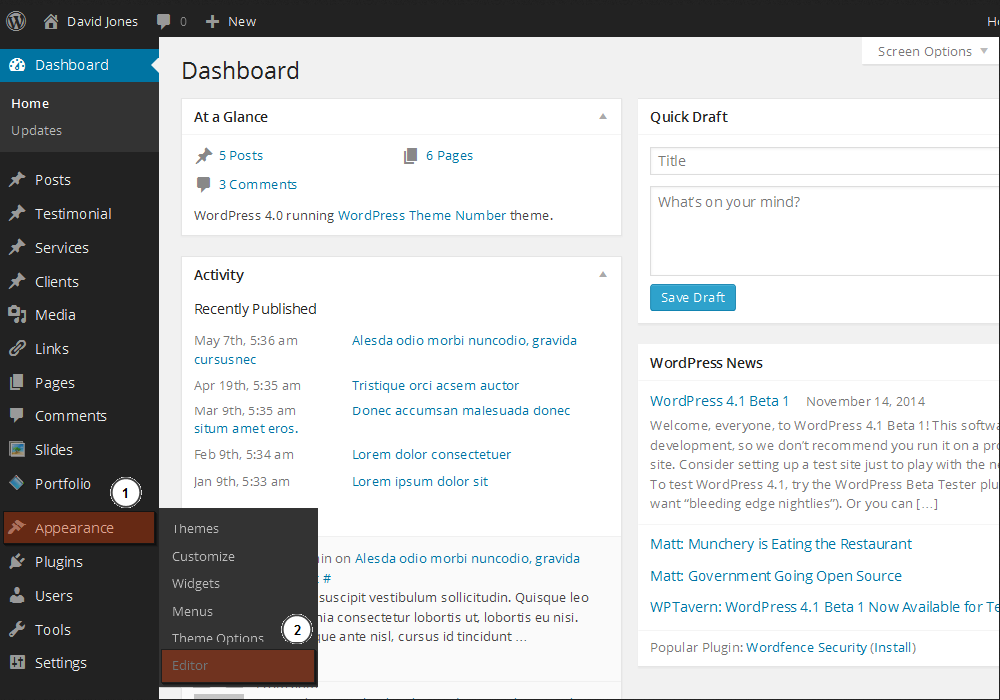
Find the menu on the left side. Look for the “Appearance” option. Click on it. A new menu will open. You can now access the theme settings. This is how you reach the dashboard. From here, you can make changes to your site.
Navigating To Theme Customizer
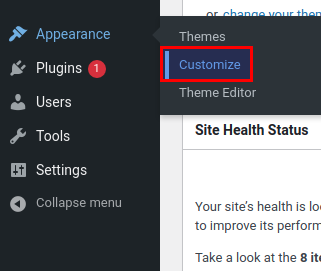
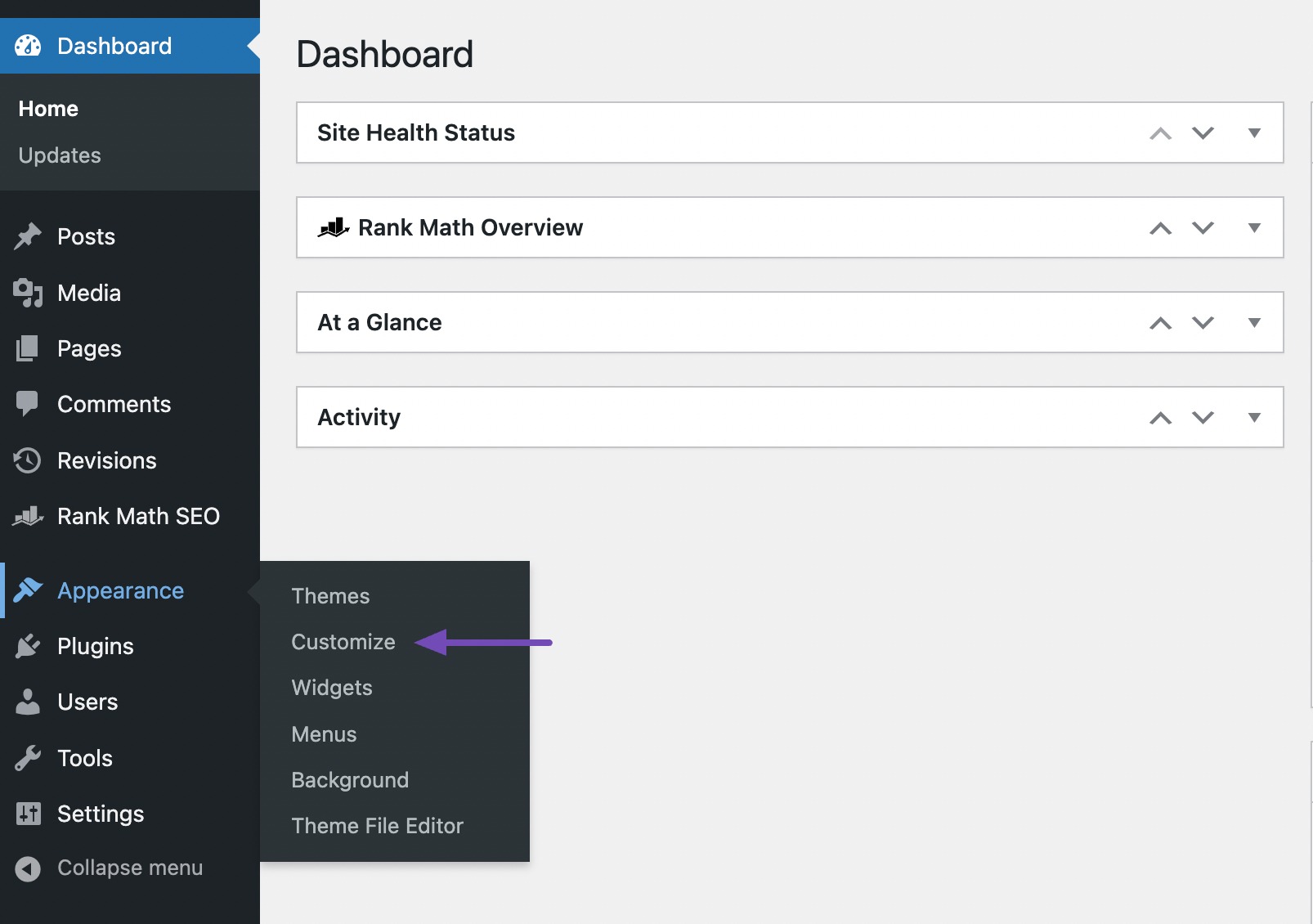
Finding the right spot to edit your site title is easy. First, log into your WordPress dashboard. Look at the menu on the left side. Find the option labeled Appearance. Click it. A dropdown menu will appear. Select Customize from this menu.
The Theme Customizer will open. On the left, see several options. One of them is called Site Identity. Click on it. This is where you can change your site title. You can also update the site tagline here. Remember to save changes. Look for the Publish button and click it when you are done. Your new title will appear live.
Locating The Site Identity Section
First, open your WordPress dashboard. On the left side, find the Appearance tab. Click on it. Then, select Customize. This will take you to the theme settings. Here, find the Site Identity section. It is usually at the top.
Inside this section, you will see the option for Site Title. You can change your title here. Remember to click Save or Publish after making changes. This will update your site with the new title. Always double-check your spelling. A correct title looks professional. Make sure it fits your brand or site theme.
Credit: www.templatemonster.com
Editing The Site Title
To change the title in a WordPress theme, first, go to the Dashboard. Click on Settings and select General. Here, you will see the Site Title box. Enter your new title in this box. Make sure it reflects your site well. This title helps visitors understand your website.
After typing the new title, look for the Save Changes button. Click it to update the title. The new title will now show on your site.
To see the changes, visit your site. You will notice the new title at the top. It should appear on every page. Check to ensure it looks correct. This simple change can make your site look fresh and new.
Using A Child Theme
Customizing your WordPress site is easier with a child theme. It allows safe changes without altering the original theme. To change the title, edit the header file in the child theme. This method keeps your modifications intact during theme updates.
Creating A Child Theme
Creating a child theme helps to keep changes safe. First, make a new folder in the themes directory. Name it something clear. Add a style.css file inside. This file should have theme information. Next, create a functions.php file. This will load the parent theme style. Use enqueue script to do this. A child theme lets you update the parent theme easily. Changes will not be lost.
Modifying The Title In Code
Open the functions.php file in your child theme. Use the wp_title filter to change the title. Add a function to modify the title text. The new function should return the updated title. Save changes and refresh your site. The title should now be different. This method keeps your title safe during updates. Always use a child theme for changes.
Credit: www.inmotionhosting.com
Utilizing Plugins
Changing the title in a WordPress theme is simple with plugins. These tools allow you to edit titles easily without altering the code. Just install the right plugin, and you can customize your site’s title in no time.
Recommended Plugins
To change a title in WordPress, use plugins. Plugins are easy tools. They help you make changes. Some plugins are very popular. Yoast SEO is a favorite. It helps with titles and more. Another one is All in One SEO Pack. It is simple and useful. Both plugins are free. You can find them in the WordPress directory.
Step-by-step Plugin Setup
First, go to the WordPress dashboard. Find the plugins section. Click on “Add New”. In the search bar, type the plugin name. Click “Install” for the chosen plugin. After installing, click “Activate”. Now, go to the plugin settings. Change the title as you wish. Save your changes. Check your website for updates. The title should now be new.
Troubleshooting Common Issues
Changing the title in a WordPress theme often involves navigating to the WordPress Dashboard. Locate the “Appearance” section, select “Customize,” and find the “Site Identity” option. Here, you can easily update your site’s title and tagline. Ensure to save changes for them to reflect immediately.
Title Not Updating
The title might not update due to theme settings. Check your theme options. Ensure changes save properly. Look at the customizer. Sometimes it doesn’t reflect updates instantly. Clear your browser cache. This helps see new changes. Use a different browser to check updates. Check if your theme supports title changes. Some themes might have restrictions. Seek theme documentation for more guidance.
Conflicts With Other Plugins
Plugin conflicts often block updates. Turn off each plugin one by one. See if the title changes when plugins are off. Some plugins interfere with theme settings. Check plugin settings for conflicts. Update plugins regularly. Outdated plugins cause issues. Use plugins compatible with your WordPress version. Consult plugin support if conflicts persist.
Credit: rankmath.com
Best Practices For Seo
Pick a title that is both clear and unique. It should describe the page content well. Use keywords that people search for. This helps search engines find your page.
Titles should be short and catchy. Keep them under 60 characters. This way, they fit well in search results.
Think about your brand too. Include your brand name if it adds value. This helps people recognize your website.
Use relevant keywords without stuffing. Too many keywords can confuse readers. Make sure they flow naturally in the title.
Combine keywords with your brand. This creates a strong connection. People will remember your brand when they see it.
Frequently Asked Questions
How Do I Change My WordPress Site Title?
To change your WordPress site title, go to your dashboard. Navigate to Settings > General. Here, you can update the Site Title field. Don’t forget to save your changes. This will update your site’s title across all pages and posts.
Can I Modify The Theme Title Easily?
Yes, you can modify the theme title easily through WordPress settings. Simply access the Appearance > Customize menu. Select “Site Identity” and change the title as needed. Save your changes to ensure they reflect on your site.
Why Should I Change My WordPress Title?
Changing your WordPress title can improve SEO and user experience. A clear, descriptive title helps search engines and visitors understand your site’s content. It can also enhance branding and recognition.
Is Changing The Title Different From Changing The Tagline?
Yes, changing the title differs from changing the tagline. The title is your site’s name, while the tagline is a short description. Both can be altered in Settings > General. Ensure both complement each other for effective branding.
Conclusion
Changing your WordPress theme’s title is straightforward. Follow the steps outlined. Use your dashboard for easy access. Navigate to the theme settings. Make sure you save changes. Test your site to ensure it looks right. Refresh your page to view updates.
Remember, titles impact your site’s identity. Keep them relevant and concise. Check for errors before finalizing. A good title attracts visitors and improves SEO. Practice makes it easier over time. Explore more options in WordPress settings. Your site’s title should reflect your content.
Stay consistent and clear. Enjoy customizing your WordPress theme!


