
Ever stared at your WordPress site and felt that the colors just don’t quite reflect your brand or vibe? You’re not alone.
The colors of your website are more than just a design choice—they’re a powerful tool to influence your readers’ emotions and actions. Imagine your website radiating the exact mood and energy you want your visitors to feel. Sounds perfect, right?
Changing the color scheme of your WordPress theme might seem daunting, but it doesn’t have to be. With a few simple steps, you can transform your site’s appearance and make a lasting impression. Dive into this guide, and discover how easy it is to give your website the vibrant makeover it deserves. Your readers will thank you, and you’ll love the fresh, new look!
Choosing The Right Theme
Picking a theme is like choosing a shirt. It needs to fit well. Some themes have built-in color options. These are easy to use. Check if your theme has these settings. Not all themes do. Look for a theme with flexible color options. This will make changes easier.
Most themes have a settings panel. Find the panel in your WordPress dashboard. Look for color settings there. You can change colors for the background, text, and buttons. Experiment with different colors. See what looks best. Remember, bright colors can be hard to read.
Not all themes support color changes. Some themes are very basic. They don’t allow much customization. Check the theme description before installing. Read user reviews too. They can give clues about theme limitations. Choose a theme that supports changes. This saves time later.
Accessing Theme Customizer
Begin by locating the Appearance option in your WordPress dashboard. This is where you can start making changes to your theme. Click on it, and you’ll see a menu with various settings.
The Appearance section is usually found on the left side. It’s easy to spot among other options like Plugins and Settings. Once you click on Appearance, look for the Customize button. This leads you to the Theme Customizer.
The Customizer offers several tools to change your theme’s look. You can adjust colors, fonts, and other design elements. Use the Color option to modify your theme’s colors. Experiment with different shades until you find the perfect one.
Remember to save your changes. This ensures your new colors appear on your site. Always check the preview to see how your adjustments look live. This helps in making sure everything is perfect.
Using Customizer For Color Changes
Open the WordPress dashboard. Locate the Appearance option. Click on Customize. This opens the customizer panel. Look for Colors or Color Settings. Themes may have different names.
Finding Color Settings
Search for Colors in the customizer. It might be under General settings. Some themes have specific color sections. Click to open the color options. Choose the element you want to change. Examples: background, text, or links.
Previewing Changes In Real-time
Pick a new color. The preview changes instantly. You see how it looks before saving. Adjust colors until satisfied. Changes appear live on the right. Don’t forget to hit Publish. Save your changes.
Changing Colors With Custom Css
Custom CSS allows easy color change on WordPress themes. Access the theme editor, locate the CSS file, and modify color codes. Use hex codes for precise color selections, enhancing your site’s visual appeal effectively.
Activating Additional Css
To change colors, use the WordPress Customizer. First, go to your dashboard. Click on Appearance. Then, select Customize. Look for the Additional CSS section. Click on it. A new box will appear. This is where you will enter your CSS code. Make sure to save your changes.
Writing Css For Color Modification
CSS is like a paintbrush for your website. You can use it to change colors. For example, to change the background color, use body { background-color: #yourcolor; }. Replace #yourcolor with a color code. You can change text color too. Use p { color: #yourcolor; }. Always remember to save your work.
Utilizing WordPress Plugins
Choosing the right plugin is very important. Many plugins help change colors. Some plugins are free. Others need money. Look for plugins with good reviews. Check if many people use them. Many users mean it works well. Make sure the plugin works with your WordPress version. A plugin must be safe. It should not hurt your website. Always check if the plugin updates often.
First, go to your WordPress dashboard. Click on “Plugins”. Then, click “Add New”. Search for the plugin you want. Once you find it, click “Install Now”. Wait for it to finish. After installing, click “Activate”. This will make the plugin work. You can now change colors on your theme. Always check plugin settings. Make sure everything is set correctly.
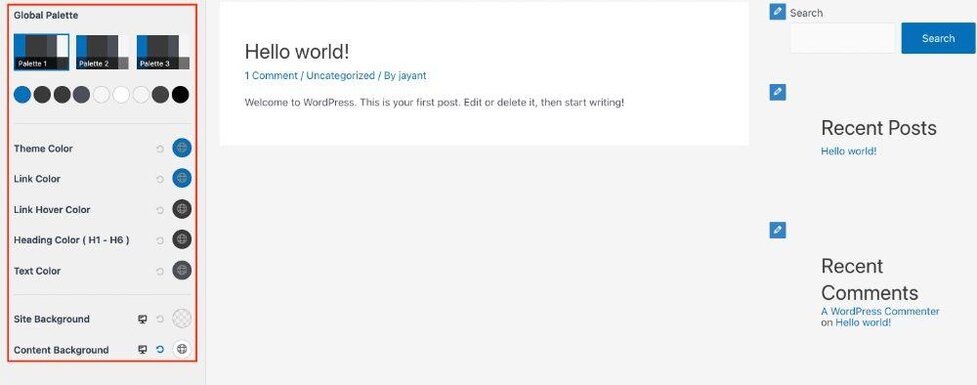
Credit: wpastra.com
Troubleshooting Common Issues
Changing the color on a WordPress theme can be tricky. Access the theme customizer from your dashboard. Navigate to the ‘Colors’ section and choose your desired shade. Save the changes to see the new look on your site.
Resolving Color Conflicts
Color conflicts can make your site look strange. Check your theme settings. Make sure you have the right color codes. Use the Customizer to adjust colors. Sometimes plugins cause problems. Disable plugins one by one to find the issue. Refresh your page often. This helps see changes quickly. If conflicts persist, reach out to support. They can guide you through complex issues. Always keep backup copies of your theme. This prevents loss of work.
Ensuring Browser Compatibility
Colors may look different in other browsers. Test your site on popular browsers like Chrome and Firefox. Check if colors appear correctly. Update your browser regularly. Old versions can cause errors. Use browser tools to see how your site looks. Browser extensions can help solve color issues. Make sure your theme supports all browsers. This ensures a consistent look everywhere. Ask for feedback from friends. Different people use different browsers.
Maintaining Theme Updates
Keeping your theme updated is very important. Updates fix bugs and add new features. They also help keep your website safe. To update your theme, go to your WordPress dashboard. Click on “Updates” and follow the steps. Check your site after updates. Make sure everything works fine.
Keeping Theme Updated
Always back up your website before updating. A backup helps if something goes wrong. Use a plugin for backups. It makes the job easy. Regular updates keep your site fresh and secure.
Managing Changes Post-update
Check your website’s design after an update. Some updates may change how things look. Adjust colors and settings as needed. Use the theme customizer in WordPress. This tool helps you make quick changes. Keep an eye on plugins too. They need updates to match the theme.

Credit: doc.seatheme.net

Credit: qodeinteractive.com
Frequently Asked Questions
How Do I Change Theme Color In WordPress?
To change your WordPress theme color, navigate to Appearance > Customize. Select ‘Colors’ or ‘Theme Options’ from the menu. Adjust the color settings according to your preference. Preview the changes and click ‘Publish’ to save them. Some themes may offer limited color customization options.
Can I Use Custom Colors In WordPress?
Yes, you can use custom colors in WordPress. Access the Customizer by going to Appearance > Customize. In the ‘Colors’ section, use the color picker to select your preferred hues. Save your changes by clicking ‘Publish’. You can also use custom CSS for more advanced color adjustments.
Why Can’t I Change My Theme Color?
Some themes have restricted color options due to design constraints. Ensure your theme supports color customization by checking its documentation. If unavailable, consider switching to a theme that offers more flexibility. Alternatively, use custom CSS or a child theme to modify the color settings.
Is A Plugin Needed For Color Change?
Not necessarily. Most themes allow color changes directly through the Customizer. However, some advanced changes may require a plugin. Plugins like ‘SiteOrigin CSS’ or ‘YellowPencil’ offer comprehensive design customization options. Use plugins wisely to avoid conflicts and keep your site optimized.
Conclusion
Changing your WordPress theme color can enhance your site’s look. It’s simple and improves user experience. Follow steps carefully to make changes smoothly. Customizing colors can reflect your brand better. Experiment with different shades and find what suits your style.
Ensure readability for all visitors. A visually appealing website attracts more attention. Keep it consistent and professional. Test your changes across devices. This ensures everything appears correctly everywhere. With practice, you’ll get comfortable customizing your theme. Start with small changes.
Gradually, you’ll gain confidence in your design skills. Happy designing!


