
Imagine landing on your WordPress site and being greeted by a unique, personalized background that instantly captures your attention. This is the kind of experience you can create for your visitors by adding a custom background to your WordPress theme.
It’s easier than you might think, and it can significantly enhance the visual appeal of your site. Whether you want to reflect your brand’s identity or simply add a touch of creativity, customizing your background can make a significant impact.
You’ll discover step-by-step instructions on how to easily add a custom background to your WordPress theme. Get ready to transform your website into a visual masterpiece that keeps your audience engaged and eager to explore more.
Credit: redclaycreative.com
Choosing The Right Theme
Picking a theme is fun. But check compatibility first. Some themes let you change the background easily. Others might not. Look for a theme that supports custom backgrounds. This makes your job simpler.
Check if your theme has updates. Themes without updates can cause problems. They might not work with new WordPress versions. This can break your site. Always pick a well-supported theme.
Think about your website’s look and feel. The background should match your style. Pick colors that go well together. Bright colors can be fun but not always right. Sometimes, a simple color works best.
Consider the readability of your content. A busy background can be hard to read. Keep it clean and easy to read. Your audience will appreciate it.
Preparing Your Background Image
Choosing the right image resolution is crucial. High-quality images make your site look professional. Low-resolution images can appear blurry and unappealing. Always select images that are at least 1200 pixels wide. This ensures clarity on different devices. Larger images might slow your site down. Check image size before uploading. Balance quality and size.
Images come in different formats. Common formats include JPEG, PNG, and GIF. JPEG files are great for photos. They offer good quality and small file size. PNG files are perfect for images with text. They support transparency. GIF files can be used for simple animations. Always choose the right format for your needs. Consider file size and quality.
Using WordPress Customizer
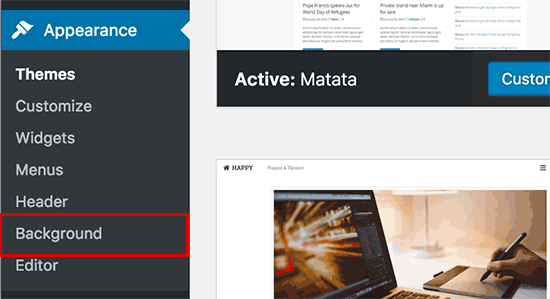
First, go to your WordPress dashboard. Find the Appearance menu. Click on it. Next, select Customize. The WordPress Customizer will open. You can see many options here. These options help change your site’s look.
In the Customizer, find Background Image. Click on it. Then, click Add New Image. Choose the image you want. Make sure the image is clear. This image will be your background. Upload it from your computer. Wait for it to finish uploading. Once done, your image will appear.
After uploading, look for Image Settings. You can change how the image looks. Choose Repeat to fill the screen. Use Position to move it around. Try Attachment to fix it in place. Play with these settings. Find what looks best for you.

Credit: www.youtube.com
Css Customization
Easily change the look of your WordPress theme by adding a custom background. Use CSS to enhance visual appeal. A unique background can make your site stand out.
Adding Custom Css
Custom CSS can make your website look unique. You can add new styles easily. WordPress allows you to add Custom CSS through the Customizer. Open your WordPress dashboard. Navigate to Appearance, then Customize. Click on Additional CSS to open the custom CSS editor.
Copy your CSS code and paste it here. Click Publish to save changes. Your website will now display the new styles. Always check the preview before publishing. This ensures everything looks correct. Custom CSS offers endless styling options. Make sure to check compatibility with different devices.
Positioning And Sizing
Positioning helps place elements on the page. You can use CSS properties like margin, padding, and position. These help in aligning elements. Sizing controls the width and height. Use CSS units like pixels or percentages. This helps in creating responsive designs. Ensure elements look good on all screens.
Avoid using large sizes for small screens. Test your design on different devices. You can use the browser’s developer tools for this. Good positioning and sizing enhance user experience. Always aim for balance and symmetry. This makes your site more visually appealing.
Using Plugins For Backgrounds
Enhance your WordPress site by adding custom backgrounds effortlessly using plugins. These tools simplify the process, offering diverse options and easy customization. Create a unique look without coding skills, making your website visually appealing and engaging for visitors.
Recommended Plugins
Adding a custom background is easy with plugins. Custom Backgrounds and Background Manager are great choices. These plugins are user-friendly. They provide many background options. You can find them in the WordPress plugin directory. Choose the one that fits your needs best.
Plugin Installation
First, go to your WordPress dashboard. Click on “Plugins” and then “Add New.” Use the search bar. Type the name of your chosen plugin. Click “Install Now.” After installation, don’t forget to click “Activate.” Your plugin is now ready to use.
Setting Up Backgrounds
Visit the plugin settings. Look for “Background” options. Choose a background type. You can select an image or a color. Adjust the settings to your liking. Save your changes. Check your site to see the new background.
Testing Your Custom Background
Easily personalize your WordPress theme by adding a custom background. Upload your favorite image or choose a color. This simple change can enhance your website’s appearance, making it more engaging for visitors.
Cross-device Compatibility
Custom backgrounds should look good on all devices. Check on a phone, tablet, and computer. Each device may show the background differently. Make sure text is clear and easy to read. Images should not be stretched or blurry. Responsive design is key for a nice look.
Performance Considerations
Large images can slow down your site. Optimize images for faster loading. Use formats like JPEG or PNG. Avoid using too many images. This can make the site heavy. Fast loading is important for user experience. Test site speed using online tools. Adjust as needed to keep it fast.
Troubleshooting Common Issues
Sometimes, the image won’t show up. Check if the file is uploaded. Ensure the file path is correct. Also, the image format should be supported. Most themes support JPEG and PNG. Check the theme settings. They might block images. Also, see if the image size is too big.
Overlapping can make the site look messy. Use the right CSS code to fix this. Look at the theme’s style sheet. Ensure no extra code causes the overlap. Check the z-index property. It decides which layer shows first. Adjust it to fix the order of layers.
Credit: www.youtube.com
Frequently Asked Questions
How Do I Change The Background In WordPress?
To change the background in WordPress, navigate to the “Appearance” section in the dashboard. Select “Customize” and then choose “Background” to upload your custom image or color. Save the changes to update your theme’s background.
Can I Use Any Image For WordPress Background?
Yes, you can use any image for your WordPress background. However, ensure the image is high-quality and optimized for web use. Large images can slow down your site. Always check for proper resolution and file size before uploading.
Are Plugins Required For Custom Backgrounds?
Plugins are not mandatory for custom backgrounds, but they can enhance functionality. Many themes offer built-in options for background customization. If your theme lacks this feature, plugins like “Advanced WordPress Backgrounds” can provide additional customization options.
What Is The Ideal Background Image Size?
The ideal background image size depends on your theme’s layout. Generally, images should be at least 1920×1080 pixels for full-screen backgrounds. Always compress images to reduce loading times. Use tools like TinyPNG or JPEGmini to optimize your image files.
Conclusion
Adding a custom background to your WordPress theme is simple. It transforms the look of your site. Tailor it to reflect your brand’s personality. A unique background makes your site stand out. Engage visitors with visual appeal. Follow steps carefully for best results.
Experiment with different styles. Find what suits your site best. Remember, consistency is key. Keep background aligned with your site’s theme. Avoid clutter for a clean look. This improves user experience. A well-chosen background enhances content visibility. Make your site inviting and professional.
Enjoy the creative process. Happy designing!


