
Have you ever found yourself overwhelmed by the clutter of unused images on your WordPress site? You upload a picture, use it for a post, and then it just sits there, taking up space.
With time, these forgotten files can slow down your website and affect its performance. But what if there was a simple way to clear these pictures from your media library after you’ve used them? Imagine a faster, cleaner, and more organized site that not only boosts your SEO but also enhances the user experience.
You’re about to discover how to effortlessly manage your media files, ensuring that every image you upload serves its purpose without dragging your site down. This isn’t just about tidying up; it’s about optimizing your digital space to keep your website running smoothly and efficiently. Are you ready to transform your WordPress site into a lean, mean, content-delivering machine? Let’s dive in and uncover the secrets to maintaining a clutter-free media library!
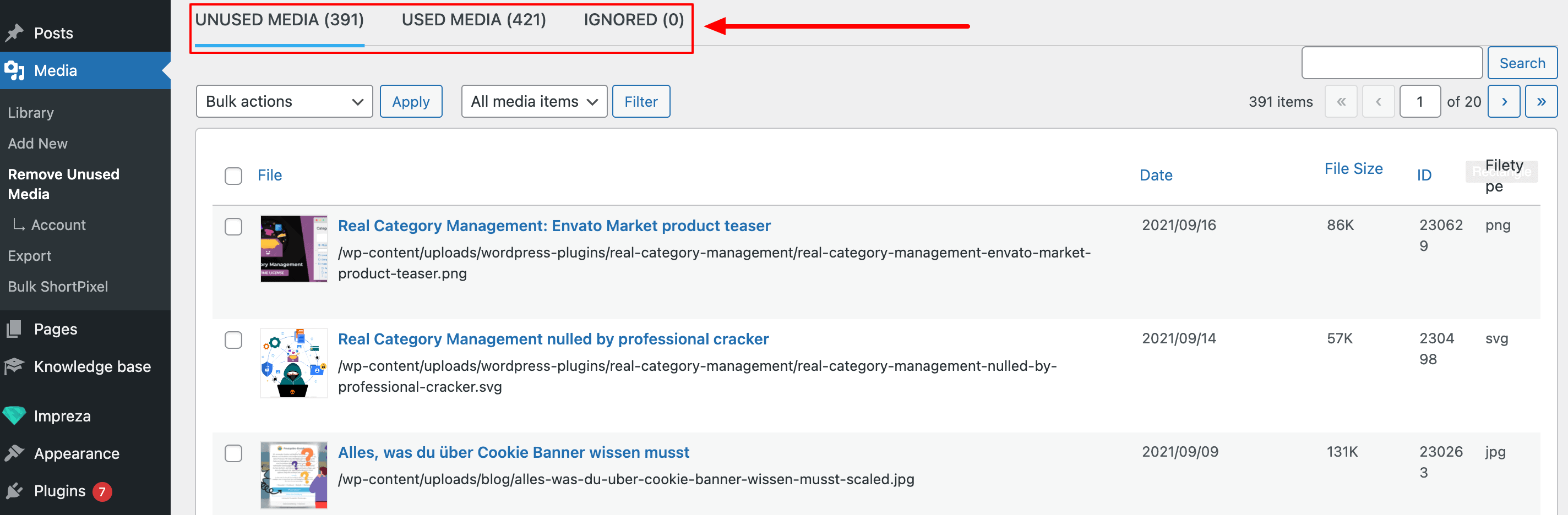
Credit: devowl.io
Importance Of Media Management
Managing media well is very important. It keeps your WordPress site clean and fast. Unused images take up space. They make your website load slow. Slow websites lose visitors. Regularly clearing unused pictures helps. It saves space on your server. It makes your site perform better. Better performance means happy visitors. Happy visitors stay longer and come back.
Organizing media files is also key. It makes finding files easy. This saves you time. A tidy media library is like a tidy room. Everything is in its place. This helps you work better and faster. Keep your WordPress site neat. Clean it up often. Your site will thank you for it.
Common Issues With Unused Media
Unused media files can clutter your site. They take up space. This can slow down your website. Old images from past posts may not be needed anymore. They can cause confusion. You might accidentally use the wrong image in a new post. Unused media can also make backups take longer. This is because there are more files to save. Search engines might see these files as clutter. This can affect your site’s SEO. Clearing unused media helps keep things organized. It makes managing your site easier. Always check before deleting. You don’t want to remove a needed file by mistake.
Manual Deletion Process
Unused media can slow your website. First, check your media library. Look for images not used in posts or pages. The media library shows all your images. It’s like a big photo album. Check each image one by one. Find out if it is used or not. This helps to keep your site neat and tidy.
Open your WordPress dashboard. Click on the media library. Choose the image you want to delete. Make sure it’s not used anywhere. Click the Delete Permanently button. Repeat these steps for other unused images. This process is easy and keeps your site clean. Be careful not to delete important images. Always double-check before deleting. This saves time and trouble later.

Credit: jetpack.com
Using Plugins For Media Cleanup
Media cleanup plugins help remove unused pictures. These plugins are easy to use. Some of the popular plugins are Media Cleaner and WP-Optimize. They check your media library for extra files. These plugins help keep your website neat and fast.
Find the right plugin in the WordPress Plugin Store. Click “Install Now” to begin. Once installed, press “Activate.” Open the plugin settings. Follow the steps to scan and delete extra pictures. Always backup your website first. This keeps your files safe. Removing extra pictures helps your website run faster.
Automating Media Cleanup
Regular cleanups keep your WordPress media tidy. Set up a schedule. Choose a day each week or month. Your media will stay organized.
Automation helps save time. You don’t need to check each file. It’s done for you. Peace of mind.
Automation reduces errors. Old files are gone. New space for fresh content. Your site stays fast.
Less clutter means easier media management. Find what you need quickly. You focus on creating, not cleaning.
Backup Strategies Before Deletion
Backing up photos is very important. It keeps your work safe. Computers can break. Files can disappear. With a backup, you won’t lose anything. You can find your photos anytime. It feels better to know your work is safe. Backups stop big problems. They help you sleep better at night.
There are many ways to save your photos. You can use a USB drive. It’s small and easy to carry. Cloud storage is another way. It keeps files online. Services like Google Drive and Dropbox help. They are easy to use. Another option is an external hard drive. It holds a lot of data. Choose the way that fits you best.
Best Practices For Media Management
Organizing your media library is very important. Sort images into folders. Use names that make sense. This helps find pictures later. Use tags for more help. Tags describe the picture. They make searching easy. Keep your library clean and tidy. This saves time.
Check your media library often. Delete unused images. This frees up space. Space is valuable. Keep only what is needed. Unused pictures can slow down your site. Regular cleanup helps your site run better. It makes everything faster.
Troubleshooting Common Problems
Deleting images from the media library in WordPress frees up storage. Navigate to the Media Library, select unwanted images, and click ‘Delete’. Keep your site organized and efficient.
What To Do If Media Is Accidentally Deleted
Accidentally deleting media can feel scary. Check the trash folder first. WordPress saves deleted items there. If it’s gone, try restoring from a backup. Many hosting services offer regular backups. You can also use backup plugins like UpdraftPlus. They help restore lost media files. Always keep a backup before deleting anything. This protects your important files from loss. If you need help, ask a WordPress expert. They can guide you through the process.
Resolving Plugin Conflicts
Plugins sometimes cause conflicts. This can make media disappear. Try deactivating recent plugins one by one. This helps find the troublemaker. Check if the media returns after deactivating. If it does, the plugin might be faulty. Contact the plugin developer for support. They might have updates or fixes. Always use plugins with good ratings. This reduces the chance of conflicts. Keep WordPress and plugins updated. This ensures smooth functioning without issues.
Credit: www.isitwp.com
Frequently Asked Questions
How To Delete Used Media In WordPress?
To delete used media in WordPress, navigate to the Media Library. Select the images you want to remove. Click ‘Delete Permanently’ to clear them from your site. Ensure they’re not linked or used elsewhere before deleting.
Can I Automate Media Deletion In WordPress?
Yes, you can automate media deletion using plugins like Media Cleaner. These plugins identify unused media and delete them. Always backup your site before using such tools to prevent accidental loss.
Why Should I Remove Unused Media?
Removing unused media saves storage space and improves site performance. It keeps your media library organized and reduces backup sizes. Regularly clearing unused images can enhance your site’s SEO.
What Happens If I Delete Media By Mistake?
If media is deleted by mistake, it can be restored from backups. Use reliable backup plugins to regularly save your site’s data. Consider plugins like UpdraftPlus for easy restoration.
Conclusion
Deleting unused media keeps your WordPress site tidy. It saves space and boosts speed. Regular cleanup prevents clutter and confusion. Always backup before deleting. Mistakes can happen. Plugins can help automate the process. They make it simpler and faster. A clean media library improves your site’s performance.
Visitors enjoy faster loading times. You save server resources too. Keep your site efficient with routine maintenance. Stay organized and focused. This way, you manage your content better. Your WordPress site remains in top shape. Happy blogging!


