
Are you feeling overwhelmed by your current WordPress theme and wish to start fresh? Maybe your website isn’t performing as well as you’d hoped, or perhaps you simply crave a new look.
Whatever the reason, resetting your WordPress theme can breathe new life into your online presence. But before diving in, you might wonder, “How do I do this without losing my valuable content? ” Don’t worry—this guide will walk you through the process step-by-step, ensuring a smooth transition.
By the end of this article, you’ll be ready to hit the reset button with confidence and give your website the makeover it deserves. Your path to a refreshed digital space starts here. Curious to learn how? Let’s get started!
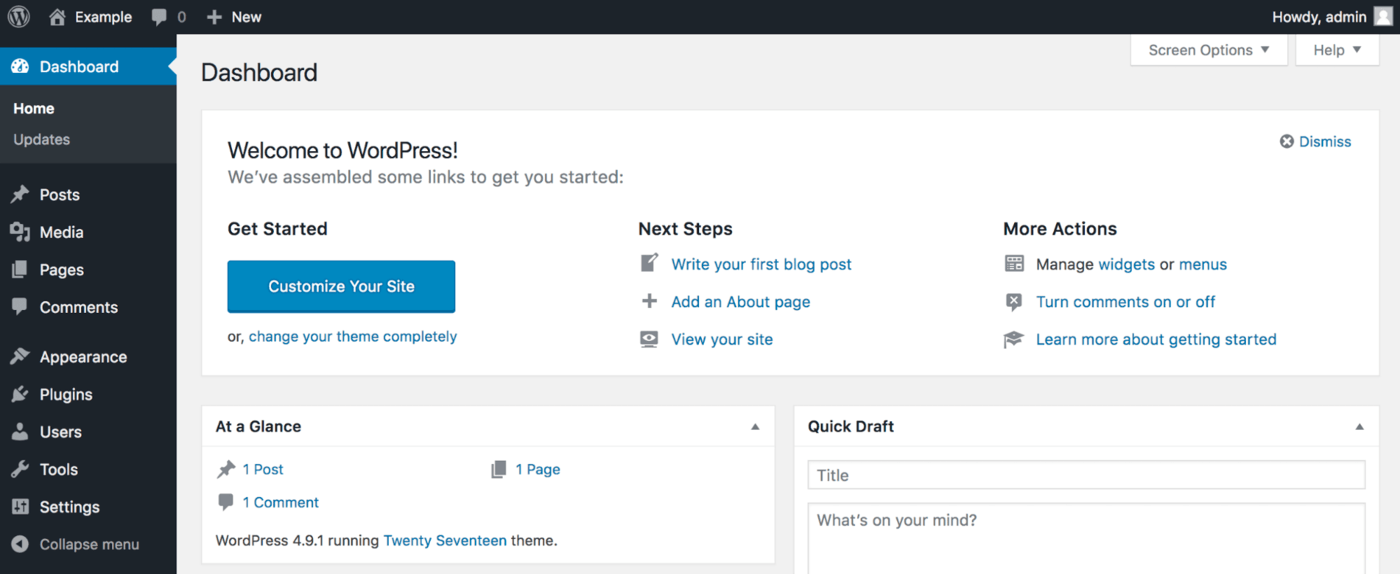
Credit: pagely.com
Why Reset A WordPress Theme
Sometimes themes can get cluttered with unnecessary changes. Resetting the theme can help bring back a clean slate. This makes your site look fresh and organized. Themes may also not work well with new plugins or updates. A reset can fix these issues easily. It ensures better compatibility and performance.
Another reason to reset is to fix errors. These errors can cause your site to break. A reset can solve these problems quickly. It allows you to start fresh without old settings. This keeps your site safe and running smoothly. Resetting is also great for experimenting with new designs. You can try new ideas without the risk of old settings interfering.
Backing Up Your Website
Having a backup is very important. It saves your website from loss. You can use different methods for backup. One way is manual backup. This means copying files and database by yourself. It takes time but is very safe. Another method is automated backup. This uses plugins or tools. They make the process easy and quick. Automated backups can be scheduled. This ensures regular backups without effort. Choose a method that suits your needs. Make sure to test your backups. Testing ensures files are complete and usable.
Many tools help with backups. UpdraftPlus is popular for easy backups. It works with many hosting providers. BackupBuddy is another choice. It offers many features. You can restore websites easily with BackupBuddy. Jetpack also provides backup options. It is a useful tool for WordPress. All these tools save time and give peace of mind. Check tool reviews and features before choosing. Make sure your hosting supports the tool. Regular backups protect your hard work.
Choosing The Right Reset Tool
Selecting an effective reset tool is crucial for a complete WordPress theme reset. Choose one that offers simplicity and reliability, ensuring your site returns to its default state without complications. Proper selection helps maintain site integrity and functionality.
Popular Reset Plugins
Resetting a WordPress theme is easy with plugins. Plugins help remove unwanted settings. They make your site new again. There are many plugins to choose from. Some plugins work better than others.
WP Reset is a favorite for many. It is simple to use. It offers many features. Advanced WordPress Reset is another good choice. It is quick and safe. It keeps your files safe.
Criteria for Selection is important. Look for plugins with good reviews. Make sure they have regular updates. Check if they offer support. Choose plugins that are easy to understand.
Reading user reviews helps a lot. It shows how well a plugin works. Try different plugins to find the best one for you.

Credit: www.youtube.com
Steps To Reset The Theme
First, go to your WordPress dashboard. Click on Plugins then Add New. Search for a reset plugin like WP Reset. Click Install Now and then Activate. This plugin will help you reset your theme quickly.
Open the plugin from the dashboard. Find the tools section. Look for reset options. Choose the reset type you need. Click on reset theme. The theme will return to its original state. Be careful, this action cannot be undone. Always backup your data before starting.
Reinstalling The WordPress Theme
Visit the WordPress theme directory to find your theme. Click on the theme to access its details. Find the download button and click it. The theme will download as a .zip file. Save this file on your computer. Make sure you remember the location. This file is needed for installation.
Go to your WordPress dashboard. Find the “Appearance” menu on the left side. Click on “Themes”. At the top, click “Add New”. Then, click “Upload Theme”. Choose the downloaded .zip file and click “Install Now”. Once installed, click “Activate”. Your theme is now active and ready to use. Check your site to see the new look.

Credit: wordpress.com
Restoring Content And Settings
Begin by finding your backup file on your computer. This file has all your old content. Go to the WordPress dashboard and click on Tools. Then select Import. Choose the type of file you have. Click on the Upload button to start. Wait for the process to finish. You will see your old posts and pages again. It is important to have this backup ready. It keeps your site safe from errors.
Find the Appearance menu in your WordPress dashboard. Click on Customize. This is where you change how your site looks. You can change colors, fonts, and more. You will see a preview of your changes. Make sure to click Save & Publish to keep your changes. Your site will now look just the way you want it. It’s fun to try different settings.
Common Issues And Solutions
Errors can stop your website from working. Common issues include broken links and missing files. Sometimes, a plugin conflicts with your theme. Check if plugins are causing problems. Deactivate them one by one to see which one is bad. If the theme itself is broken, consider reinstalling it. Always keep a backup before making changes. This helps to restore if things go wrong.
Compatibility is key for smooth operation. Make sure your theme is up-to-date with WordPress. Check theme requirements before installing. Older themes may not work well with newer WordPress versions. Use themes from trusted sources only. This ensures safe and reliable performance. Always test changes on a staging site first. This prevents problems on your live site.
Best Practices For Theme Management
Always keep a backup of your site. This protects your data. If something goes wrong, you can restore it. Use a trusted plugin for backups. Schedule them to run regularly. Don’t forget to save backups on external storage. Cloud services work well. This keeps your data safe. Backups are your safety net.
An updated theme is a secure theme. Developers fix bugs and add features. Check for updates every week. It’s easy to update from the dashboard. Click update now when you see one. Don’t skip this step. Updated themes keep your site fast and safe. Always read the update notes. They tell you what’s new.
Frequently Asked Questions
How Can I Reset My WordPress Theme?
To reset your WordPress theme, navigate to your dashboard. Use a plugin like WP Reset for a complete reset. Follow the plugin instructions carefully to restore your theme settings. Always back up your data before resetting to avoid losing any important information.
Is Resetting A WordPress Theme Safe?
Resetting a WordPress theme is generally safe if done correctly. Ensure you have a recent backup of your site. Using trusted plugins, like WP Reset, can minimize risks. Avoid resetting if unsure, and consult documentation or a professional for guidance.
Will Resetting Affect My WordPress Content?
Resetting your WordPress theme affects appearance, not your content. Pages, posts, and media remain intact. However, widgets and customizations may be lost. Always back up your site before proceeding with a reset to safeguard your content.
How Do I Back Up My WordPress Site?
To back up your WordPress site, use plugins like UpdraftPlus. These plugins automate the backup process efficiently. Alternatively, you can manually download your files and database. Regular backups are essential to protect your data and facilitate easy restoration.
Conclusion
Resetting a WordPress theme can seem daunting at first. But with clear steps, it’s manageable. Start by backing up your site. This ensures your data remains safe. Then, use the WordPress dashboard to switch themes. Choose a default theme if needed.
Plugins like WP Reset can simplify the process. They offer easy resets with a click. After resetting, check your site for any issues. Make adjustments where necessary. This process helps maintain a fresh, responsive website. Keep experimenting with different themes.
Find the one that fits your needs best. Happy blogging!


