
Are you looking to give your WordPress site a fresh, unique look? Customizing your theme options can be the key to achieving a design that truly reflects your brand or personal style.
Imagine having complete control over your website’s appearance, from colors and fonts to layouts and more. This isn’t just a dream; it’s a reality you can create with just a few tweaks. In this guide, you’ll discover how to add custom theme options in WordPress, empowering you to tailor every aspect of your site to your liking.
We’ll break down the process into simple, actionable steps so you can enhance your site’s functionality and aesthetics without feeling overwhelmed. Whether you’re a seasoned developer or a WordPress newbie, this article will equip you with the knowledge to transform your website into something extraordinary. Ready to dive in and unlock the full potential of your WordPress site? Keep reading to find out how!
Credit: blog.templatetoaster.com
Benefits Of Custom Theme Options
Custom theme options make your WordPress site unique. They let you change the look easily. You don’t need coding skills. This saves time and effort. Users can adjust colors, fonts, and layouts. These changes help match your brand style. Custom options also improve user experience. Visitors find your site more attractive. Engagement increases as a result.
Custom options can enhance site performance. You can optimize loading speed. Fast websites rank better in search engines. This helps with SEO. Customization makes your site stand out. It creates a lasting impression. Your site becomes memorable. Custom theme options offer flexibility. They allow quick updates and changes. This keeps your site fresh and current.
Setting Up A Child Theme
Creating a child theme is important for customizations. It keeps changes safe during updates. First, make a new folder in the themes directory. Name it something like my-child-theme. Add a style.css file inside. This file is for styling changes. Don’t forget to add the theme details at the top. Use Template: to link the child theme to its parent.
Next, make a functions.php file. This file will hold custom functions. Copy the parent theme’s functions into this file. Use the wp_enqueue_style() function to load the parent theme’s style. This ensures styles are applied correctly. Now, activate the child theme in the WordPress dashboard. Check for any errors. If everything looks good, you have set up a child theme.
Creating A Theme Options Page
WordPress Customizer helps to tweak theme settings easily. It offers a live preview of changes. This tool is found under the Appearance menu. Customize and adjust settings in real-time. You can change colors, fonts, and layout. Add new sections for more options. Save changes once you are happy with them. Simple and user-friendly.
The Advanced Custom Fields (ACF) Plugin adds extra options. Install and activate the plugin first. Go to the ACF menu. Click on Add New to create custom fields. Choose the field type you need. Text, image, or checkbox. Assign fields to pages or posts. Save your settings once done. Now, fields appear in the editor. Easy and flexible for all users.
Integrating Theme Options Into Code
PHP helps to make websites interactive. Theme options can be accessed using PHP. This makes it easy to change the site look. WordPress has a function called get_option(). It helps fetch theme settings. Use it to get the theme colors or fonts. Just put the option name in the function. The option data will be retrieved. PHP is powerful and simple.
CSS changes the style of a site. Use JavaScript for actions like clicks. Theme options can be used in CSS files. This can change colors or sizes easily. JavaScript can also use these options. This helps create dynamic sites. Use PHP to pass options to CSS or JavaScript. It connects everything together. This way, theme changes reflect everywhere.
Testing And Debugging
Common Errors and Fixes are vital to smooth theme options. Errors may arise from incorrect code syntax. Always check for missing semicolons and brackets. Another common mistake is conflicting function names. Ensure functions are uniquely named. Debugging tools like WP_DEBUG help identify issues quickly.
Ensuring Cross-Browser Compatibility is crucial for user experience. Test your theme on various browsers. Check for alignment issues. Sometimes CSS behaves differently. Use browser developer tools to adjust CSS. Always keep browsers updated. Regular testing helps in catching issues early.

Credit: qodeinteractive.com
Tips For User-friendly Options
Adding custom theme options in WordPress enhances user experience. Start by accessing the theme’s functions. php file. Include option fields using the Settings API for easy customization.
Organizing Options Effectively
Group similar options together. This helps users find them quickly. Use clear labels for each group. Make sure the layout is simple and clean. Avoid cluttering the page with too many items. Limit the number of visible options. This keeps the design neat.
Providing Helpful Descriptions
Include short descriptions for each option. This helps users understand the purpose. Use simple language for the descriptions. Avoid technical words. Make sure the explanations are clear. Short sentences work best. Users appreciate straightforward guidance. This enhances their experience.
Popular Plugins For Theme Options
Custom theme options can be added using popular WordPress plugins like Advanced Custom Fields, Redux Framework, and Kirki. These tools provide user-friendly interfaces to manage settings, enhancing website personalization effortlessly. Integrating these plugins helps tailor themes to specific needs without complex coding.
Redux Framework
Redux Framework is a powerful tool. It helps create custom theme options. Developers use it to build user-friendly interfaces. It offers many features. Users can change settings easily. This plugin supports various fields. Text, color, and image fields are included. It is flexible and easy to use. You can customize themes quickly. It works well with WordPress themes. Many developers prefer it. It is a popular choice for theme customization.
Options Framework
Options Framework is another useful tool. It helps set up theme options. Developers use it for simple customization. This plugin is easy to install. It offers a clean interface. Users can change theme settings with ease. It supports different field types. Text, checkbox, and select fields are available. It helps manage theme options efficiently. Options Framework is lightweight. It is a great choice for beginners. Many WordPress users trust it.
Credit: blog.templatetoaster.com
Maintaining And Updating Theme Options
Backup Strategies keep your site safe. Always save theme changes. Use plugins for backups. Some plugins are free. Others cost money. Choose what fits your needs. Backups protect against loss. They help restore your site. This is very important.
Version Control Best Practices ensure smooth updates. Track theme changes. Use tools like Git. Git helps manage files. It shows what changed. Collaborate with team members. Everyone sees updates. This avoids confusion. Keep your theme neat. Regular updates are crucial. They keep your theme fresh.
Frequently Asked Questions
How Do I Add Theme Options In WordPress?
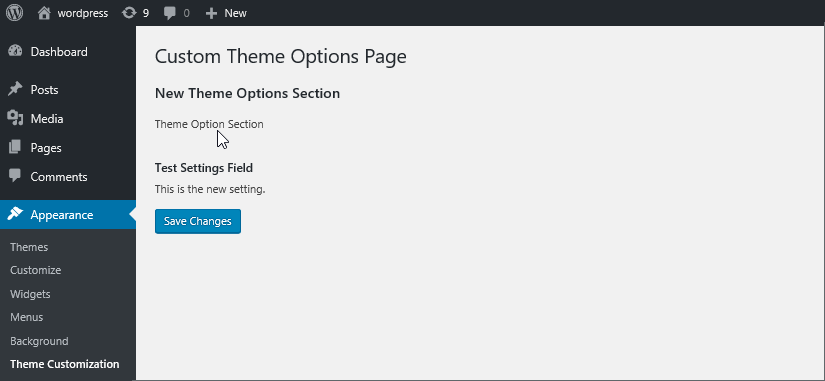
To add theme options in WordPress, use the `add_theme_page()` function. This function allows you to create a custom settings page in the admin panel. You can define your options using settings fields, and save them using the WordPress settings API.
What Are Custom Theme Options?
Custom theme options enable users to tailor their WordPress site’s appearance and functionality. They can include settings for colors, fonts, layouts, and more. These options provide flexibility without requiring direct code changes, enhancing user experience.
How Do I Customize WordPress Themes?
Customize WordPress themes using the Theme Customizer or custom theme options. The Customizer allows you to change site identity, colors, and menus. Advanced customization requires coding skills to add custom theme options using functions and hooks.
Why Use Theme Options In WordPress?
Theme options in WordPress provide easy customization and flexibility. They allow users to modify site appearance without coding. This enhances user experience, making it simple to personalize a site while maintaining consistent design elements.
Conclusion
Custom theme options make your WordPress site unique. Easy to manage. These options allow flexibility. You can adjust design elements. Tailor your site to fit your brand. It’s an opportunity to enhance user experience. Your site becomes more engaging. Attractive layouts bring visitors back.
Explore possibilities with custom settings. A chance to improve functionality. Dive into theme customization. It empowers your online presence. Stand out with simple tweaks. Your WordPress site deserves a personal touch. Start customizing today. Small changes make a big impact.
Your site reflects your vision. Effortless creativity awaits. Embrace the potential of custom themes.


