
Are you looking to give your WordPress site a unique touch without diving deep into complex coding? Adding a custom page template to your WordPress theme might just be the solution you need.
Imagine having the power to create specialized layouts that perfectly suit your content, enhancing both the appearance and functionality of your website. Not only does this elevate your site’s design, but it also helps in capturing your audience’s attention and keeping them engaged.
In this guide, you’ll discover a straightforward process to add a page template to your WordPress theme, making your site stand out from the rest. Curious about how it’s done? Let’s delve into the steps that will transform your site into a personalized masterpiece.
Understanding Page Templates
Page templates are special files in WordPress. They control the look of a page. A theme can have many page templates. Each one offers a different style. You can use them to make pages unique. Choose the best one for each page. Templates can change the layout and features. They give more options than a regular post.
Using page templates is very important. They help create a unique website. Templates add special features to pages. They allow more control over design. With templates, customization is easier. They make the website look professional. Themes without templates are limited. Templates give more freedom to design.

Credit: docs.themeisle.com
Preparing Your WordPress Environment
Backup Your Site is very important. It keeps your work safe. Use plugins like UpdraftPlus. They save your site data. A backup helps if something goes wrong. Always keep a backup before changes.
Accessing Theme Files is needed for adding templates. Go to your WordPress dashboard. Find the “Appearance” menu. Click on “Theme Editor.” This opens your theme files. Look for the file named “page.php.” You can add your template here. Make changes carefully. Save your work after editing.
Creating A New Page Template
To add a page template in a WordPress theme, use correct file naming conventions. Start by creating a new file in your theme’s folder. Name the file something unique, like page-custom.php. This file name should not match any existing template names.
Inside the new file, include a template header. This header tells WordPress it’s a template. At the top of the file, write:
/
Template Name: Custom Page
/
The header must start with / and end with /. This code makes the template visible in WordPress. When editing a page, choose this template from the dropdown menu. Your new template is now ready for use!

Credit: wordpress.org
Customizing The Template
Use HTML to design the page layout. Add text and images with ease. Make the page look nice and organized. PHP helps to add special features. It pulls data and displays it. Use both together to make a great page. Save your changes often. Check how it looks on the site.
WordPress has many functions to use. They help to add features to the page. Use the get_header() function to add a header. The get_footer() function adds a footer. These make the page look complete. Other functions help with menus and sidebars. Try them and see how they work. It is fun to explore.
Incorporating Styles And Scripts
Adding page templates in a WordPress theme involves incorporating styles and scripts. Customize your website by creating a new PHP file in the theme folder. Define the template name and structure, enabling unique designs for specific pages.
Adding Custom Css
Custom CSS gives your page a unique look. First, locate the style.css file in your theme. This file controls the look of your site. To add custom styles, write your CSS code in this file. Use selectors to target elements. For example, use body for the whole page. Use h1 for main headings. Save changes after adding your code. Refresh your page to see changes. Custom CSS is powerful. It helps make your site look special.
Enqueuing Javascript Files
JavaScript adds dynamic features to your page. To add scripts, use the functions.php file. This file is in your theme folder. Use wp_enqueue_script function to add JavaScript files. Specify the file path. Add dependencies if needed. Use priority numbers to control load order. This helps scripts work correctly. For example, load jQuery first. Then, load your custom script. Save your changes. Check your page to see new features. JavaScript makes pages interactive. Users enjoy dynamic content.
Assigning The Template To A Page
Open your WordPress dashboard. Go to the Pages section. Click on the page you want. This will open the page editor.
Find the Page Attributes box on the right. Look for the Template dropdown menu. Choose your desired template from the list. Click on Update to save changes. Your new template is now active.
Testing And Debugging
Adding a page template in a WordPress theme involves testing and debugging to ensure functionality. Start by creating a new PHP file in your theme’s directory. Then, define the template name using a comment at the top of the file.
Previewing Changes
Preview your page template changes on a test site first. This helps you see how your design looks. It also shows if there are any errors. Use the WordPress Customizer for live previews. This tool lets you view changes before publishing. Look for any broken layouts or missing elements. Fix these issues early to save time. Always keep a backup of your original theme files. This ensures you can restore if something goes wrong.
Common Issues And Fixes
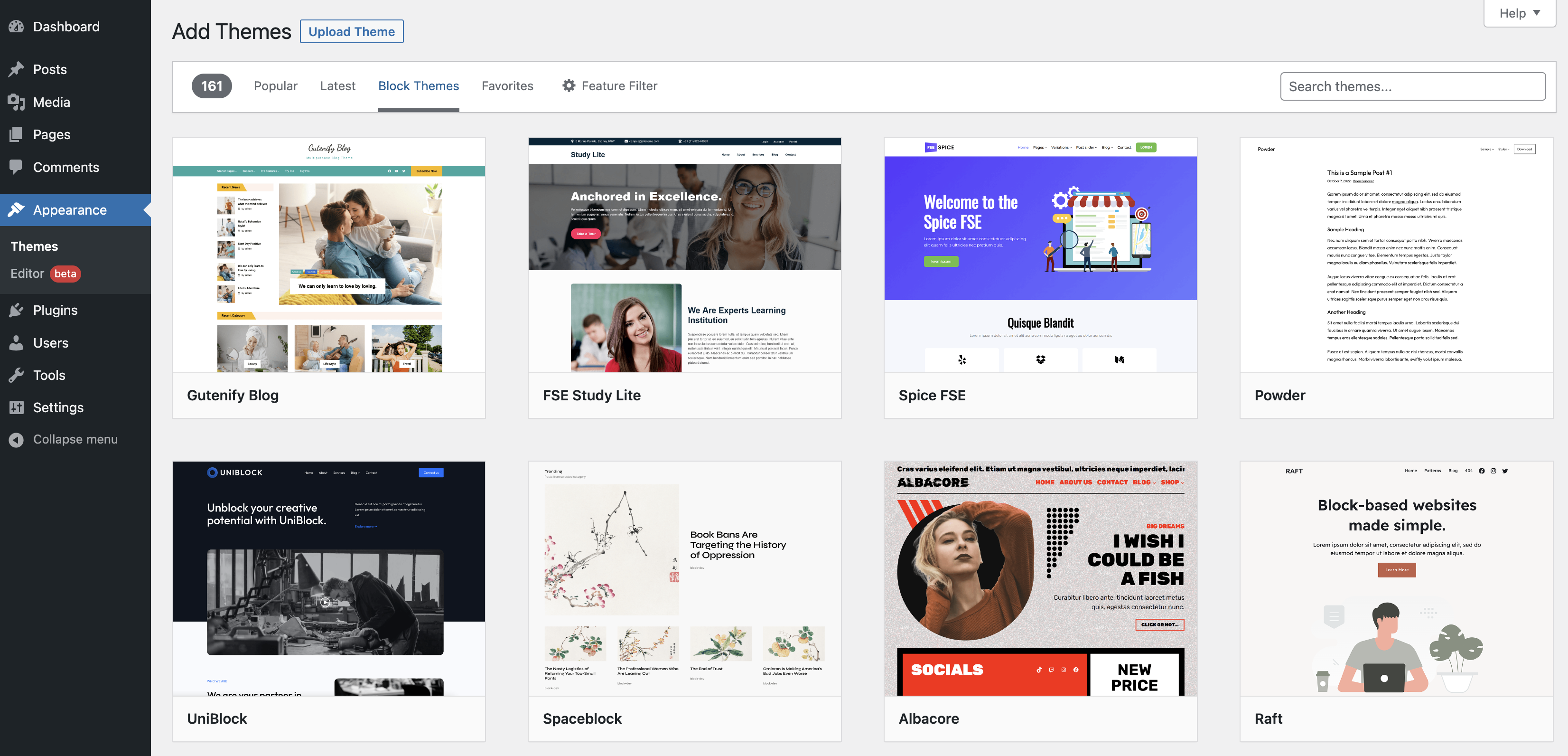
Many common issues occur during testing. Sometimes, styles don’t apply as expected. Check your CSS files for errors. Ensure all paths are correct. Missing images can also be a problem. Verify that image URLs are accurate. If your page template does not load, review your file naming. WordPress requires specific naming conventions. Always clear your browser cache to see updates. These steps help ensure your template works smoothly.
Credit: wordpress.org
Best Practices
Always use clean code. It helps others read and understand it. Avoid spaghetti code. It makes future updates hard. Use comments to explain tricky parts. Keep functions small and clear. They should do one thing only. Big functions confuse people. Use consistent naming for variables and functions. It improves readability. Write tests for new code. It ensures everything works well.
Test your template on different devices. Phones, tablets, laptops. Make sure it looks good everywhere. Check browser compatibility. Your template should work on Chrome, Firefox, Safari, and Edge. Use valid HTML and CSS. It reduces errors. Update your theme with new versions of WordPress. This keeps it secure and fast. Avoid using outdated plugins. They can break your template.
Frequently Asked Questions
What Is A Page Template In WordPress?
A page template in WordPress is a file that controls the layout and design of a specific page. It allows you to customize the appearance and structure of individual pages without affecting others. Page templates can be created and modified in your WordPress theme to suit your design needs.
How Do I Create A Custom Page Template?
To create a custom page template, first access your theme folder via FTP or file manager. Create a new PHP file and add a template name at the top. Add the desired HTML and PHP code for the layout. Save the file in your theme’s directory, then assign the template to a page from the WordPress dashboard.
Can I Use Multiple Templates In WordPress?
Yes, you can use multiple templates in WordPress. You can create various page templates for different sections of your website. Each template can have a unique design and layout, allowing you to customize the appearance of pages based on their purpose or content.
How Do I Assign A Page Template?
To assign a page template, go to your WordPress dashboard and edit the desired page. In the ‘Page Attributes’ box, select the template you want from the ‘Template’ dropdown menu. Save the page to apply the chosen template, which will change the page’s layout and design.
Conclusion
Adding a page template in WordPress is simple. Follow the steps carefully. Your theme becomes more versatile. Customize pages to suit your needs. Enhance your site’s functionality without coding. Templates offer flexibility for different designs. Experiment with layouts. Make your site unique and user-friendly.
Ensure templates align with your brand. Test changes before going live. Always back up your site first. Keep your WordPress updated. Stay creative and explore new ideas. Your website reflects your vision. Engage visitors with a well-designed site. Happy customizing!


