
Are you looking to give your WordPress site a fresh look? Changing your theme’s screenshot can be a simple yet powerful way to enhance your site’s visual appeal.
Whether you’re a seasoned blogger or a business owner, a captivating theme screenshot can leave a lasting impression on visitors and help you stand out in the crowded digital landscape. Imagine your website as a storefront; the theme screenshot is like the window display that entices passersby to step inside.
You want it to be inviting, unique, and reflective of your brand. But how do you make this change without getting tangled in technical jargon or risking your site’s functionality? In this guide, you’ll discover the straightforward steps to change your WordPress theme screenshot effectively. You don’t need to be a tech wizard to follow along. By the end, you’ll have the confidence to update your theme’s visual identity with ease, ensuring it captures the essence of your brand and draws your audience in. Ready to transform your site’s first impression? Let’s dive in!
Why Change Theme Screenshot?
Changing the theme screenshot can make your site look fresh. It helps when you have a custom theme. Others will see a unique image instead of the default one. This can make your website stand out. Visitors may find your site more attractive and professional. It also reflects your brand better. Updating the screenshot is not hard. Follow simple steps to do it. Your site will look better in no time. Always remember to keep a backup. This way, your original files stay safe. Changing screenshots can be fun and creative. Explore new designs and ideas.
Choosing The Right Image
The right image helps your theme look good. Always check dimensions first. Images should fit the screen well. Common size is 1200×900 pixels. This size works for most screens. Use JPEG or PNG formats. These are popular and easy to use. They keep the image clear and sharp. Avoid using large files. Large files make the page slow.
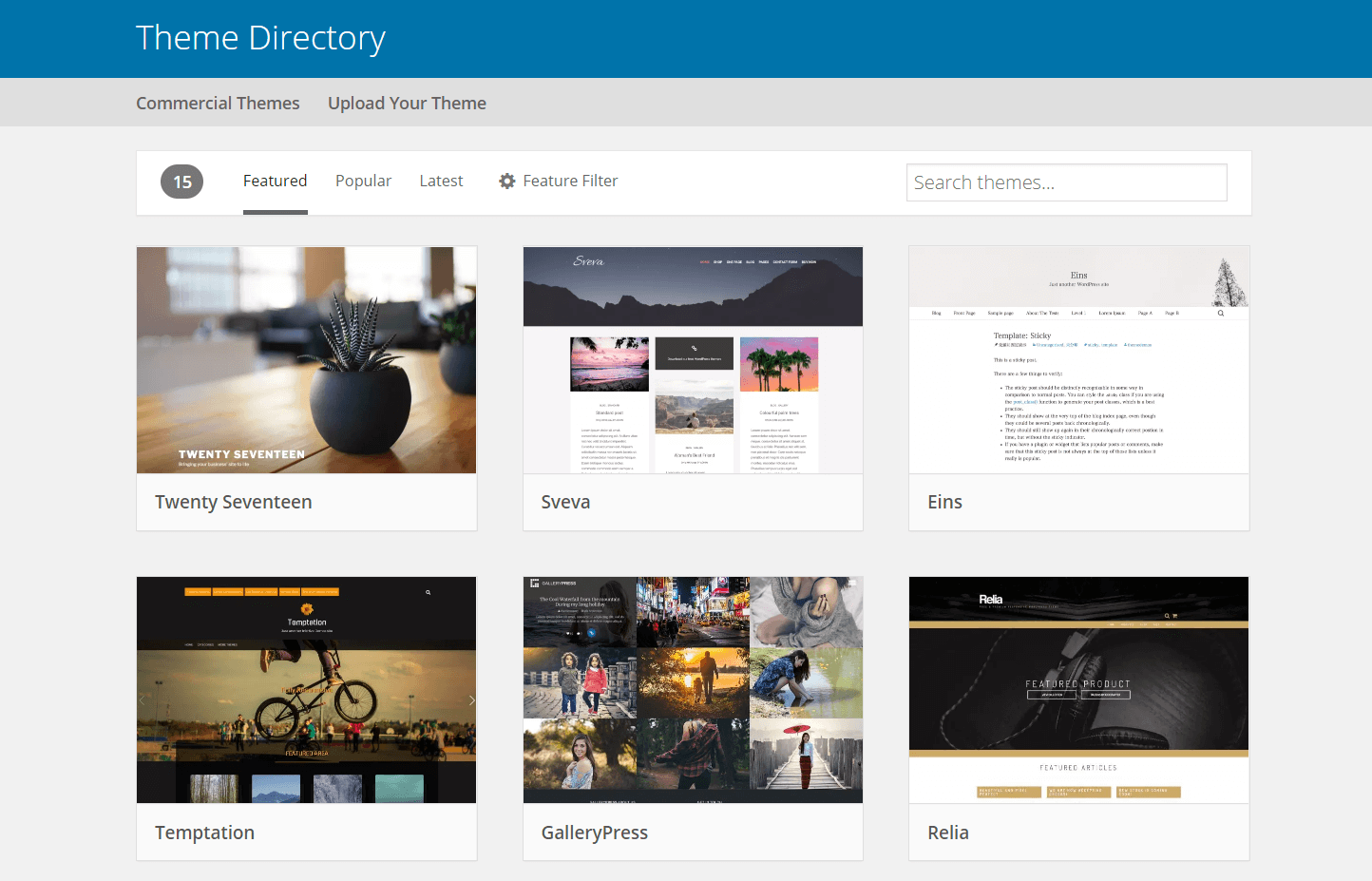
Look for high-quality images. Websites like Unsplash offer free images. You can also create your own image. Use tools like Canva. Canva is easy to use. It helps make beautiful images. Choose colors that match your theme. Make sure the image is clean. Avoid cluttered images. Clutter confuses viewers. Keep it simple and neat.
Preparing The Image
First, make sure the image fits the theme. It should be the right size. Check your theme’s guidelines. Most themes use 1200×900 pixels. This size looks good. You can use tools like GIMP or Paint. Resize your image to fit. This step is important. It helps the theme look nice.
Images should load quickly. Slow images make sites slow. Use tools like TinyPNG or JPEG Optimizer. They make images smaller. But the quality stays good. Smaller images help your site. It loads faster. Visitors will be happy. They stay longer. This helps your site grow.
Credit: adityaarsharma.com
Accessing Theme Files
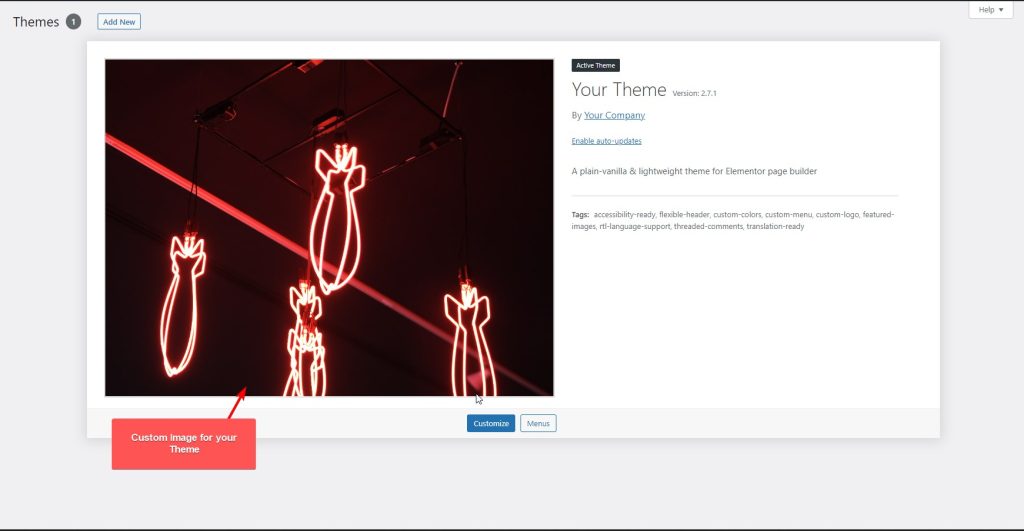
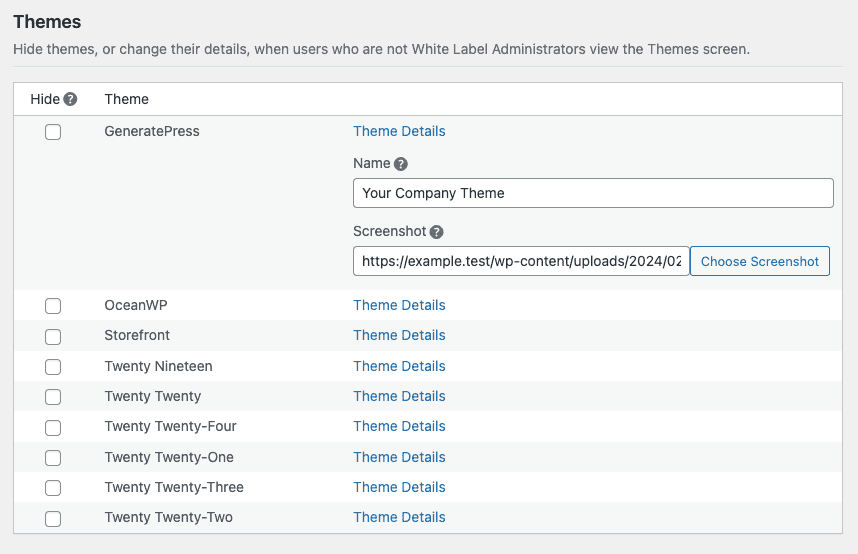
Start by logging into your WordPress Dashboard. Look for the Appearance option on the left. Click on it. Then select Themes. Find the theme you want to change. Click on Theme Details. Here, you can see the theme screenshot. To change it, you need to access the theme files.
First, open your FTP client. Enter your website’s login details. Connect to your server. Once connected, go to the wp-content folder. Open the themes folder. Find your theme’s folder. Look for an image named screenshot.png. This is the current theme screenshot. Replace it with your new image. Make sure the new image is named screenshot.png too.
Replacing The Screenshot
Theme files are stored in the wp-content folder. Inside, find the themes folder. Each theme has its own folder. Open the folder of the theme you use. Search for the screenshot.png file. This file is the image you see in the admin area. It helps you identify the theme quickly. Make sure you have access to this folder. You might need permission to edit files.
Choose a new image for your theme. Keep the size similar to the old screenshot. Name the new image screenshot.png. This name is important. Navigate back to the theme’s folder. Delete the old screenshot.png. Upload your new image there. Refresh the admin area to see changes. The new screenshot appears instantly. Now your theme has a fresh look.
Credit: wpengine.com
Verifying The Change
Cache stores old information. This can show the old theme. Always clear your browser cache. Use the CTRL + F5 command. This refreshes your page. Make sure to clear cache plugins. WordPress has many cache plugins. Check the settings in these plugins. Look for the “Clear Cache” option. This updates your site’s look.
Websites look different on devices. Check your site on a phone. Then try it on a tablet. Also, check on a computer. Make sure the theme looks good everywhere. Sometimes, themes break on small screens. If this happens, adjust the settings. Or choose a new theme. This ensures a great user experience for all.
Troubleshooting Common Issues
Changing the WordPress theme screenshot involves accessing the theme folder via FTP or file manager. Locate the image file named screenshot. png and replace it with your desired image. Ensure the new image matches the dimensions of the original screenshot for optimal display.
Image Not Displaying
The theme screenshot might not show. Check if the image file is uploaded correctly. Ensure it is in the theme folder. The file name should be screenshot.png. Make sure it’s in the right format and size. If it’s too big, it might not load. Refresh the browser to see if it appears. Sometimes clearing the browser cache helps.
Reverting Changes
Your new screenshot might not look good. You can go back to the old one. Just replace the current screenshot file with the old one. Make sure it is named screenshot.png. Check the theme folder to find it. Remember to clear the cache after making changes. This ensures you see the updated image. If you still face issues, consult the theme documentation.
Credit: whitewp.com
Frequently Asked Questions
How Can I Change My Theme Screenshot?
To change your WordPress theme screenshot, access your theme files via FTP or file manager. Locate the screenshot. png file in the theme folder. Replace it with a new image, ensuring it’s named screenshot. png and has the same dimensions.
Refresh your WordPress dashboard to see the updated screenshot.
What Size Should The Theme Screenshot Be?
The standard size for a WordPress theme screenshot is 1200×900 pixels. This size ensures clarity and compatibility across different devices and interfaces. Keep the screenshot in PNG format for optimal quality. Following these guidelines will display your theme screenshot correctly in the WordPress dashboard.
Why Is My Theme Screenshot Not Updating?
If your theme screenshot isn’t updating, check the image file name and format. Ensure it’s named screenshot. png and saved in PNG format. Clear your browser cache or refresh your WordPress dashboard. These steps usually resolve any issues with updating the theme screenshot.
Can I Use Any Image For My Theme Screenshot?
You can use any image for your theme screenshot, but ensure it’s relevant and high-quality. The image should represent your theme’s design and functionality. Follow the recommended size and format guidelines to maintain compatibility. Choose an image that enhances your theme’s visual appeal and user experience.
Conclusion
Changing your WordPress theme screenshot is simple. Follow the steps carefully. Customize your site’s look with ease. A new screenshot can refresh your site. It also can give a better first impression. Remember to save your changes. Always preview before finalizing.
If errors occur, check your image format. WordPress supports common formats like JPEG and PNG. Regular updates keep your site fresh. Explore different themes for unique designs. Keep your site engaging and visually appealing. Enjoy your newly updated WordPress theme screenshot.


