
Are you tired of the same old look on your WordPress site? Changing your theme template can give your website a fresh, new appearance and improve user experience.
But where do you start? The good news is, you don’t need to be a tech wizard to make this change. In this guide, you’ll learn step-by-step how to switch up your WordPress theme effortlessly. Imagine your visitors being wowed by a modern design that perfectly aligns with your brand.
Ready to transform your site and captivate your audience? Let’s dive in and explore how you can do this with ease.
Choosing The Right Theme
Think about what you want your website to do. Do you need a blog, an online store, or a portfolio? Each type needs a different theme. List down your main goals. This will help you pick the best theme for your needs.
Search for themes on WordPress or other sites. Many are free, and some cost money. Look for themes with good reviews and ratings. Read comments from other users. This can tell you a lot about a theme’s quality.
Look at each theme’s features. Do you need a responsive design? Most themes offer this. Check if the theme has SEO tools. Some themes offer customization options. This means you can change colors and layouts easily.
Installing A New Theme
Accessing the WordPress Dashboard is the first step. Log into your WordPress site. Look for the dashboard on the left side. It’s where you manage your site.
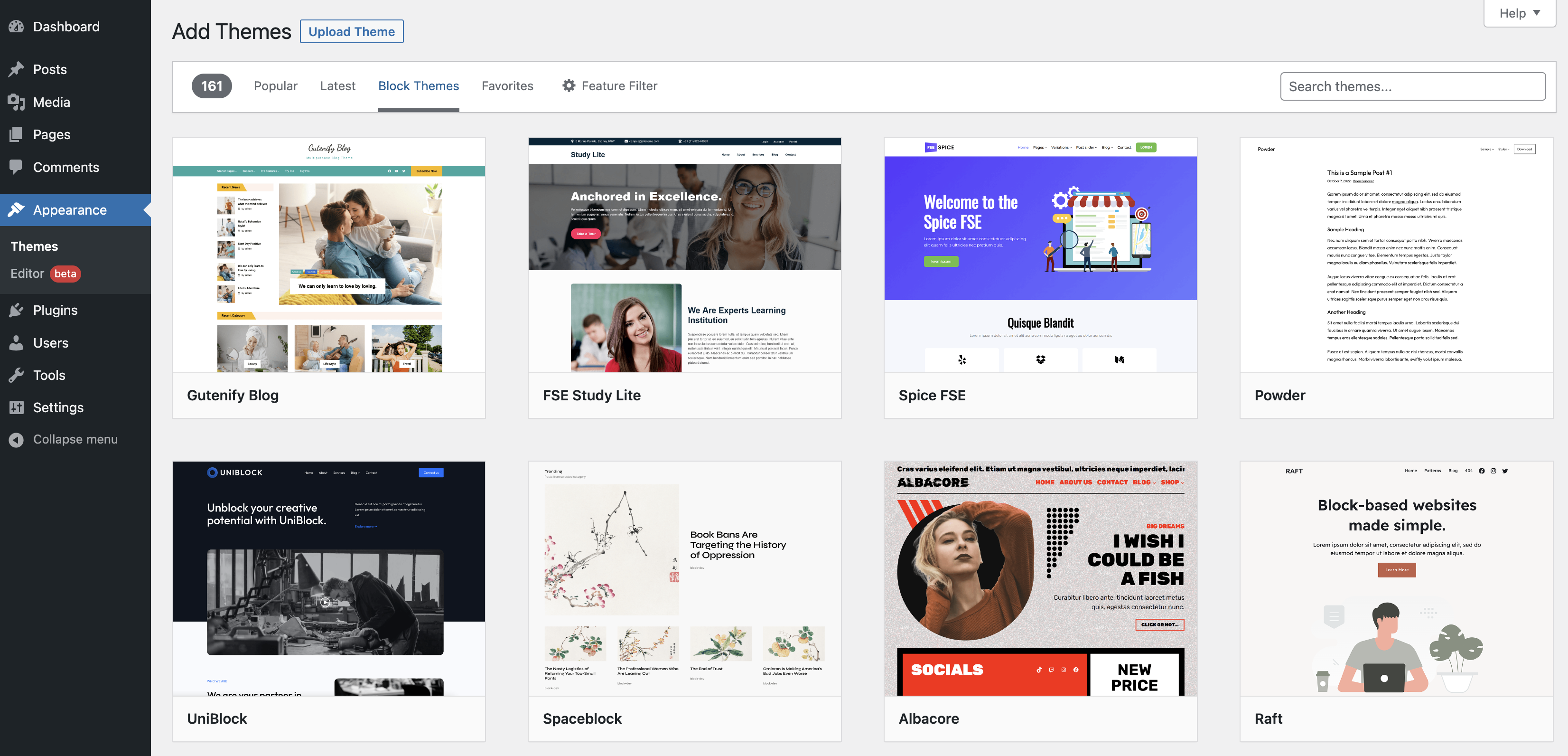
Go to the Themes Section next. Click on “Appearance.” Then, click “Themes.” Here, you will see your installed themes.
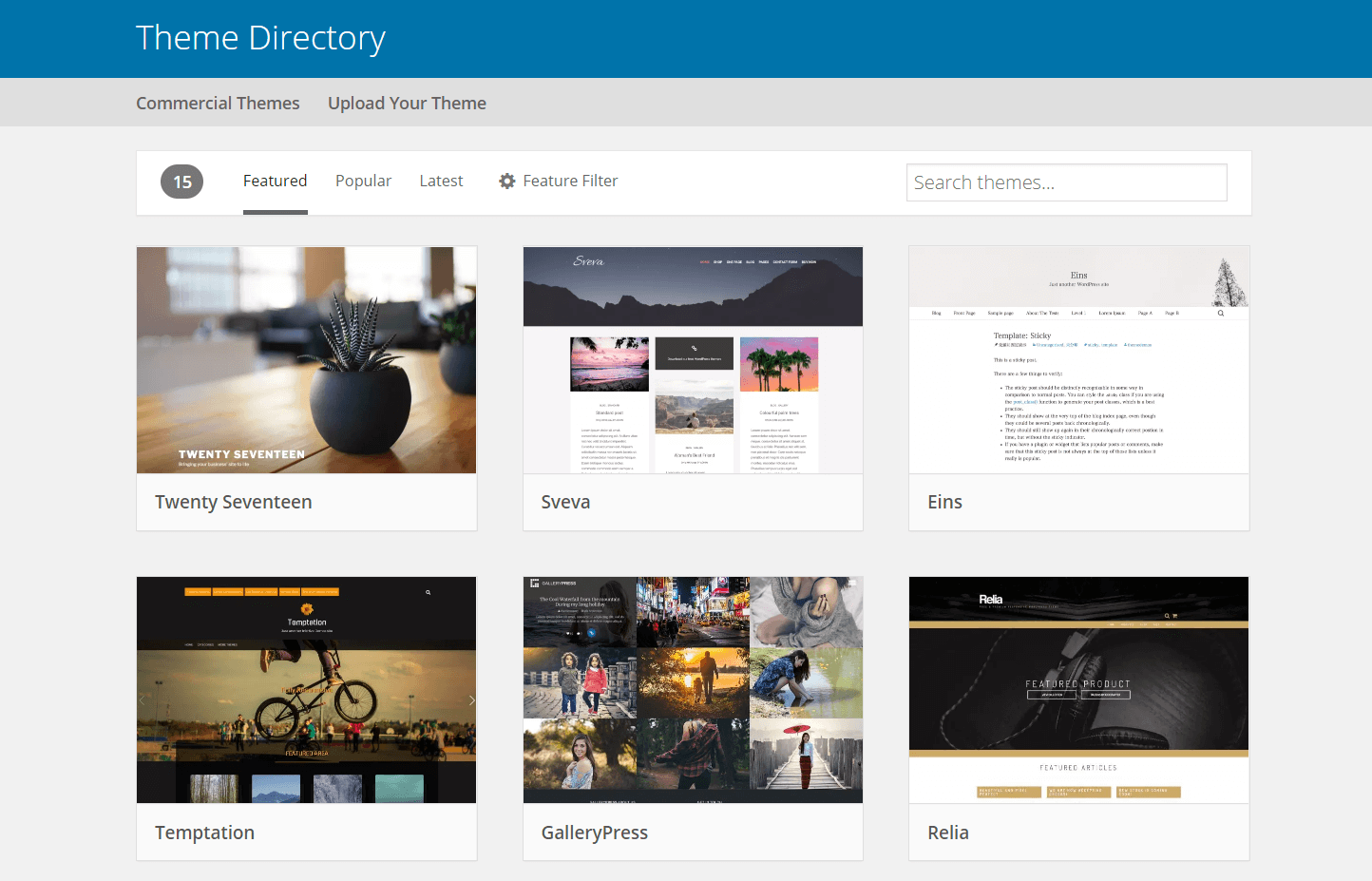
Want a new theme? You can Upload or Search for a Theme. To upload, click “Add New.” Choose “Upload Theme.” Select your theme file from your computer. To search, use the search bar. Find themes that match your style.
Activating The Selected Theme
Changing the theme template on WordPress involves a few simple steps. Access your dashboard, then navigate to “Appearance” and select “Themes. ” Choose your preferred theme and activate it to refresh your site’s look instantly.
Previewing The Theme
Before you activate a theme, always preview it. Click on the “Live Preview” button. This helps you see how your site will look. Check colors, fonts, and layout. Make sure you like what you see. If not, try a different theme.
Activating The Theme
Satisfied with the preview? It’s time to activate the theme. Click the “Activate” button. This makes the theme live on your site. Your website will now use the new design. Visit your site to see the changes. You can change the theme anytime.
Checking For Compatibility
Ensure the theme works with your plugins. Some themes might not support certain plugins. Check if everything functions well. Test important features on your site. If something is broken, you might need a different theme. Always keep a backup of your site. This way, you can restore if things go wrong.
Credit: wordpress.org
Customizing Theme Settings
Easily change your WordPress theme template by accessing the dashboard. Navigate to “Appearance” and select “Themes” to explore options. Choose a new theme, click “Activate,” and your site’s look will transform instantly. Customize further by adjusting settings under the “Customize” tab for a unique appearance.
Using WordPress Customizer
The WordPress Customizer helps you change your website’s look easily. You can see changes in real-time. This tool allows you to preview changes. Make your site unique without knowing code. It’s user-friendly and quick to use. Access it from the dashboard under “Appearance”. Explore options like colors, fonts, and more.
Adjusting Colors And Fonts
Colors and fonts create your website’s mood. Pick colors that match your brand. Choose fonts that are easy to read. The Customizer has a simple menu for this. Try different combinations. Find what looks best. Adjust until you’re happy with the result.
Configuring Layout And Widgets
Layout decides where things appear on your site. Widgets add extra features like search bars. Arrange them to suit your needs. The Customizer lets you drag and drop items. It’s simple and intuitive. Change layouts to improve user experience. Make your website user-friendly and neat.
Testing And Optimizing
Themes must look good on all devices. Check if the theme is responsive. Use different devices for testing. Ensure text and images adjust well. Screen size changes should not affect quality. A responsive design makes users happy.
Page speed is important for users. Slow pages may drive them away. Use tools to measure load times. Aim for fast loading under three seconds. Improve speed with optimized images. Limit plugins and scripts. Speed affects user experience and SEO.
Broken links frustrate visitors. They harm your site’s trust. Regularly check all links. Fix any broken links you find. Use online tools for easy checking. Keep your links updated and working. A well-maintained site gains more visitors.

Credit: wordpress.com
Backing Up Your Site
Backup plugins make site protection easy. Plugins save your data. They copy all your files. You can find many in the WordPress store. Choose one with good reviews. Plugins like UpdraftPlus are popular. They are easy to use. Set up the plugin with a few clicks. Make sure the plugin updates often. Updated plugins work better and are safer.
Regular backups keep your site safe. Set a schedule for backups. Daily or weekly backups work well. Some plugins let you set this schedule. Automatic backups save time. You don’t have to remember to do it. Always keep more than one backup. Store them in different places. This way, your site is always protected.
Troubleshooting Common Issues
Switching theme templates in WordPress can be tricky. Sometimes themes don’t display properly or settings get lost. Troubleshoot by checking compatibility, reviewing settings, and ensuring all plugins are updated.
Resolving Theme Conflicts
Themes sometimes clash with each other. This can cause problems. Switch to a default theme like Twenty Twenty-One. Check if the problem goes away. Often, plugins might also cause trouble. Disable plugins one at a time. Find the one causing the issue.
Restoring Previous Theme
Sometimes new themes do not work well. You can always go back. Use the WordPress dashboard. Go to Appearance, then Themes. Find your old theme. Click Activate. Your old settings will return.
Contacting Theme Support
Stuck with a problem? Ask for help. Visit the theme’s support page. Look for a contact or help section. Write a clear message. Explain your issue. Support will guide you. They can solve many problems fast.
Credit: wpengine.com
Frequently Asked Questions
How Do I Install A New Theme On WordPress?
To install a new theme, go to your WordPress dashboard. Select “Appearance,” then “Themes. ” Click “Add New” to browse themes. Find a theme you like, click “Install,” and activate it. Ensure the theme is compatible with your WordPress version before installing.
Can I Customize A WordPress Theme Template?
Yes, WordPress themes can be customized. Use the “Customize” option under “Appearance” in the dashboard. This allows you to adjust colors, fonts, and layouts. For advanced changes, use custom CSS or child themes. Always back up your site before customizing.
How Do I Change My Theme Without Losing Content?
Changing themes won’t affect your content. Your posts, pages, and media remain intact. However, some theme-specific settings might reset. Before switching, back up your site and note widget positions. Preview the new theme to ensure compatibility with your existing content.
What Is The Safest Way To Change Themes?
Safely change themes by first backing up your website. Use a staging site to test the new theme. Check for plugin compatibility and update your WordPress version. After thorough testing, activate the new theme on your live site. Always keep your site secure and updated.
Conclusion
Changing a WordPress theme template is simple. Follow the steps mentioned. You can choose a theme that fits your style. Remember to preview before you activate it. Check for compatibility with plugins. It ensures smooth functioning. Always back up your site.
Important for safety. Experiment with different themes. Find what you love. Customize it to match your vision. A new theme can refresh your website look. Keep your audience engaged. Happy blogging!


